

If you need to capture your desktop, tutorials, meetings, or gameplay without spending money, this guide to the best free screen recorders for Windows 11/10 has you covered. We’ll highlight tools with no watermark, easy controls, and solid performance so beginners can hit record with confidence.
What Are Screen Recorders?
A screen recorder is software that saves a video of whatever appears on your display. Many also capture system sound, microphone input, and a webcam overlay, then export to formats like MP4 or WebM. Some even include basic editing, noise removal, or instant sharing.
Why Would a Beginner Use a Screen Recorder?
Beginners love these tools because they simplify tasks like making quick “how-to” clips for colleagues, recording classes or meetings for later review, capturing bugs to share with support, or filming gameplay. The right recorder offers simple controls, clear audio, and reliable output—no complicated setup required.
Best Free Screen Recorders for Windows 11/10 (No Watermark)
GearUpWindows Screen Recorder (Browser-Based)
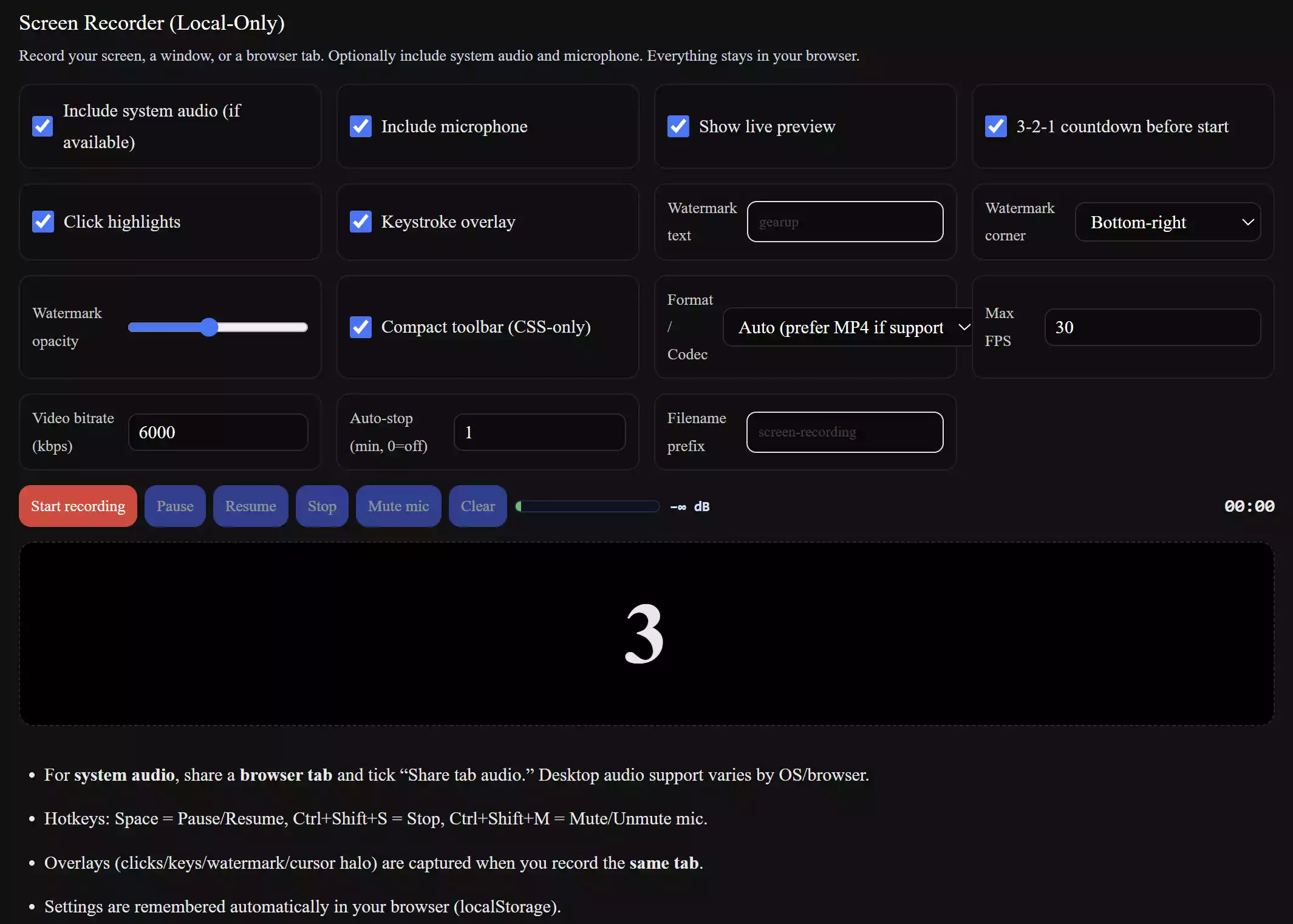
Our Screen Recorder runs in your browser and saves everything locally—no uploads, no watermark. Capture Screen, Window, or Tab with system audio and microphone, choose MP4 (H.264) or WebM, and optionally show click highlights, keystrokes, and a small watermark. A 3-2-1 countdown, live preview, and hotkeys make quick recordings easy.
- Best for: Quick tutorials, meetings, and tab captures without installing software.
- Pros: No watermark; local-only privacy; MP4/WebM export; overlays; remembers settings.
- Considerations: System audio works best when recording a browser tab with “Share tab audio.”
Download: Open Screen Recorder
OBS Studio
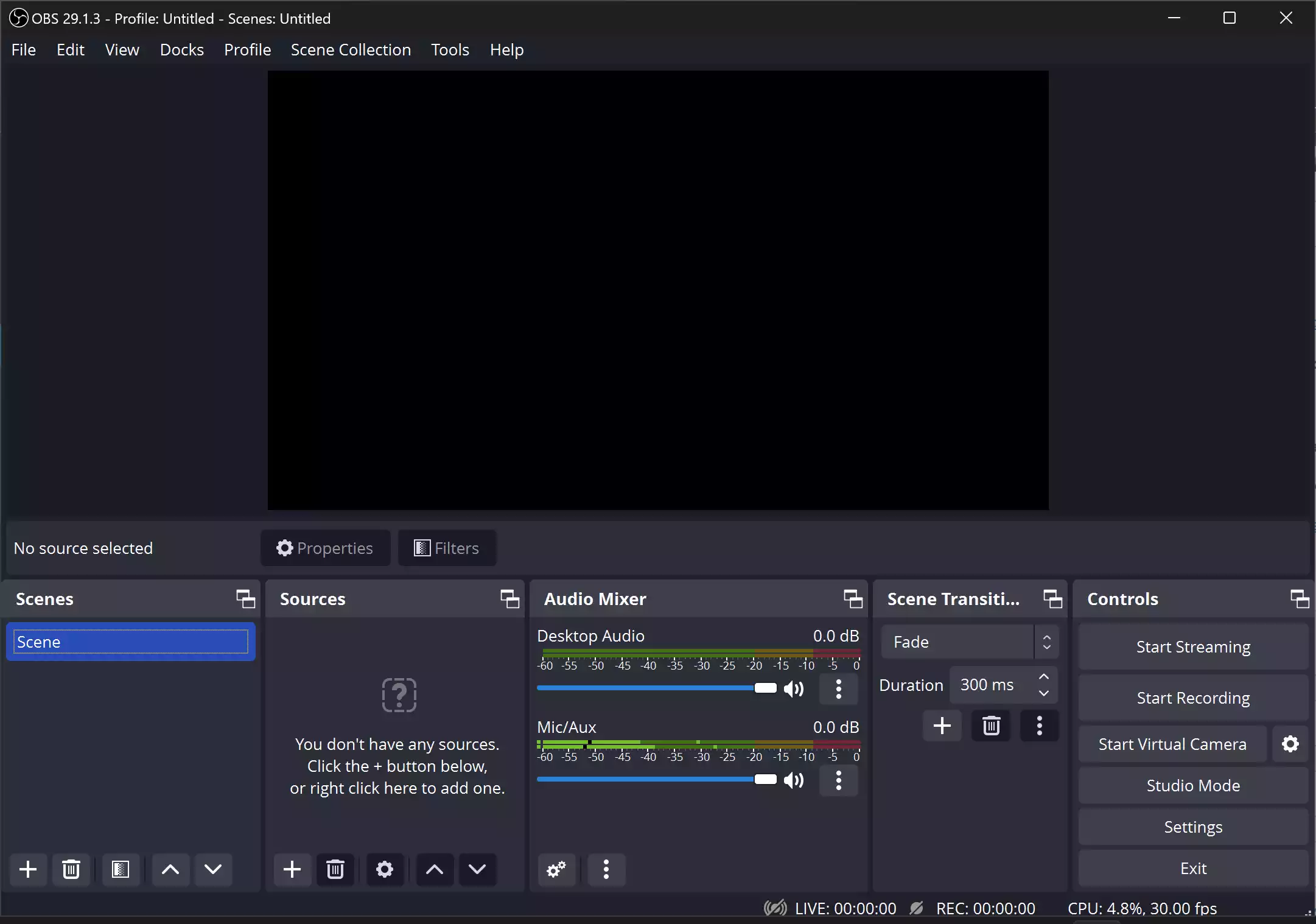
OBS Studio is a powerhouse for high-quality recording and streaming. It supports multiple scenes/sources, hardware encoders (NVENC/AMD/Intel), and clean MP4/MKV output. Despite its depth, you can start with a simple “Display Capture + Mic” setup.
- Best for: Highest quality, tutorials & gameplay.
- Pros: No watermark; unlimited length; advanced audio mixing; overlays.
- Considerations: More settings than basic tools; a short learning curve.
Download: OBS Studio
ShareX
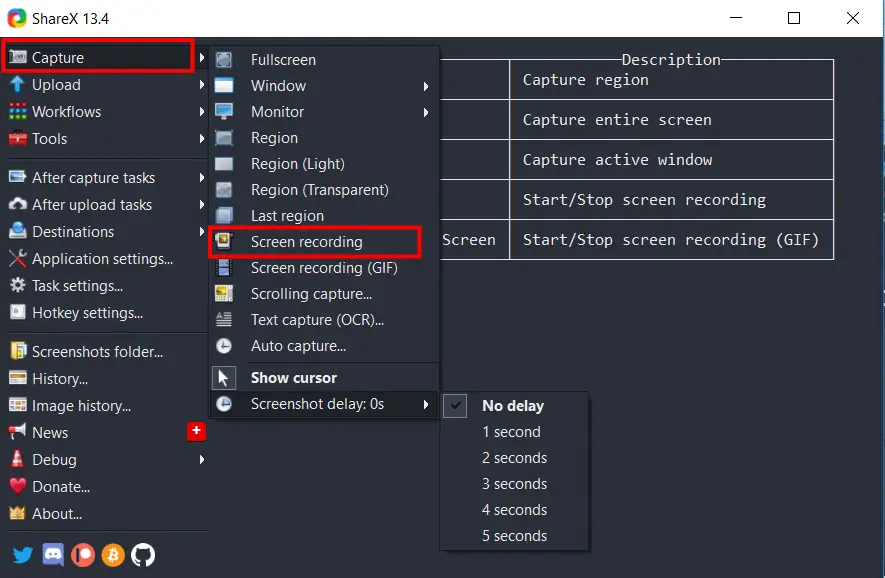
ShareX is lightweight, open-source, and brilliant for quick captures. Besides screenshots, it records video (via FFmpeg) and even animated GIFs. Pair it with custom hotkeys and after-capture workflows for instant uploads or local saves.
- Best for: Fast clips, tutorials, GIFs.
- Pros: No watermark; hotkeys; workflows; GIF capture.
- Considerations: Minimal timeline editing; needs FFmpeg configured (ShareX can fetch it).
Want a deeper look? We’ve covered it here: ShareX on GearUpWindows.
Xbox Game Bar (Built-in)
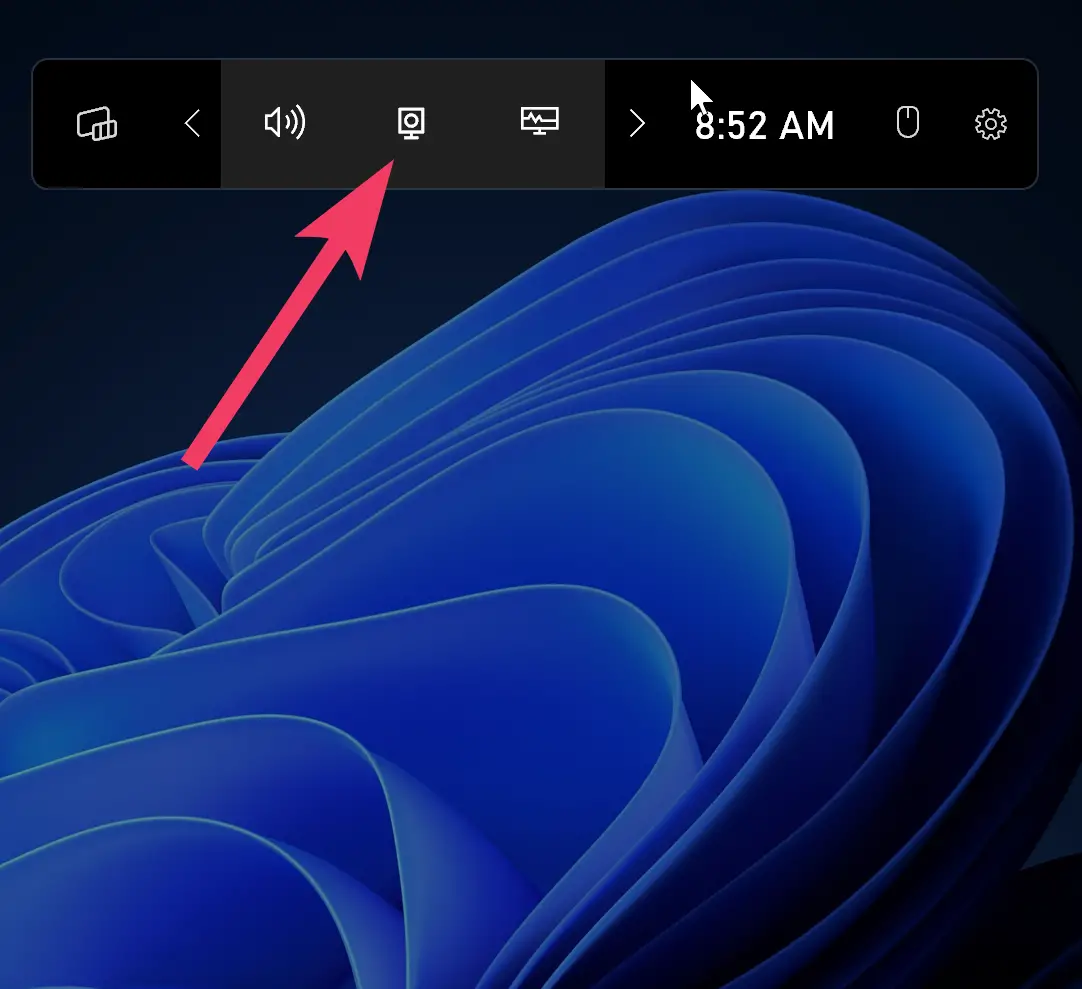
Xbox Game Bar comes with Windows 10/11 and records apps and games without extra installs. It’s ideal for quick MP4 captures with mic/system audio.
- Best for: Quick how-tos and gameplay without installing anything.
- Pros: Built-in; simple; hotkeys (Win+G).
- Considerations: Won’t record some system areas; fewer quality controls than OBS.
Step-by-step instructions are here: How to Record Your Screen in Windows 11/10.
Snipping Tool (Screen Recorder in Windows 11)
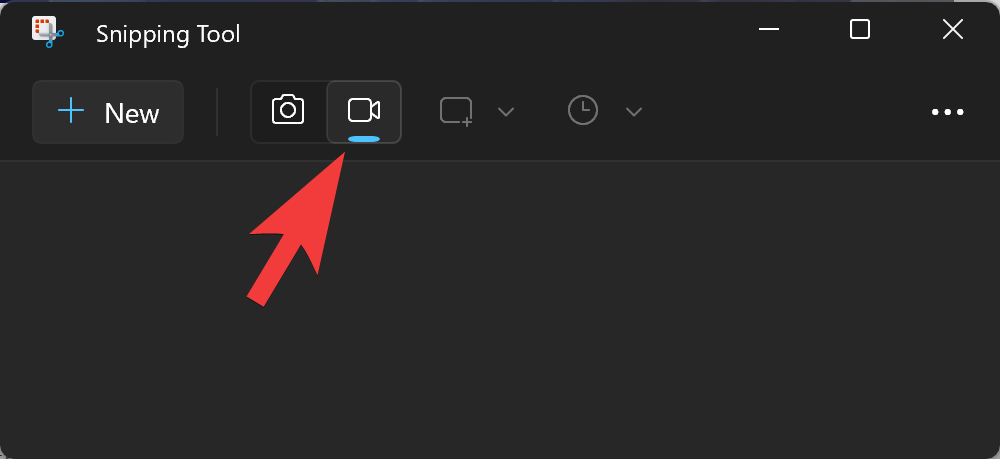
On Windows 11, the updated Snipping Tool includes a basic screen recorder that’s perfect for quick clips without installing software.
- Best for: Very quick recordings on Windows 11.
- Pros: Built-in; clean interface.
- Considerations: Limited controls compared to dedicated tools.
See the same guide above to use it effectively: How to Record Your Screen in Windows 11.
Free Cam
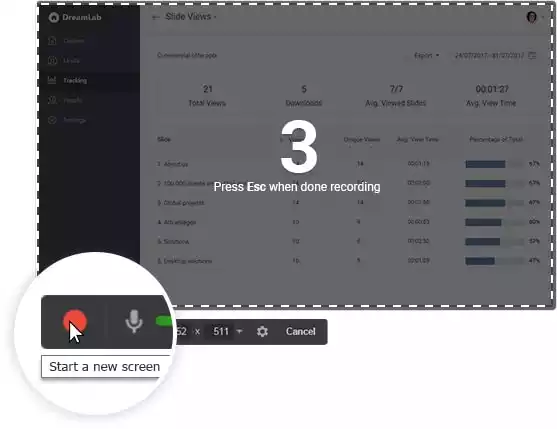
Free Cam focuses on simplicity with no watermark or time limit. You get area or window capture, microphone recording, basic editing (trim, noise removal), and easy export or YouTube upload.
- Best for: Tutorials and training videos without a complex setup.
- Pros: No watermark; built-in editor; easy sharing.
- Considerations: Lighter feature set than OBS; fewer pro controls.
Download: Free Cam (Official)
vokoscreenNG
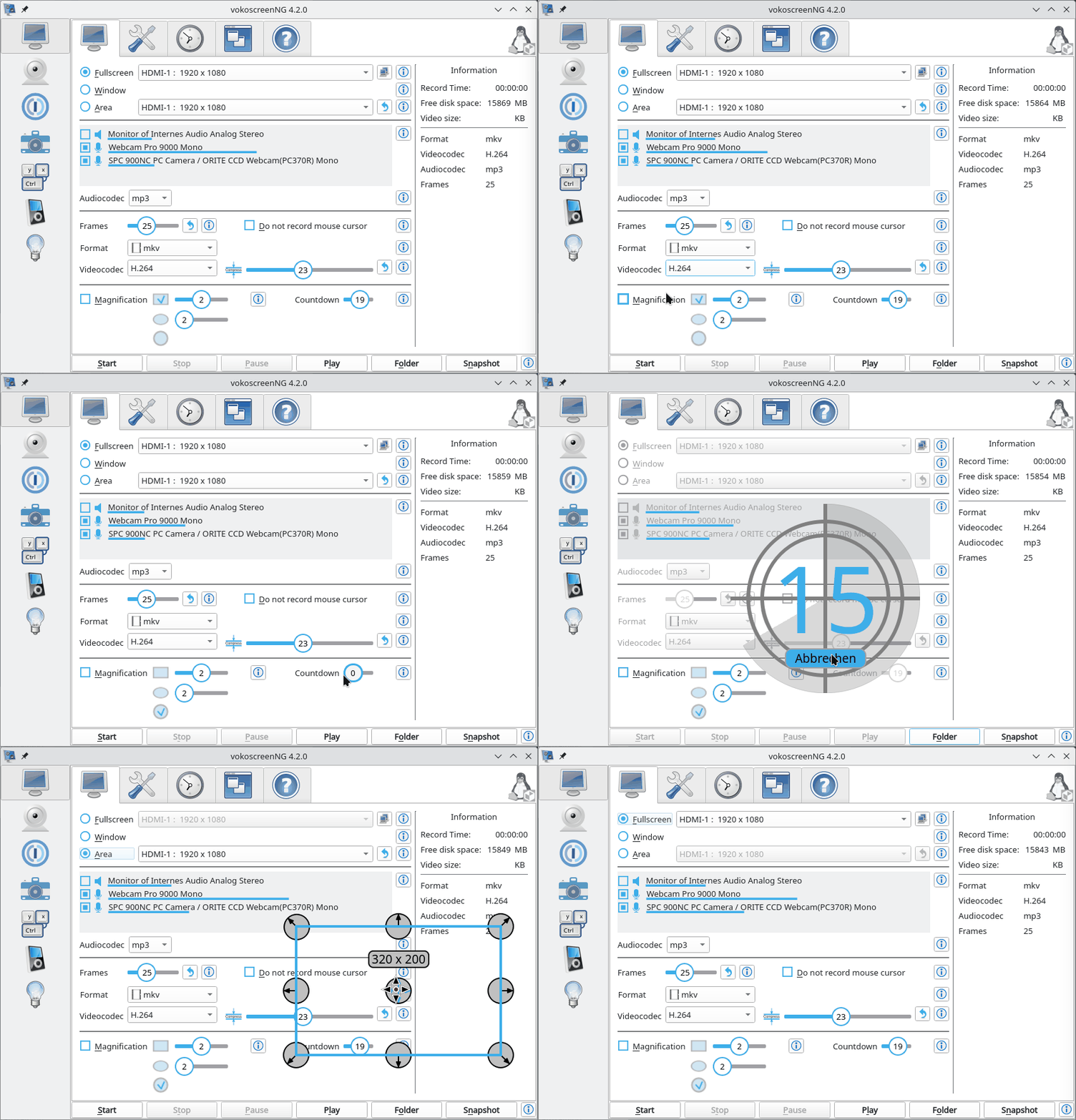
vokoscreenNG is an open-source screencaster with handy touches like a magnifier, countdown, show-click, webcam overlay, and multi-screen support.
- Best for: Classroom demos and explainers with visual aids.
- Pros: No watermark; helpful utilities (magnifier, countdown); webcam overlay.
- Considerations: Interface is functional rather than flashy.
Download: vokoscreenNG (Official)
FlashBack Express
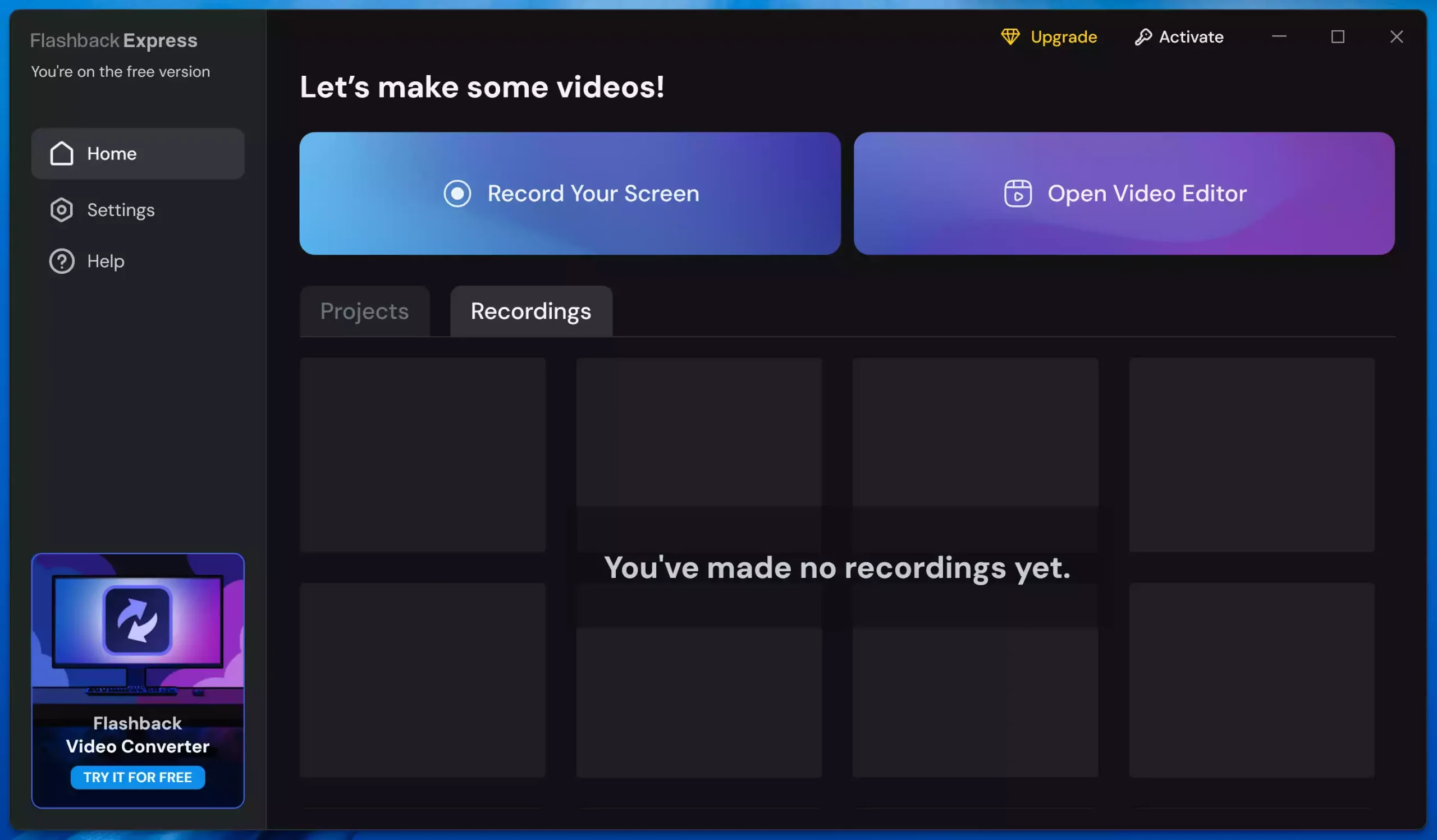
FlashBack Express offers easy recording with webcam and mic options. The free edition focuses on capture; advanced editing sits in the paid tier.
- Best for: Beginners who want an easy, watermark-free recorder.
- Pros: Simple UI; captures screen + webcam + audio; no watermark.
- Considerations: Advanced editor requires an upgrade.
Download: FlashBack Express (Official)
ScreenRec
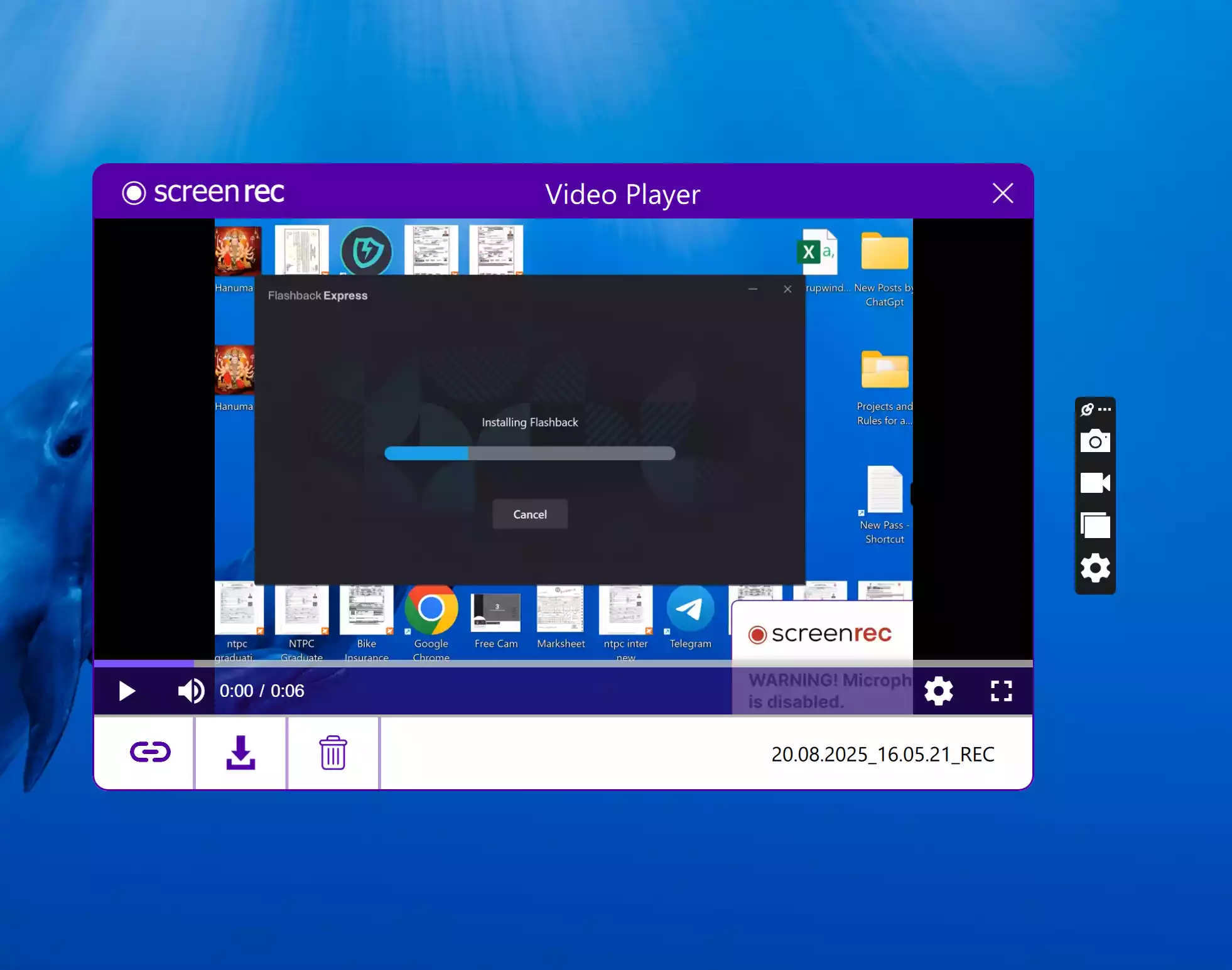
ScreenRec records screen, mic, and webcam, and offers instant private sharing with free cloud storage. Great for quick feedback videos.
- Best for: Fast shareable clips for teams.
- Pros: No watermark; link sharing; lightweight.
- Considerations: Cloud features work best when you sign in; limited editing.
Download: Read more and download ScreenRec.
How to Use a Screen Recorder (Quick Start)
Here’s a universal flow that works in almost every recorder:
Step 1. Choose what to capture: full screen, a window, or a region.
Step 2. Select audio sources (system sound, microphone) and, if needed, your webcam overlay.
Step 3. Set frame rate (30 FPS for tutorials, 60 FPS for gameplay) and quality (1080p is a sweet spot).
Step 4. Press Record, perform your actions, then Stop and preview.
Step 5. Trim the start/end if needed and export to MP4 for easy sharing.
Safe Use Tips for Beginners
- Test a 10–15 second clip to confirm audio levels and capture area.
- Close unnecessary apps to reduce background noise and CPU/GPU load.
- Keep free disk space available—raw recordings can be large.
- Be mindful of privacy: hide personal info or mute notifications.
- Use hardware encoding (if available) for smoother performance.
When a Screen Recorder Can Help You
These tools shine when you’re creating training videos, sending quick bug reports, recording lectures, or capturing gameplay. After recording, you can compress/convert with a free video converter and edit in a beginner-friendly editor.
Related reads: Best Free Video Converter Software and MiniTool MovieMaker (Free).
Frequently Asked Questions About Free Screen Recorders
Do free recorders add watermarks or time limits?
Many on this list (OBS, ShareX, Free Cam, FlashBack Express, vokoscreenNG, ScreenRec) record without watermarks. Some tools may restrict advanced editing to paid versions.
Can I record system sound and microphone together?
Yes—most tools here can capture both. In each app’s audio settings, enable system audio and select your mic.
What’s the best format to export?
MP4 (H.264/H.265) balances quality and compatibility. It’s ideal for sharing, uploading, and archiving.
Is the Xbox Game Bar enough?
For quick app or gameplay clips, yes. If you want overlays, scenes, or studio-grade audio control, OBS or ShareX is better.
How big will my files be?
Depends on resolution, frame rate, and bitrate. 1080p/30 FPS tutorial videos can be a few hundred MB for short clips; gameplay at 1080p/60 FPS will be larger.
Conclusion
The best free screen recorders for Windows 11/10 range from built-in options (Xbox Game Bar, Snipping Tool) to flexible tools like OBS Studio and ShareX. Pick the one that matches your skill level and needs: quick clips, polished tutorials, or high-FPS gameplay. With the right setup, you can produce crisp recordings—no watermark and no fuss.