

As laptops continue to become thinner and more compact, overheating remains a significant concern. Overheating can damage a laptop’s internal components and severely impact performance. It becomes even more important to prevent overheating when using high-performance applications that demand significant processing power. Several methods can help prevent overheating, including using external cooling systems and monitoring the laptop’s temperature.
One effective way to monitor and control the laptop’s temperature is by using laptop cooling software. This type of software continuously monitors the temperature and provides a detailed system report, allowing users to identify potential overheating issues and take corrective action. Additionally, users can configure the system cooling policy through power options to enhance cooling performance. By taking proactive steps, users can extend their laptop’s lifespan and maintain optimal performance.
Best Laptop Cooling Applications for Windows 11/10
CPUID HWMonitor
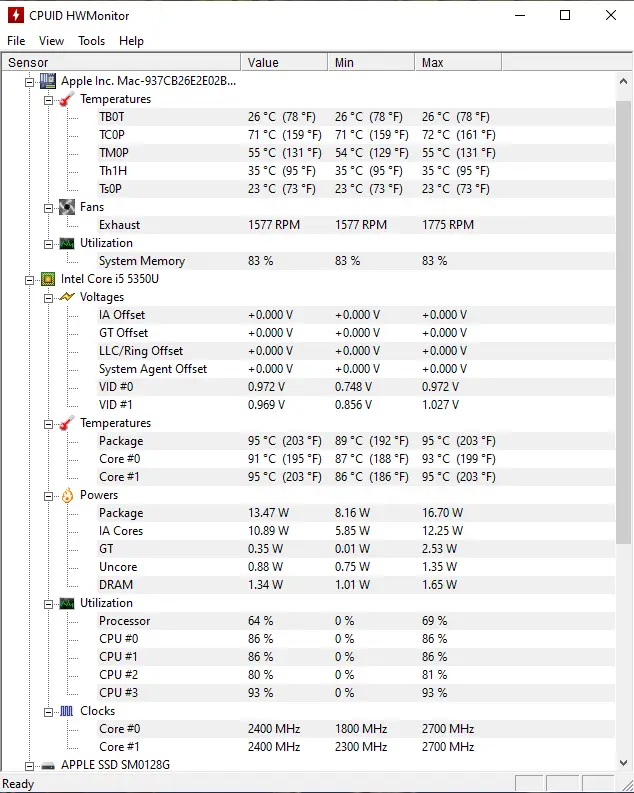 CPUID HWMonitor is a high-quality software that allows users to monitor the temperature of their entire system for free. Once installed, it provides a comprehensive temperature report of various components, including the CPU, hard drives, and motherboard. The software utilizes embedded sensor chips and thermal sensors to monitor system temperatures. Moreover, it keeps track of GPU and S.M.A.R.T. attributes to report hard disk temperatures. This software supports all processors and Windows versions and is an excellent tool to keep your computer cool and stable.
SpeedFan
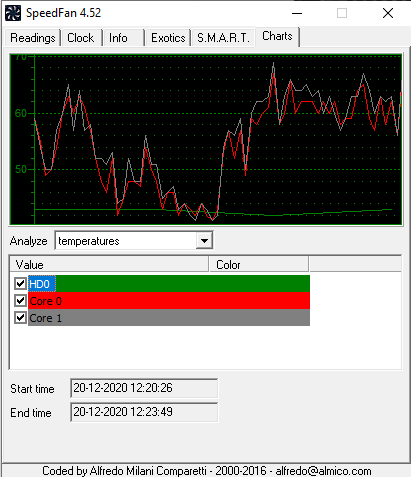 SpeedFan is a widely used freeware tool that helps users monitor system temperature, fan speeds, and voltage on Windows 10. With its intuitive graphical interface, SpeedFan offers an easy-to-use tool for managing system cooling. It uses built-in digital sensors to generate a detailed thermal report, which helps in analyzing and preventing overheating. One of SpeedFan’s standout features is its ability to automatically adjust CPU fan speeds based on motherboard readings, helping to keep laptops cool. It supports various temperature sensors and hardware monitoring chips and works on all Windows versions. The software also includes customization options to manage system loads and troubleshoot random reboots.
Core Temp
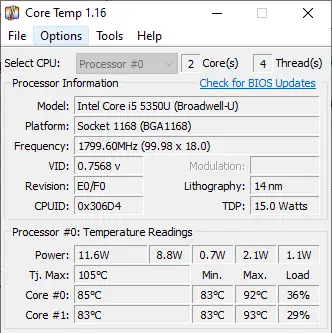 Core Temp is a powerful tool that lets you monitor your CPU’s temperature in real-time. It offers detailed reports for each CPU core and is compatible with the most recent processors and hardware sensors. Core Temp relies on your system’s Digital Thermal Sensor, ensuring highly accurate readings. It works on all Windows versions and supports AMD, Intel, and VIA x86-based processors.
Camomile
 Camomile is a lightweight and free utility designed to reduce CPU heat, fan noise, and power consumption. It does this by intelligently limiting CPU performance during low-demand scenarios using Windows’ built-in power-saving features. Unlike traditional monitoring software, Camomile goes beyond reporting and takes active steps to reduce temperature. It allows users to set performance profiles, define temperature limits, and let the app manage CPU behavior automatically. This tool is especially useful for laptop users who want a quieter experience without sacrificing everyday performance or battery life.
Activating the System Cooling Policy Using Power Options
For users who prefer not to install third-party software, Windows offers an option to enable the System cooling policy through power settings. Adjusting this option can significantly improve thermal efficiency and reduce overheating.
How to Enable Active Power Cooling for Your Computer?
Follow these steps to enable active power cooling on your computer:–
Step 1. Click on the Start button and type “Edit Power Plan.”
Step 2. From the results, click on “Edit Power Plan” to open the settings.

Step 3. On the “Edit Plan Settings” window, click “Change advanced power settings.”
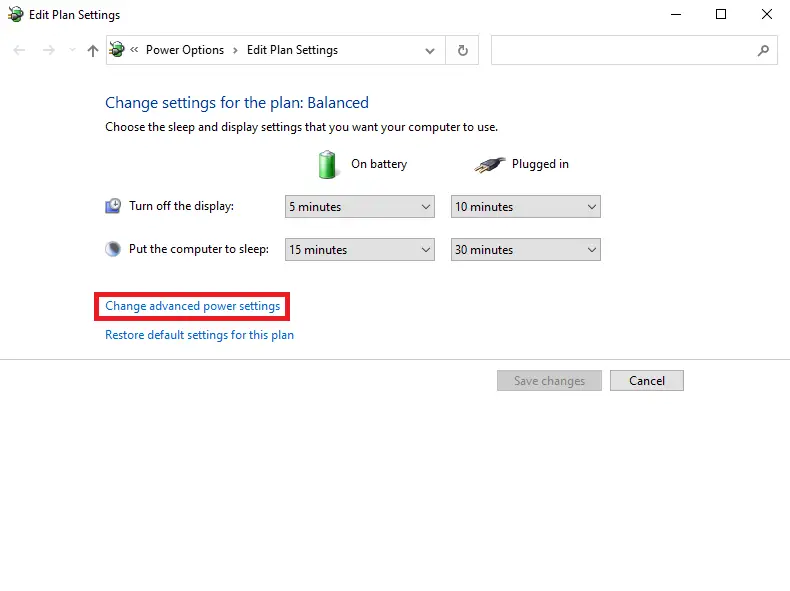
Step 4. In the Power Options dialog, scroll down to “Processor power management.” Expand it and then expand “System cooling policy.” Choose “Active” for both “On battery” and “Plugged in” options.
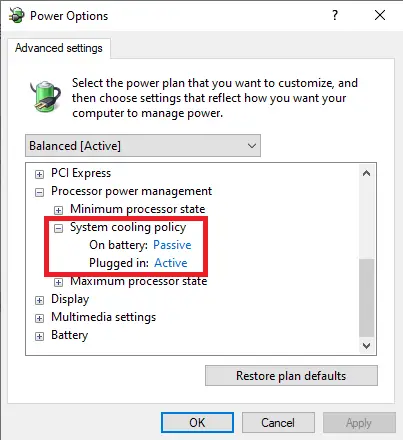
Once completed, your system will improve thermal management automatically, helping avoid overheating issues.
FAQs
Why do laptops overheat so easily?
Laptops are compact devices with limited airflow, making heat buildup common during gaming, editing, or running heavy applications.
Is laptop cooling software safe to use?
Yes. Trusted tools like HWMonitor, SpeedFan, Core Temp, and Camomile only read system sensors or manage CPU behavior, making them safe for monitoring and cooling.
Can these tools reduce overheating permanently?
They help monitor temperatures and automatically manage cooling, but keeping vents clean and maintaining good airflow is also essential.
What is the System Cooling Policy in Windows?
It’s a built-in Windows option that controls how your system cools itself. Switching it to Active increases fan speed to lower the temperature efficiently.
Does enabling Active cooling affect battery life?
Yes, slightly. Fans spin faster under Active mode, using more power—but it greatly improves cooling and system stability.
Which cooling software is best for beginners?
Core Temp and HWMonitor are simple and easy to use, while Camomile is great for users who want automated heat control without manual tuning.
Conclusion
In conclusion, as laptops become more compact, managing heat becomes critical for maintaining system stability and performance. Overheating can damage components and reduce the lifespan of your device. Tools like CPUID HWMonitor, SpeedFan, Core Temp, and Camomile offer practical solutions to monitor and reduce system heat effectively. In addition, enabling the System cooling policy through power settings further enhances thermal control. By using these tools and built-in features, users can prevent overheating, extend hardware life, and enjoy a better computing experience.
Also Read: Fix: “System cooling policy” Missing on Windows 11 or 10 Power Options.