

What is the Windows battery report? Windows can generate a detailed battery report with one command. It shows your design capacity, current full-charge capacity, usage cycles, and estimated runtimes. Our analyzer turns that raw HTML into a clear summary, a capacity-over-time chart, and downloadable CSVs.
Use the Battery Report Analyzer (free tool)
Follow these quick steps to get insights in under a minute.
Step 1. Press Win + X → choose “Windows Terminal (Admin)” or “Command Prompt (Admin)”.
Step 2. Run: powercfg /batteryreport
Step 3. Windows saves a file named battery-report.html to your user folder. Open Battery Report Analyzer.
Step 4. Drag and drop battery-report.html into the tool (or click “Choose file”).
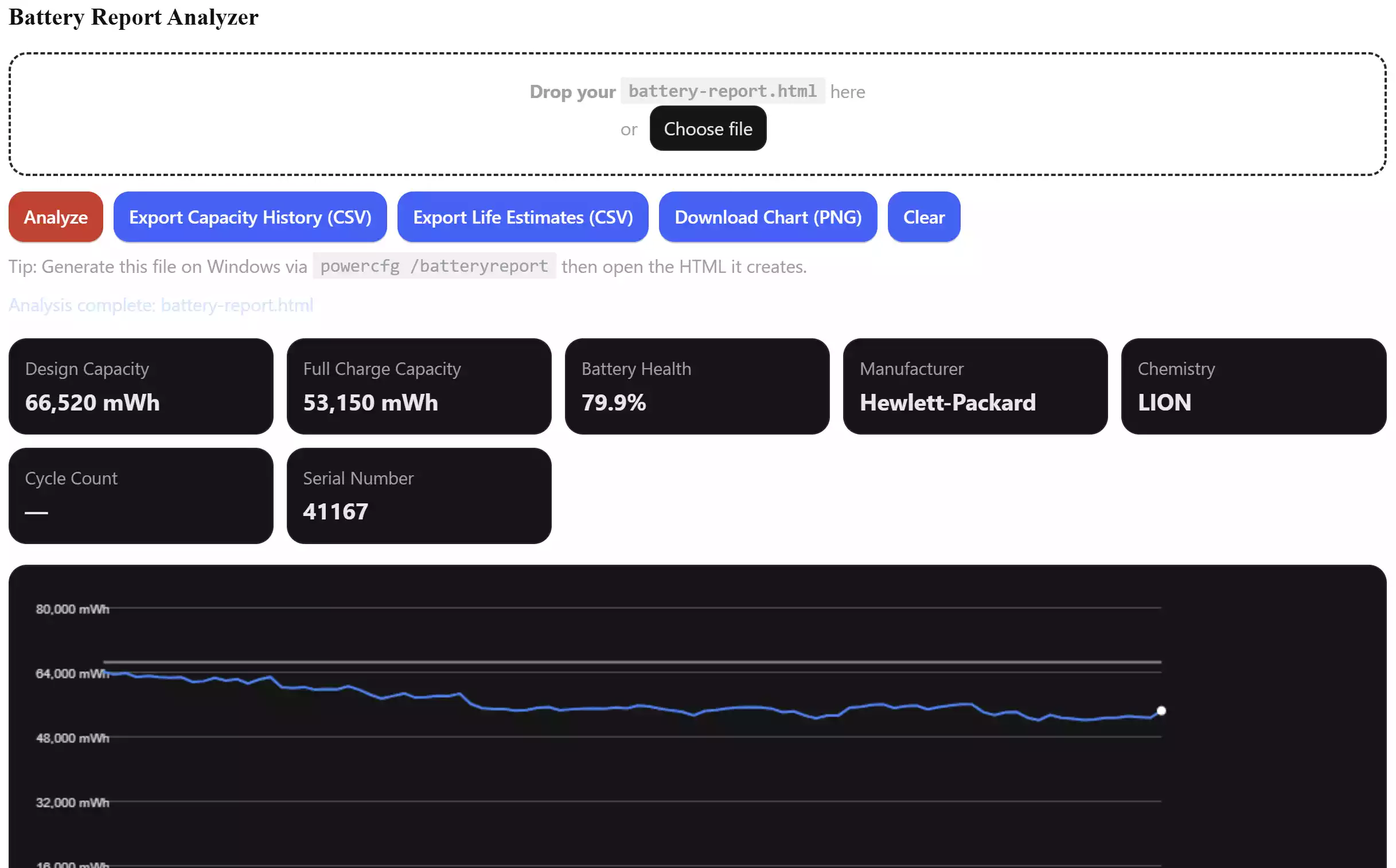
Step 5. Click Analyze. Review the summary cards, the capacity history chart, and the life-estimate times.
Step 6. Export your data: Export Capacity History (CSV), Export Life Estimates (CSV), or Download Chart (PNG).
Step 7. Use Clear to reset and load another report any time.
What you’ll see
- Battery Health: Calculates health from full-charge capacity vs. design capacity.
- Installed Battery Info: Manufacturer, chemistry, serial, and (when present) cycle count.
- Capacity History Chart: Visual trend of full-charge capacity vs. design capacity line.
- Life Estimates (time): Windows’ estimated runtime shown as
HH:MM:SS(e.g.,166:45:30). - Exports: One-click CSVs for capacity and life estimates, plus a PNG of the chart.
Windows 10 & Windows 11 supported
The tool reads the HTML structure produced by powercfg /batteryreport on both Windows 10 and Windows 11. It handles reports labeled with a “Period” column and time-based life estimates, as well as older “Date”-style tables.
Privacy & performance
Everything runs in your browser—no uploads and no data leaves your machine. The page is lightweight, responsive, and works without extra downloads.
Troubleshooting
- “Could not detect a valid Windows Battery Report” — Make sure you’re loading the original
battery-report.htmlcreated bypowercfg /batteryreport(not a PDF or screenshot). - No chart? Some reports don’t include capacity history; you can still export what’s available.
- Time values look big (e.g.,
166:45:30)? That’s normal—Windows reports runtime as hours:minutes:seconds, and “Period” spans can cover multiple days. - Buttons stay disabled? Click Analyze first; export buttons enable only when the relevant data exists in your report.
Pros & Considerations
Pros
- Free and runs entirely in your browser (no sign-up, no uploads).
- Clear health calculation with trend chart and CSV exports.
- Works with Windows 10 and Windows 11 reports.
Considerations
- The tool can only show data that exists in your report; some OEMs omit certain fields.
- Extremely old or heavily customized reports may require a small selector tweak.
FAQ
How do I generate the battery report again?
Open an elevated terminal and run powercfg /batteryreport. Windows writes battery-report.html to your user folder.
What does a value like 166:45:30 mean?
It’s a duration in hours, minutes, seconds—here, 166 hours 45 minutes 30 seconds (~6.95 days). Windows records life estimates over each period; they aren’t single-session runs.
Does this work offline?
Yes. After the page loads, everything is client-side. You can analyze and export without an internet connection.
Will this modify my report or system?
No. The tool only reads the HTML file to display and export insights.
Where can I use it?
Right here: Battery Report Analyzer.