

In this gearupwindows guide, we’ll introduce you to CrapFixer—a portable, open-source Windows tuning tool built for simplicity and power. Designed for both Windows 10 and 11, it speeds up performance, removes unwanted tracking, and restores a cleaner user interface with just two clicks. For a modern GUI alternative, check out our RyTuneX guide.
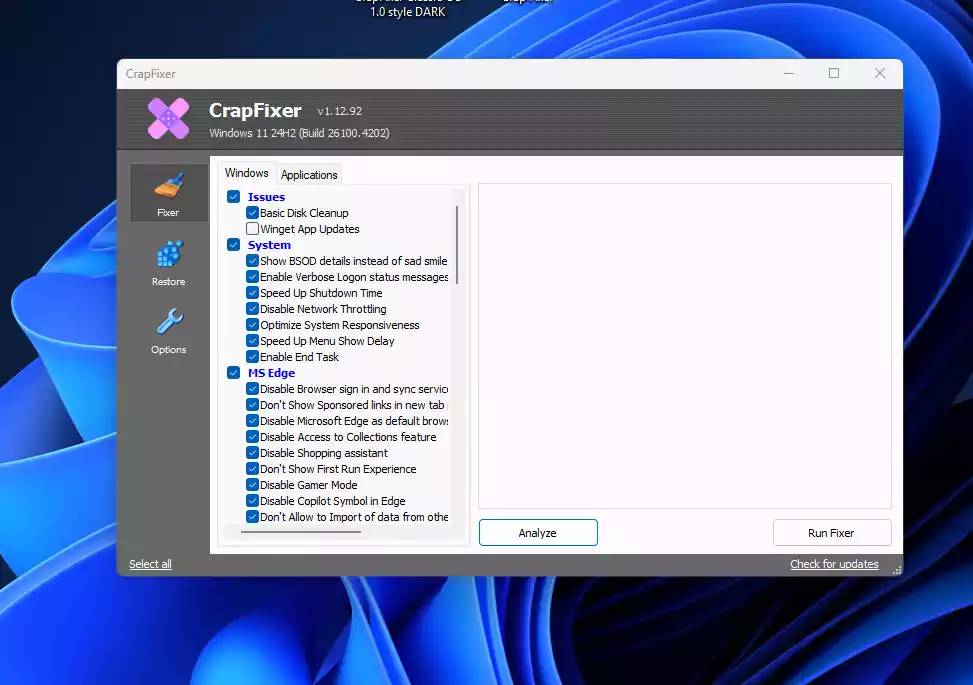
What Is CrapFixer?
CrapFixer is a lightweight yet comprehensive utility crafted by developer Belim (builtbybel) that consolidates over 100 system tweaks into a simple “Analyze → Fix” process. Despite its nostalgic XP-style interface, the tool is fully optimized for modern Windows essentials—like telemetry controls, bloatware removal, and privacy enhancements.
Key Features
- Analyze and Fix Workflow: Run a system scan, review red-flagged tweaks, and apply fixes with a click. Most changes are reversible using the integrated Restore tab.
- Privacy Control: Disable telemetry, Copilot integration, activity history, and Bing search ads.
- System Cleanup: Remove temporary files, update leftovers, and general OS clutter.
- Classic UI Tweaks: Restore legacy context menus, disable transparency, and turn off tooltips.
- Plugin Support & Policy Editor: Includes NAppClean as a policy-style frontend. Additional plugins like CFEnhancer allow advanced customization, auto-updates, create restore points, and remove AI features.
- Log Analyzer: Option to upload or share log output via the built-in online log analyzer for transparency and review.
Why Choose CrapFixer?
CrapFixer stands out for blending simplicity with power. Its minimalist interface belies deep customization capabilities. Each tweak comes with F1 help or right-click info, logs are transparent and reversible, and no installation is required. It’s open-source under the MIT License, lightweight (under 150 KB), and suitable for everyone—novices, gamers, and admins alike.

What’s New in Version 1.18.200?
- Policy Editor Included: NAppClean.exe now ships inside the main archive to give users structured control over tweaks via a policy-style interface.
- UI & Performance Refinements: Faster startup, better RAM usage, improved DPI scaling, and bug fixes across Windows 11 builds.
- Better App Detection: Updates in plugin and app detection logic provide safer and smarter cleanup options.
How to Use CrapFixer?
Step 1. Download the latest ZIP from the official GitHub releases page.
Step 2. Extract and run CrapFixer.exe as an administrator.
Step 3. Click “Analyze”—items in red indicate recommended tweaks; grey items are already optimized.
Step 4. Use F1 or right-click for descriptions of each tweak.
Step 5. Press “Run Fixer” to apply fixes.
Step 6. Review the log and optionally upload via the built-in log analyzer.
Step 7. Use the “Restore” tab or undo checkboxes to revert any change.
Tips & Best Practices
- Create a System Restore Point before making changes.
- Start with the default profile; only explore plugins if you’re comfortable.
- Update plugins via Options → Plugins menu after installing or upgrading.
Conclusion
CrapFixer is a standout tool for anyone wanting a clean and responsive Windows 10/11 experience. It revives the spirit of classic utilities with modern polish—and keeps you in control of every tweak. With its reversible design and robust logs, it’s ideal for both cautious users and system geeks.