

In this gearupwindows guide, we’ll show you how to use DesktopHut to apply free live wallpapers on your Windows desktop. Whether you want anime, sci-fi, or nature themes, DesktopHut offers thousands of video-based animated backgrounds without using much system power.
What Is DesktopHut?
DesktopHut is a free application that allows you to apply 3D and animated video wallpapers to your desktop. Unlike traditional still images, these wallpapers create a visually engaging environment using MP4 or WMV video files.
It supports full-screen playback, auto-pausing during gaming, and multi-monitor setups. Best of all, the app and all wallpaper content are available for free without hidden costs or bundled software.
Key Features of DesktopHut
- 100% free with no registration
- Supports 4K and HD video wallpapers
- Pauses automatically during full-screen apps or games
- Low system resource usage
- Huge online library of anime, nature, and abstract themes
- No watermark or ads on wallpapers
How to Use DesktopHut on Windows?
Step 1. Visit the official site, desktophut.com, and download the app for Windows. It comes as a ZIP file — extract it to a folder using File Explorer.
There is no installer. Just double-click the DesktopHut.exe file to launch the program.
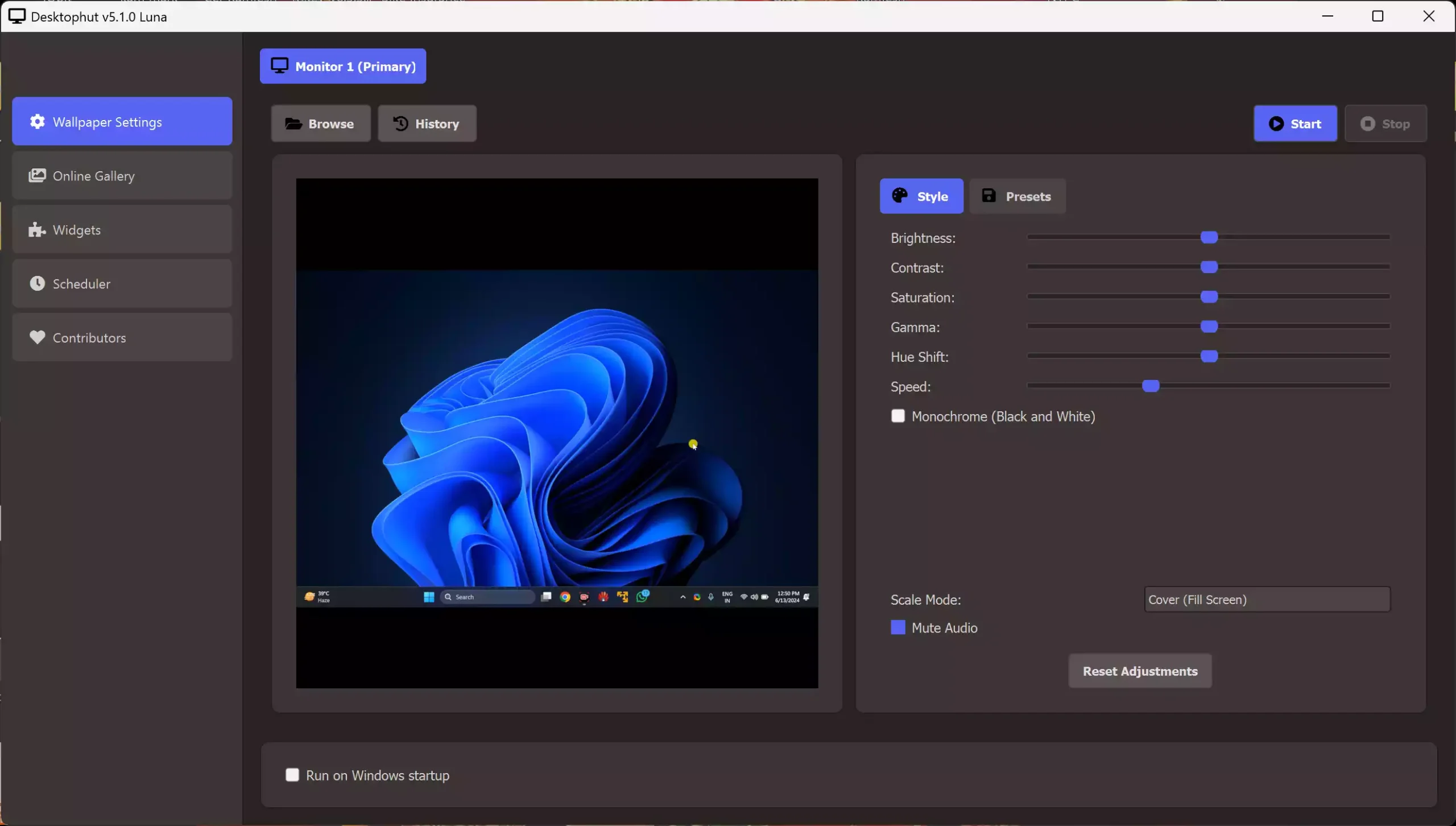
Step 2. Select the “Wallpaper Settings” tab in the left sidebar, and you can choose a video from your PC by clicking the Browse button. To set the video as wallpaper, click on the Start button. If you ever want to stop the video from wallpapering, click on the Stop button. Here you can also set Styles and Presets, as well as mute or unmute your video.
Step 3. If you prefer to use an animated video from the software store, switch to the “Online Gallery” tab and choose a category such as Anime, Games, Nature, etc.
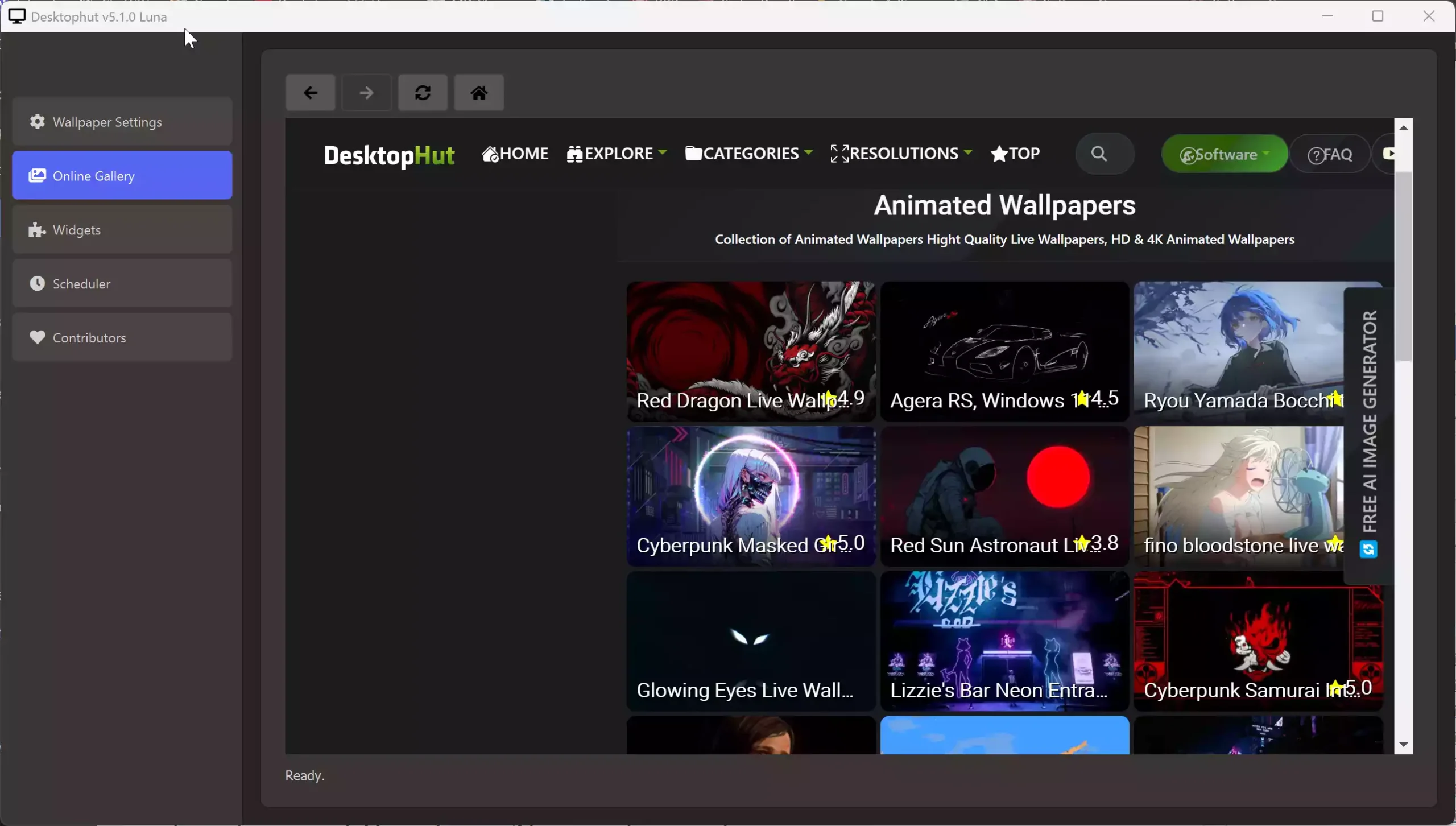
Step 4. Click any wallpaper, then select Download. Save the MP4 or WMV file to your PC.
Step 5. Now, you can apply the downloaded video as your desktop background on your PC as described in Step 2 above.
The video will loop continuously and stay active unless paused or exited.
Optional: Enable Auto-Start with Windows
To launch DesktopHut automatically, right-click the executable and create a shortcut. Then place that shortcut into:
C:\Users\YourName\AppData\Roaming\Microsoft\Windows\Start Menu\Programs\Startup
This ensures the wallpaper runs every time you log into Windows.
Does DesktopHut Slow Down Your PC?
No. It uses hardware acceleration to minimize CPU usage. During gaming or full-screen apps, it auto-pauses to save performance. On mid-range systems, it runs smoothly alongside other tasks.
Can You Use Your Own Video Wallpapers?
Yes. You can use any MP4 or WMV file as a desktop wallpaper. Just load it through the app interface. This allows custom visuals, such as short loops or personal creations, to run as live backgrounds.
Conclusion
DesktopHut is a simple and free way to use animated wallpapers on Windows 11 or 10. It requires no setup, has no ads, and supports full HD looping videos. Whether you enjoy anime motion scenes or relaxing nature views, it’s a perfect tool for customizing your desktop environment.
If you’re looking for more options, check out how to use Lively Wallpaper or Push Video Wallpaper.