

In this gearupwindows guide, we’ll introduce DNS Jumper — a portable and free DNS changer by Sordum. You can use it to speed up your browsing, boost security, and apply family‑safe DNS instantly.
New to DNS? See our beginner guide on free DNS changers and Secure DNS for Windows 11/10 for quick steps and safe tips.
What Is DNS Jumper?
DNS Jumper is a lightweight, portable DNS management tool that simplifies changing your DNS servers without navigating through Windows settings. It supports both IPv4 and IPv6, and lets you test, backup, and restore DNS configurations quickly. It also includes features like fastest‑DNS testing and command‑line support.
Key Features of DNS Jumper
- Change DNS Settings Easily: Select from pre-built DNS lists or enter custom server IP addresses for IPv4 or IPv6.
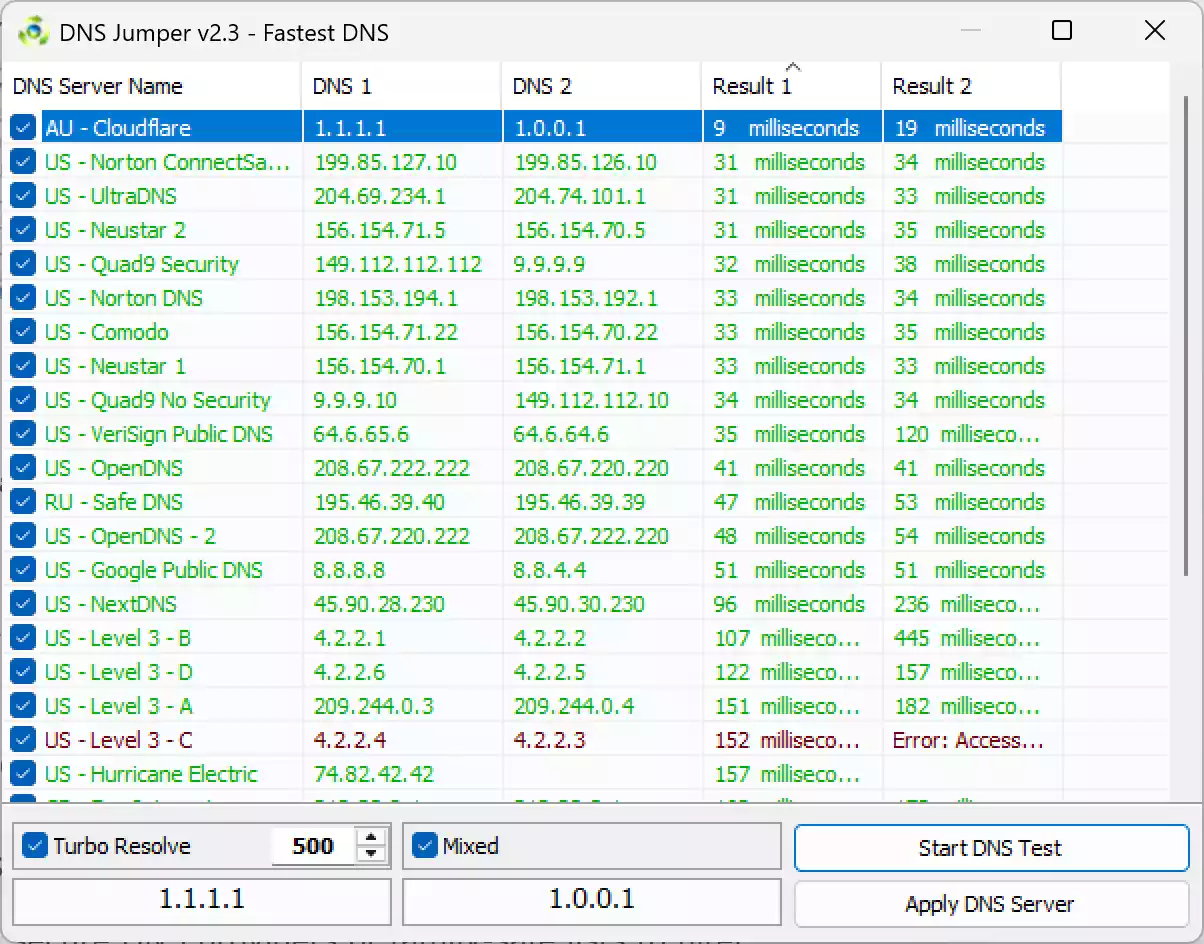
- Fastest DNS Test: Measure response times across listed servers, automatically sort them, and apply the fastest one with a click.
- Backup & Restore: DNS settings are automatically backed up, and you can restore ISP defaults anytime.
- Family‑Safe & Secure DNS Groups: Includes preset lists like “Secure DNS” or “Family Safe” to block unsafe content.
- Flush DNS Cache: Clear cache directly from the interface.
- Command‑Line Support & Auto‑Startup: Automate changes at boot or via scripts.
- Portable & Multilingual: No installation required; supports many languages.
How to Use DNS Jumper
Step 1. Download DNS Jumper from the official Sordum website and extract the zip file.
Step 2. Run the executable — no installation needed.
Step 3. Select your network adapter if multiple are detected.
Step 4. Choose a DNS server or group (e.g., Family Safe or Secure) and click Apply DNS.
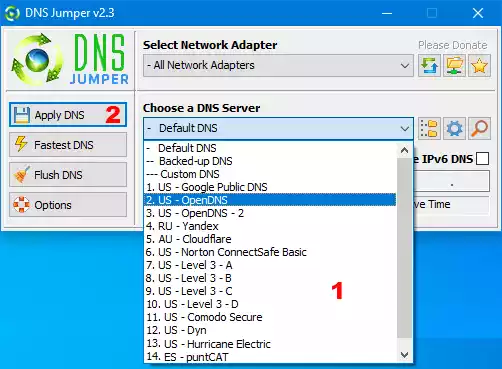
Step 5. Optionally, click Fastest DNS → Start DNS Test, then select your preferred DNS and click the Apply DNS Server for the fastest result.
Step 6. Use the Quick Configuration (star icon) to backup or restore DNS settings, or apply the default safely.
Step 7. Flush DNS cache to clear old records if needed.
Why Use DNS Jumper?
- Speed: Replace slow ISP DNS with faster public DNS servers in just two clicks.
- Security & Safety: Switch to secure DNS providers or family‑safe lists to filter inappropriate content.
- Convenience: Portable, simple UI, and backup/restore functionality make DNS management effortless.
Complement with DNS Angel for Parental Control
If you want a one-click method to enforce family-safe DNS across Windows, you can also use DNS Angel. It helps switch your DNS to providers like OpenDNS Family or CleanBrowsing, blocking offensive sites system-wide. DNS Jumper lets you select those same DNS services manually, while DNS Angel automates the process with minimal effort.
Conclusion
DNS Jumper is an excellent tool for managing and optimizing your DNS settings, whether you want better browsing speed, more security, or family-safe browsing. It works seamlessly with tools like DNS Angel for deeper parental control and Safe DNS enforcement. For Windows users looking for a free, portable DNS utility, DNS Jumper is a highly practical choice.