

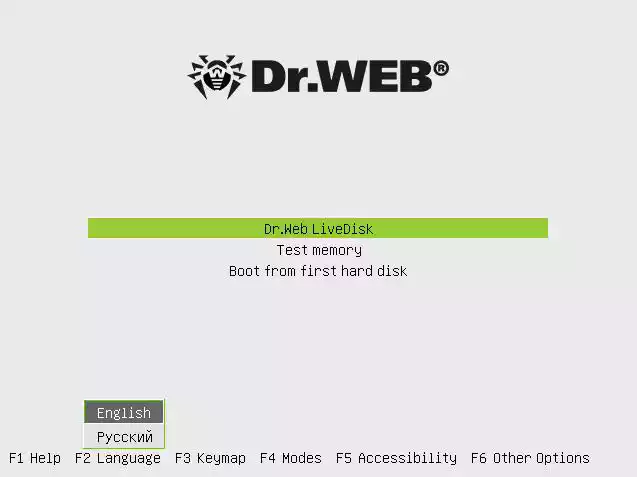
What is Dr.Web LiveDisk? Dr.Web LiveDisk is a free bootable rescue disk that helps you scan and disinfect Windows computers when they are heavily infected with malware or when the system refuses to boot properly. Instead of running inside Windows, it boots your PC into a secure Linux-based environment with the full Dr.Web anti-virus scanner, providing a clean slate to identify and remove threats that regular antivirus solutions may miss.
This tool is handy when traditional malware removers, like Dr.Web CureIt!, cannot be launched due to an infection blocking access to Windows.
Why Would a Beginner Use Dr.Web LiveDisk?
For beginners, malware infections can be overwhelming—your system may slow down, refuse to boot, or even block access to security tools. Dr.Web LiveDisk simplifies recovery by offering a ready-to-use environment. You just boot from the USB/DVD, and the rescue disk does the heavy lifting. You don’t need advanced knowledge of malware removal or Windows internals; the graphical interface makes it beginner-friendly.
Unlike some advanced tools, it walks you through the process with simple buttons, so even if you’ve never used bootable rescue software before, you’ll find it accessible. If you’re curious about other rescue media, you may also explore Kaspersky Rescue Disk for comparison.
Main Features of Dr.Web LiveDisk
Dr.Web LiveDisk comes packed with useful features to restore your PC’s health:
- Bootable Rescue Environment – Launches outside Windows, bypassing locked or damaged systems.
- Powerful Virus Scanner – Uses the same detection engine as Dr.Web’s commercial antivirus.
- Automatic and Manual Curing – You can either let it automatically disinfect files or review detections manually.
- File Manager – Access and copy important files before disinfecting, useful for data recovery.
- Network Support – Update virus definitions even in rescue mode to catch the latest threats.
- Log Viewer – Review scan results and export reports for future reference.
For those who want extra on-demand scanning tools after disinfecting, you can also try Emsisoft Emergency Kit.
How to Use Dr.Web LiveDisk
Using Dr.Web LiveDisk is straightforward, but here’s a step-by-step breakdown for beginners:
- Download the ISO file from the official Dr.Web website.
- Create a bootable USB/DVD – You can use tools like Rufus or any ISO burning tool.
- Boot your PC from the USB/DVD. You may need to change the boot order in BIOS/UEFI.
- Launch Dr.Web Scanner from the LiveDisk menu.
- Update virus databases (if you have internet access) to ensure maximum detection.
- Scan your drives – You can choose a quick scan or a full scan depending on the severity.
- Clean or quarantine infected files based on the results.
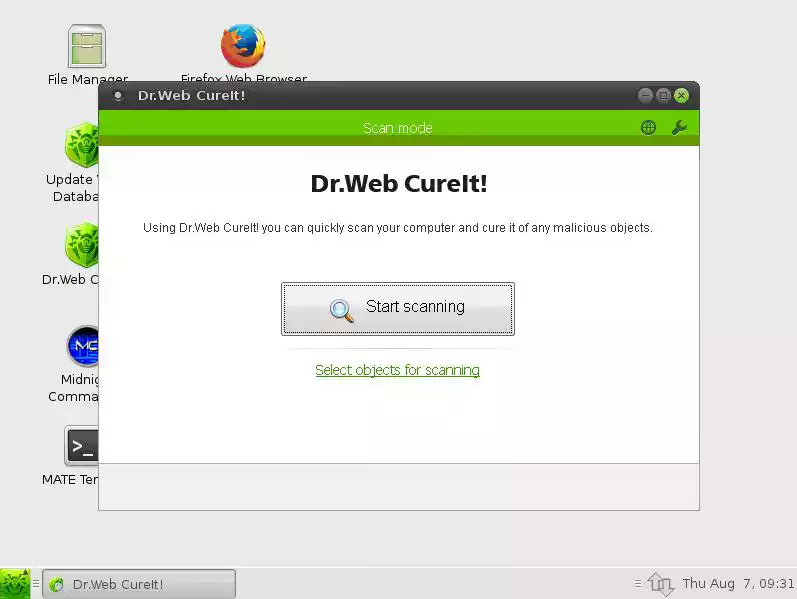
Once the process is complete, restart your computer into Windows. Most of the time, the system will be clean and functional again. If infections persist, you may repeat the scan or combine it with other offline tools like Norton Power Eraser.
Safe Use Tips for Beginners
Here are some beginner-friendly tips for using Dr.Web LiveDisk safely:
- Always backup your important files before disinfecting—use the included file manager if necessary.
- Keep virus definitions updated when scanning, so you’re not using outdated signatures.
- Don’t delete critical system files unless you are certain they are malware; prefer the quarantine option first.
- After cleaning, run an on-demand scan with a Windows tool like Malwarebytes AdwCleaner to catch adware and PUPs.
When Dr.Web LiveDisk Can Help You
Dr.Web LiveDisk is most useful in the following situations:
- Windows won’t boot because of a malware infection.
- Ransomware or rootkits have taken over your system, and your normal antivirus software cannot run.
- Severe system slowdown caused by undetected trojans.
- You want to rescue important files from an infected system before reinstalling Windows.
It can act as a lifesaver tool, just like Hiren’s BootCD PE or Ultimate Boot CD (UBCD) for broader system recovery.
Download Dr.Web LiveDisk
You can download Dr.Web LiveDisk free of charge from the official Dr.Web website. The ISO image is updated frequently, so always get the latest version. Once downloaded, burn it to a DVD or write it to a USB drive for use when needed.
Frequently Asked Questions About Dr.Web LiveDisk
Is Dr.Web LiveDisk really free?
Yes, Dr.Web LiveDisk is completely free to use, and it comes with the same powerful virus engine as the paid Dr.Web products.
Can I use Dr.Web LiveDisk on any Windows version?
Yes, it works on all versions of Windows, including Windows 11, 10, 8.1, 8, and 7, because it boots outside the installed OS.
Do I need internet to use Dr.Web LiveDisk?
No, it can scan and clean without internet. However, an internet connection is recommended for updating virus definitions.
Can it remove ransomware?
Yes, in many cases, Dr.Web LiveDisk can neutralize ransomware and allow you to boot into Windows again. But remember that files already encrypted by ransomware may not be recoverable.
What if Dr.Web LiveDisk doesn’t fix my PC?
If your PC is still unbootable, you may combine Dr.Web LiveDisk with other rescue tools such as ESET Online Scanner or consider reinstalling Windows as a last resort.
Conclusion
Dr.Web LiveDisk is one of the most reliable free bootable rescue disks available today. It’s designed for beginners and advanced users alike who need a quick solution when Windows refuses to start due to malware infections. With its clean interface, powerful detection engine, and data recovery features, it deserves a place on every technician’s and home user’s emergency toolkit. Next time your computer is locked by a stubborn virus, Dr.Web LiveDisk may just be the tool that saves the day.