

In this gearupwindows guide, we’ll show you how to manage your hard drive partitions using EaseUS Partition Master Free to improve system performance and data organization.
For a better computing experience, it is necessary to create disk partitions. Disk Management helps organize your data into different drives. It’s also useful for keeping system drives separate and running regular maintenance tasks like defragmenting and cleaning.
It is never recommended to store system files and data files on the same partition. If you ever need to format the system drive, your personal files could be lost unless you’ve backed them up. As noted in this post on secure file deletion tools, recovery isn’t always possible without proper backups.
EaseUS Partition Master Free is a reliable partition manager that supports drives up to 8TB in size. It’s user-friendly and ideal for managing partitions on Windows PCs.
What is EaseUS Partition Master Free?
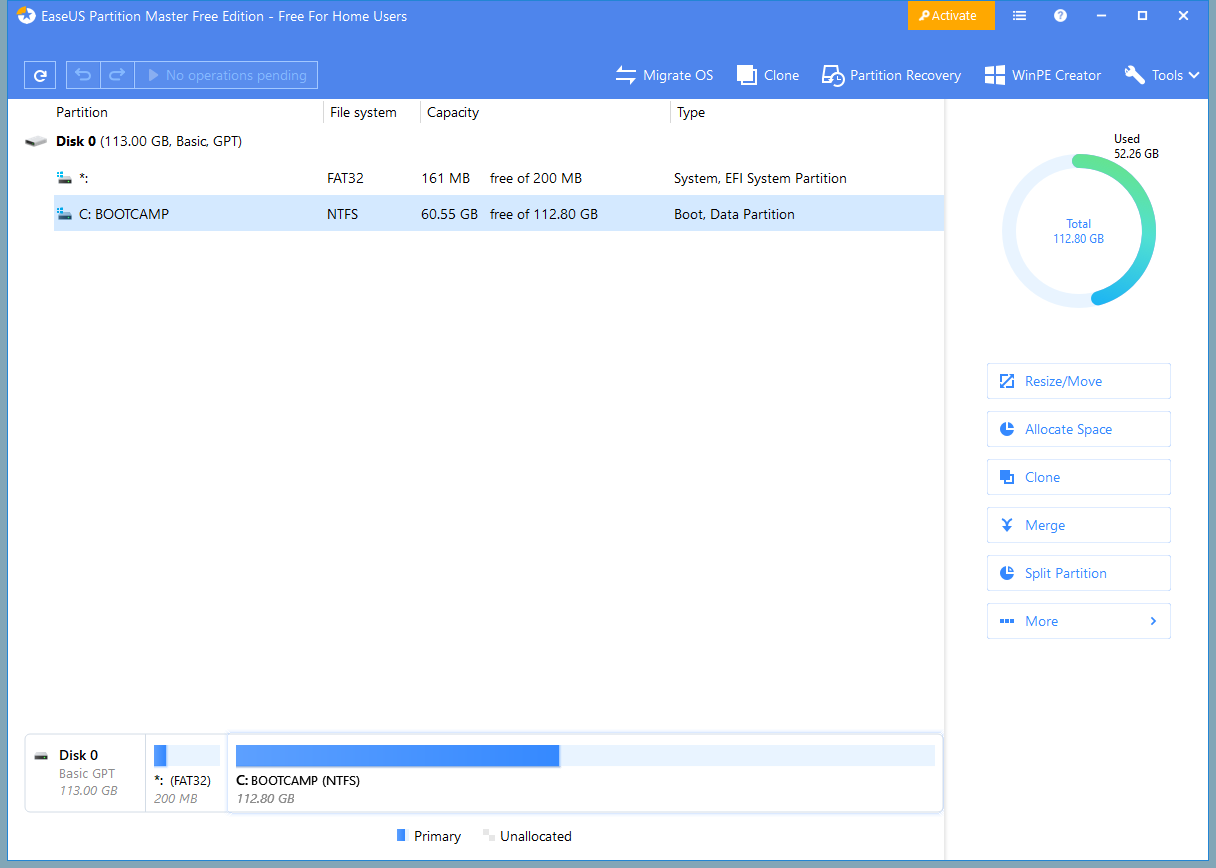
EaseUS Partition Master features a clean interface that’s easy to understand, even for beginners. It supports large drives up to 8TB in the free version, and up to 16TB in the commercial one. For most users, 8TB is more than enough.
The tool also lets you convert disks between GPT and MBR. GPT is better for high-capacity drives and offers improved performance. If you’re planning to upgrade from MBR to GPT, this tool can handle it smoothly without data loss.
You can perform several disk operations confidently, thanks to built-in algorithms that safeguard your data. Still, it’s wise to back up your files before making any changes.
Migrate OS
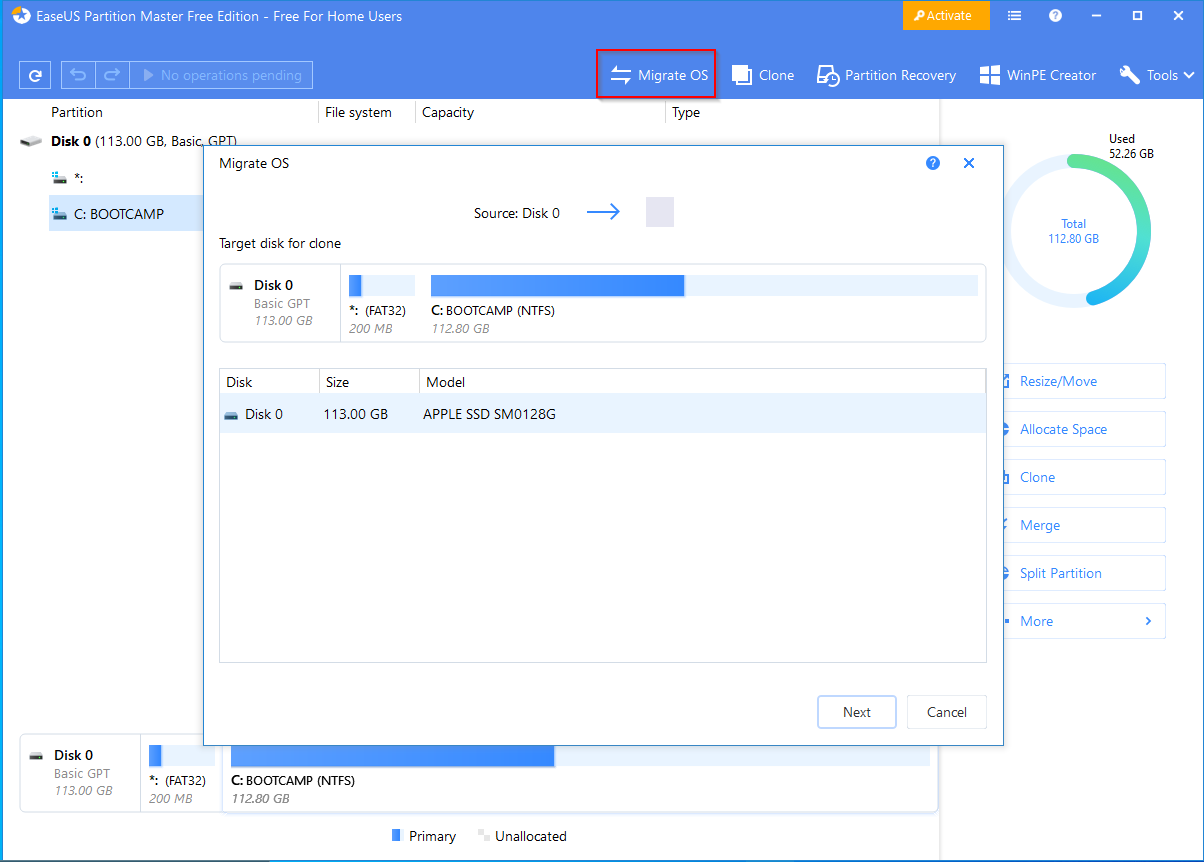
Migrate OS is one of the most helpful features in EaseUS Partition Master. It allows you to move your entire Windows OS to a new HDD or SSD without corrupting system files. This way, you don’t need to reinstall anything.
Unlike a full clone, the tool transfers system and data files directly to another drive. Once done, you can set the new drive as primary and boot your system on another PC. It’s simple and efficient.
Merge Partitions
The Merge feature lets you combine two adjacent partitions without losing any files. For example, you can merge drive “D” with “C” or “E” as long as they are side by side. Just select the target partition, click Merge, and follow the prompts.
Split Partition
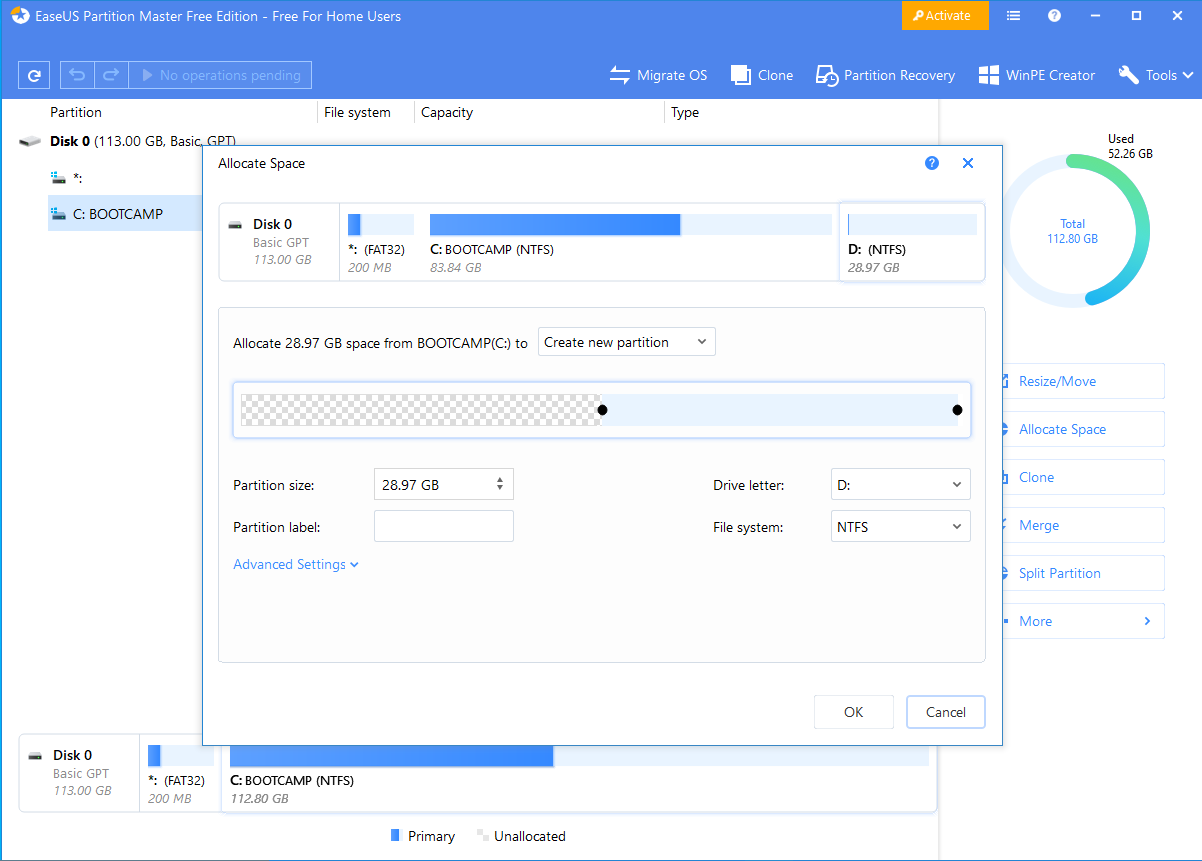
The Split Partition option is great for breaking a large partition into smaller ones. If you need to create space for another drive letter, just use the split tool to divide a large partition into two.
Along with splitting and merging, you can also enlarge partitions, copy them to another disk, and explore their contents using the built-in file explorer. This tool even shows hidden and system files for advanced users.
If you need help, the Help menu provides extensive documentation and video tutorials. These guides walk you through every feature with clear steps and visuals.
Download EaseUS Partition Master Free
The software is compatible with Windows XP, Vista, 7, 8, 8.1, 10, and Windows 11. You can download the free version directly from here.
Conclusion
In conclusion, managing disk partitions helps improve performance and keep your data organized. Always separate system and personal files to reduce risk during reinstallation or system failure.
EaseUS Partition Master Free is one of the best tools for the job. It supports large drives, converts between GPT and MBR, and includes features like OS migration, partition merging, and disk splitting. Its user-friendly interface and helpful documentation make it perfect for both beginners and advanced users.
With this free software, you can take control of your partitions and maintain your computer with ease.
Also Read: Downgrade Windows 10 to Windows 7/8/8.1 using EaseUS System GoBack Free.