

Are you tired of waiting for ages while copying or moving large files on your computer? Say goodbye to slow file transfers with ExtremeCopy, a lightweight utility built to speed up file transfers, reduce errors, and give you more control over large copy/move jobs.
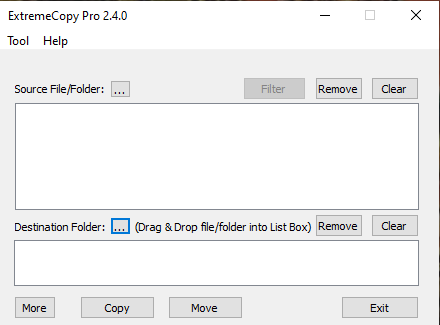
What is ExtremeCopy?
ExtremeCopy is a file transfer accelerator for Windows that optimizes copy and move operations with a focus on speed and reliability. It uses optimized algorithms to transfer files faster than the default Windows copy engine and offers features such as pause/resume, buffer control, and verification checks for safer transfers. If you want to explore more alternatives and see how ExtremeCopy compares, check our roundup of Top Free Fast File Copy Software for Windows 11/10 PC.
Key Features
- Optimized transfer engine for faster copy/move operations than default Windows copy.
- Batch mode: queue multiple copy/move jobs and process them efficiently.
- Pause and resume transfers — useful for large jobs or unstable connections.
- Simple, beginner-friendly UI for quick setup and use.
- Data integrity verification to ensure files are copied correctly — similar reliability goals seen in tools such as TeraCopy.
How to Get ExtremeCopy
ExtremeCopy is available from its project pages and various download mirrors. If you want a short checklist to install and start, follow these plain steps:
Step 1. Download ExtremeCopy from the official project or a trusted mirror.
Step 2. Run the installer and follow on-screen instructions. Grant administrator rights if prompted.
Step 3. Launch ExtremeCopy, pick source and destination, and start the transfer. Use pause/resume from the transfer window when needed.
Note: If you prefer other fast copy utilities, you can read a focused review on FastCopy to compare features and workflows.
System Requirements
- Windows 7, 8, 8.1, 10, 11 (32-bit or 64-bit, depending on the build).
- At least 100 MB free disk space for installation files (transfer target requires adequate free space).
- Admin privileges for installing and using shell integration features.
Beginner-Friendly Tips
- Use batch mode for many small files — grouping reduces overhead and often improves throughput.
- Pause and resume transfers if you need to free system resources temporarily.
- Always run a quick verification (when available) for mission-critical files to avoid silent corruption.
Pros
- Noticeably faster transfers in many scenarios compared with Windows Explorer.
- Pause/resume and batch queuing make large transfers manageable.
- Small footprint — doesn’t add heavy system overhead.
- Beginner-friendly — easy to start without advanced configuration.
Considerations
- Performance gains vary by drive type, file sizes, and system load — SSD-to-SSD transfers may show smaller improvements than HDD-to-HDD or network copies.
- Always download installers from trusted sources and verify checksums when provided.
- If you want alternative UIs or deeper control, review other fast copy tools (for example, see FastCopy or TeraCopy reviews linked above).
When to Use ExtremeCopy
ExtremeCopy is a good fit when you regularly move or copy large datasets (multiple GBs), perform backups to external drives, or need better transfer controls than the built-in file manager offers. For casual single small-file moves, the default copy is usually sufficient.
Comparison & Alternatives
If you’re exploring options, ExtremeCopy is part of a family of fast-copy utilities. For deeper comparisons and more freeware options, see our curated coverage of fast copy utilities and specialized alternatives such as FastCopy and TeraCopy. Another lightweight option worth checking when wrapping up transfers is NiceCopier.
FAQs
Q. Is ExtremeCopy free?
A. ExtremeCopy typically offers a free edition with basic speed and control features and a paid/pro edition with extra options. Always check the official download page or trusted sources for the exact licensing details of the build you download.
Q. Will ExtremeCopy damage my files?
A. No — ExtremeCopy does not intentionally alter files. However, to guard against transfer errors, use the verification feature when available and keep backups of critical data before large transfers.
Q. Can I pause and resume network transfers?
A. Pause/resume works for many transfers, but success can depend on the network share and protocol. For very large network transfers, consider using robust copy tools designed specifically for network reliability or perform transfers in smaller batches.
Q. How does ExtremeCopy compare to built-in Windows copy?
A. ExtremeCopy often outperforms the default Windows copy in queued/batch scenarios and provides features like pause/resume and verification. Exact speed improvements depend on file sizes, types, drive hardware, and system load.
Conclusion
ExtremeCopy is a compact and practical tool that improves the file copying experience for users who regularly handle large transfers. It’s easy to use, adds useful controls like pause/resume, and can save time — especially on slower drives or when moving many small files. For more options and comparisons, check our collection of fast file copy utilities to pick the best fit for your workflow.