

GearUpWindows Checksum Verifier is a tiny, browser-based utility that lets you calculate SHA-256 and SHA-512 for any file on Windows 11/10—fully offline, with no uploads and no installation. Drag & drop your files, copy the hashes with one click, paste an expected hash to auto-compare, and optionally export a text list of checksums. This is perfect for confirming that your downloads (ISOs, portable tools, drivers) are genuine and haven’t been tampered with.
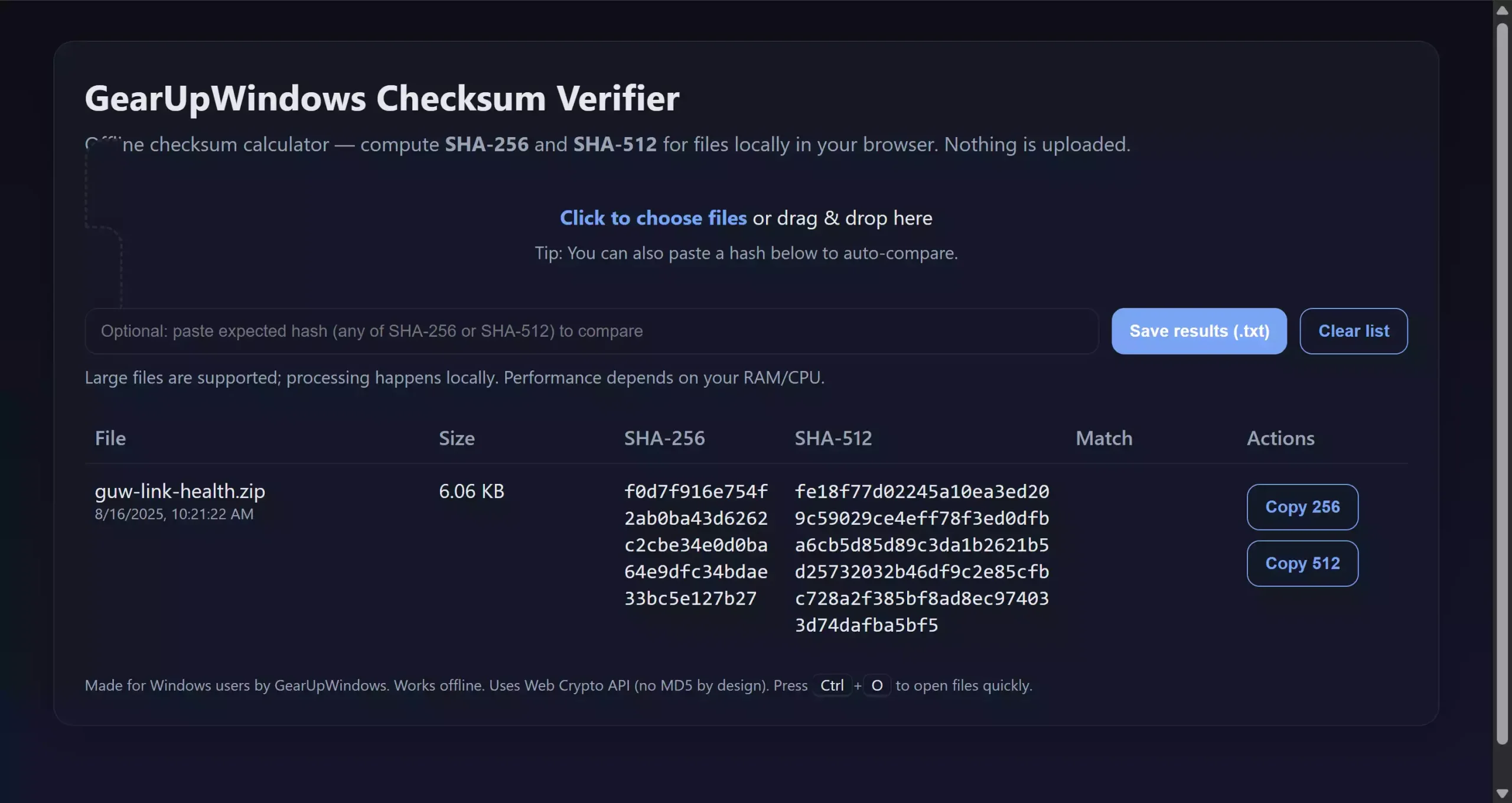
What is GearUpWindows Checksum Verifier?
GearUpWindows Checksum Verifier is a single HTML file that runs locally in your web browser. It uses the modern Web Crypto API to compute SHA-256 and SHA-512 checksums—two secure hashing algorithms commonly used by developers and vendors to publish file integrity values. Because all processing happens on your PC, your files never leave your device.
Why Would a Beginner Use GearUpWindows Checksum Verifier?
If you’ve ever downloaded a tool, ISO, or driver and wondered, “Is this safe?”, checksums are your answer. With this tool, you can verify integrity without installing anything or learning complex commands. It’s ideal for casual users who want a quick sanity check, as well as power users who need a portable verifier they can keep on a USB stick.
Main Features of GearUpWindows Checksum Verifier
Offline and private: No internet required; files are never uploaded anywhere.
SHA-256 & SHA-512: Calculates both hashes side-by-side for quick comparison.
Drag & Drop: Drop one or many files; works great with large files (limited by your RAM/CPU).
Match Check: Paste an expected hash to see a clear “match/no match” indicator.
One-click copy: Copy SHA-256 or SHA-512 values directly to the clipboard.
Export list: Save a checksums-sha256.txt file for all listed items—handy for sharing release hashes.
Light/Dark UI: Clean, modern interface that adapts to your theme.
How to Use GearUpWindows Checksum Verifier
Step 1. Download the ZIP and extract it to any folder on your PC.
Step 2. Double-click GearUpWindows-Checksum-Verifier.html to open it in your default browser (Chrome/Edge/Firefox on Windows 11/10).
Step 3. Click the drop area (or press Ctrl+O) and choose your file, or simply drag & drop the file into the window.
Step 4. Wait a moment while the tool calculates SHA-256 and SHA-512. The values will appear in the table.
Step 5. If you have a reference hash (from a vendor page or your own release notes), paste it into “Expected hash.” The Match column will show whether SHA-256 or SHA-512 matches.
Step 6. Use the Copy 256 or Copy 512 button to copy a value, or click Save results (.txt) to export a list of all SHA-256 hashes.
Safe Use Tips for Beginners
Get hashes from official sources. Always copy the reference hash from the developer’s official site or a trusted announcement.
Use the right algorithm. If a page publishes SHA-256, compare with SHA-256 (not SHA-512). Mixing algorithms will never match.
Avoid extra characters. Remove spaces, “0x”, and any non-hex characters when pasting the expected hash.
Large files need patience. Very big files (e.g., multi-GB ISOs) take longer and consume RAM/CPU while hashing.
Prefer SHA-256 or SHA-512 over MD5. MD5 is considered weak for security. This tool intentionally focuses on SHA-256/SHA-512 for better integrity checking.
When GearUpWindows Checksum Verifier Can Help You
Verifying Windows ISOs or drivers: Confirm your ISO/driver download is authentic before you install.
Portable tools & scripts: Publish a checksum list with your releases so readers can confirm integrity easily.
After network hiccups: If a download paused/resumed or your connection dropped, confirm the file wasn’t corrupted.
USB toolkit ready: Keep this HTML on your technician USB—no setup required.
Pros and Considerations
Pros: 100% offline; modern, clean UI; supports multiple files; fast copy & export; beginner-friendly.
Considerations: Performance depends on your PC; hashing very large files temporarily uses RAM/CPU; only SHA-256/SHA-512 (MD5 not included by design).
Download GearUpWindows Checksum Verifier
File name: GearUpWindows-Checksum-Verifier.zip
Download the portable ZIP (runs offline)
Frequently Asked Questions About GearUpWindows Checksum Verifier
Does this tool upload my files?
No. Everything happens locally in your browser. Nothing is sent to any server.
Which browsers are supported?
Modern browsers on Windows 11/10—Chrome, Edge, and Firefox—are all supported. Keep your browser updated for the best performance.
Can I verify just part of a file?
No. Checksums are for entire files. If a single byte changes, the hash will change.
Why don’t you include MD5?
MD5 is weak and collision-prone. For integrity verification, SHA-256 and SHA-512 are recommended.
How do I share hashes with my readers?
Use the “Save results (.txt)” button to generate a list of SHA-256 hashes, then publish that text file or paste it into your post/release notes.
Will this work without internet?
Yes. The HTML runs entirely offline. You can even disconnect from the network while using it.
Helpful Companion Tools on GearUpWindows
For network fixes and maintenance, you may also like our free, portable utilities made for Windows 11/10. Pair the verifier with tools like DNS Switcher NETSH, Proxy Doctor (NETSH), Windows Update Doctor, and Print Spooler Doctor to round out your USB toolkit.
Conclusion
GearUpWindows Checksum Verifier gives Windows users a quick, offline, and beginner-friendly way to compute and compare SHA-256 and SHA-512 hashes—no installs, no command line. Keep it handy whenever you download software, share portable tools, or publish releases so your readers can validate file integrity with confidence.