

Microsoft Edge has a handy built-in feature called Sleeping Tabs that helps reduce memory (RAM) and CPU usage by suspending inactive tabs. This short guide shows what Sleeping Tabs does, how to enable or disable it, how to customize behavior, and which scenarios may still need extra tools for deeper optimization.
What is the Sleeping Tabs Feature in Edge?
Sleeping Tabs automatically detects inactive tabs and suspends them to free system resources. Suspended tabs use far less memory and CPU, and they automatically reload when you return to them. Edge also provides controls under System and Performance to set timeouts and exceptions.
How to Enable or Disable Sleeping Tabs in Microsoft Edge
Follow these steps:-
Step 1. Launch Microsoft Edge.
Step 2. Click the three dots (⋯) in the top-right corner and choose Settings.

Step 3. From the left sidebar, select System and Performance. This area contains performance options, including Efficiency Mode and Sleeping Tabs.

Step 4. Click the Performance option on the right sidebar.
Step 5. Turn on the Save resources with sleeping tabs switch. Inactive tabs will now go to sleep after the timeout you choose.
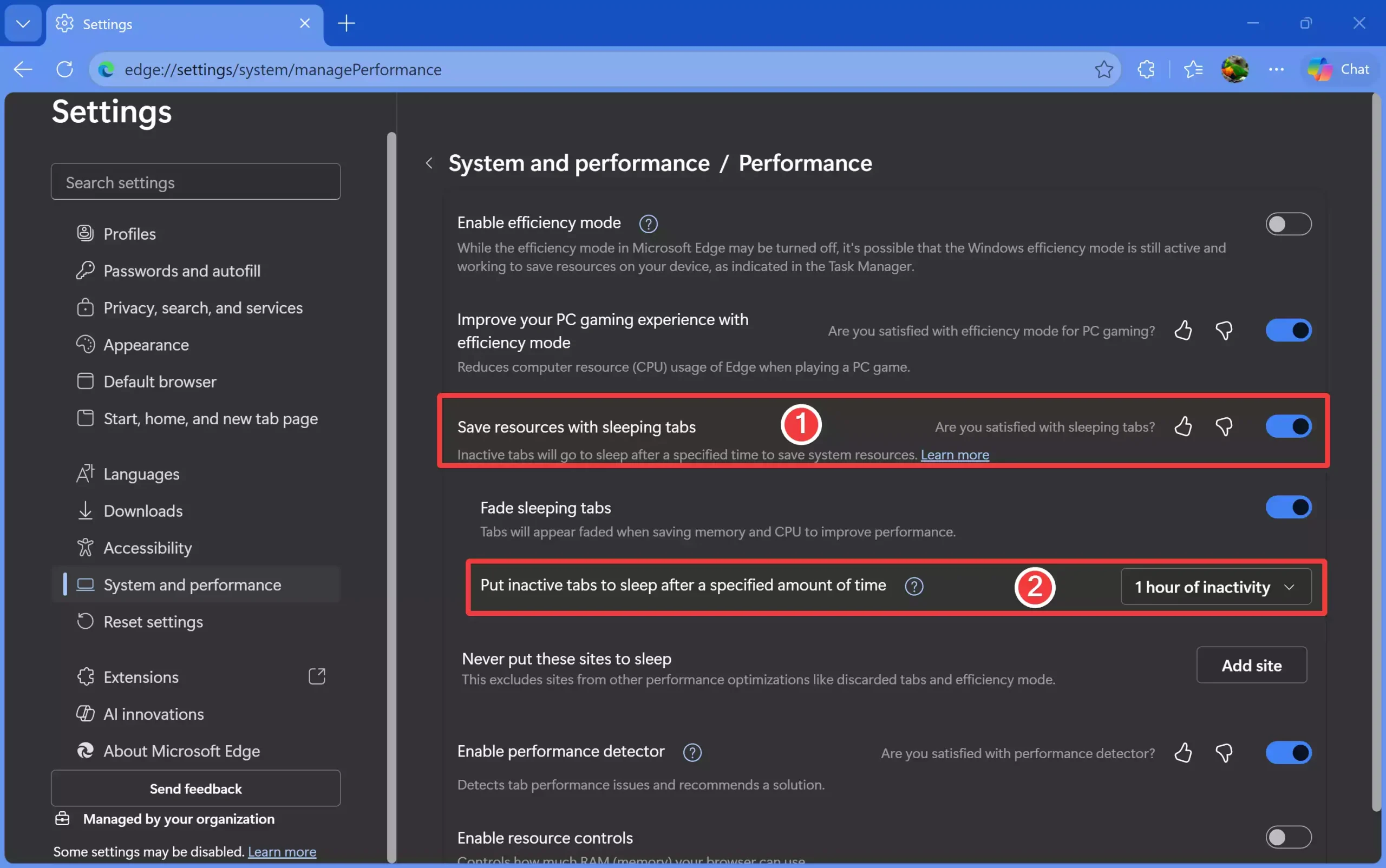
Step 6. Use the timeout dropdown to choose how long a tab must remain inactive before it goes to sleep (for example, 5 minutes, 15 minutes, 30 minutes, or 1 hour).
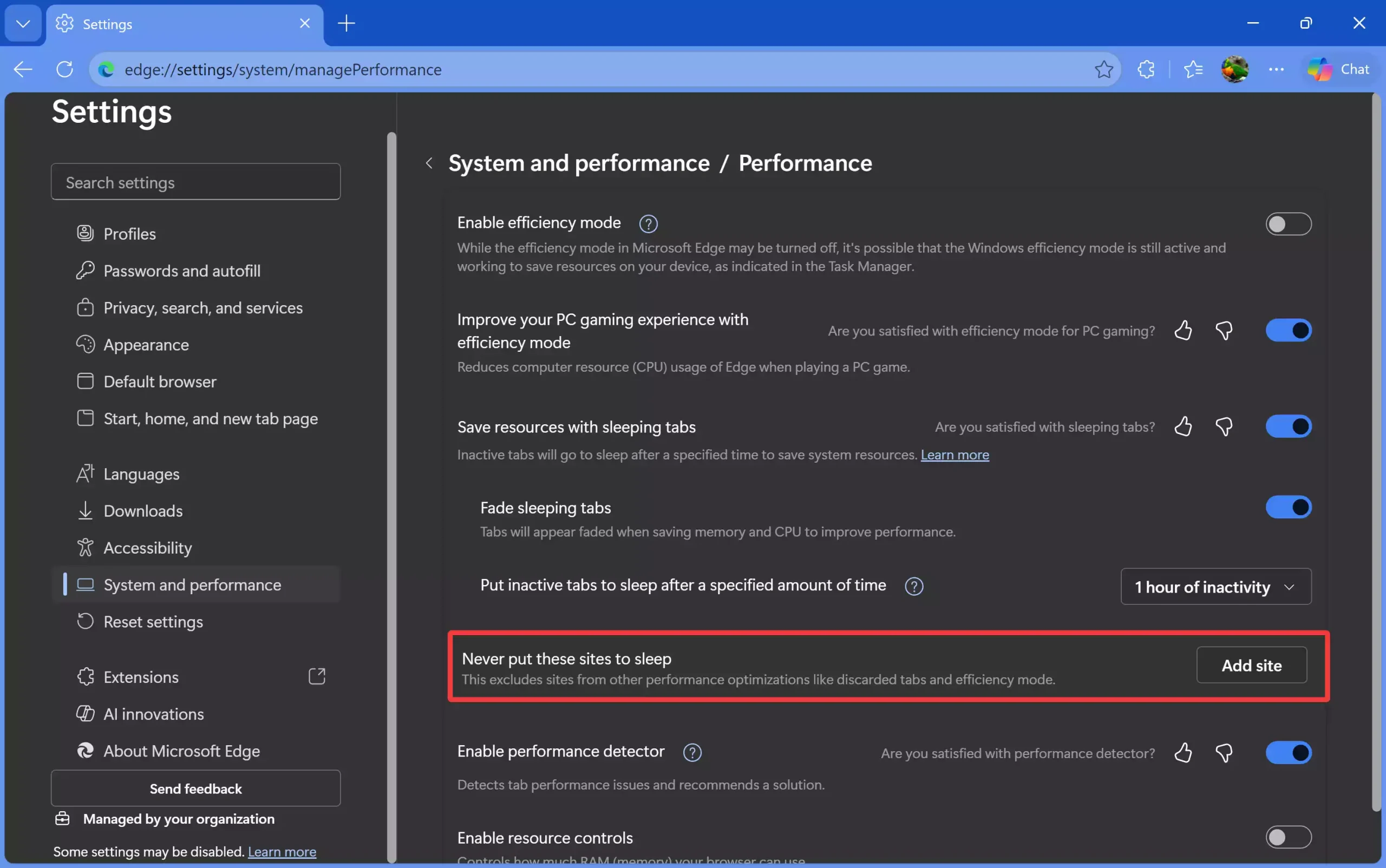
Step 7. Under the section labeled Never put these sites to sleep, click the “Add site” button to add addresses for sites you always want to remain active — useful for web apps and long forms.
How to Disable Sleeping Tabs
To turn the feature off, toggle Save resources with sleeping tabs to the off position. Edge will stop suspending inactive tabs, and all tabs will remain active.
Benefits of Using Sleeping Tabs
- Lower memory (RAM) usage
- Smoother browser performance
- Improved laptop battery life
- Prevents slowdowns when many tabs are open
- Automatic wake-up when returning to a tab
For deeper system-level responsiveness improvements, consider pairing Sleeping Tabs with a process optimizer such as Process Lasso.
When Sleeping Tabs Might Not Be Enough
If your browser or PC still feels sluggish despite using Sleeping Tabs, follow a simple troubleshooting checklist to identify common browser issues and conflicts. A step-by-step browser troubleshooting checklist can help isolate extensions, corrupt profiles, or other causes. Open the browser troubleshooting checklist.
How Sleeping Tabs Fits with System Optimizers
Sleeping Tabs reduces browser memory usage, but overall system performance may also benefit from general optimizers. Tools like Microsoft PC Manager provide one-click cleanup and optimization alongside Edge’s features.
Pros / Considerations
Pros
- Easy to enable and customize from Edge settings.
- Effective memory savings when many tabs are open.
- No additional software required — built into Edge.
- Automatic restoration of tab content on activation.
Considerations
- Some web apps or complex forms may lose unsaved data when a tab reloads; add such sites to the Never Sleep list.
- Sleeping Tabs won’t fix non-browser system issues; use system optimizers or RAM tools when needed — for example, Wise Memory Optimizer.
- Extensions or background services might keep a tab active and prevent it from sleeping.
FAQs
Does Sleeping Tabs close my tabs?
No. Tabs are suspended (sleeping), not closed. They reload when you click them or switch back to them.
Will I lose form data in a sleeping tab?
Most websites reload safely, but unsaved form data on some sites may be lost. If you’re filling long forms, add those sites to the Never put these sites to sleep list.
Is Sleeping Tabs enabled by default?
In many recent Edge versions, Sleeping Tabs is enabled by default with a short inactivity timeout (often 5 minutes). You can change or disable it in Settings.
Does Sleeping Tabs improve performance?
Yes — it can significantly reduce memory usage when many tabs are open, improving system responsiveness and battery life on laptops.
What is the difference between Efficiency Mode and Sleeping Tabs?
Efficiency Mode applies broader, system-level performance limits to reduce resource use, while Sleeping Tabs specifically targets inactive tabs to free browser memory.
Conclusion
Sleeping Tabs is a simple but powerful Edge feature that can meaningfully reduce RAM and CPU usage when you work with many tabs. Enable it in Edge settings, add exceptions for important web apps, and pair it with optional system tools if you need deeper optimization. With these steps, you should notice smoother browsing and better battery life on laptops.