

Adding color or an image to the background of a Microsoft Office Word document can enhance its visual appeal and make it stand out. This feature is especially useful for creating eye-catching presentations, posters, flyers, or any other type of document that benefits from a touch of creativity. A colorful or dynamic background can help draw attention to key points, highlight specific sections, or simply make your document look more professional.
There’s nothing wrong with a plain white background in a Word document; however, if you wish, you can add color or an image to customize the look. If you’re bored with the default white background or want to beautify your document, changing the background with a color or image is a simple way to do so. This post will guide you through the steps to add color or a picture as the background in an MS Word document.
How to add color to an MS Office Word document’s background?
If you are bored with the default white background of MS Office Word documents and want to add some color to the background, perform the following steps:-
Step 1. Open an MS Office Word document.
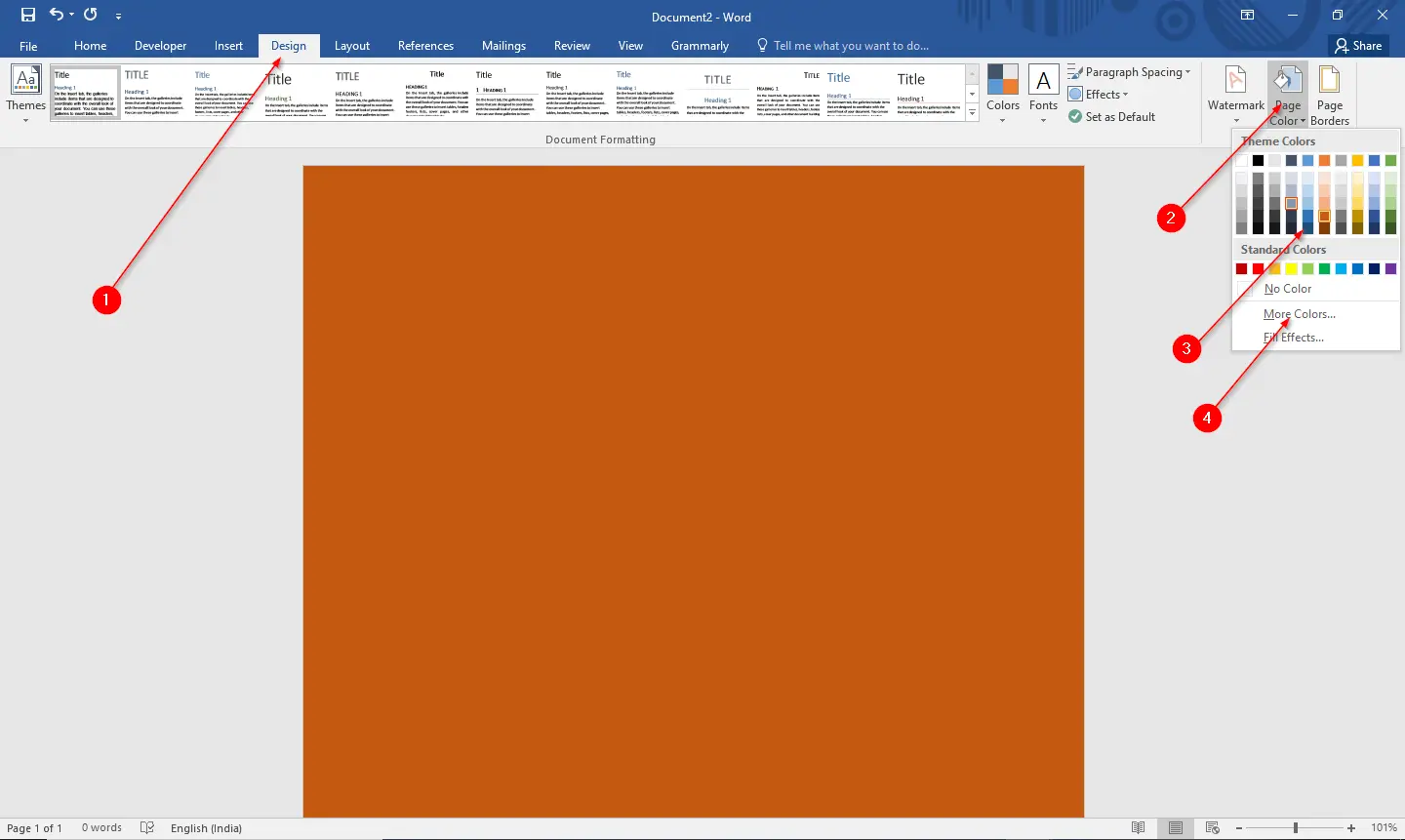
Step 2. Select the Design tab. In the “Page Background” group, click the “Page Color” icon and select any color you want to set as the document’s background. If you want to try more colors, click the “More Colors” option and choose the desired color.
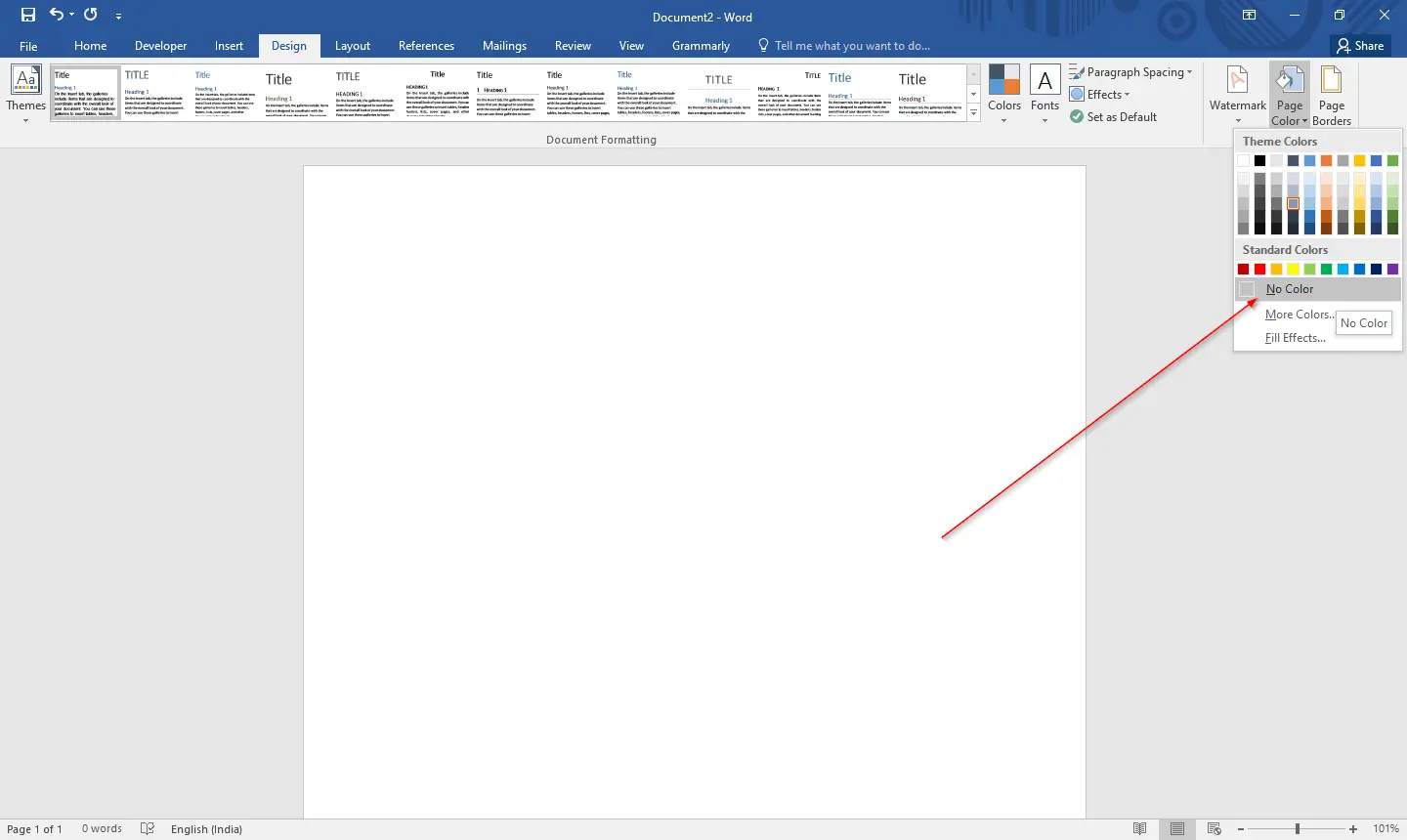
If, for any reason, you want to remove the background color from an MS Word document, select the Design tab. In the “Page Background” group, click the “Page Color” icon and select the No Color option to remove the background color and set the default white color as the background of the document.
How to add an image or picture to an MS Office Word document’s background?
Follow these steps to add an image or picture to an MS Office Word document’s background:-
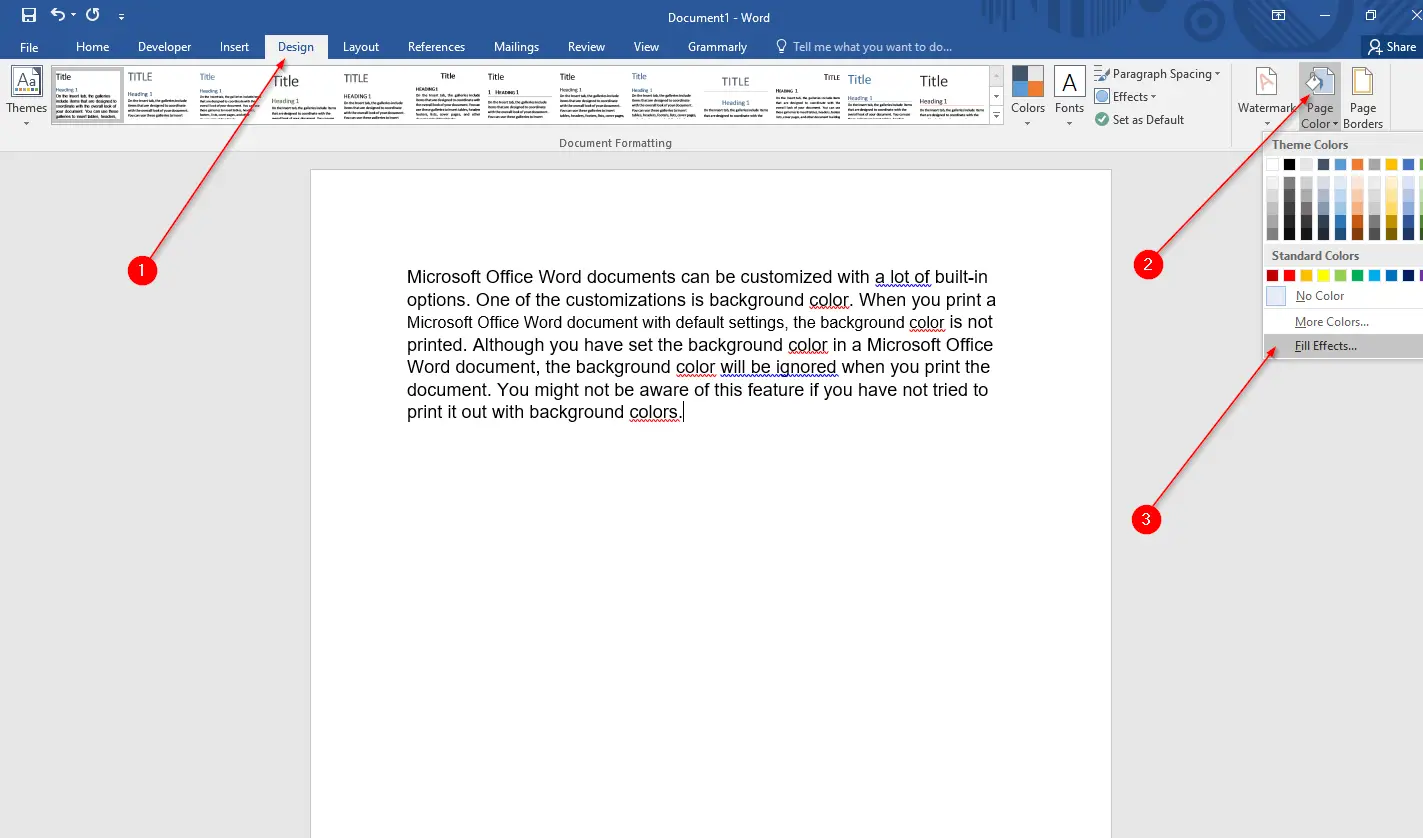
Step 1. If you are not satisfied with the background color and want to add an image or picture as the background of an MS Office Word document, click on the Design tab. In the “Page Background” group, click the “Page Color” icon and select the “Fill Effects” option from the drop-down menu that appears.
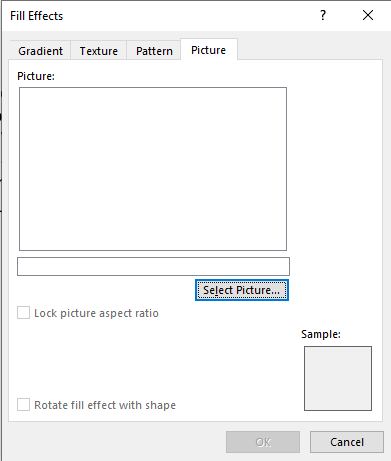
Step 2. The Fill Effects window will appear on the Word document. From the “Fill Effects” window, you can set a gradient, texture, pattern, or picture as a background for the Word document. Since we will set an image or picture as the background of the Word document, click on the Picture tab.
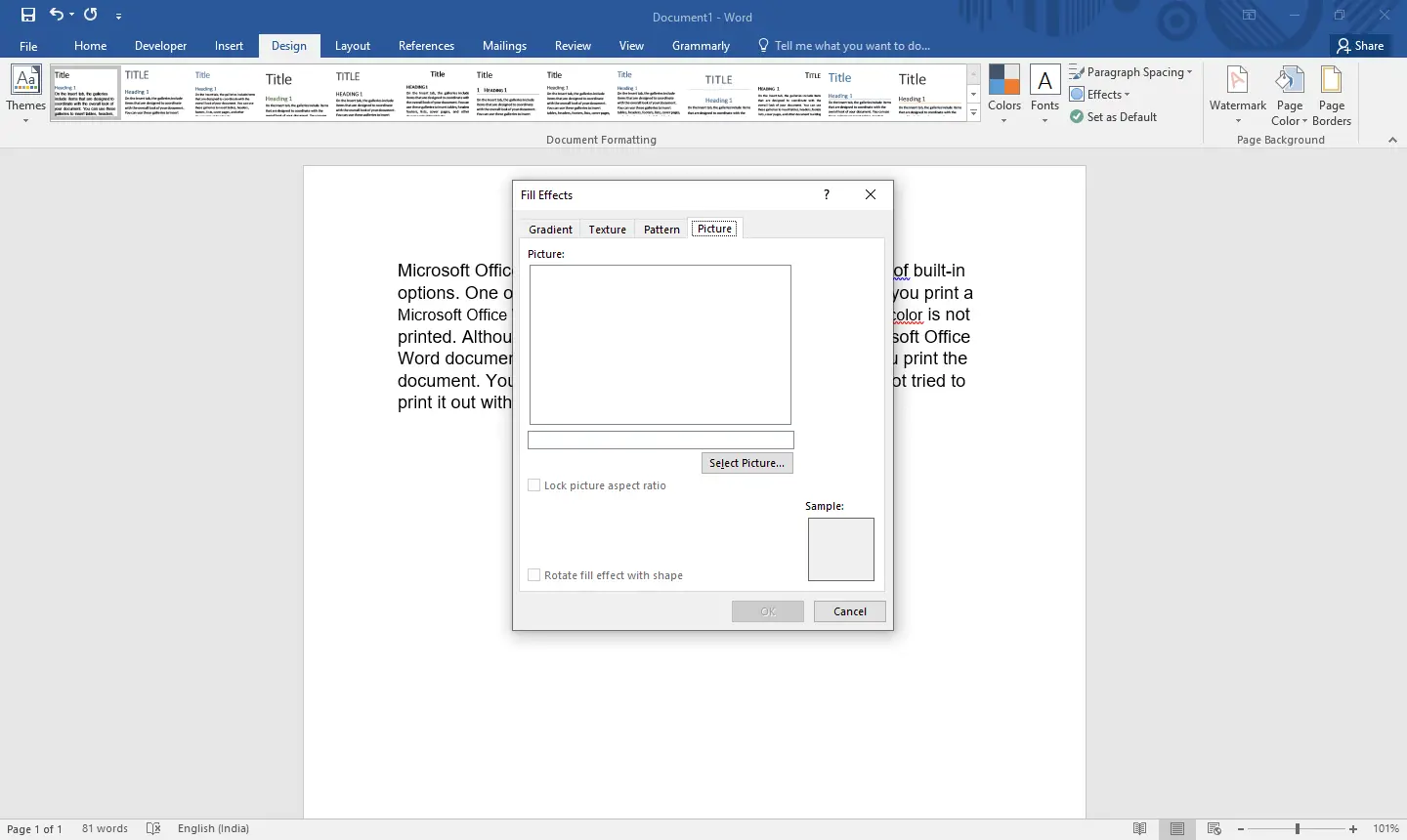
Step 3. Click on the Select Picture button.
Step 4. The Insert Pictures window will open. You can select the image from a file, Bing image search, or OneDrive and set it as the background image of your Word document.

Step 5. Once you have selected your desired image, click the Insert button.

We have selected an image from the Bing search engine.
Step 6. Click the OK button on the Fill Effects window.
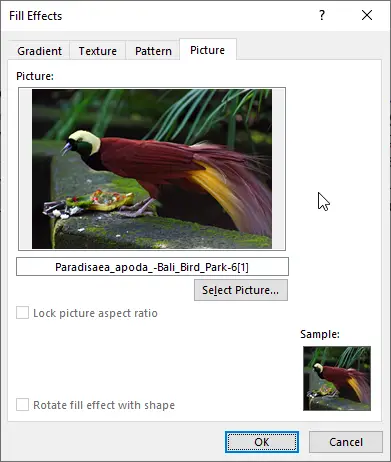
Now, the selected image is set as a background image in the Microsoft Word document.

Conclusion
In conclusion, adding color or an image to the background of an MS Office Word document can be an excellent way to make your document more visually appealing and enhance its overall look. By following the steps outlined in this post, you can easily add color or an image to your MS Word document’s background, making it more engaging and attention-grabbing. Whether you’re creating a presentation, flyer, or any other type of document, adding a background color or image can make it stand out and leave a lasting impression on your audience.