

In this gearupwindows guide, we’ll show you how to change the default search engine in the Vivaldi browser. Vivaldi comes with multiple built-in search engines, and you can easily switch between them or add a custom one if needed. This lets you personalize your browsing experience according to your preferences.
How to Set a Default Search Engine in Vivaldi Using Settings?
Follow these steps to change your default search engine using the built-in settings menu:
Step 1. Open the Vivaldi browser on your PC.
Step 2. Click on the Vivaldi menu (V icon in the top-left corner), then select Settings. You can also press Ctrl + F12 to open it quickly.

Step 3. In the left pane, click on Search.
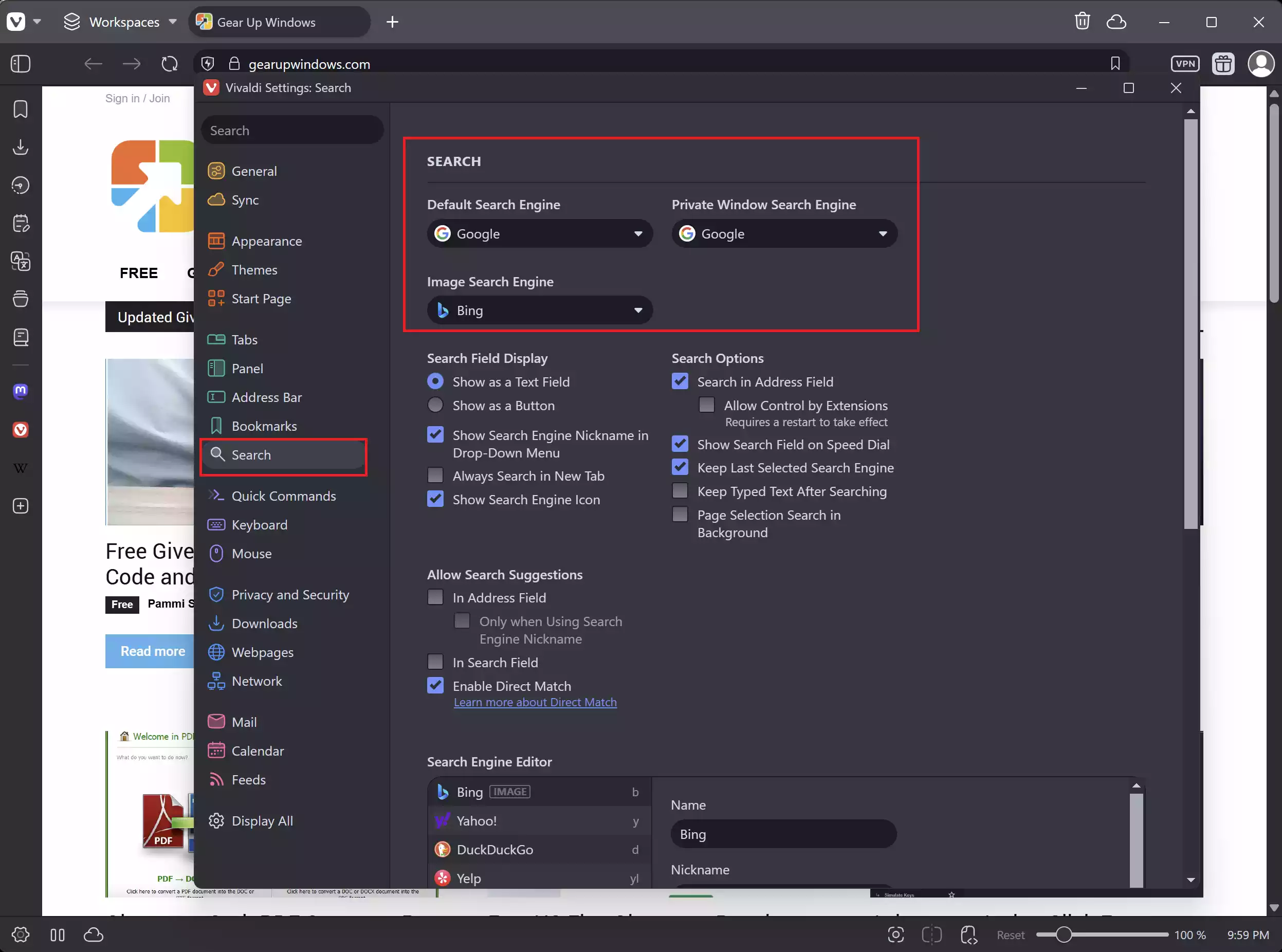
Step 4. Under the Search section, you will see drop-downs like Default Search Engine, Private Window Search Engine, and Image Search Engine. Use the drop-down menu to choose options like Bing, Google, DuckDuckGo, StartPage, etc. Select your preferred engine by clicking its name.
Once done, Vivaldi will use your selected search engine whenever you type queries directly into the address bar.
How to Add a Custom Search Engine in Vivaldi?
If your preferred search engine is not listed, you can manually add it by editing the search engine settings:
Step 1. Open the Vivaldi browser.
Step 2. Click on the Vivaldi menu (V icon in the top-left corner), then select Settings. You can also press Ctrl + F12 to open it quickly.
Step 3. In the left-hand menu, click on Search.
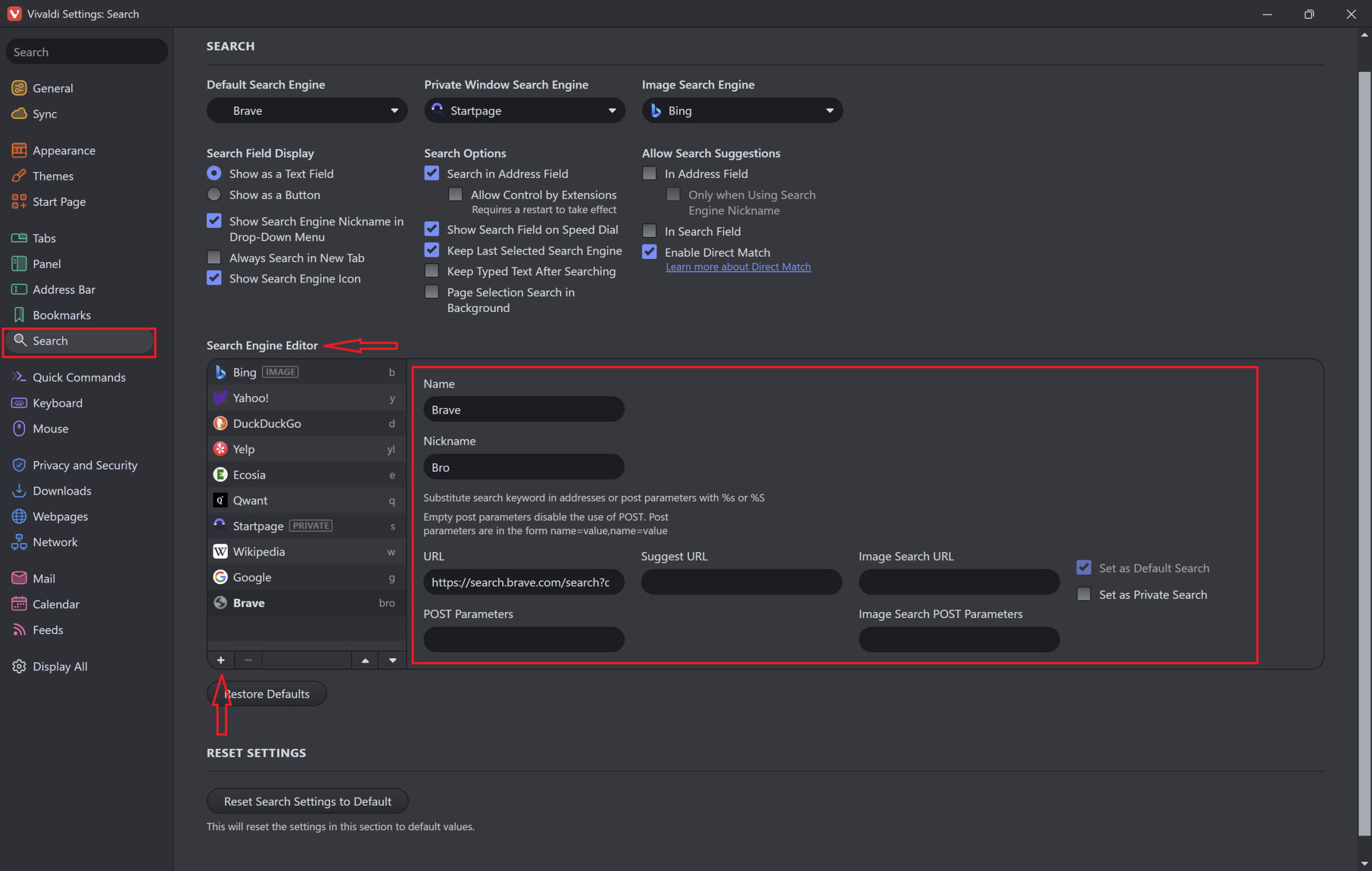
Step 4. Scroll down to the Search Engine Editor section and click the + button at the bottom.
Step 5. Fill in the following details:
- Name: Enter the name of the search engine (e.g., Brave).
- Nickname: Type a shortcut (e.g., bro) to use in the address bar.
- URL: Enter the full search URL suffixed by ?q=%s (for example,
https://search.brave.com/search?q=%s).
Step 6. Click Set as Default Search to save and use it as your main search engine.
How to Quickly Switch Search Engines Using Keywords?
Vivaldi also allows you to switch between search engines on the fly using shortcuts. Each engine is assigned a keyword.
For example:
- Type g gearupwindows to search using Google.
- Type d gearupwindows to search via DuckDuckGo.
- Type w gearupwindows to search on Wikipedia.
You can view or edit these keywords under Settings > Search.
Conclusion
Changing your default search engine in Vivaldi is quick and easy. Whether you prefer Google, DuckDuckGo, or a privacy-focused alternative, Vivaldi gives you full control. You can even assign keywords for faster searches or add your own custom engines. If you’re exploring more advanced features, check out how to clear cache and cookies in Vivaldi.