

With built-in options in Windows 11/10, you can make the Command Prompt transparent or opaque. You can even use the Ctrl + Shift keys while the Command Prompt window is open and scroll up or down using your mouse. Scrolling up increases transparency, while scrolling down decreases it.
Windows 11/10 also provides an option to change the Command Prompt background color without using any third-party tool. By default, the Command Prompt comes with a black background. However, if you are not satisfied with this default setting, you can change the background color to one of your choice. That means, if you’re bored with the default black color, you can personalize it using the available settings.
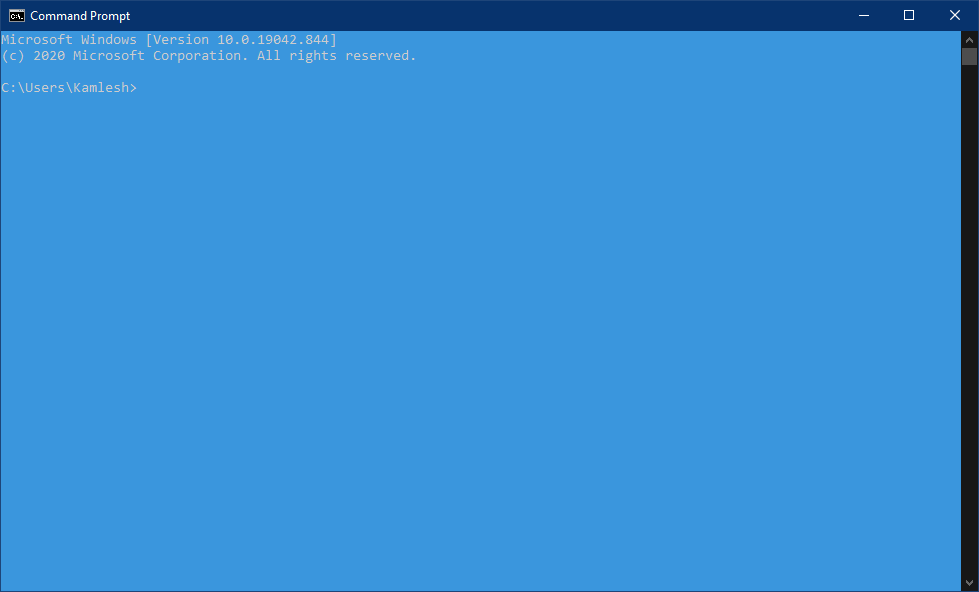
How to change Windows 11 or 10 Command Prompt background color?
To change the Windows 11 or 10 Command Prompt background color, do the following:-
Step 1. Open the Command Prompt window.
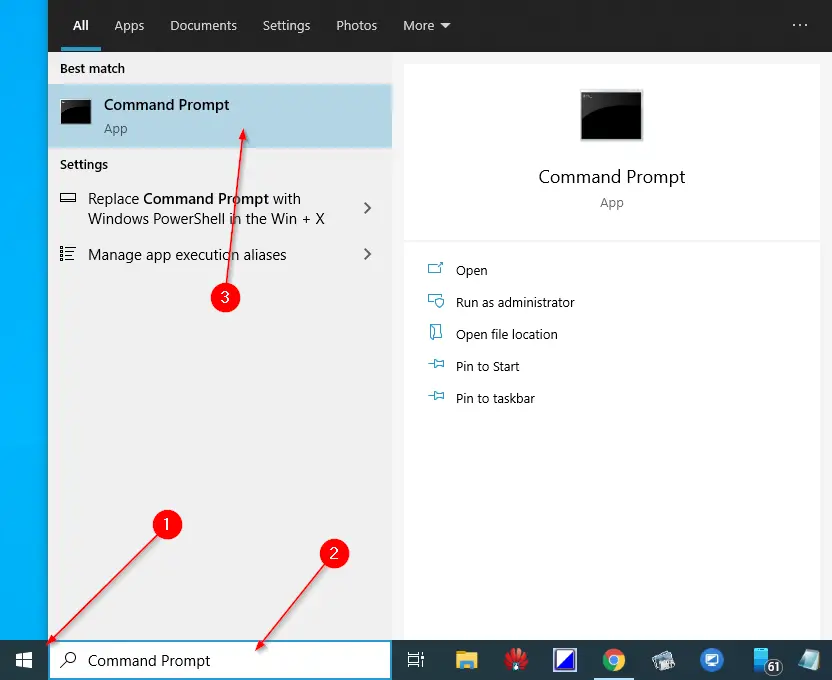
To open the Command Prompt window, click on the Start button, type CMD, and click on the Command Prompt entry from the available top results.
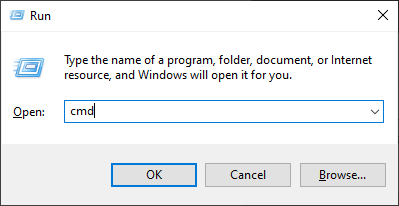
Alternatively, press the Windows + R keys to open the Run dialog box. Type CMD and press Enter on the keyboard to quickly launch the Command Prompt window.
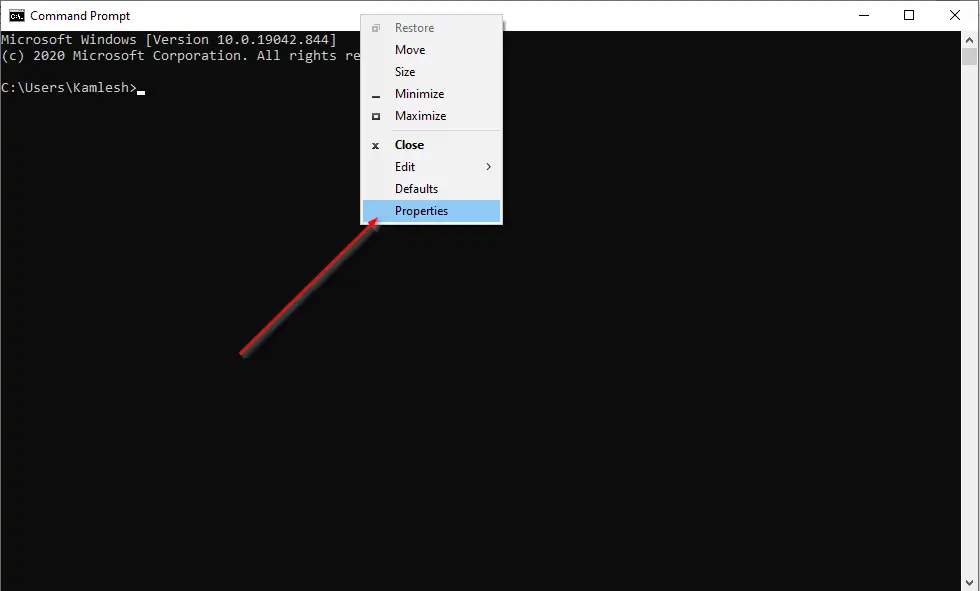
Step 2. Once the Command Prompt window opens, right-click on the title bar and select Properties from the drop-down menu. The Command Prompt Properties dialog will appear.
Step 3. Click the Colors tab in the Command Prompt Properties dialog box.
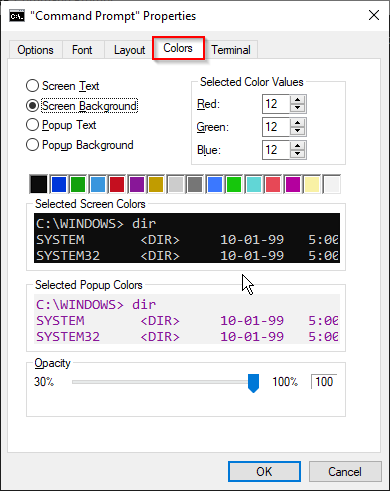
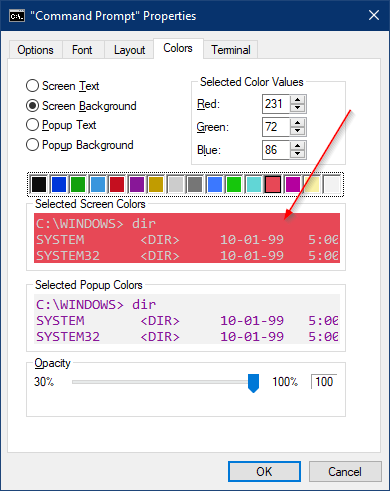
Step 4. Click the Screen Background radio button and select one of the colors provided in the box below. If you want to set a custom color, enter values in the Red, Green, and Blue boxes.
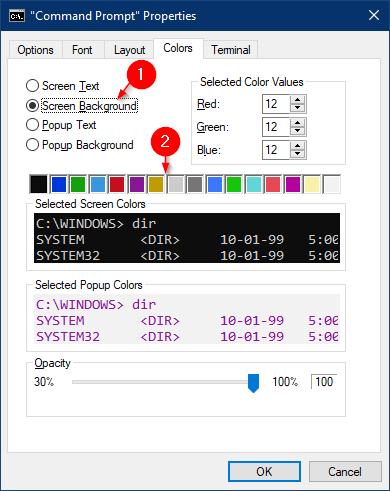
Step 5. Once you choose or enter color values, a live preview will appear under the Selected Screen Colors section. If you’re satisfied with the preview, click the OK button.
After changing the background color, if you want to adjust the text color for better readability, select the Screen Text radio button under the Colors tab and pick a color that complements the selected background.
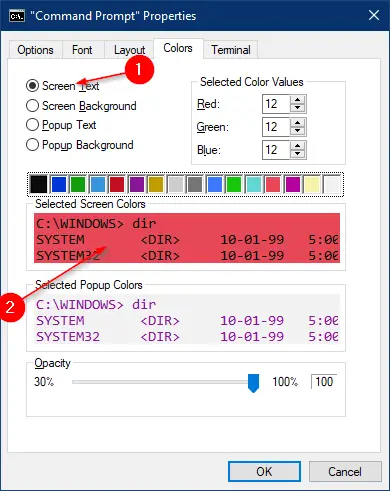
Under the “Selected Screen Colors” section, you can preview both the background and text colors. Once satisfied, click the OK button.
Close the Command Prompt window and reopen it to apply the changes.
After completing the above steps, the new background and text colors will be applied to your Command Prompt window.
Conclusion
In conclusion, Windows 11/10 offers several customization options for the Command Prompt, including transparency settings and the ability to change the background color. By following the simple steps outlined above, users can easily personalize the appearance of their Command Prompt window to suit their preferences. Whether you want to increase transparency, modify the background color, or change the text color, Windows provides all the necessary tools. With a little experimentation, you can create a Command Prompt window that is both visually appealing and easy to read.