

If a website won’t load correctly, shows stale content, or you’re getting DNS-related errors in Opera, flushing the browser’s host (DNS/resolver) cache is a quick first step to fix the problem. This short guide shows exactly how to clear Opera’s host cache and other related caches so you can get back to browsing without hiccups.
What is the host (DNS) cache in Opera?
The host cache stores recent DNS lookups and hostname-to-IP mappings that Opera has resolved. Clearing it forces Opera to re-resolve domain names, which can fix issues such as outdated DNS records, pages not loading after DNS changes, or mixed content from different servers.
How to clear host cache in Opera — Step by step
Follow these beginner-friendly steps. Keep them simple and do them in order.
Step 1. Open Opera and type opera://net-internals/#dns into the address bar and press Enter.
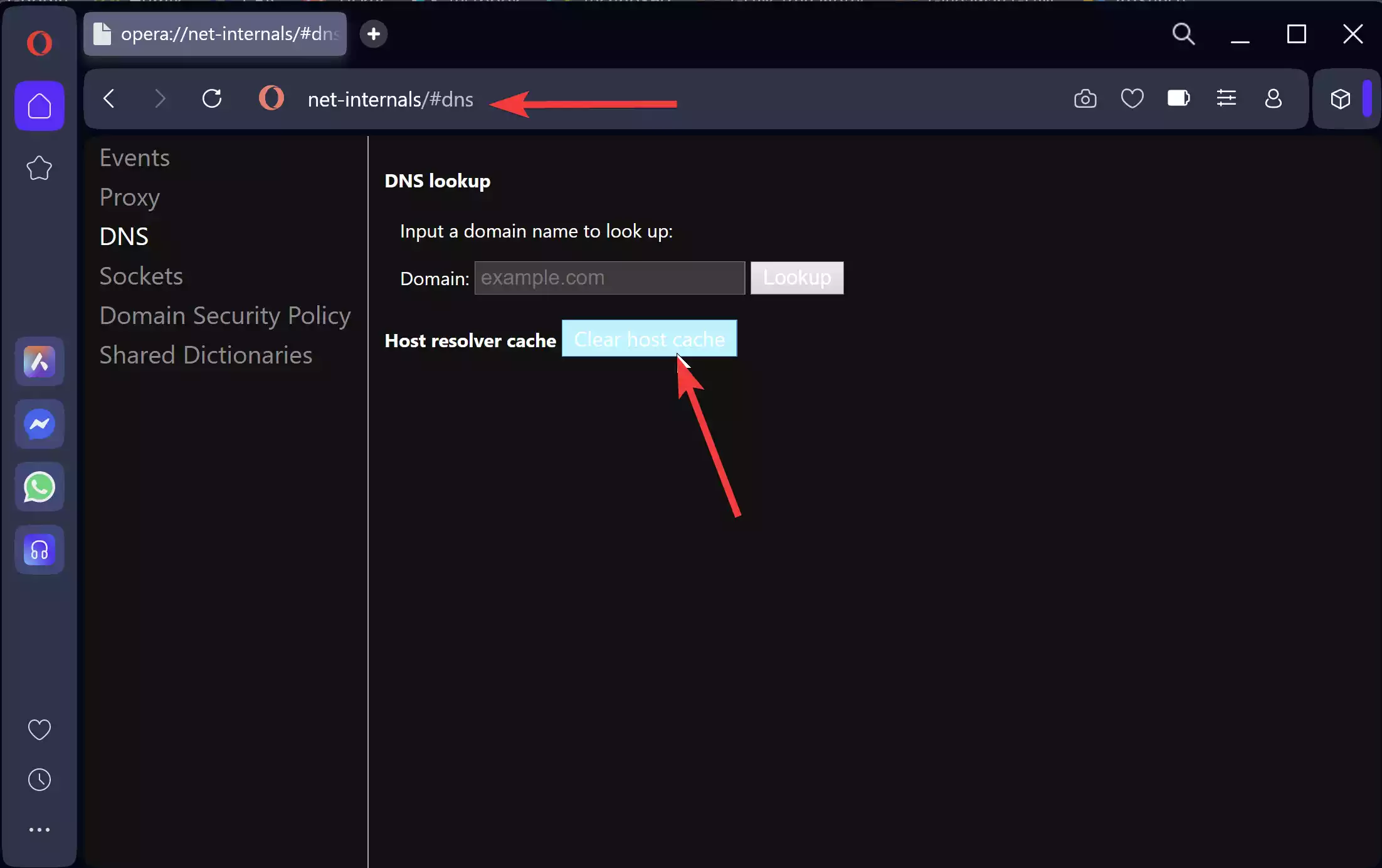
Step 2. On the DNS page, click the button labeled Clear host cache. This clears Opera’s internal host resolver cache.
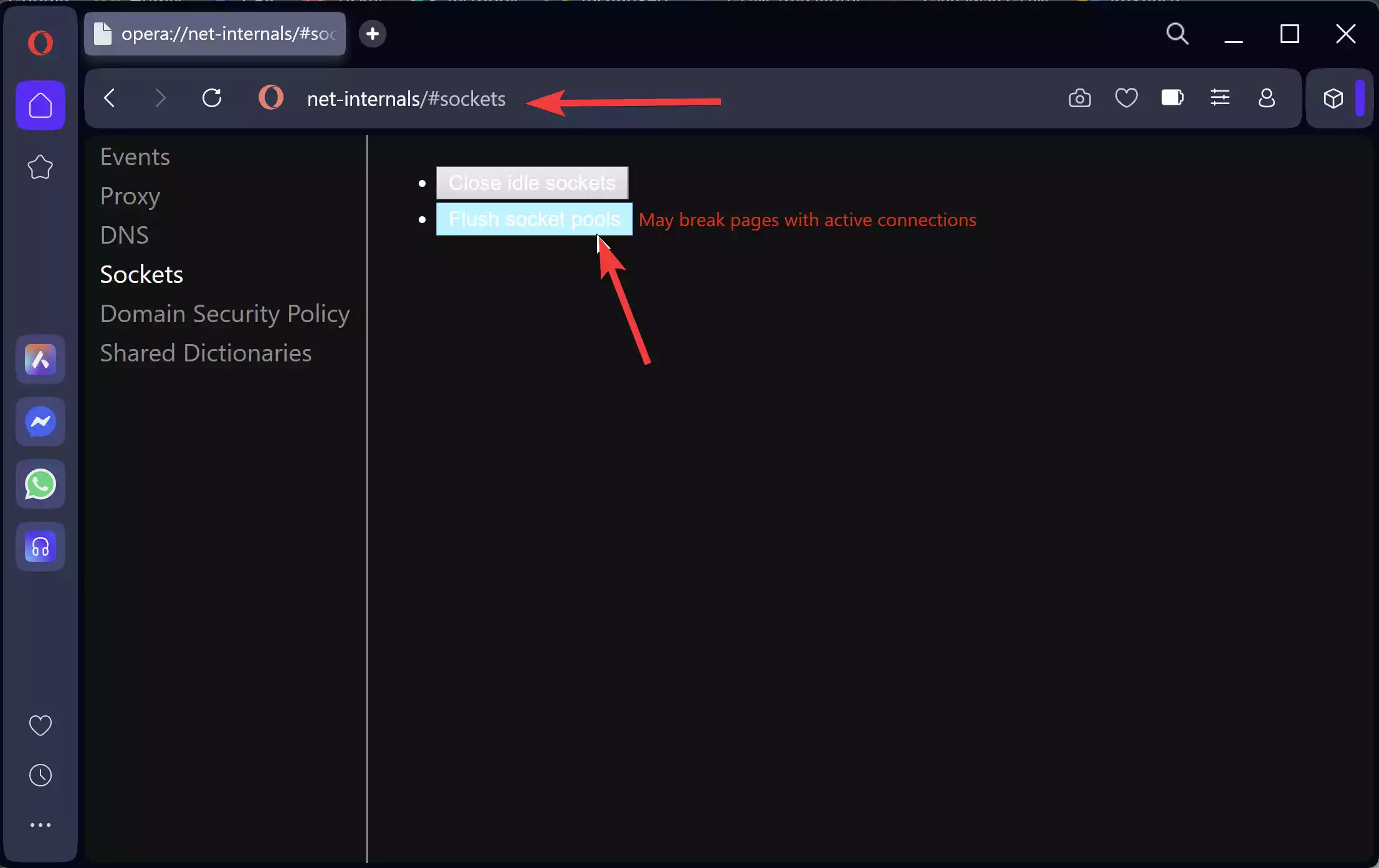
Step 3. Next, type opera://net-internals/#sockets in the address bar and press Enter. Click Flush socket pools to close and reopen network sockets — this helps if stale sockets keep pointing to old IPs.
Step 4. If problems persist, clear cookies and site data via Opera’s Settings → Privacy & security → Clear browsing data → choose “Cookies and other site data” and “Cached images and files” then Clear data. You can follow our full cache & cookies guide for step-by-step details. How to clear cache and cookies on Opera.
Quick checklist (one-click troubleshooting)
If you prefer a quick checklist:
1) Clear host cache in opera://net-internals/#dns,
2) Flush socket pools in opera://net-internals/#sockets,
3) Clear cookies & cache,
4) Restart Opera, and
5) Try the Browser Troubleshooting Checklist Tool for guided checks. Browser Troubleshooting Checklist Tool.
Key features of this fix
Why it helps: clearing the host cache forces fresh DNS lookups; flushing socket pools prevents stale connections; clearing site data removes cached files that may be causing mixed or outdated content.
When clearing Opera host cache can help
- Sites recently moved to a new server, but still load the old content for you.
- Pages fail to load with DNS or connection errors, while others work fine.
- After changing DNS records for your domain during migration/testing.
Why would a beginner use this?
Because it’s safe, quick, and reversible — you’re not changing system settings or deleting personal files. It often fixes site-specific loading problems without technical tools.
Related Opera tips & guides
For broader Opera help and settings that affect how pages load, see:
- How to enable an ad blocker on Opera.
- How to change the default downloads location in Opera.
- How to restore recently closed tabs in Opera.
- How to mute individual browser tabs in Opera.
Pros / Considerations
Pros
- Fast and safe — no admin access needed.
- Often fixes page-loading and DNS-related errors instantly.
- Doesn’t remove bookmarks, passwords, or saved form data when you only clear host cache.
Considerations
- If your problem is DNS propagation for a domain across the internet, clearing only Opera’s cache might not help other users; sometimes you must wait for global DNS propagation.
- Clearing cookies/site data will sign you out of authenticated sites — only do that if necessary.
- If issues persist after the steps above, test with another browser or try a full system DNS flush (OS-level) or change public DNS temporarily.
FAQs
Q: Will clearing host cache delete my saved passwords?
A: No — clearing the host cache only removes DNS/host entries. Clearing cookies or site data may sign you out of sites.
Q: What’s the difference between clearing host cache and clearing cookies/cache?
A: Host cache affects DNS resolution only; cookies and cached files affect stored website data and page resources. Do host cache + socket flush first, then clear cookies/cache if the issue continues.
Q: Do I need to restart my PC after clearing Opera host cache?
A: Usually no. Restarting Opera is sufficient. If network changes were made system-wide (like DNS changes), a system restart or OS DNS flush may help.
Related tools to try
If you’d like guided troubleshooting or system cleanup after these steps, try the Quick System Cleaner Checklist or the Browser Troubleshooting Checklist Tool on our site.
Conclusion
Clearing Opera’s host cache and flushing socket pools is a quick, safe way to fix DNS-related and stale-loading issues. Start with the in-browser steps above; if the issue remains, clear site data and test with other browsers. Use the related guides and tools on GearUpWindows for step-by-step help.