

If you need a quick way to package files into a mountable ISO—without installing software—our browser tool does the job safely and fast. It runs entirely on your computer (client-side), supports Joliet for long file and folder names, and can add a quick verification file for peace of mind.
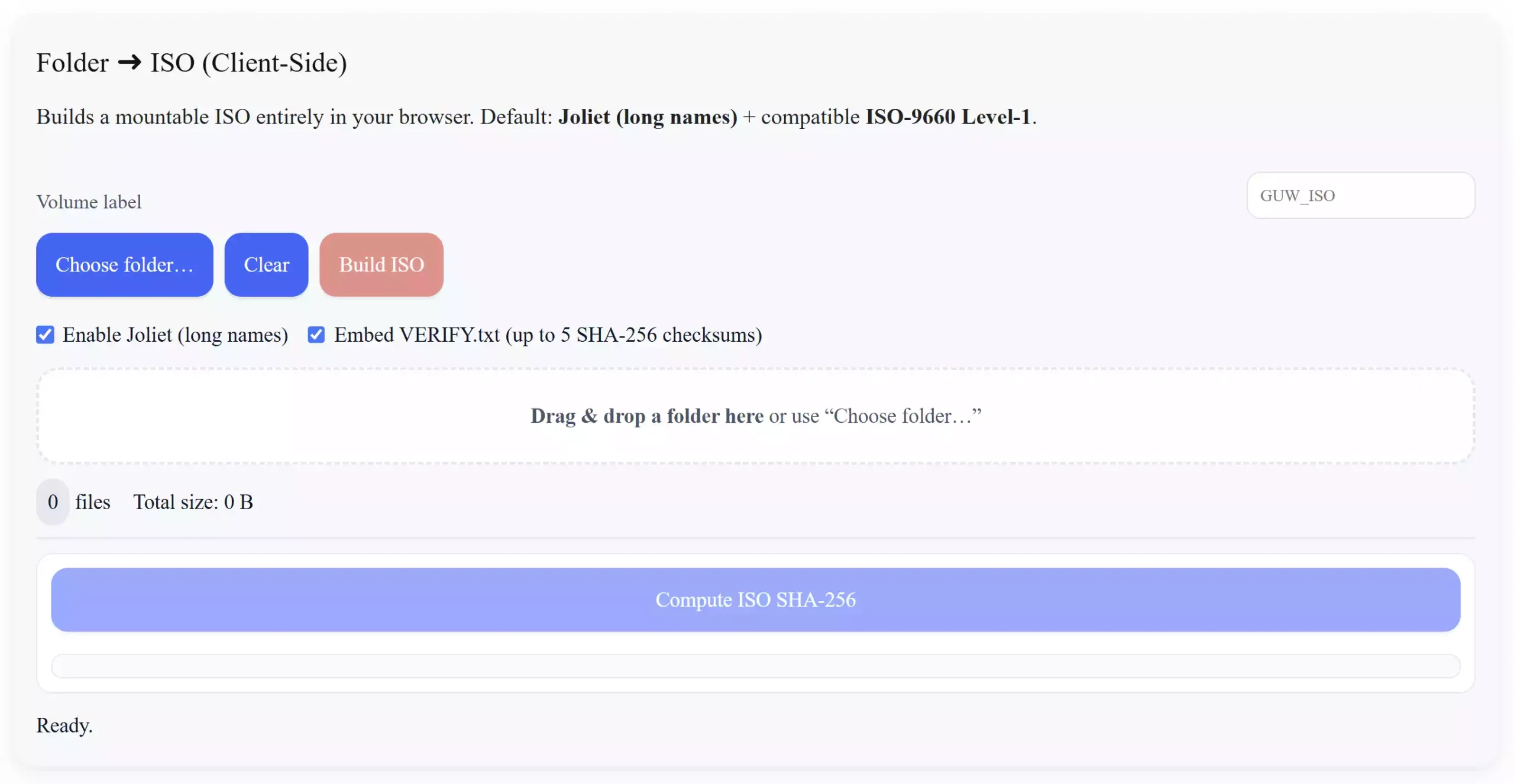 Why use a browser-based Folder ➜ ISO?
- Private by design: Files never leave your device.
- Joliet long names: Keeps full filenames and extensions intact.
- Windows-friendly: Mounts in File Explorer; no extra apps needed.
- Optional verify: Embed a
VERIFY.txt(sample SHA-256) and compute the ISO’s SHA-256 after download.
How to create an ISO from a folder
Step 1. Open the Folder to ISO Converter.
Step 2. Click Choose folder… (or drag & drop a folder). The file list and total size will appear.
Step 3. (Optional) Enter a Volume label. With Joliet, Windows displays up to 16 characters on the mounted drive.
Step 4. Leave Enable Joliet (long names) on (default). Keep Embed VERIFY.txt on if you want a quick integrity note inside the ISO.
Step 5. Click Build ISO. Your browser will download the ISO file.
Step 6. (Optional) Click Compute ISO SHA-256 to generate a hash for the final ISO you just downloaded.
Step 7. Double-click the ISO in Windows to mount it and access your files.
Tips for best results
- File names: Joliet preserves long names and Unicode. If you disable Joliet, ISO-9660 Level-1 uses 8.3 names.
- Volume label: Keep it to 16 characters for the mounted drive name in Windows.
- Large folders: Your browser’s memory limits apply. If you hit limits, split the folder and create multiple ISOs.
- Integrity: Use the optional
VERIFY.txtand/or the ISO SHA-256 to confirm what you built is what you mounted.
Pros
- 100% client-side (no uploads or accounts)
- Joliet long-name support for modern filenames
- Fast, simple UI with drag & drop
- Optional verification (sample checksums + ISO SHA-256)
Considerations
- Very large folders depend on browser/ RAM limits
- If Joliet is off, names may appear in 8.3 format
- Drive label shown in Explorer is limited to ~16 characters with Joliet
Frequently asked questions
Does this upload my files to a server?
No. The converter runs fully in your browser. Files stay on your device during processing and download.
Why do I see short names like 8.3?
That happens when Joliet is off and Windows shows the ISO-9660 view. Keep Enable Joliet (long names) on to preserve full names and extensions.
My drive label looked strange before—what changed?
The Joliet volume label is now written in UCS-2 (big-endian), so Windows displays it correctly in “This PC.” If you used an older ISO, just rebuild with the current tool.
What’s inside VERIFY.txt?
A small list (up to five entries) showing file sizes and SHA-256 checksums from a sample of your input files. It’s a quick confidence check after mounting.
How big can my ISO be?
There isn’t a hard limit in the tool, but browsers are constrained by available memory. For extremely large data sets, build multiple ISOs.
Related
Browse more browser-based utilities here: Online Free Web Tools