

Many users prefer accessing their favorite apps directly from the taskbar or desktop. Adding shortcuts makes launching files and programs effortless. The toolbar feature is available in all Windows versions, including Windows 7, 8, and 10. However, this method does not work in Windows 11. To achieve similar functionality there, you can use a third-party freeware tool called DockFolders.
If you want to add multiple files or programs to the taskbar, the most efficient solution is to create a folder with any name, such as Launcher. Inside this folder, include shortcuts to your preferred files, folders, or programs. Once added as a toolbar, this folder will generate a menu on your taskbar, giving you quick access to your shortcuts. It’s a great way to stay organized without cluttering your desktop or taskbar.
How to Create a Custom Toolbar to Launch Programs and Files Quickly from the Windows Taskbar on Windows 10?
Follow these steps to create a custom toolbar on the Windows Taskbar:
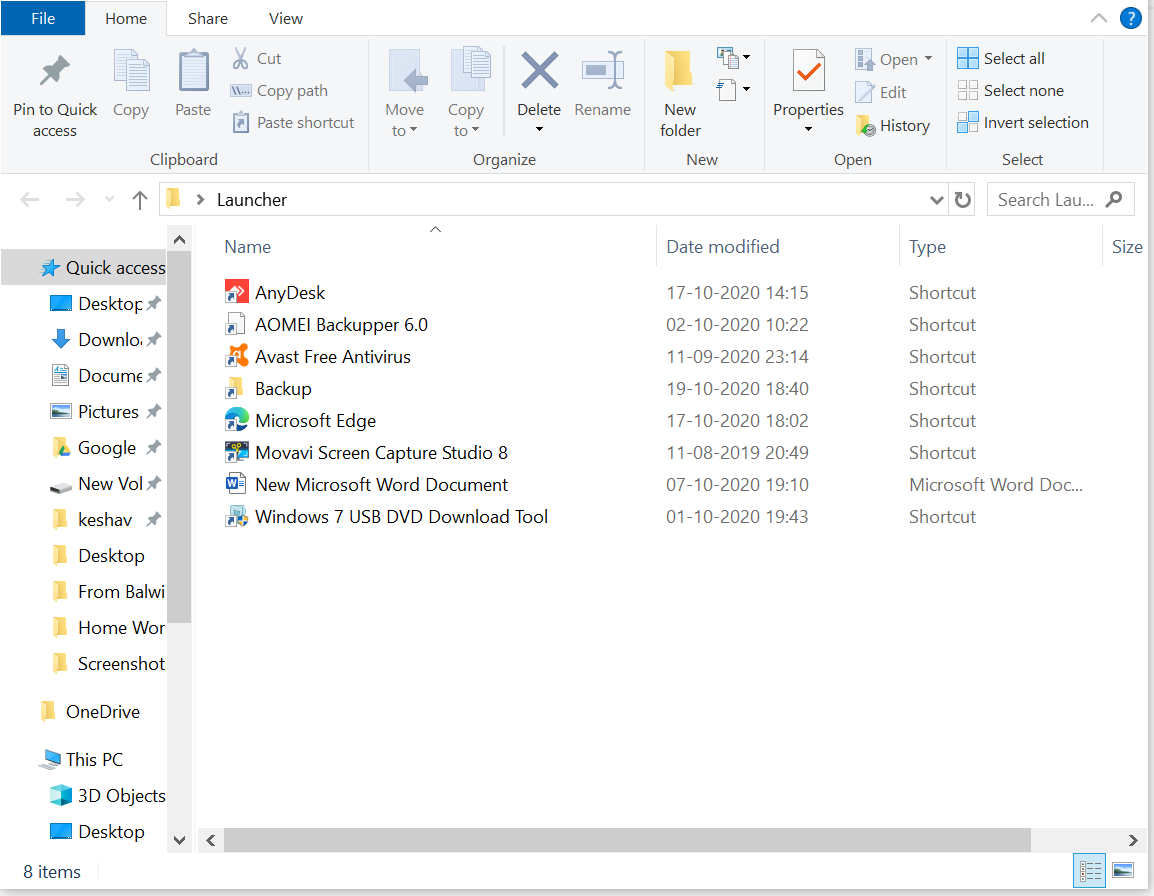
Step 1. Create a folder on your Windows 10 desktop and rename it to Launcher.
Step 2. Add all your desired program, file, or folder shortcuts to this folder.
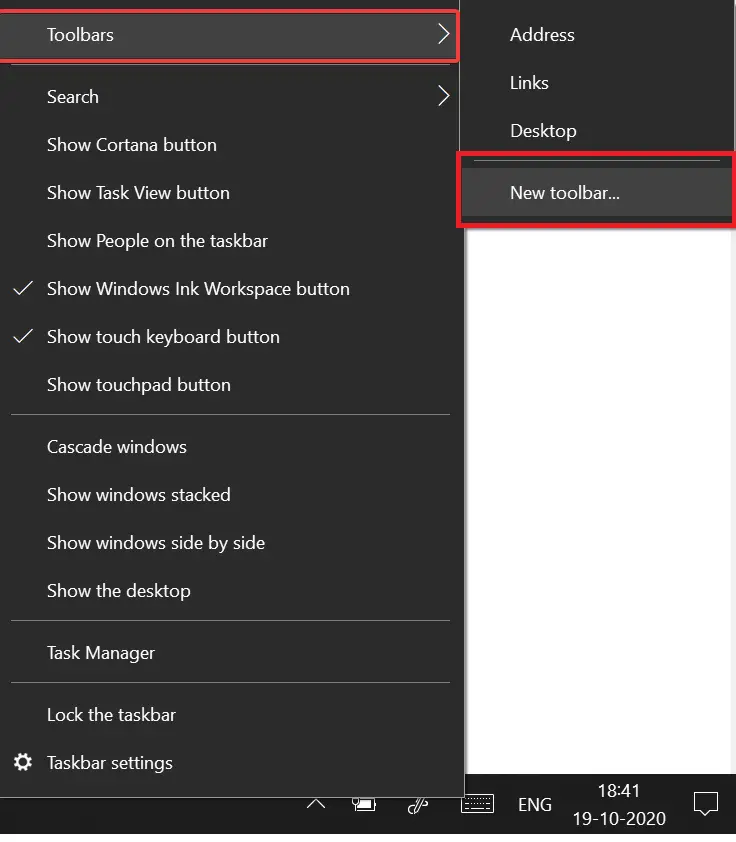
Step 3. Right-click on the Taskbar, then select Toolbar > New toolbar.
Step 4. A window will open asking you to select a folder.
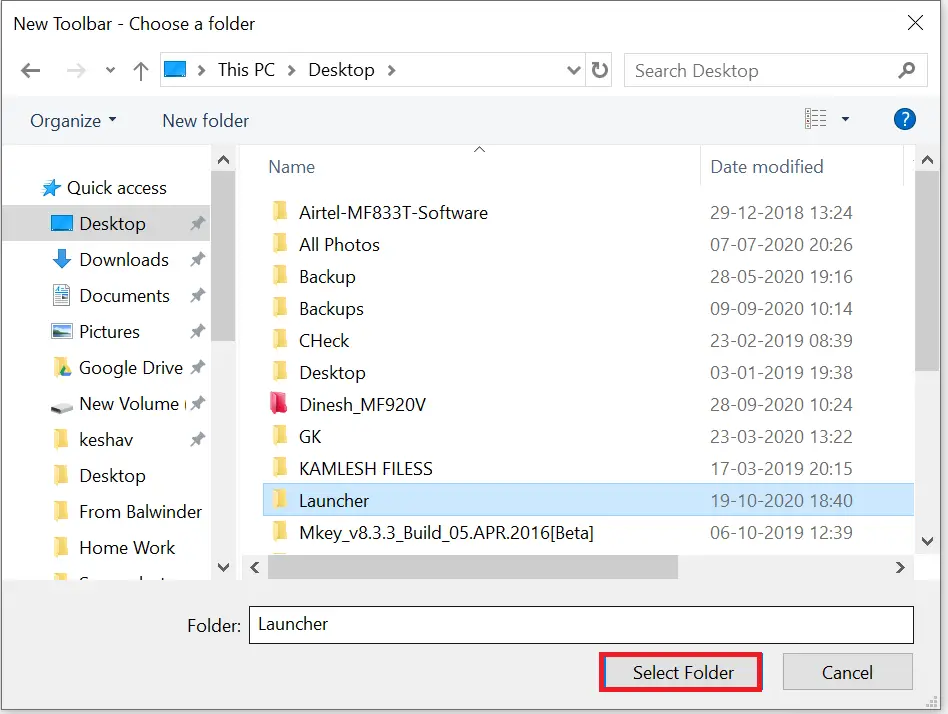
Step 5. Navigate to the Launcher folder you just created on the desktop, then click Select Folder.
Step 6. You will now see a new toolbar named Launcher appear on the Taskbar.
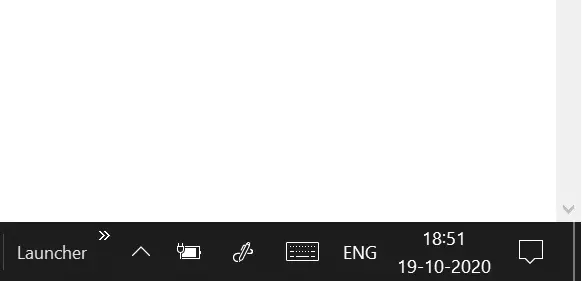
Step 7. Once added, the Launcher Toolbar appears with a >> symbol on the taskbar.
Step 8. Click the >> sign to expand and view all shortcuts inside the Launcher folder.
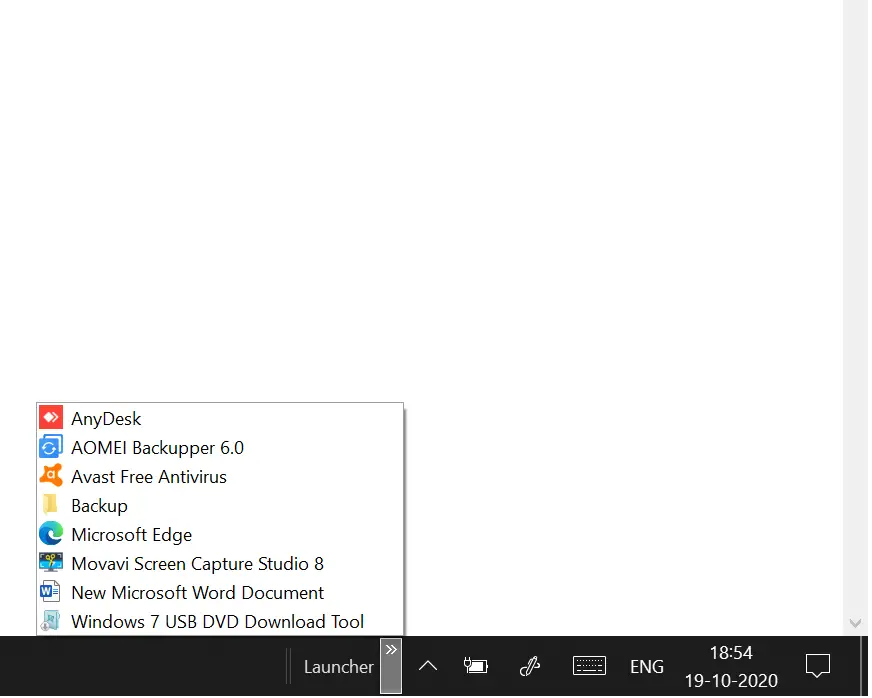
Step 9. Click on any application, file, or folder listed to launch it immediately.
Quick Tips: To remove an app from the Launcher toolbar, simply delete its shortcut from the Launcher folder. To add a new one later, drag and drop its shortcut into the same folder. It will instantly appear in the toolbar without further configuration.
FAQs
Does the custom toolbar method work on Windows 11?
No. Windows 11 does not support adding custom toolbars to the taskbar. For a similar experience, you can use the freeware tool DockFolders.
Can I add any type of file or program to the Launcher toolbar?
Yes. You can add shortcuts for programs, folders, documents, scripts, or any other file type. If it has a shortcut, it can be launched from the toolbar.
How do I remove an item from the toolbar menu?
Simply delete the shortcut from the Launcher folder. The toolbar updates instantly with no extra steps required.
How do I rename the toolbar?
The toolbar name is the same as the folder name. Rename the Launcher folder, then remove and re-add the toolbar to see the updated name.
Will removing the toolbar delete my actual files?
No. Removing the toolbar only removes the menu from the taskbar. Your shortcuts and original files remain safe inside the folder.
Can I create more than one custom toolbar?
Yes. You can create multiple folders with different names and add each one as a separate toolbar for better organization.
Why should I use a custom toolbar instead of pinning apps to the taskbar?
A custom toolbar allows you to group many shortcuts under one compact menu. This avoids clutter and gives you quick access to multiple items without taking extra taskbar space.
Do I need administrator rights to create a custom toolbar?
No. Any standard user account can create folders, shortcuts, and custom toolbars without admin permissions.
Why doesn’t the toolbar show icons for each shortcut?
Windows displays custom toolbar items in a menu-style format. Icons appear inside the menu, not directly on the taskbar.
Will the toolbar update automatically when I add new shortcuts?
Yes. Any shortcut added to the Launcher folder appears instantly in the toolbar without restarting or refreshing.
Conclusion
In conclusion, creating a custom toolbar on the Windows Taskbar is a handy way to access frequently used files and apps quickly. By following the steps above, you can easily build your own personalized Launcher that keeps your desktop clean and your tools just a click away. Best of all, this customization works across Windows 7, 8, and 10 — making it a useful trick for all Windows users. Adding or removing apps is as simple as dragging or deleting a shortcut in the Launcher folder.
For windows 11, this is the solution:
https://sandbox.silonsystems.com/dockfolders
Thanks, we have included DockFolder in a new post now.
https://gearupwindows.com/dockfolder-allow-you-to-create-your-toolbar-in-windows-11-and-10/