

Do you often find yourself digging through the Start Menu to open your favorite apps or tools? If yes, it’s time to make your workflow faster. In this guide, we’ll show you how to create keyboard shortcuts to launch apps and tools instantly on Windows 11 and 10. Once set up, you can open any program with a simple key combination — no clicks required!
Why Use Keyboard Shortcuts to Launch Apps?
Keyboard shortcuts save time and reduce distractions. Instead of searching through menus or the taskbar, you can press a few keys to open your preferred applications instantly. Whether it’s launching your browser, a screenshot tool, or a PDF reader, shortcuts make everything smoother.
If the app shortcut already exists
Most desktop programs create a shortcut in the Start Menu or on the desktop. Use the existing shortcut to assign a hotkey — choose the method below that matches where the shortcut lives.
Desktop shortcut
Step 1. Right-click the desktop shortcut and choose Properties.
Step 2. Switch to the Shortcut tab.
Step 3. In the Shortcut key box, press the function key, letter, or number you want to use — Windows will automatically add Ctrl + Alt before it (for example, pressing “H” sets the shortcut to Ctrl + Alt + H).
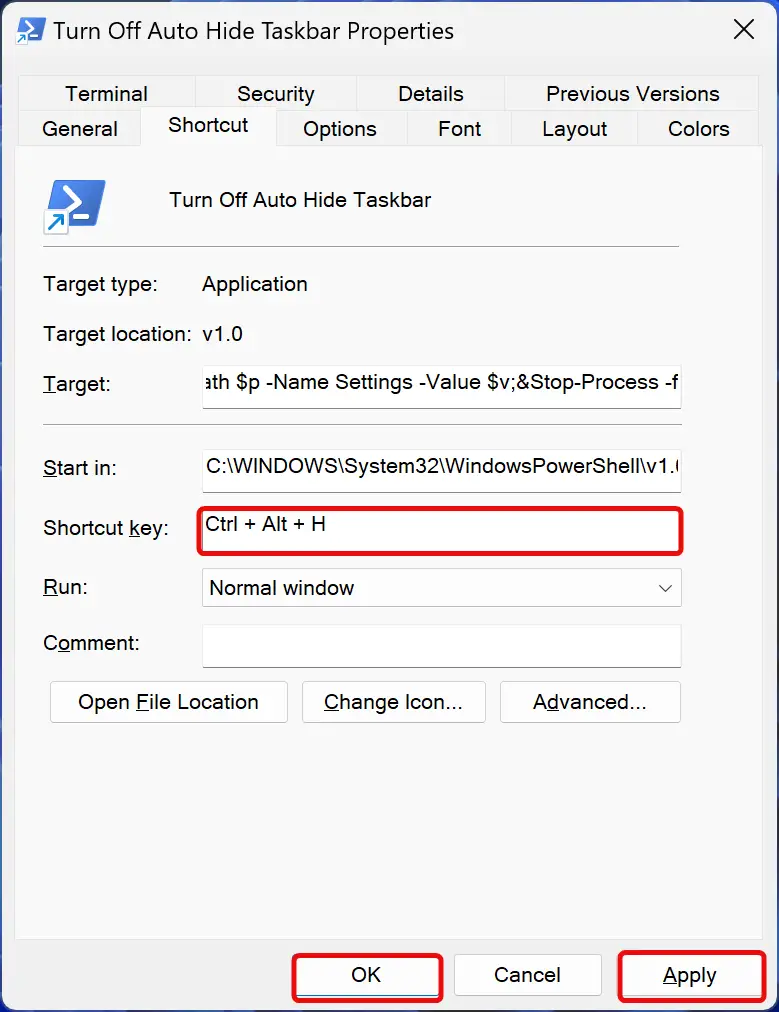
Step 4. Click Apply and then OK.
Start Menu shortcut
Step 1. Open the Start Menu and find the app in All apps (or search for it).
Step 2. Right-click the app, hover over More (in Windows 10 only), and choose Open file location — this opens the folder that contains the app’s shortcut. If you don’t see Open file location, use the Advanced method below to create a desktop shortcut.
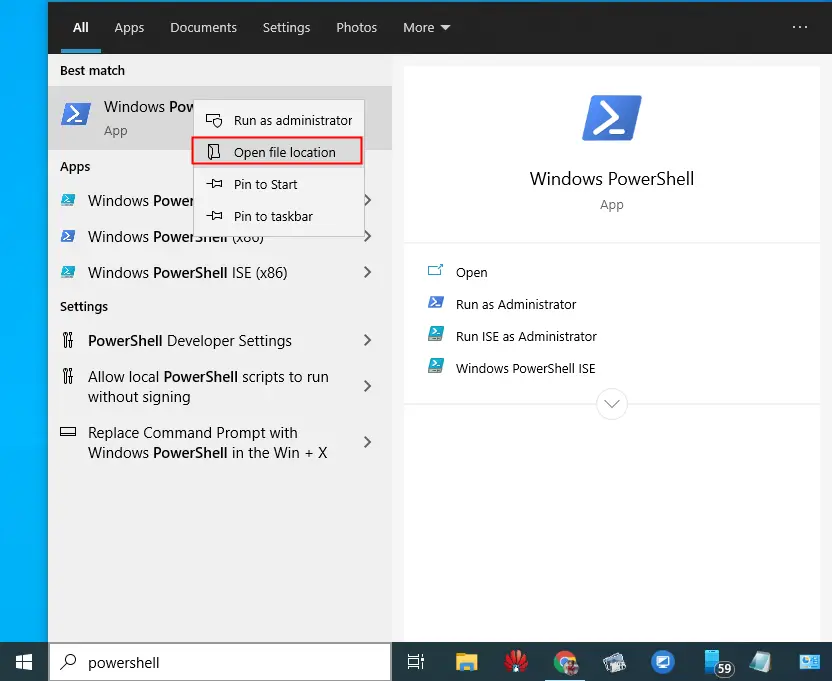
Step 3. Right-click the shortcut file in File Explorer and choose Properties.
Step 4. In the Shortcut key box, press your desired key combination.
Step 5. Click Apply and then OK.
Taskbar (pinned) shortcut
Step 1. Right-click the pinned taskbar icon — a jump list appears.
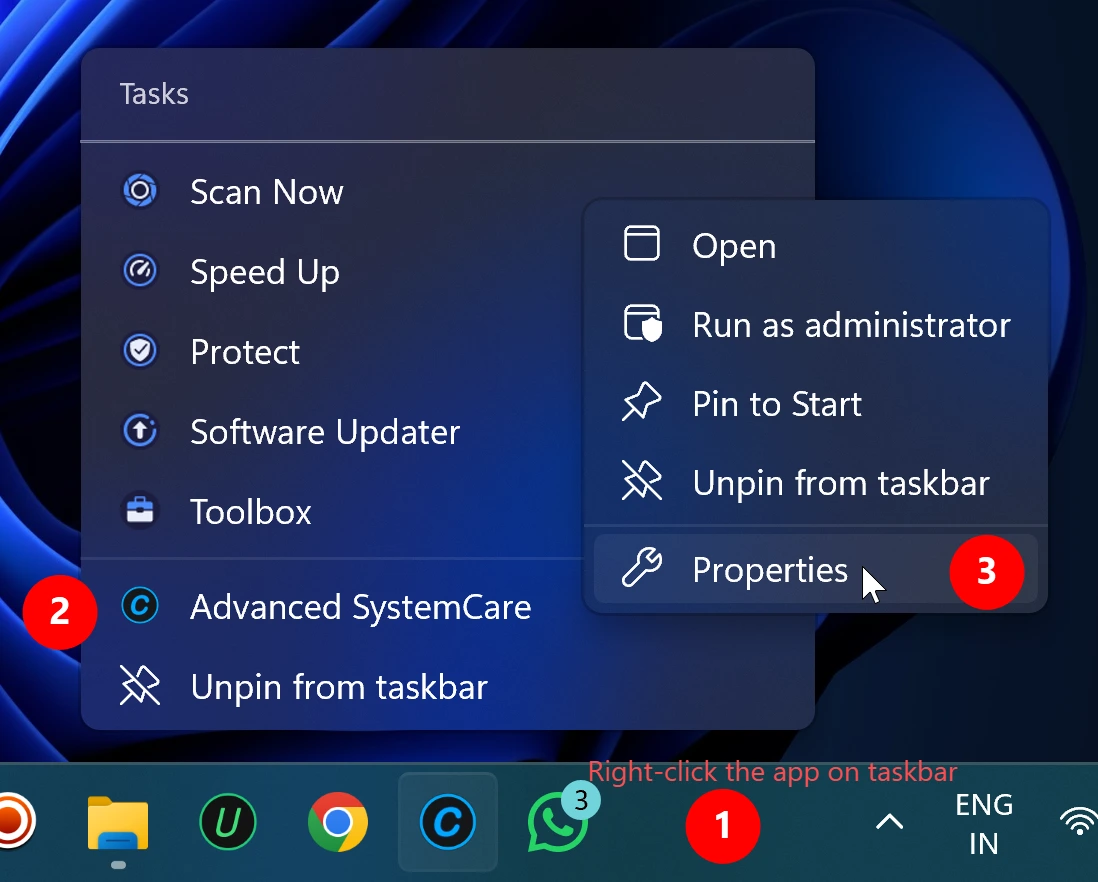
Step 2. In the jump list, right-click the app name (the top entry) and choose Properties.
Note: If Properties is not in the first menu, you must right-click the app name inside the jump list to access it.
Step 3. In the Shortcut key box, press your desired key combination.
Step 4. Click Apply and then OK.
Advanced fallback for Store / UWP apps (if Open file location is missing)
Step 1. Press Win + R, type shell:AppsFolder and press Enter.
Step 2. In the Apps folder, find the app, right-click it, and choose Create shortcut. Confirm to place the shortcut on the desktop.
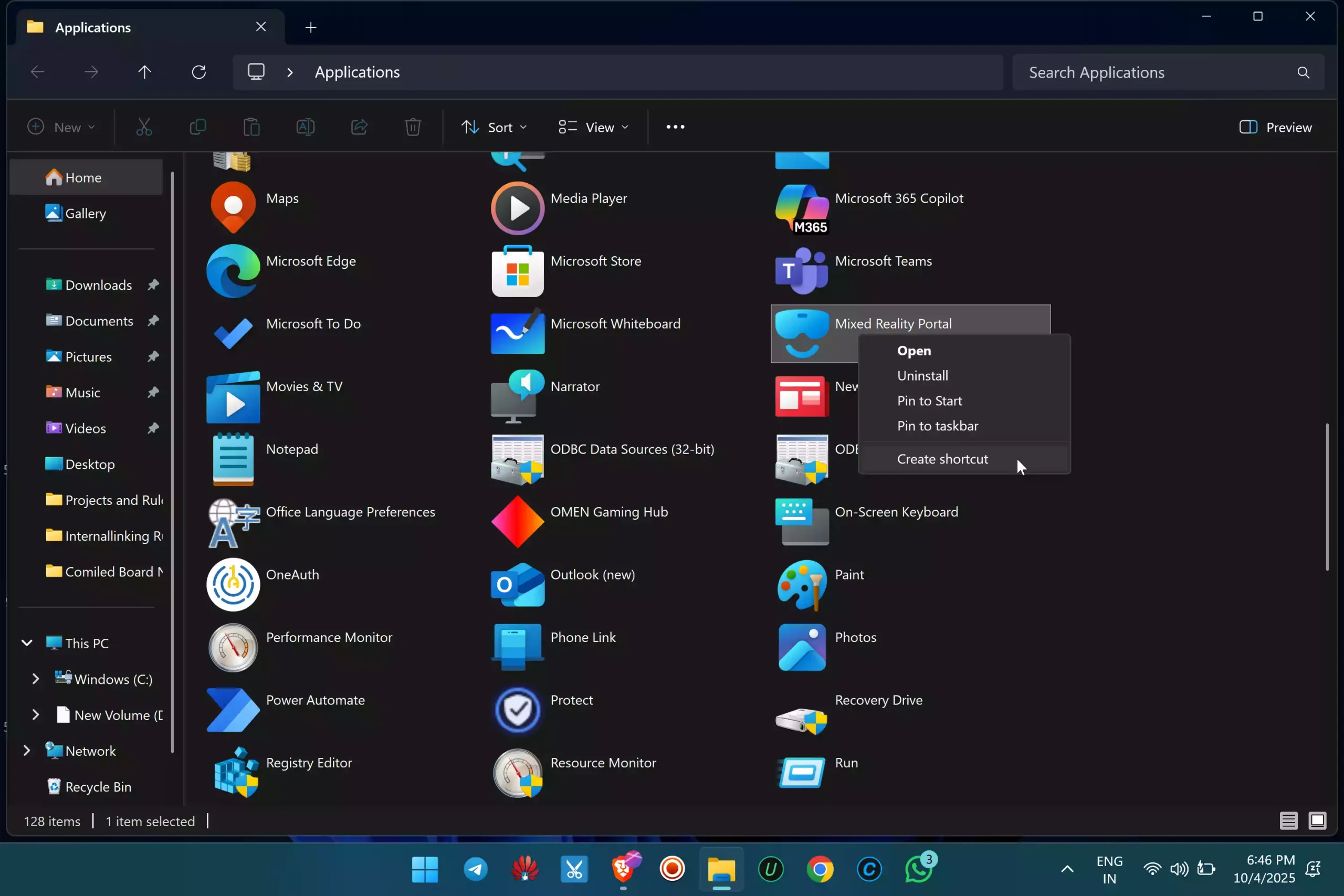
Step 3. Right-click the new desktop shortcut, choose Properties, then set the Shortcut key as above.
You’re all set — the hotkey will now launch the app instantly.
Using Third-Party Tools to Manage Shortcuts
If you want advanced control, such as launching multiple apps with one shortcut or managing global hotkeys, you can use free Windows utilities. Here are some useful options from our verified freeware list:
- Auto Start Tool – Automatically launch apps or scripts after login.
- Keyboard Shortcut Finder – View and manage system shortcuts already in use.
- Fluent Search – Quickly open apps, files, and windows using an intelligent launcher.
- Run by FireCube – Upgrade the Windows Run box with faster command and app execution.
Tips for Better Shortcut Management
– Avoid using system-reserved combinations like Ctrl + C or Alt + F4.
– Keep your shortcuts consistent — for example, use Ctrl + Alt + [First letter of app].
– Store your shortcuts in a dedicated folder for easy editing or backup later.
FAQs
Q: Can I create shortcuts for folders or files, too?
Yes. Follow the same steps above, but browse to the folder or file instead of an app.
Q: Can I use tools to create more complex hotkeys?
Absolutely. You can use free automation tools like Auto Start Tool to run multiple commands or launchers with one key press.
Q: Will these shortcuts work after restarting my PC?
Yes. As long as the app shortcut still exists in the same path, your assigned key combination will remain active.
Conclusion
Creating keyboard shortcuts in Windows 11 and 10 is one of the simplest ways to boost your productivity. Whether you prefer manual shortcuts or advanced launchers like Fluent Search, you’ll spend less time navigating menus and more time getting things done.