

VirtualBox is a great free software that lets you install any Windows OS virtually on your computer. The VirtualBox free software allows you to share a folder from the host OS to the guest OS. VirtualBox is full of features. It allows installing a virtual OS on the host operating system and sharing the folder between the host and guest OS, but it also lets you copy the files and folders from the guest OS to the host OS and from the host to the guest OS.
The benefit of the drag-and-drop features is that you don’t need to copy your files to a USB flash drive and then transfer them to the Guest machine. That means, by enabling the Drag and Drop support on your Virtualbox, you can copy and file or folder from the host machine to a guest machine and vice-versa.
To enable Drag and Drop support in VirtualBox, you have to install the Guest Additions.
How to install Guest additions on a Virtual machine?
Follow these steps to install Guest additions on a Virtual machine:-
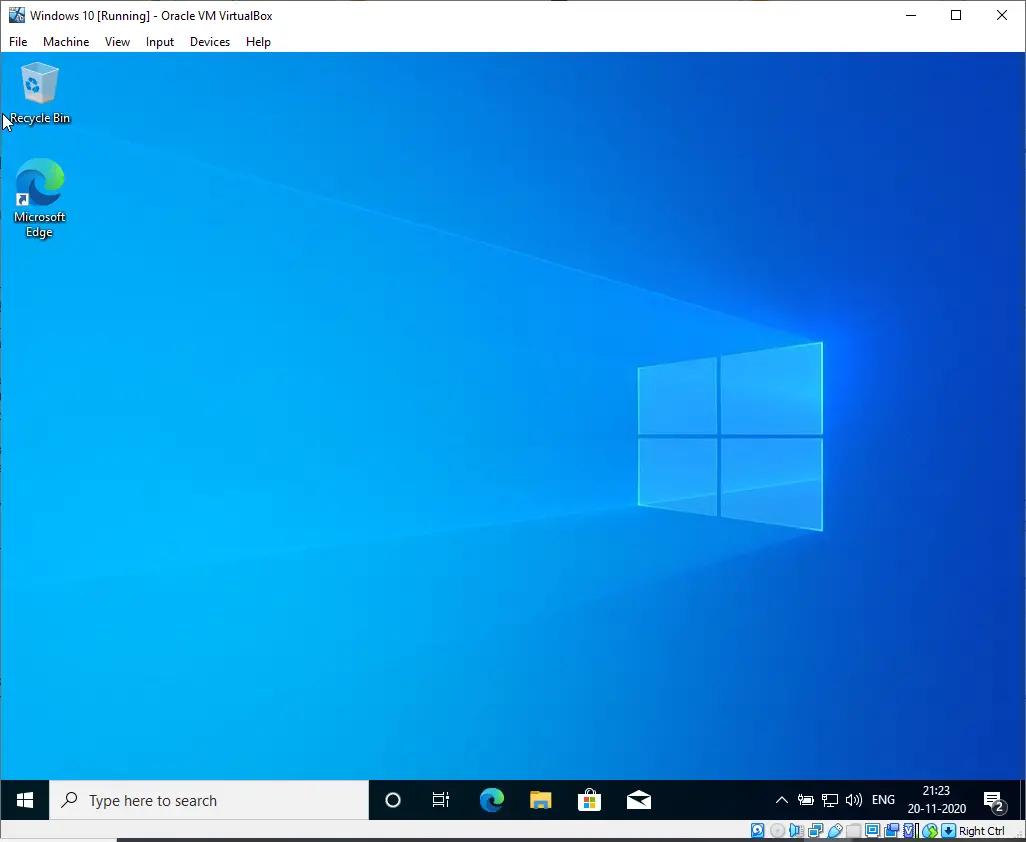
Step 1. Run the guest Windows 10/11.
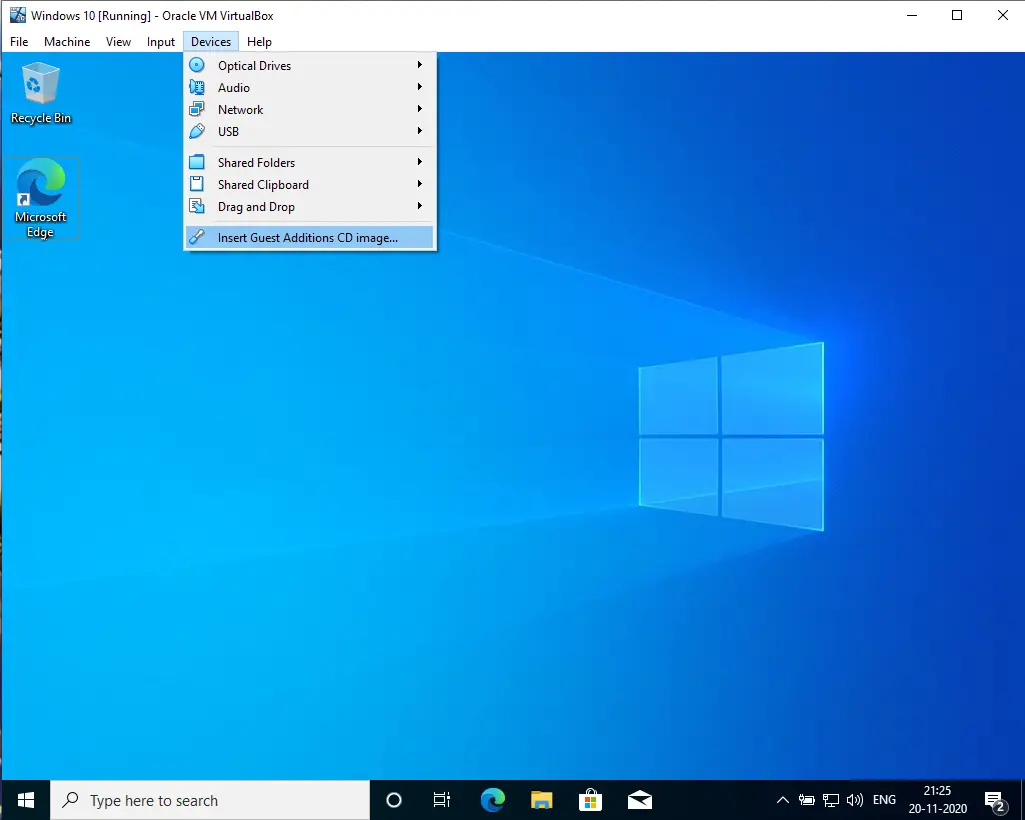
 Step 2. From the VirtualBox menu, click on Devices and select the “Insert Guest Additions CD image” option.
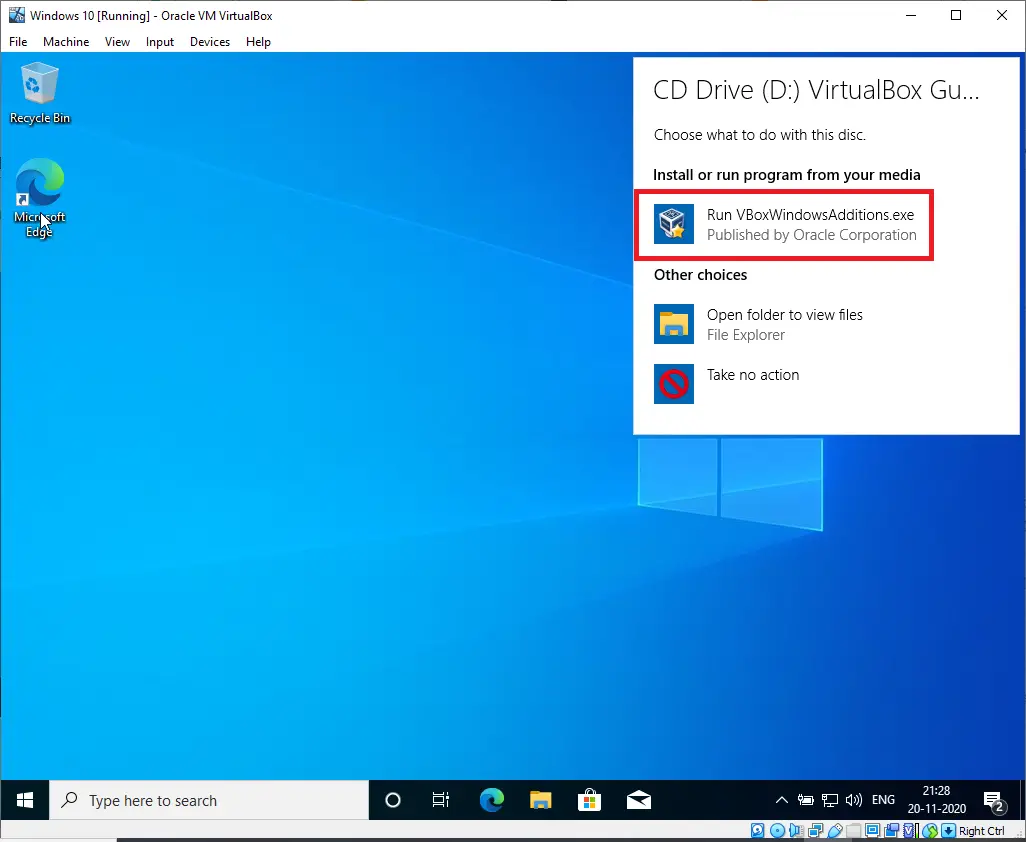
 Step 3. Run the VBoxWindowsAdditions.exe by double-clicking on it, which will be automatically mounted on the virtual CD-ROM.
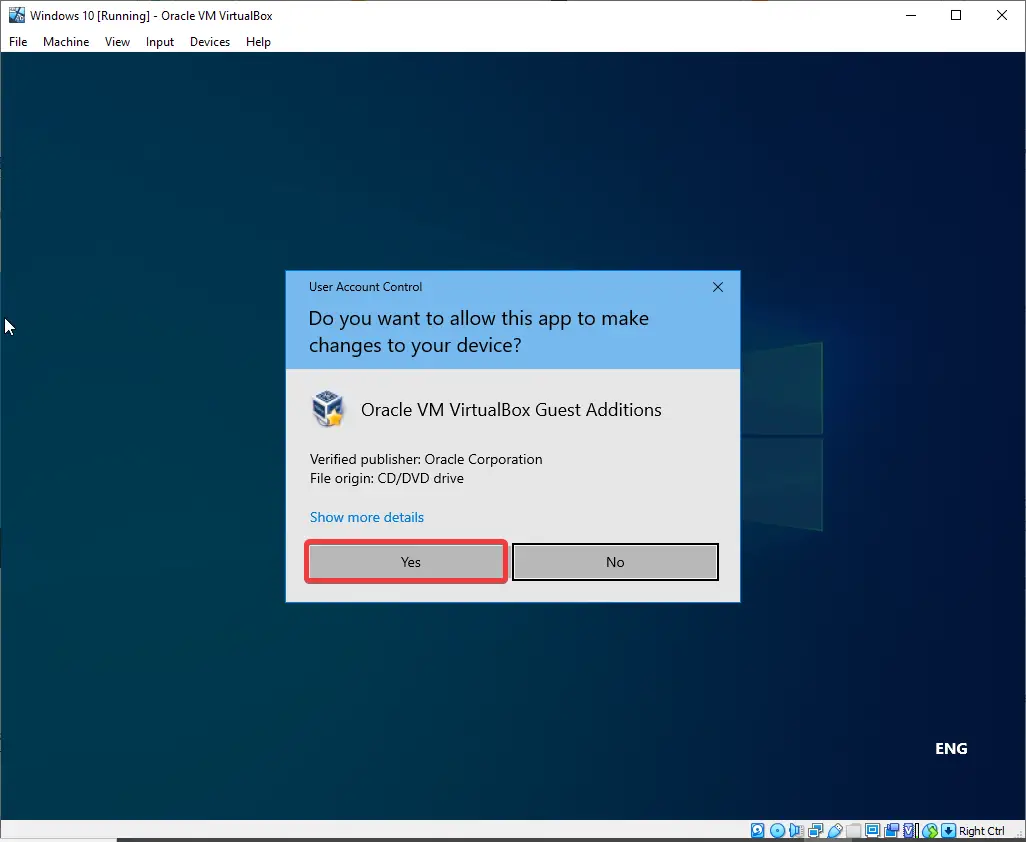
 Step 4. If Windows User Account Control (UAC) prompts, click on the Yes button.
 Step 5. During the installation of the virtual machine additions, it will prompt you to install device software. Click on the Install button.
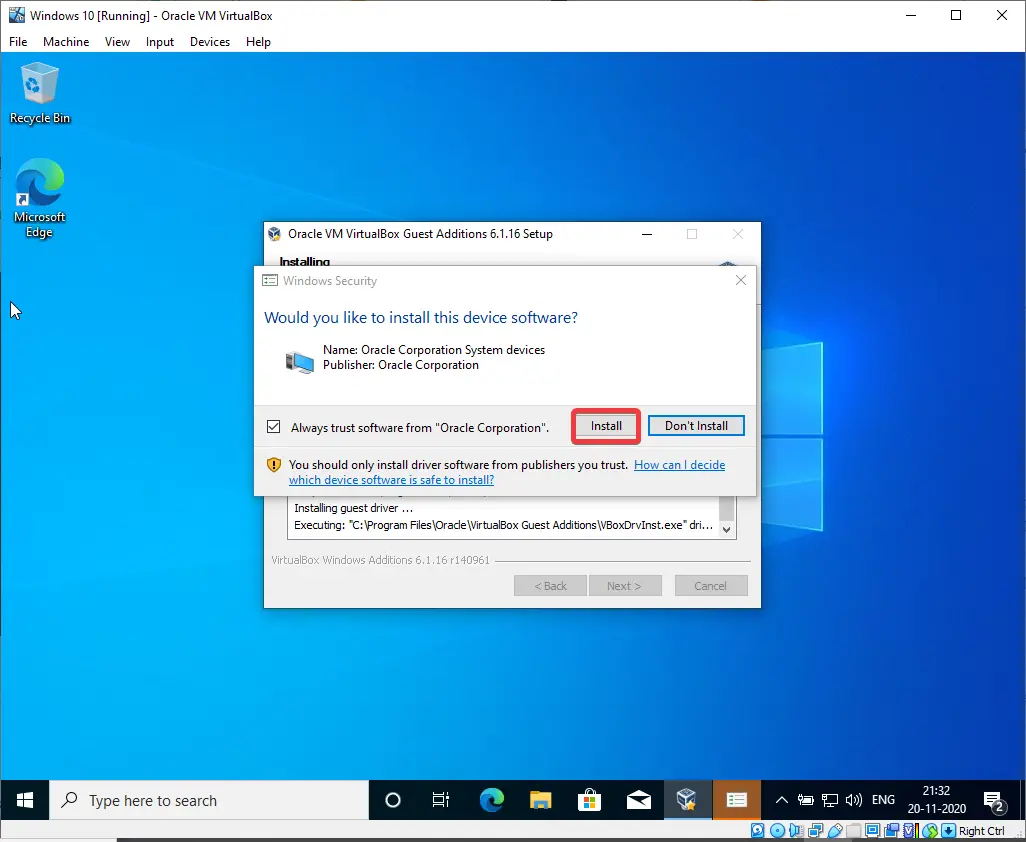 Step 6. To complete the installation of the drivers, it will prompt you to reboot the virtual machine; click on the Reboot now option to restart the guest Windows 10.
Step 7. Once the guest Windows 10 is running, log in to the guest Windows 10.
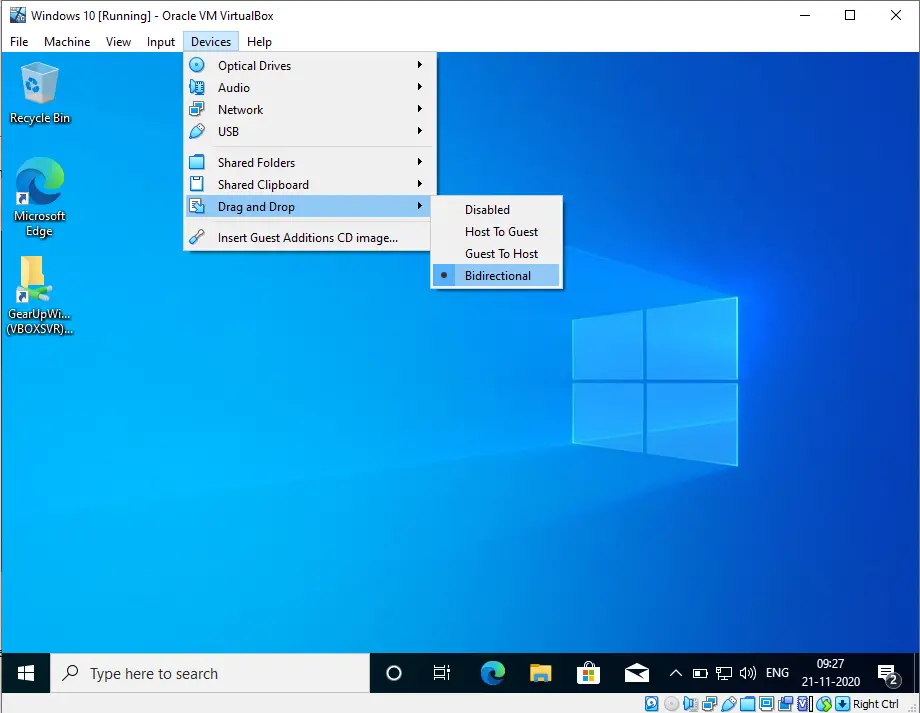
Step 8. Click on Devices > Drag and Drop > Bidirectional.
Note: To disable the drag-and-drop access, select Devices > Drag and Drop > Disabled. To enable one-way drag-and-drop support from Host To Guest and Guest To Host, select the option according.
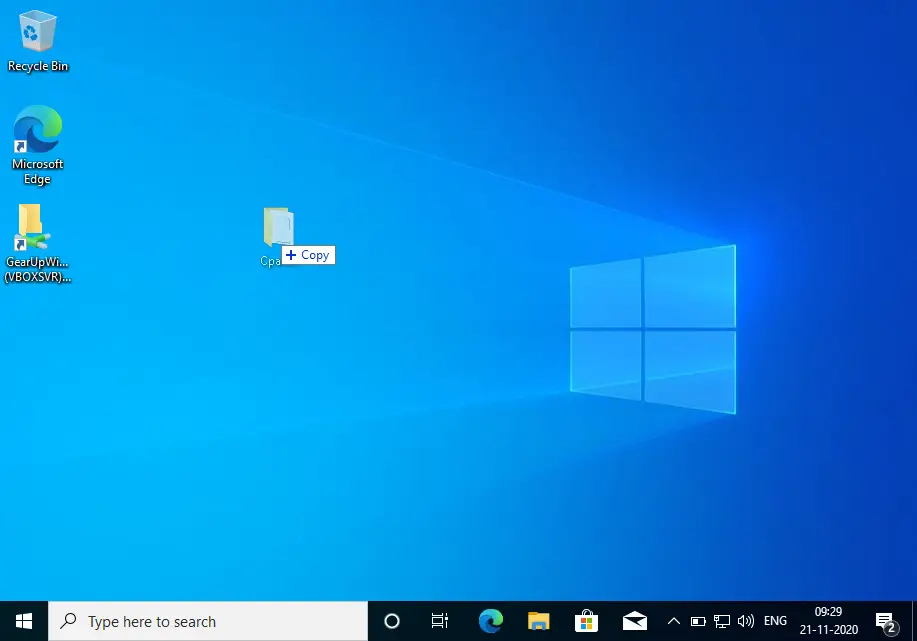
 Step 9. Once the above-mentioned steps are completed, you can drag and drop any file or folder from the host to the guest OS and the guest to the host OS according to your requirement.
FAQs
Why is drag and drop not working in VirtualBox?
Drag and drop does not work unless VirtualBox Guest Additions is installed on the guest operating system. Once installed, you can set Drag and Drop to Host to Guest, Guest to Host, or Bidirectional.
Do I need Guest Additions for copy and paste, too?
Yes. Clipboard sharing and drag-and-drop both require Guest Additions to be installed on the guest OS.
Is bidirectional drag and drop safe?
It is generally safe, but it does allow data transfer in both directions. If security is a concern, you can set it to one-way or disable it.
Can I enable drag and drop on Linux guest machines?
Yes. VirtualBox supports drag and drop on Linux guests as well, but Guest Additions must be installed there, too.
What if the Guest Additions installer fails?
Make sure you are using the matching version of VirtualBox and Guest Additions. Updating VirtualBox usually resolves installation failures.
Conclusion
In conclusion, enabling drag-and-drop support in VirtualBox is a simple process that can greatly enhance the user experience when working with virtual machines. By following the steps outlined in this guide, users can easily enable drag-and-drop support between their host and guest operating systems, allowing for seamless file transfers and other interactions. Additionally, it is important to note that enabling this feature may require the installation of VirtualBox Guest Additions, which can be easily downloaded from the VirtualBox website. Overall, enabling drag-and-drop support is a valuable tool for anyone using VirtualBox and can greatly improve their productivity and efficiency.