

Snip & Sketch is a built-in screenshot tool in Windows 11, merged with the classic Snipping Tool for screen capture. You can open this tool by searching from the Start menu or pressing the Windows + Shift + S shortcut keys. The computer and laptop keyboard come with a unique button, a Print Screen. Most Windows users use this key to take a screenshot of the entire screen of the window.
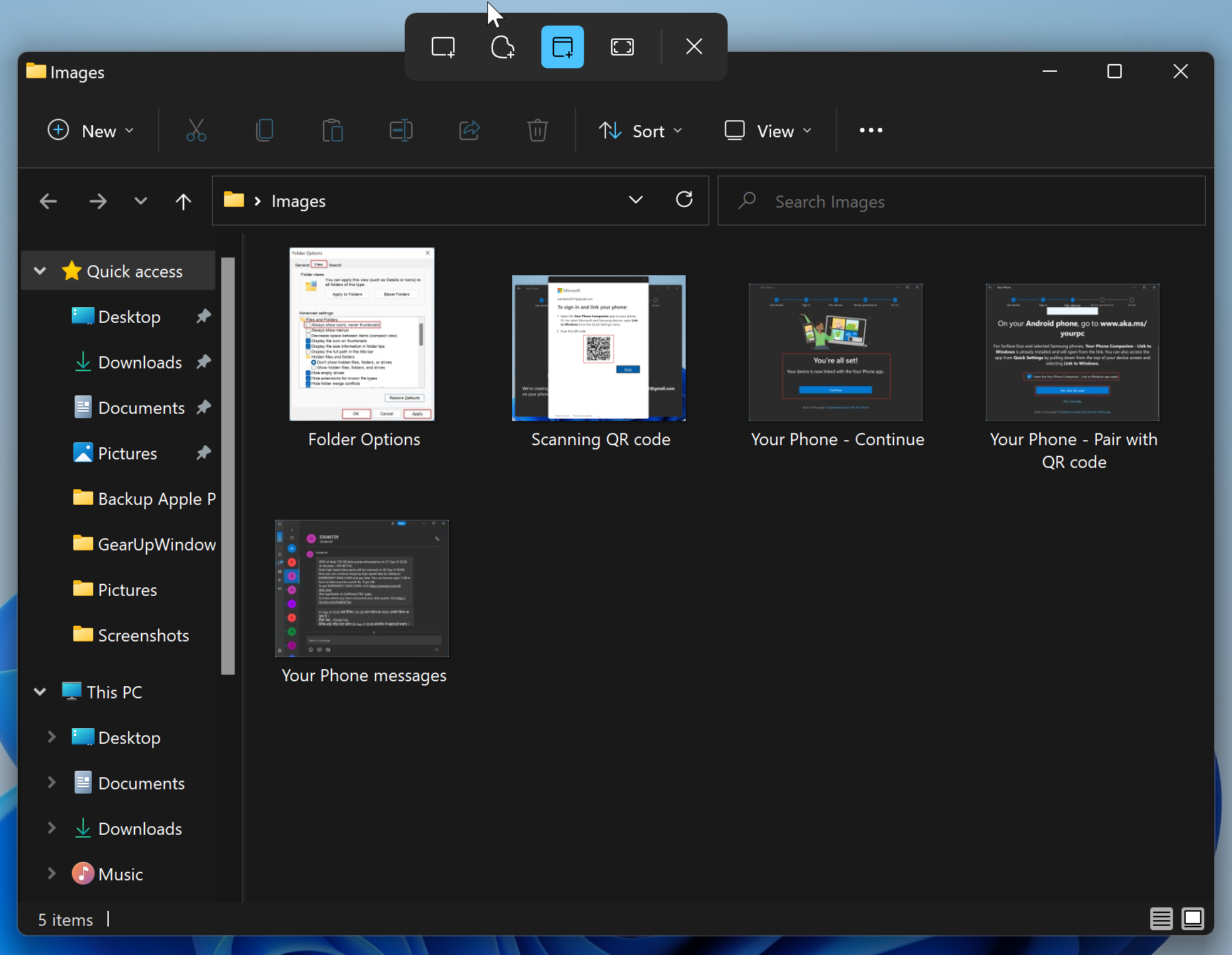
But, by default, using the Print Screen key, you don’t have as much control as you have in Snip & Sketch. If you want to activate the Snip & Sketch tool by just pressing a single key, Print Screen, Windows 11 provides an easy option in the settings app. Instead of pressing three keys simultaneously to open the Snip & Sketch app, you can enable the Keyboard’s Print (Prt Scr, Prt Sc, or Print Screen) key.
How to Activate the Print Screen Button to Open Snip & Sketch App in Windows 11?
As said above, you can always use the shortcut keys Windows + Shift + S to open the modern Snip & Sketch app in Windows 11. But if you want to curtail it, you can replace the Print Screen button with this shortcut to quickly open the Snip & Sketch tool. To do that, use the following steps:-
Step 1. Open the Settings app by pressing the Windows + I keys on the keyboard.
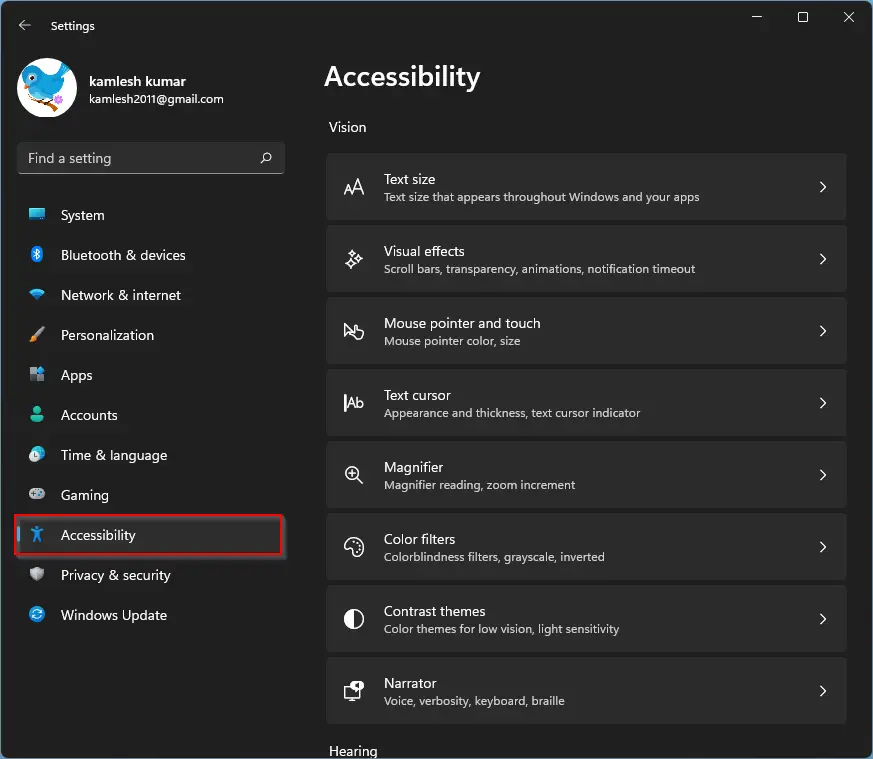
Step 2. Select the Accessibility category from the left side pane of Windows Settings when it opens.
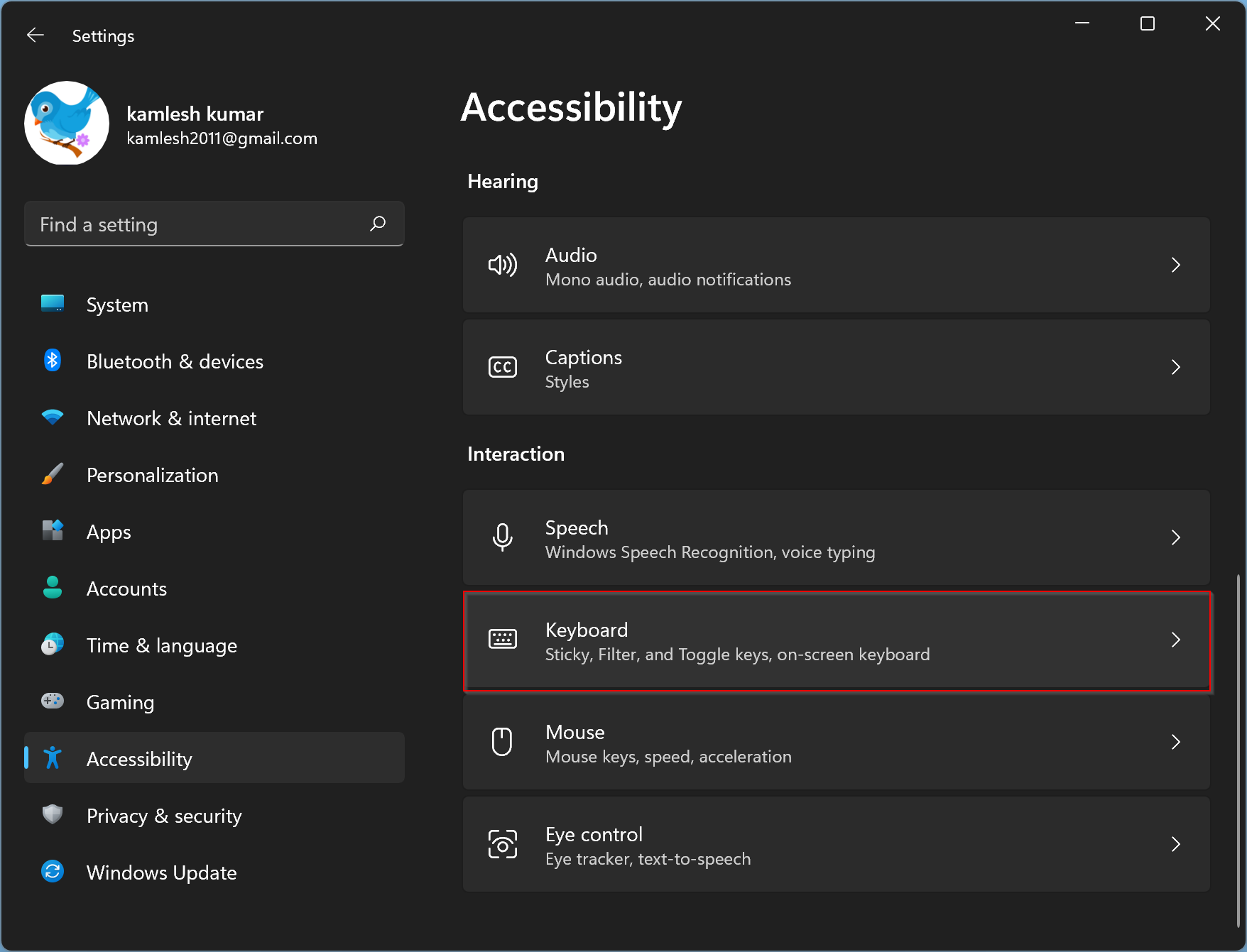
Step 3. Then click the Keyboard tab on the right side pane of Accessibility.
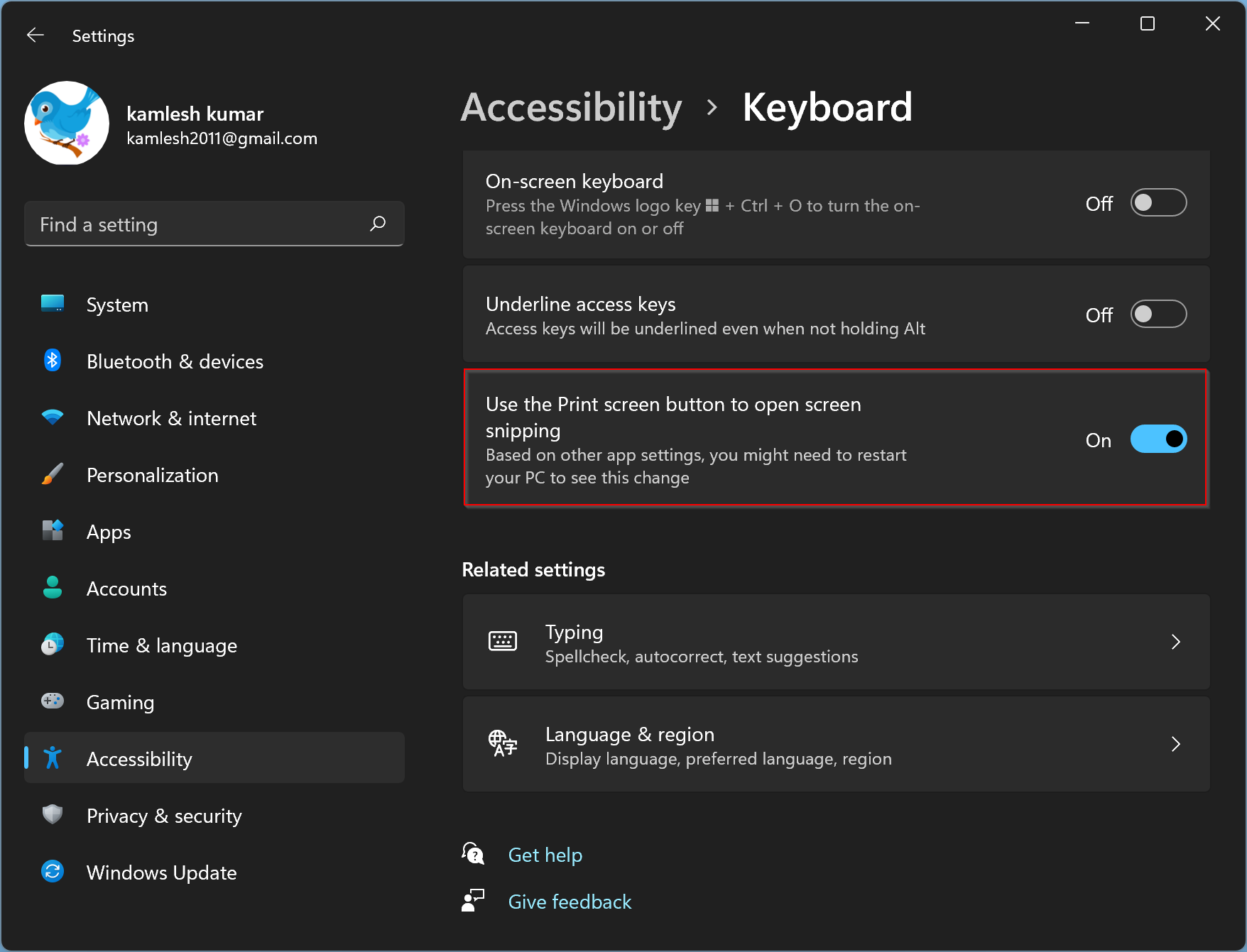
Step 4. On the Keyboard settings, toggle the button beside “Use the Print screen button to open snipping.”
Step 5. Restart your computer or laptop now.
That’s it. To test that everything is working fine, press the Print Screen button on your keyboard. Snip & Sketch should open.
On some laptops, you may have to press the FN + PRT SCN shortcut keys to open Snip & Sketch.
Conclusion
In conclusion, Snip & Sketch is a useful tool in Windows 11 that allows users to capture screenshots with more control and options. By default, users can open the tool by pressing Windows + Shift + S, but with the option to activate it with the Print Screen button, the process becomes more streamlined. With just a few simple steps in the Settings app, users can configure their keyboard to open Snip & Sketch with the press of a single button. This feature is especially useful for those who frequently take screenshots and want to save time and effort.