

Touch Keyboard and Handwriting Panel Service enables pen, touch, and ink functionality in Windows. This service is essential to use touch and typing features across the operating system. If disabled, you won’t be able to type in the Start Menu, Settings, UWP apps, Windows Terminal, and more.
Starting from version 1.5, Windows Terminal displays a warning if this service is turned off. That’s because Windows relies on it to properly route input events to the Terminal and other applications. If you see such a warning, you must enable this service to restore full input support.
This gearupwindows article will guide you through enabling the Touch Keyboard and Handwriting Panel Service on Windows 11/10.
How do I Enable Touch Keyboard and Handwriting Panel Service in Windows 11/10?
Follow these steps to turn on Touch Keyboard and Handwriting Panel Service in Windows 11/10:-
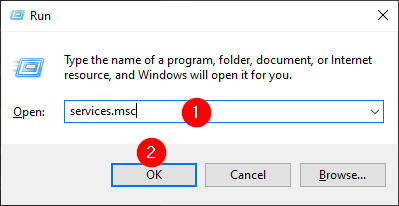
Step 1. Press Windows + R keyboard shortcut to open the Run dialog box.
Step 2. In the Run dialog box, type the following and hit Enter or click OK to open the Services window:-
services.msc
Step 3. In the Services window, scroll down and locate the Touch Keyboard and Handwriting Panel Service.
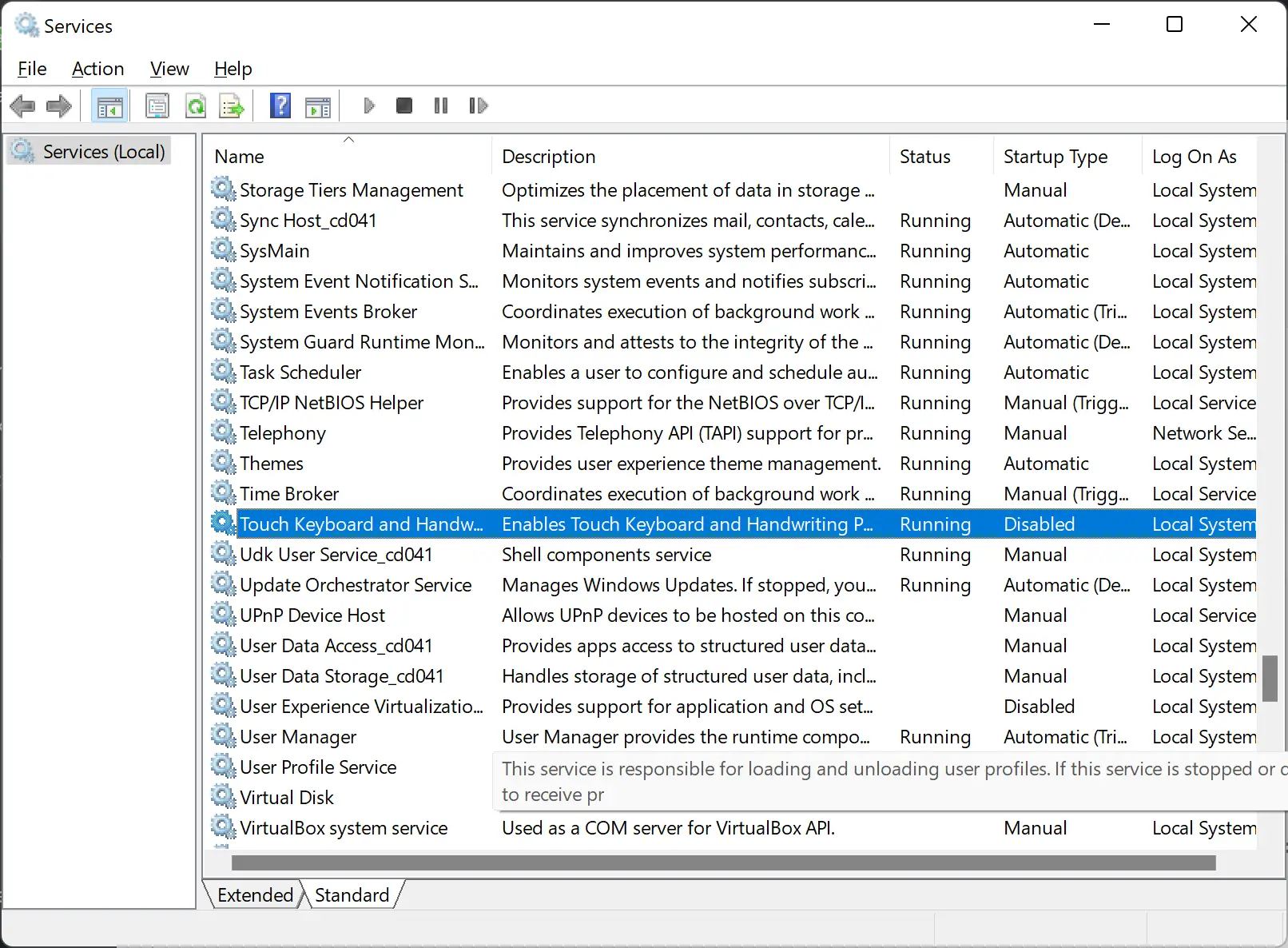
Step 4. Double-click on Touch Keyboard and Handwriting Panel Service to open its properties window.
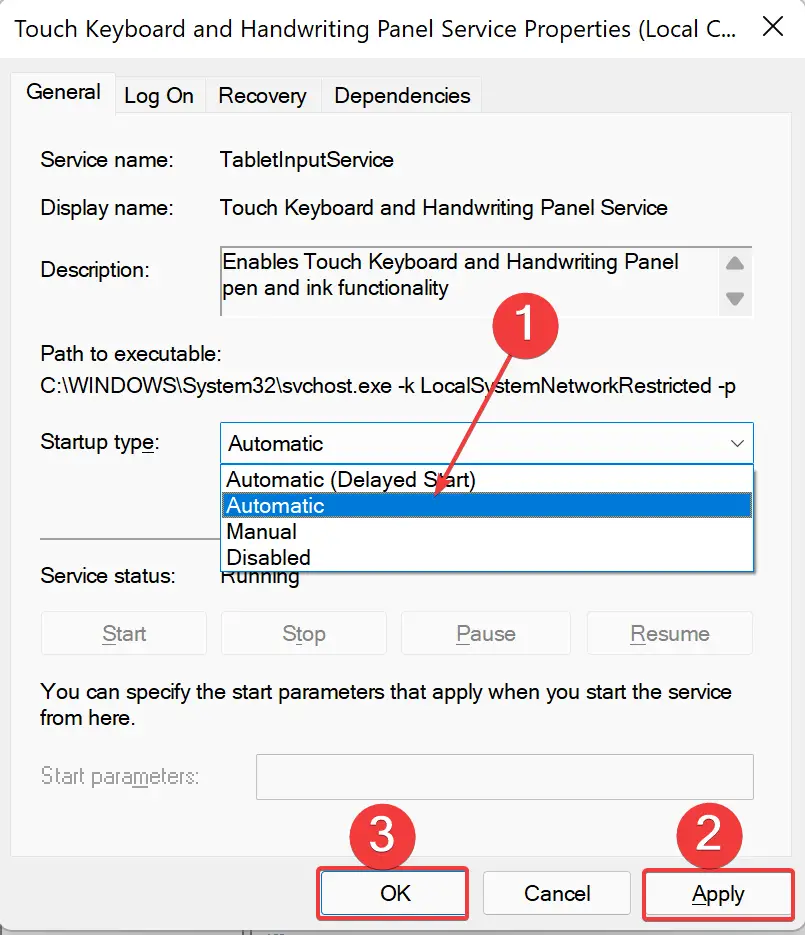
Step 5. From the Startup type drop-down menu, select Automatic.
Step 6. Click Apply.
Step 7. Click OK.
Step 8. Restart your computer.
Once you complete the above steps, the service will start automatically, and the error or warning should disappear. If you’re also facing issues typing in modern apps, you may want to check this fix for typing issues in Windows 11.
Conclusion
In conclusion, the Touch Keyboard and Handwriting Panel Service is essential for enabling touch input, handwriting, and keyboard functionality in Windows 11/10. If disabled, you might not be able to type in key areas like the Start Menu, Settings, and Windows Terminal. Following the simple steps above ensures this service is re-enabled and configured to start automatically, allowing full touch and typing features to work as expected.
Doesn’t help me at all as it’s not listed there. I need to know how to install it so I can enable it.