

Have you ever tried to print a document on Windows 11/10 and it got stuck in the queue? It’s frustrating—especially when hitting Cancel leaves the job “deleting” forever. Often, the culprit is the Print Spooler service. This guide shows how to reset it safely so you can clear the printer queue and get printing again. Prefer a one-click option? You can also use the lightweight portable tool, Fix Print Spooler or Print Spooler Repair Tool, to perform the reset automatically.
How to Fix Printer Spooler Problems on Windows 11 or 10?
To fix the Print Spooler service and continue printing on Windows 11/10, follow these steps:
Step 1. Click the Start button and type services.msc.
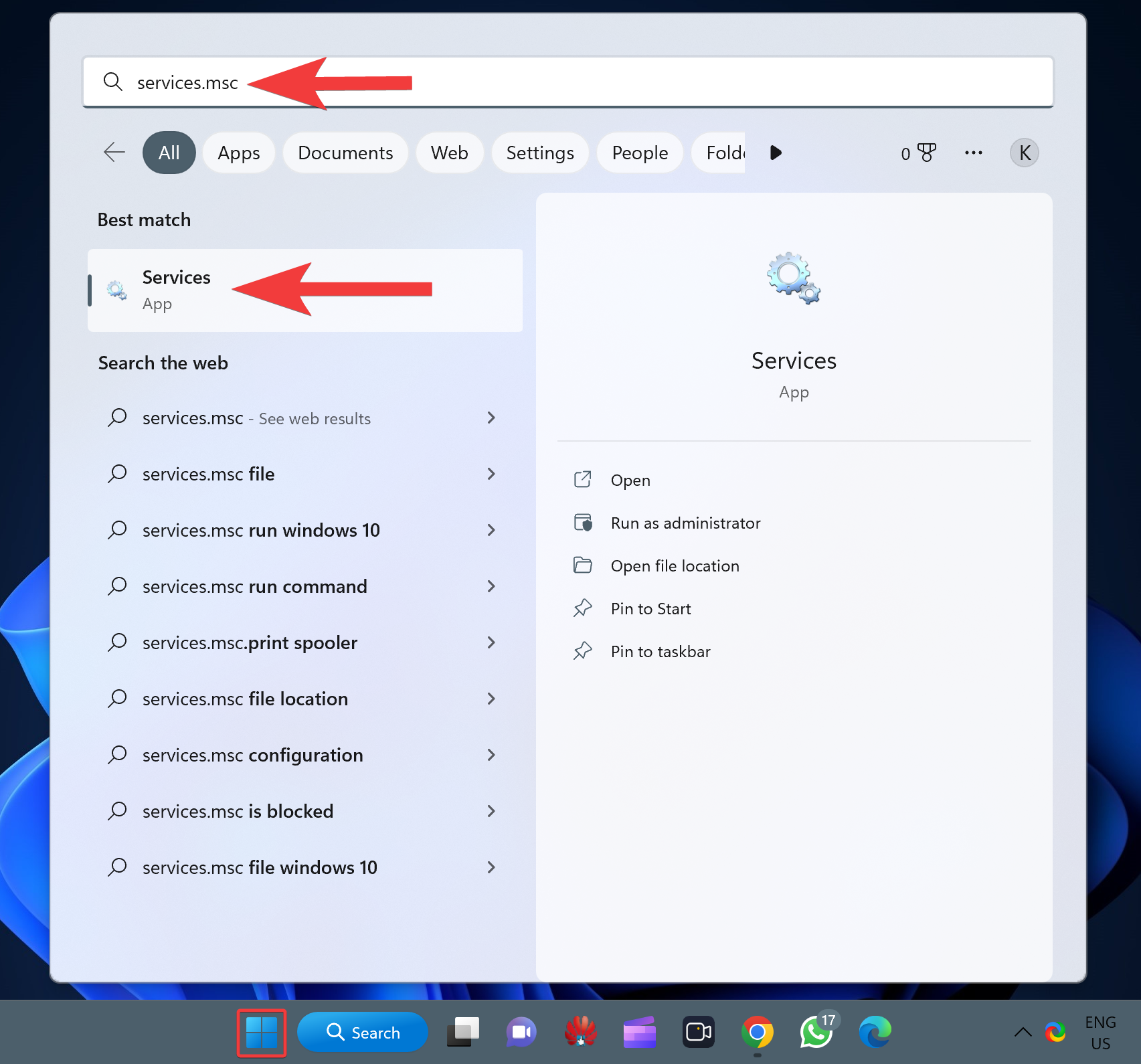
Step 2. In the results, click the top result, Services, to open it.
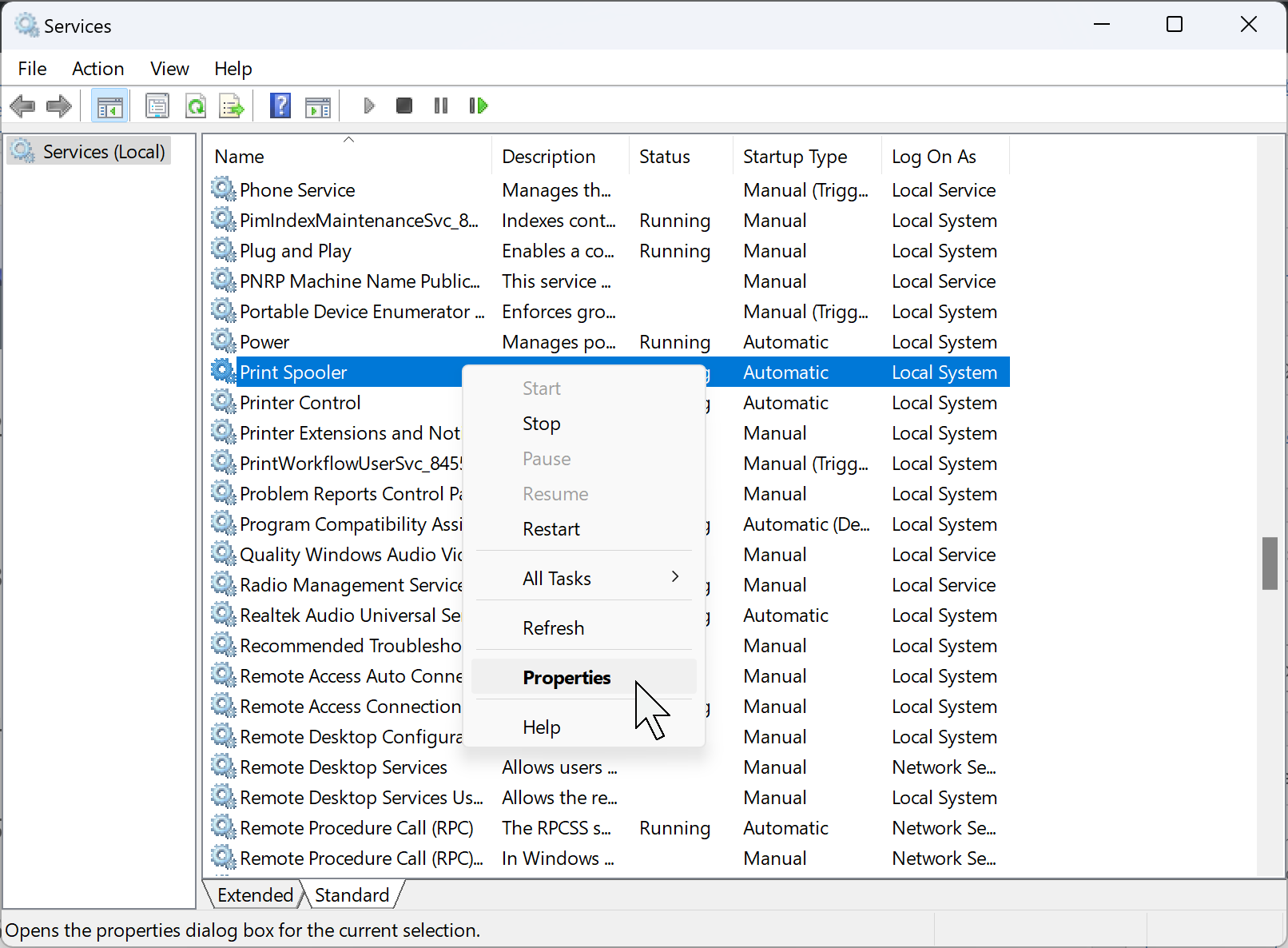
Step 3. Right-click Print Spooler and select Properties.
Step 4. In Properties, switch to the General tab.
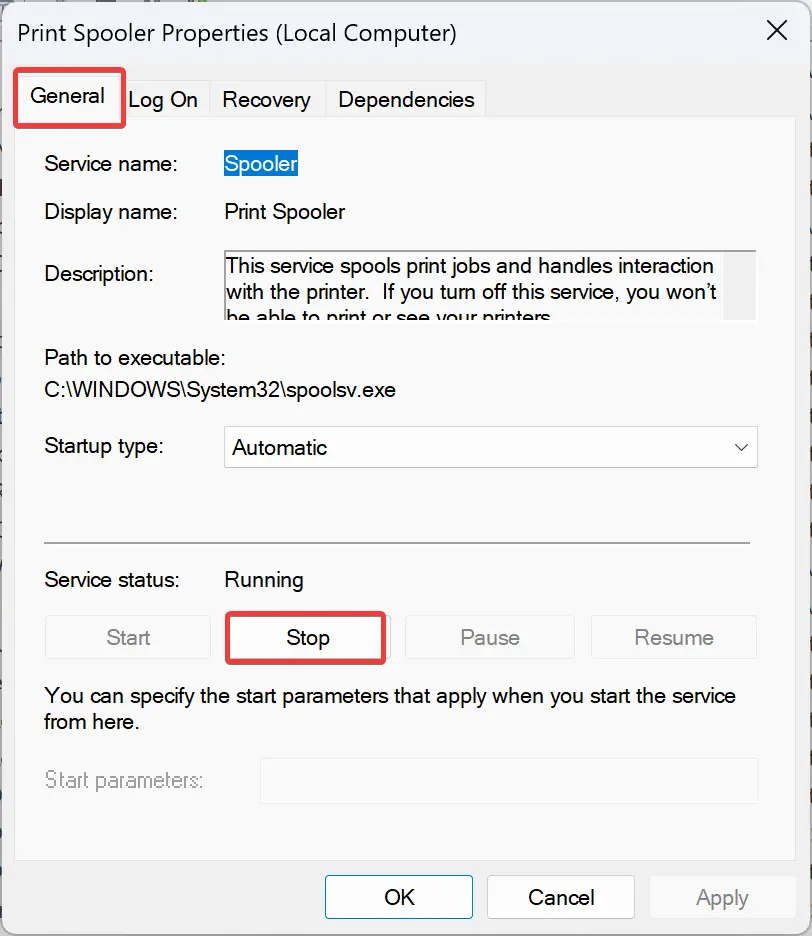
Step 5. Click Stop to stop the service.
Step 6. Press Windows + R to open the Run box.
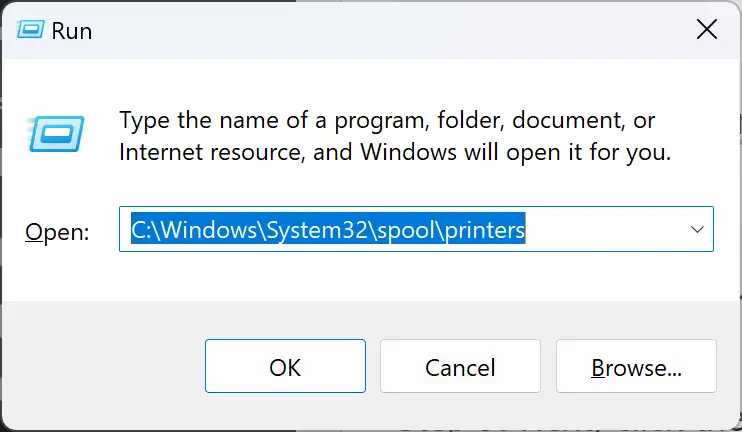
Step 7. Type the following path and press Enter to open the printers spool folder:
C:\Windows\System32\spool\printersStep 8. Select everything in the printers folder and delete its contents (these are just queued jobs, not your printer drivers).
Step 9. Return to the already-open Print Spooler Properties window and ensure you’re on the General tab.
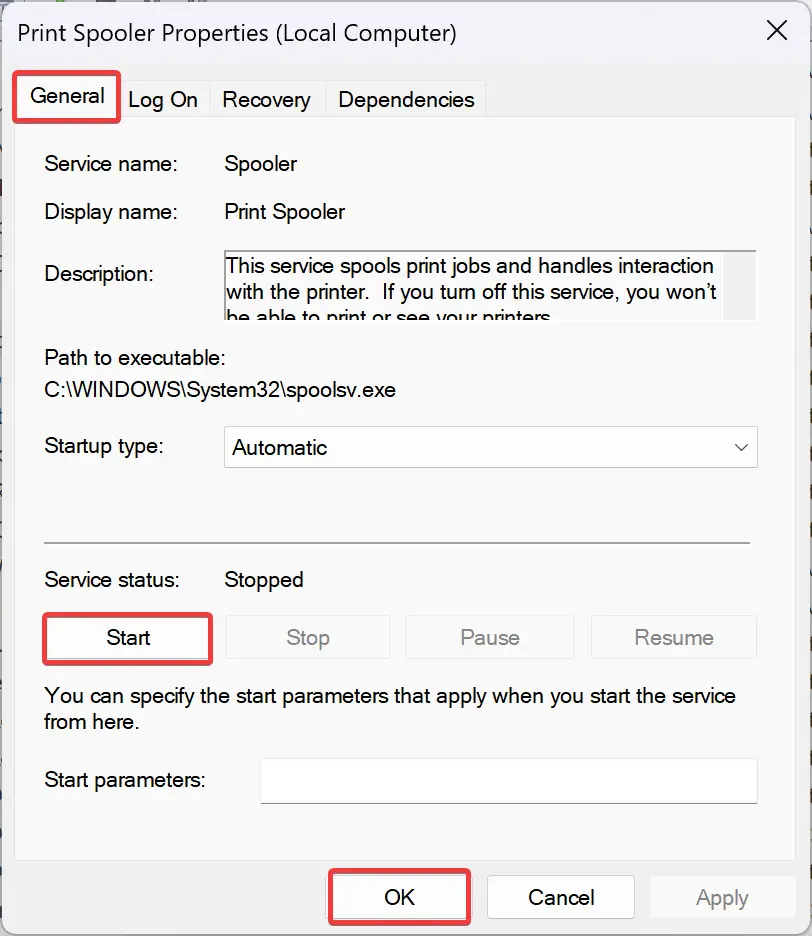
Step 10. Click Start to start the service, then click OK to close.
That’s it—your stuck jobs should be cleared and printing should resume normally.
Frequently Asked Questions
Why do print jobs get stuck in the queue?
Common reasons include a stalled Print Spooler service, corrupted queued files, connection hiccups, or outdated drivers. Clearing the spool folder and restarting the service removes the corrupted queue so new jobs can be processed.
Is it safe to delete files in the printers spool folder?
Yes. Those files are temporary queue items. Deleting them won’t remove your printers or drivers—only the stuck jobs blocking the queue.
Do I need administrator rights to do this?
Usually, yes. Stopping/starting the Print Spooler and deleting the queue under C:\Windows\System32\spool\printers typically requires admin permission.
Is there a quicker command-line method?
Yes. Run Command Prompt (Admin) and enter the following commands one by one:
net stop spooler
del "%systemroot%\System32\spool\printers\*" /Q
net start spooler
This performs the same reset without opening Services or File Explorer.
Can I reset the spooler with one click?
If you prefer a faster method, use the portable utility Fix Print Spooler. It automates stopping the service, clearing the queue, and starting it again.
Conclusion
When documents get stuck in the printer queue on Windows 11/10, resetting the Print Spooler is the most reliable fix. Stopping the service, clearing the spool folder, and starting it again restores normal printing in minutes. For an even faster workflow, keep the portable Fix Print Spooler tool handy to perform the reset in a single click.