

VirtualBox is a powerful virtualization software that supports a wide array of guest operating systems, including Windows, Linux, Solaris, and macOS. It allows users to create and manage virtual machines directly from their existing OS environment. In our previous article, we explained how to install Windows 10 on VirtualBox. In this tutorial, we’ll walk you through the process of installing Windows 8.1 on Oracle VM VirtualBox.
Before beginning the installation, ensure you have Oracle VirtualBox installed on your system. If not, you can download it from the official VirtualBox website.
How to Install Windows 8.1 on Oracle VM VirtualBox
Follow these steps to set up and install Windows 8.1 on VirtualBox:
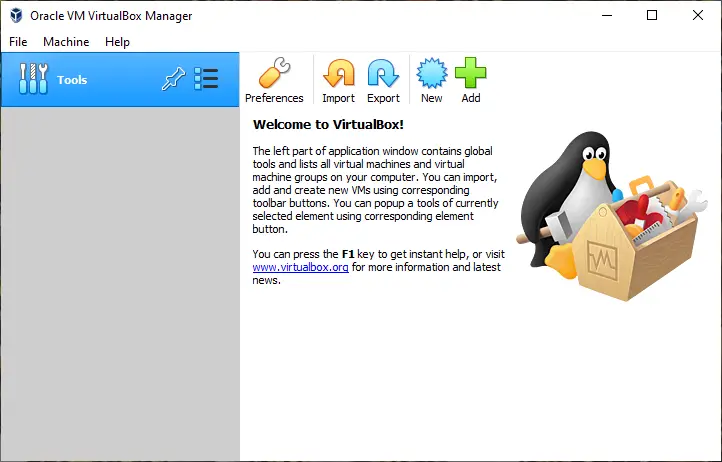
Step 1. Launch VirtualBox using its desktop shortcut.
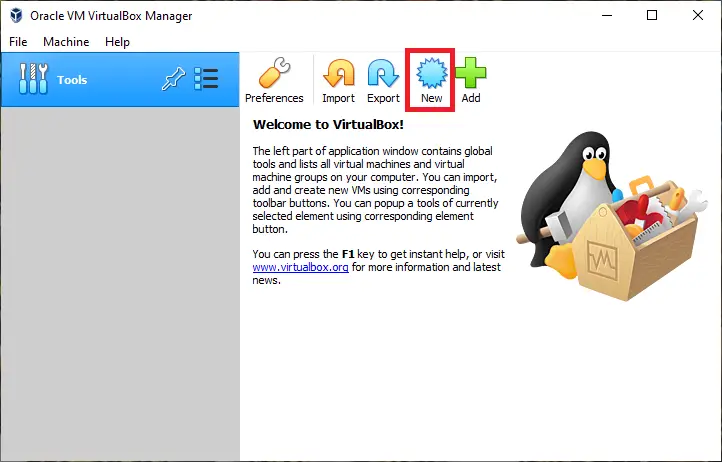
Step 2. Click on the New button to start creating a new virtual machine.
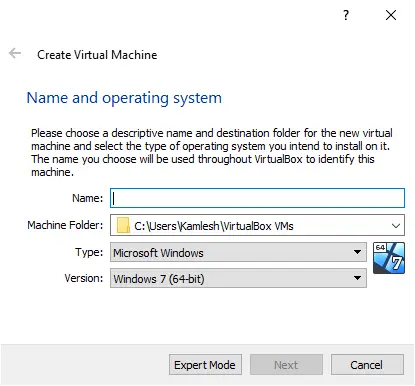
Step 3. Under Create Virtual Machine, name your VM (e.g., Windows 8.1), select the folder location, and choose the appropriate OS type and version.
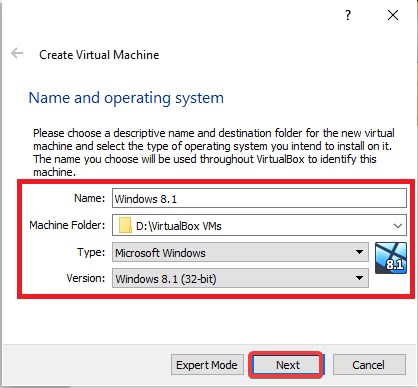
Step 4. Click the Next button after completing the above details.
Step 5. Use the slider to allocate RAM. We recommend at least 2GB for 64-bit or 1GB for 32-bit.
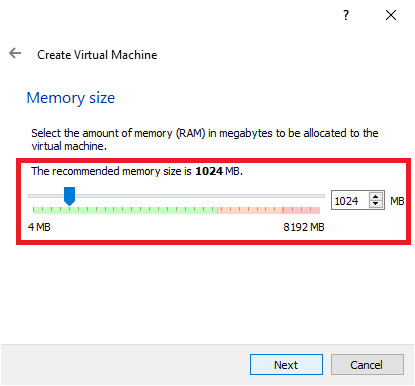
Step 6. Once you’ve set the RAM, click the Next button.
Step 7. Choose Create a virtual hard disk now and click Create.
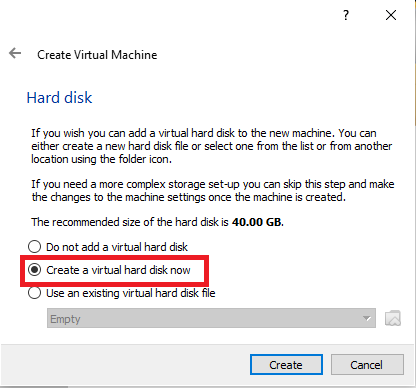
Step 8. Select VDI (VirtualBox Disk Image) as the hard drive file type.
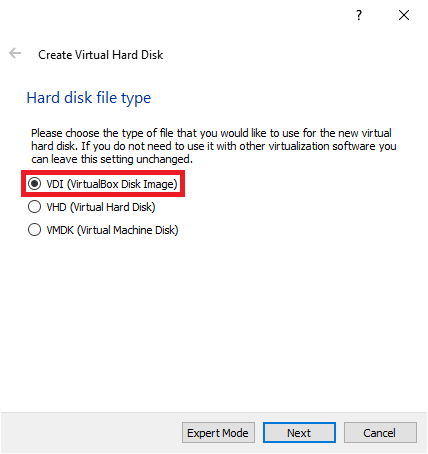
Step 9. Click the Next button.
Step 10. Choose between Dynamically allocated or Fixed size based on your preference.
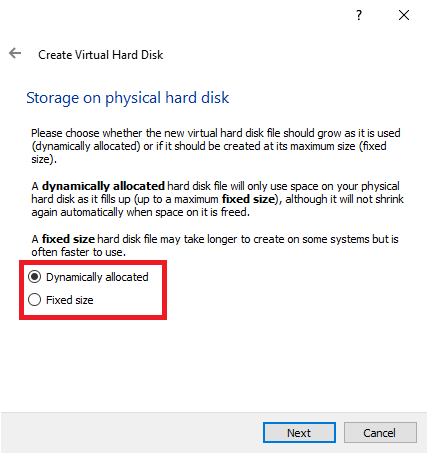
Step 11. After selecting the storage type, click the Next button.
Step 12. Set the maximum size for the virtual hard drive using the slider, then click Create.
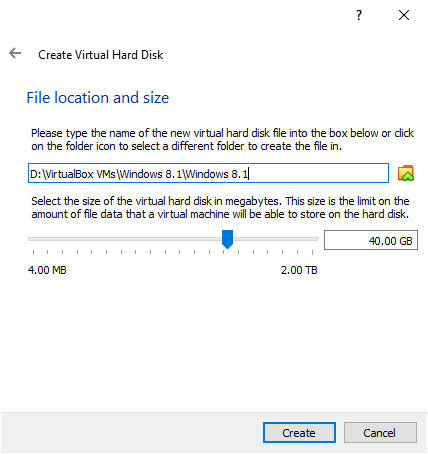
Step 13. Your VM will now appear in the VirtualBox dashboard with the status Powered Off.
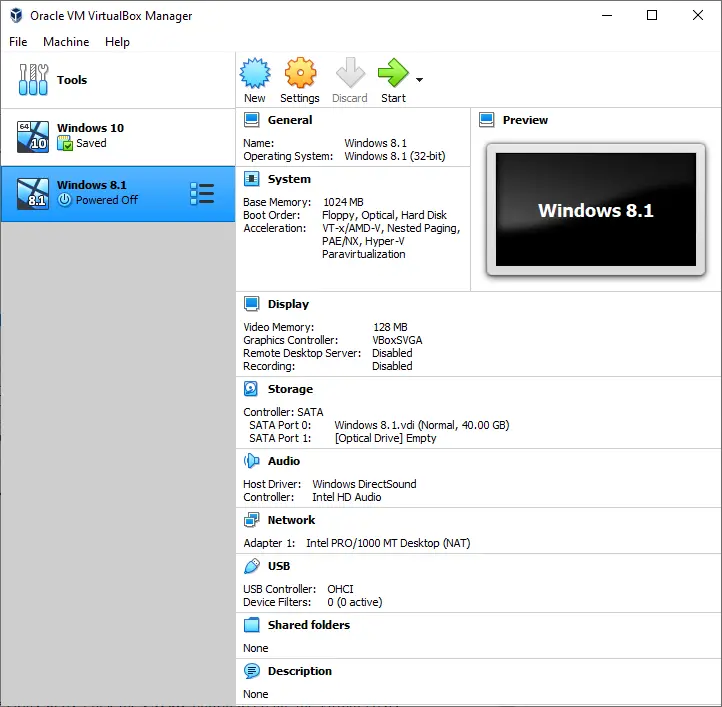
Step 14. To begin installation, you’ll need a bootable ISO of Windows 8.1. If you don’t have one, you can download it from the official Microsoft website.
Step 15. Click the Settings icon for your VM.
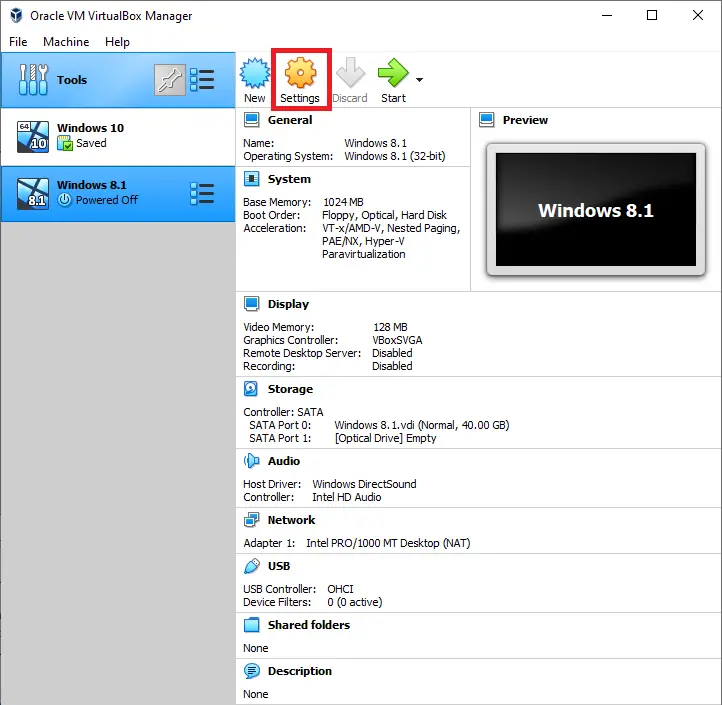
Step 16. Go to the Storage tab in the settings window.
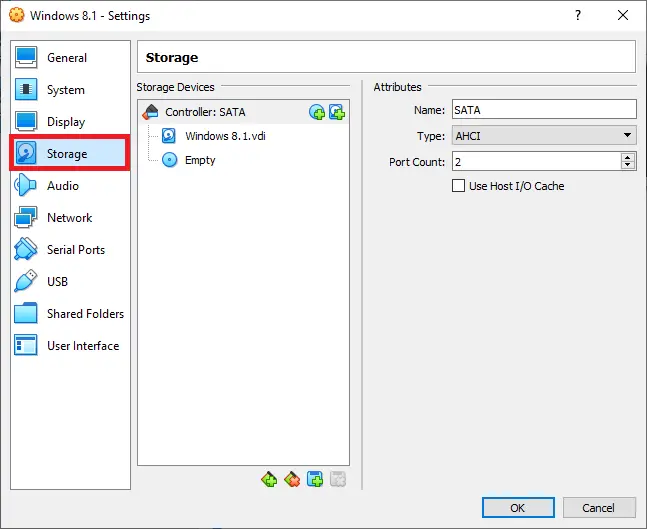
Step 17. Under Storage Devices, click Empty.
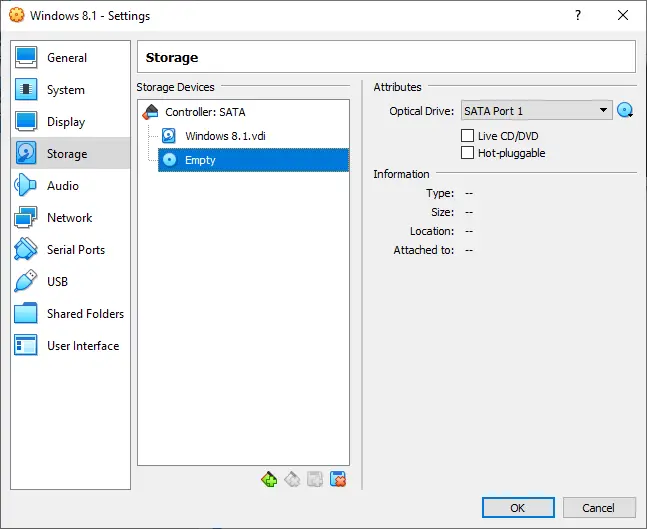
Step 18. Click the CD icon next to Optical Drive.
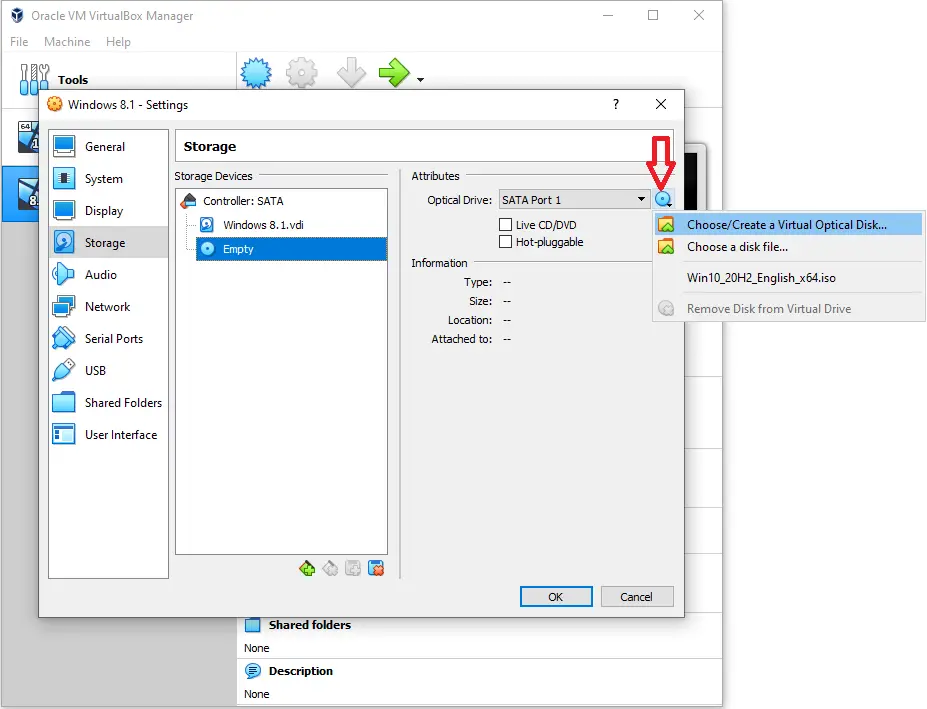
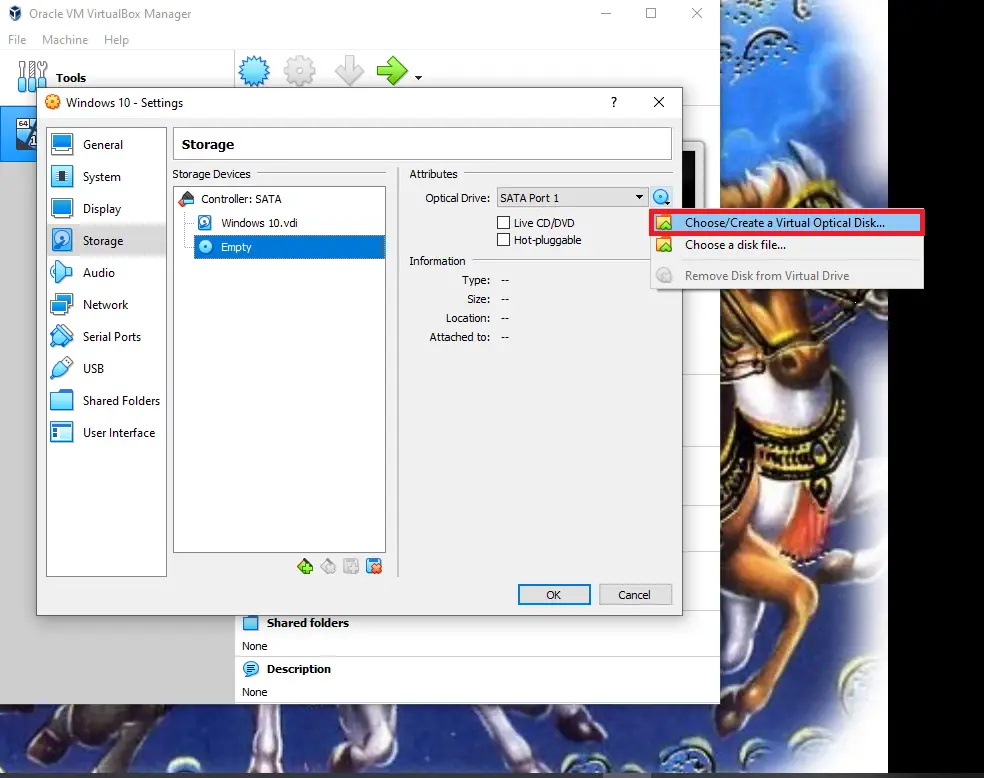
Step 19. Select Select/Create Virtual Optical Disk.
Step 20. Click the Add button and choose your Windows 8.1 ISO file.
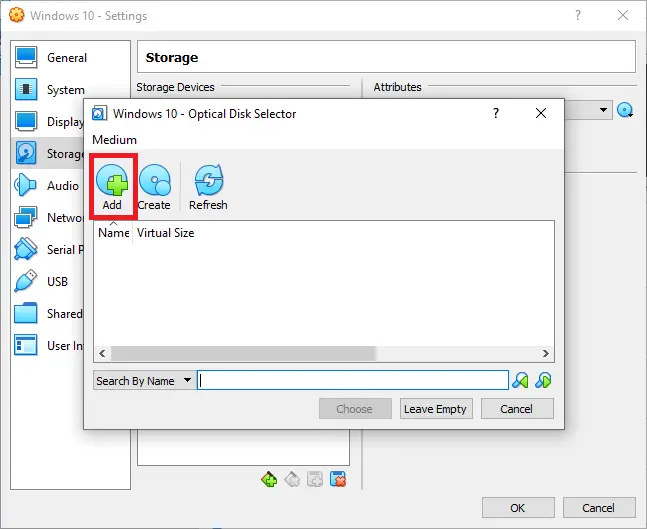
Step 21. Browse to and select the Windows 8.1 ISO file from your computer.
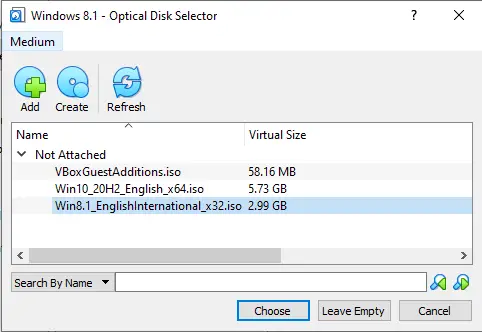
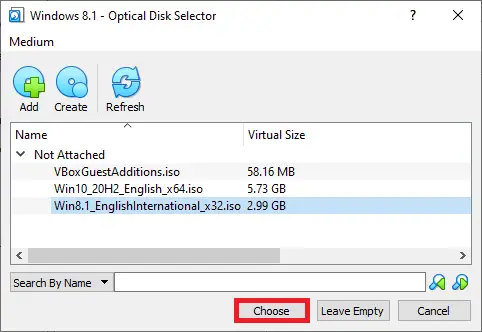
Step 22. Click Choose to attach the ISO.
Step 23. Verify that the ISO is attached as shown.
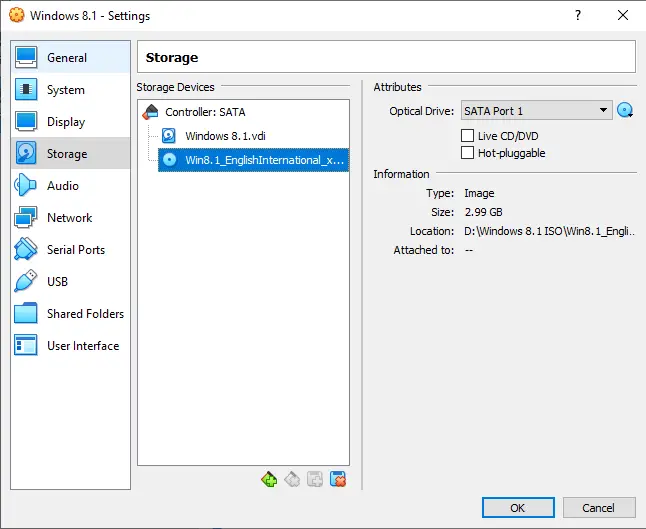
Step 24. Click OK to close settings.
Step 25. Press the Start button to begin installation.
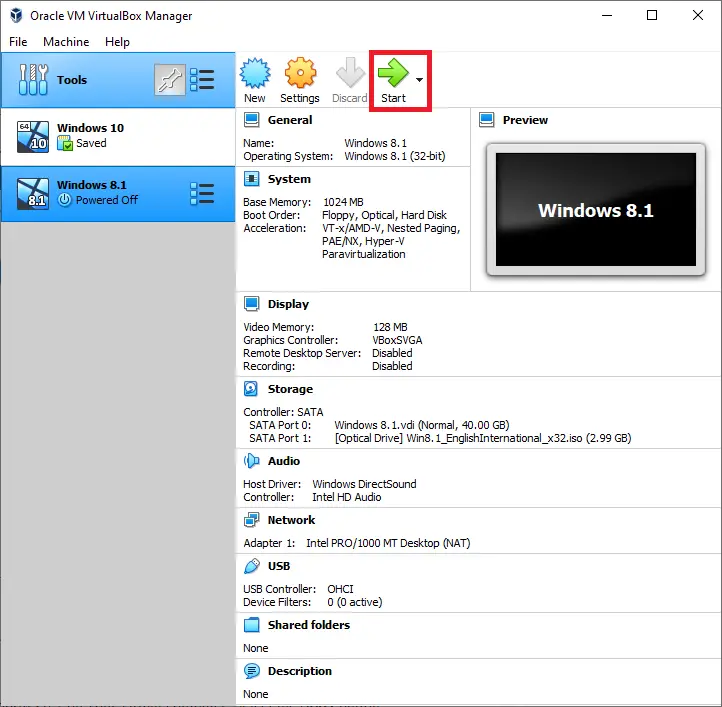
Step 26. The VM will boot using the ISO file. The Windows 8.1 installation setup will begin.
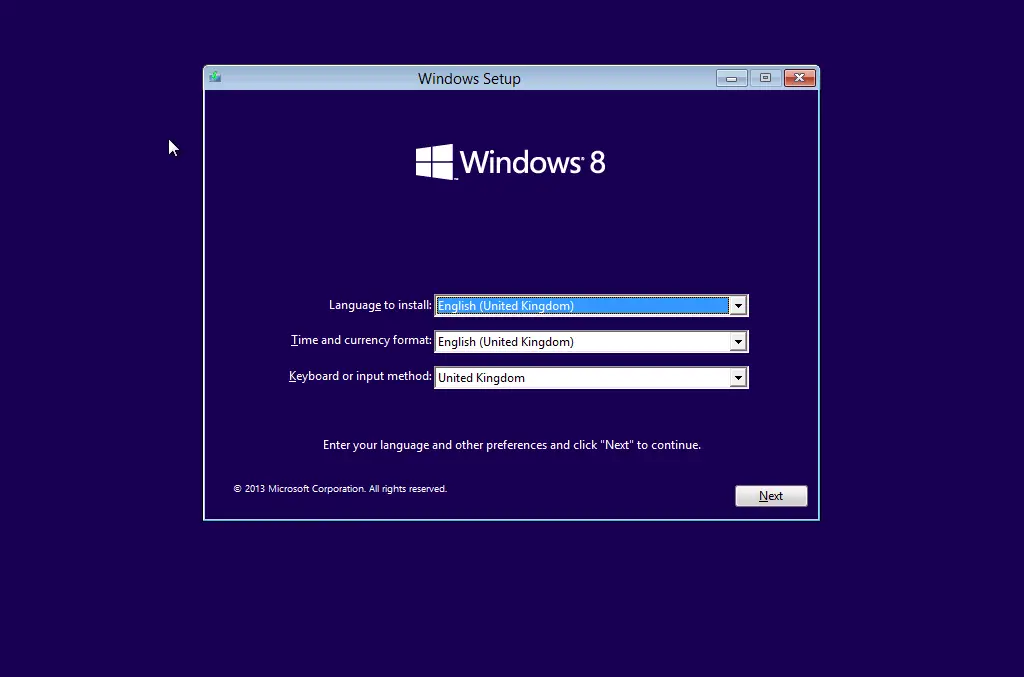
Step 27. Choose Language, Time and currency format, and Keyboard layout, then click Next.
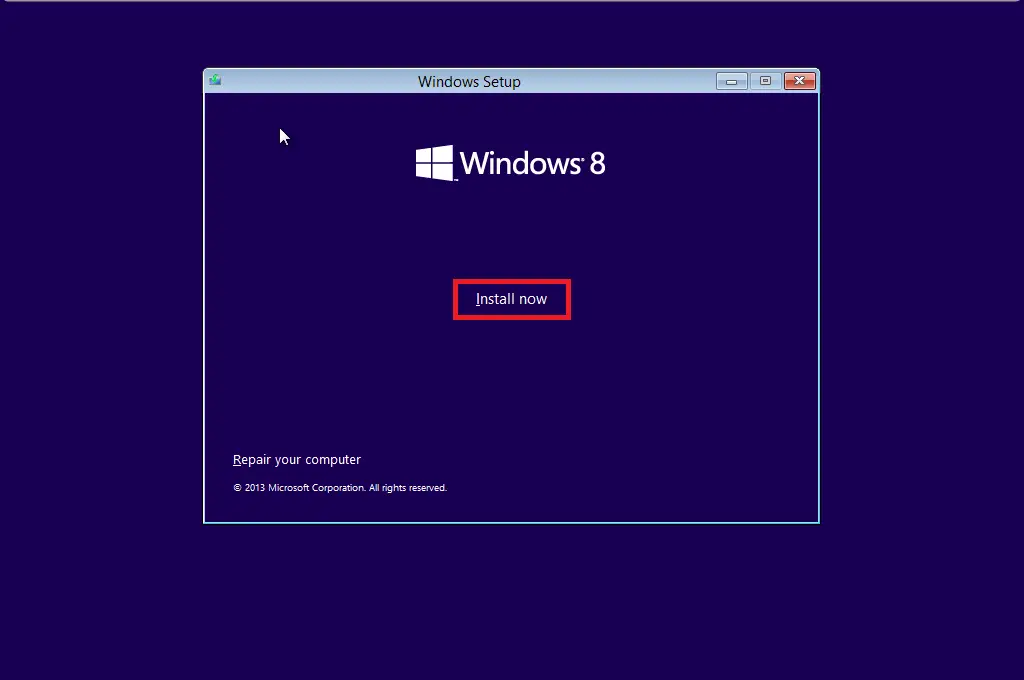
Step 28. Click Install now.
Step 29. Enter your Windows 8.1 product key.
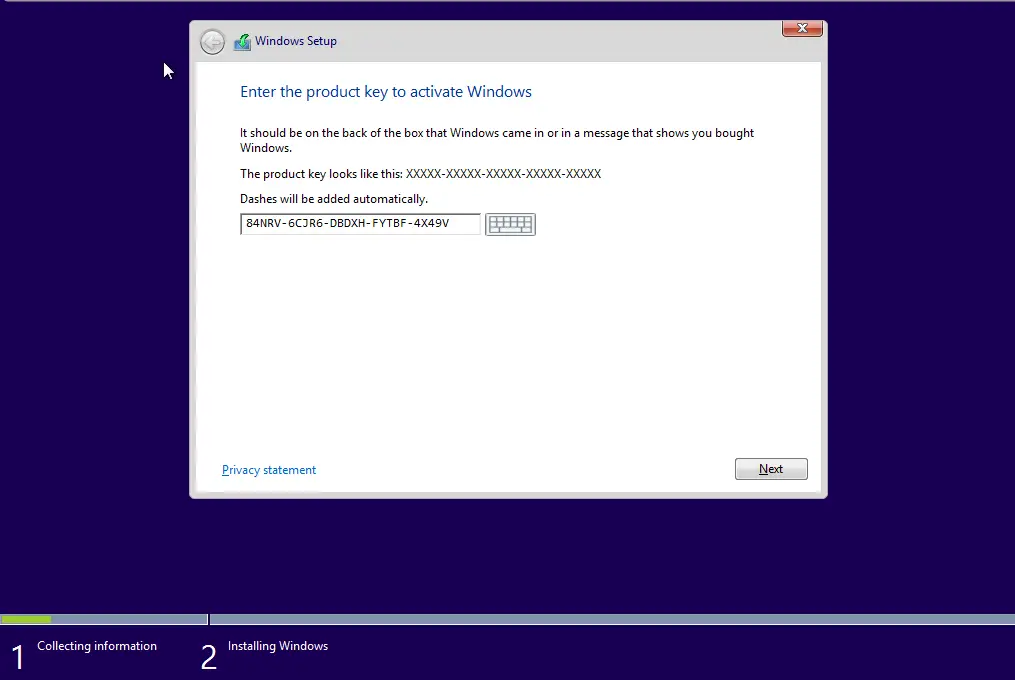
Step 30. After entering the key, click Next.
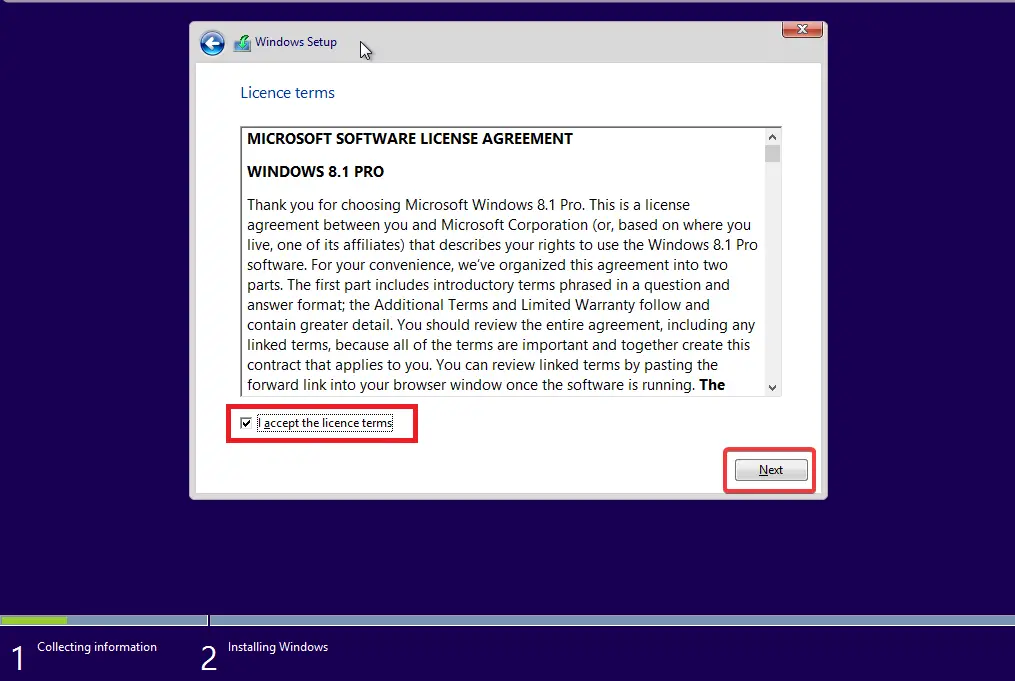
Step 31. Accept the license agreement by checking the box, then click Next.
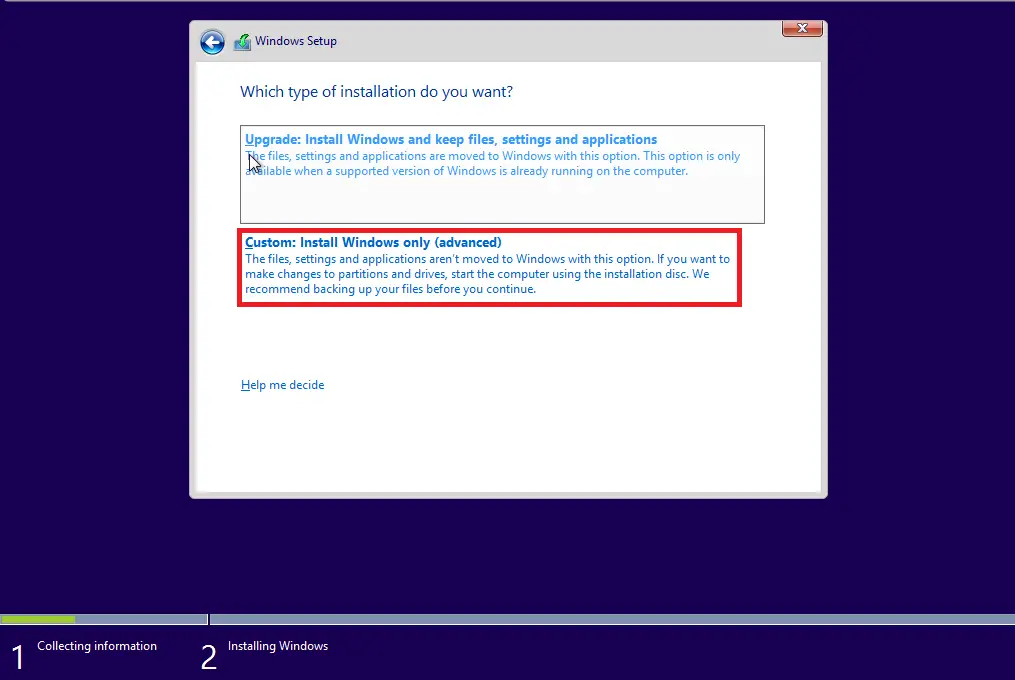
Step 32. Choose Custom: Install Windows only (advanced).
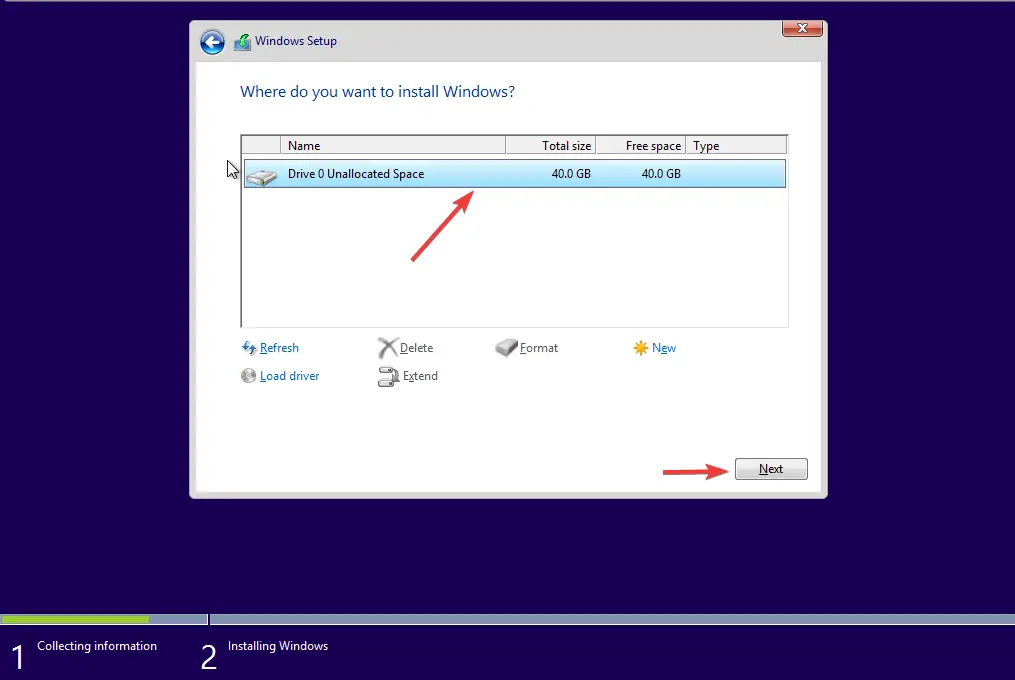
Step 33. Select the virtual disk and click Next.
Step 34. In the Personalize screen, enter your desired PC name.
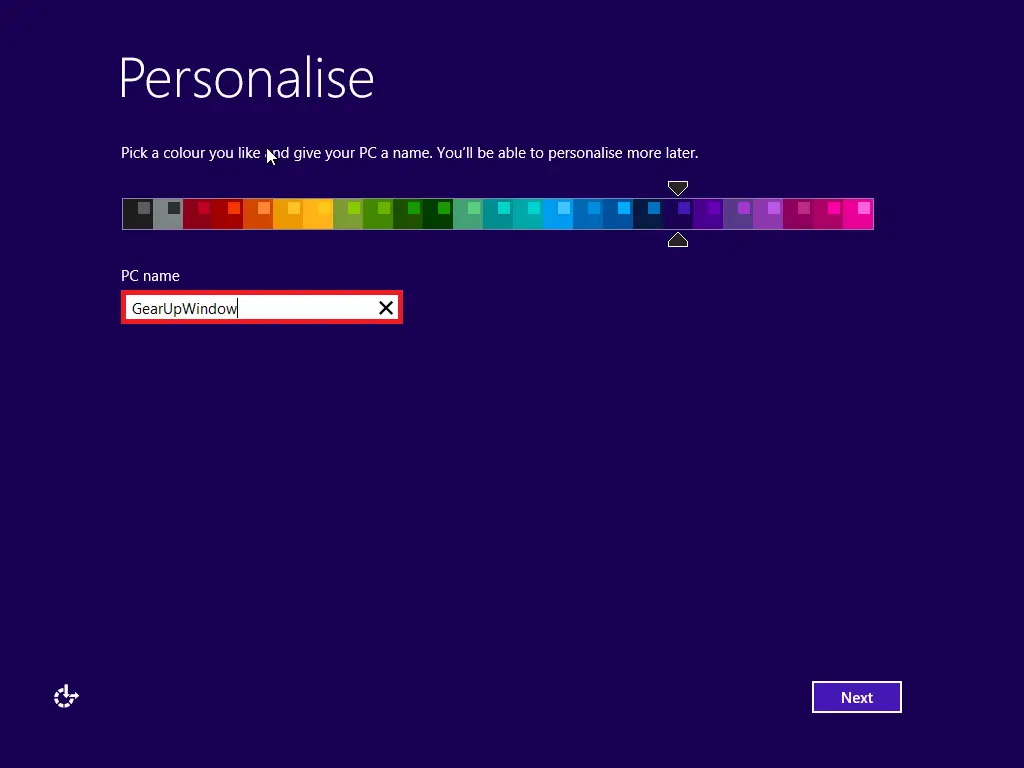
Step 35. Click Next.
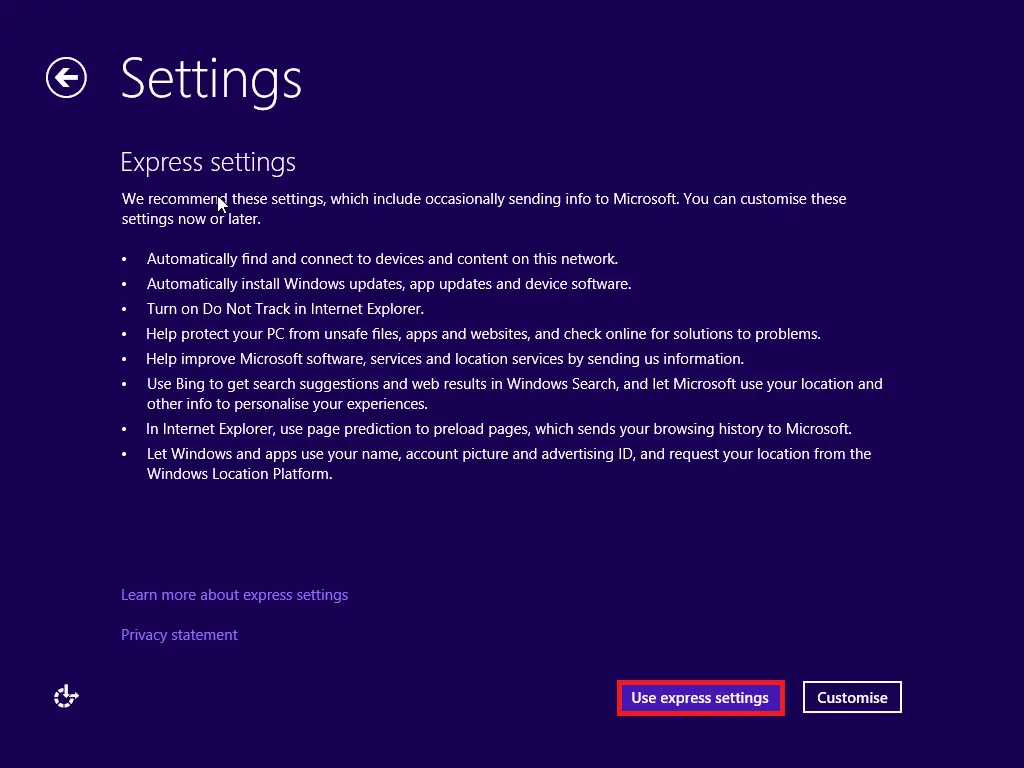
Step 36. Choose Use express settings.
Step 37. Sign in with your Microsoft account or create a new one.
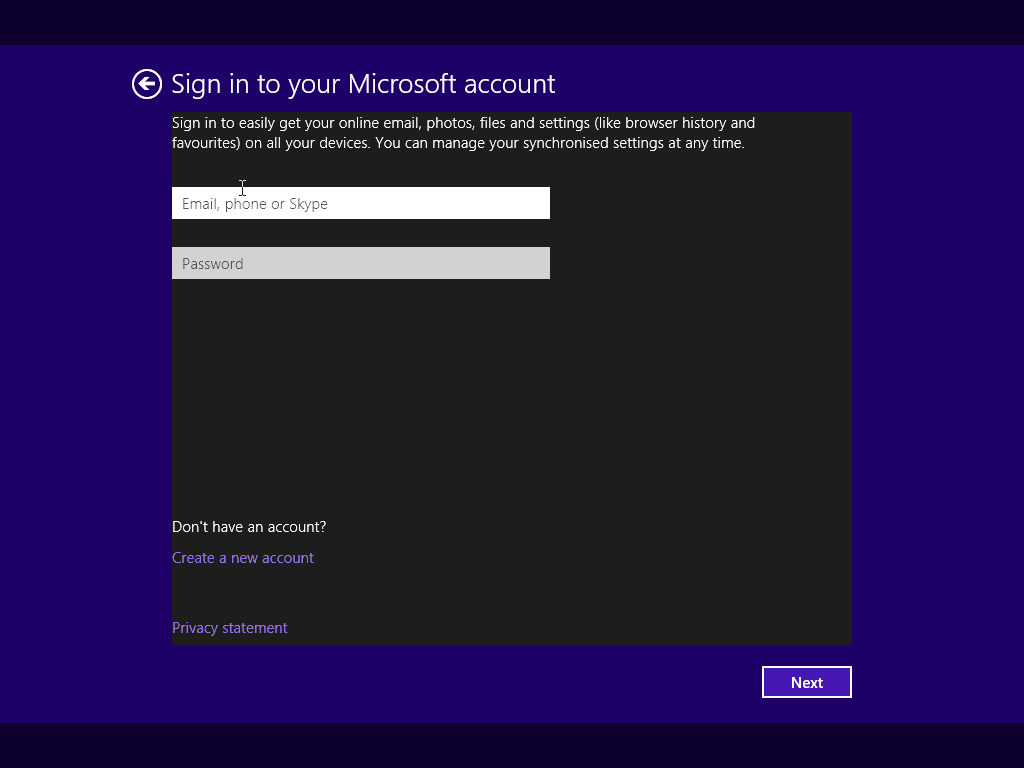
Step 38. Enter your Microsoft account details or set up a new one.
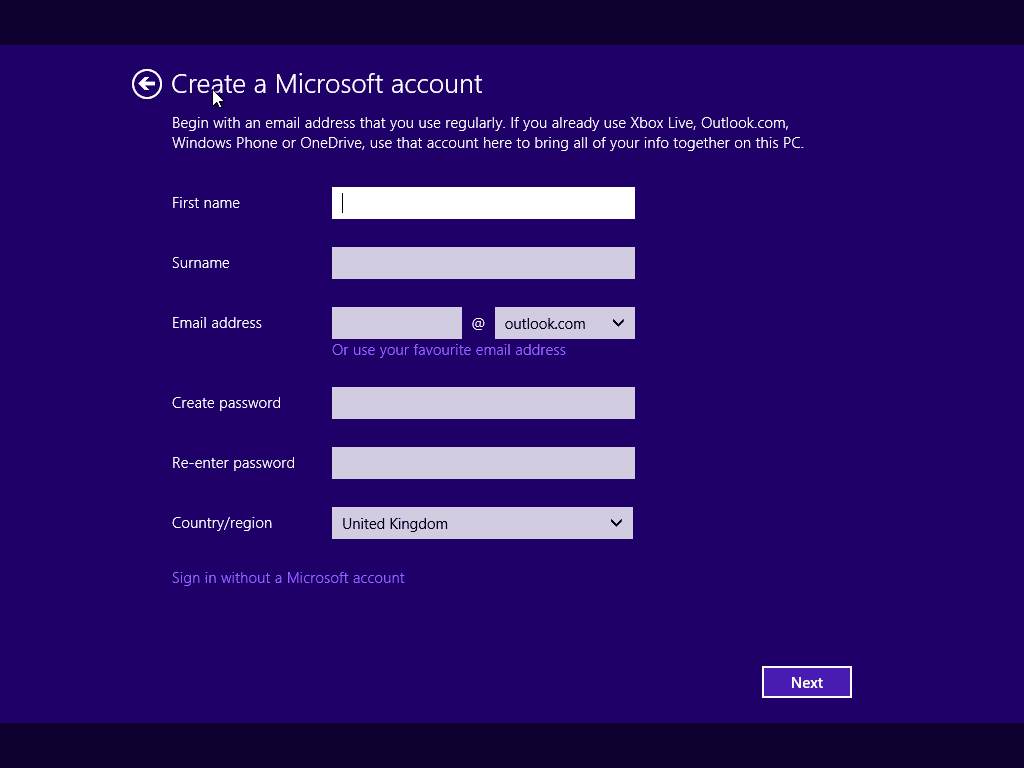
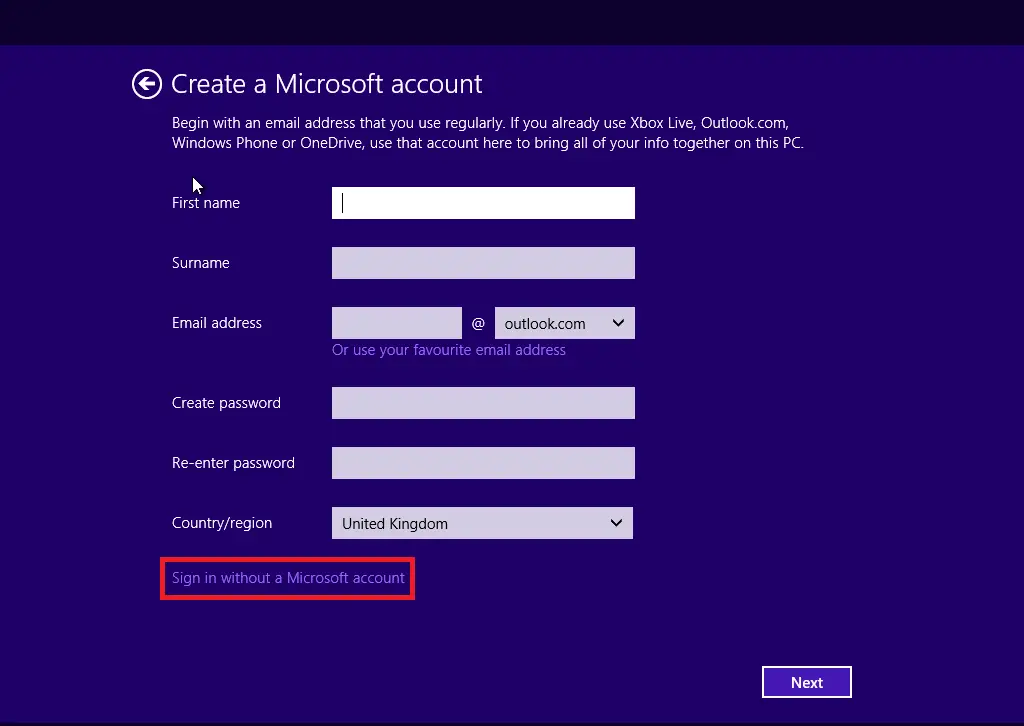
Step 39. If you’d rather use a local account, click Sign in without a Microsoft account.
Step 40. Set a username, password, and hint for your local account.
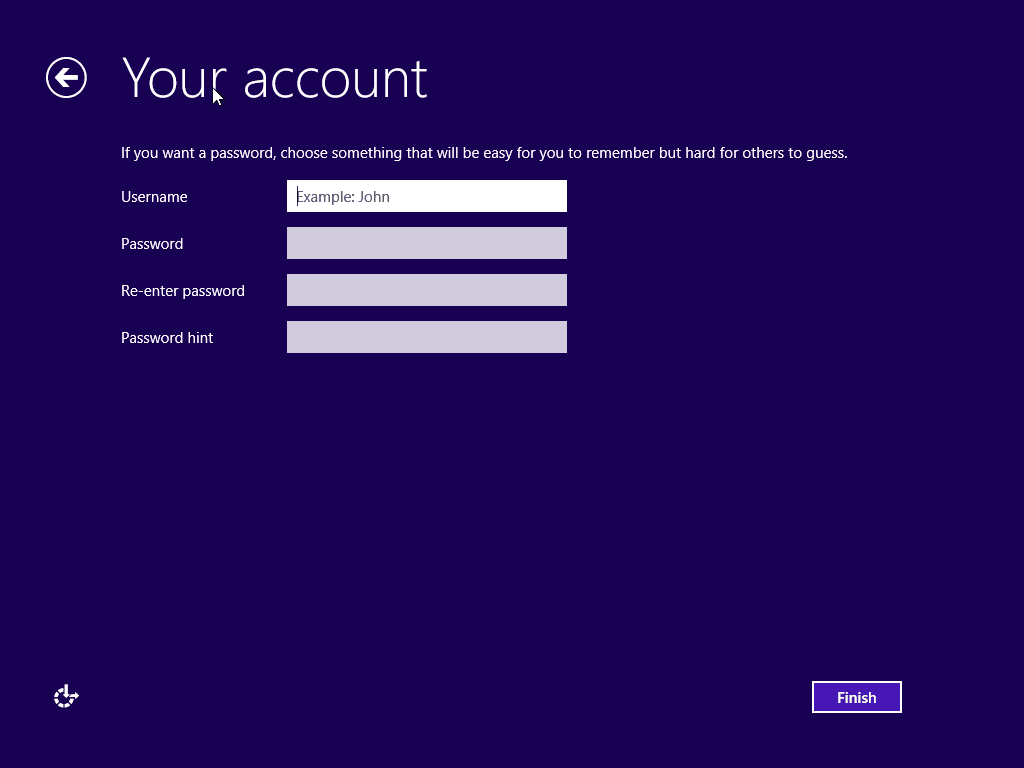
Step 41. Click Finish to complete the Windows 8.1 installation process.
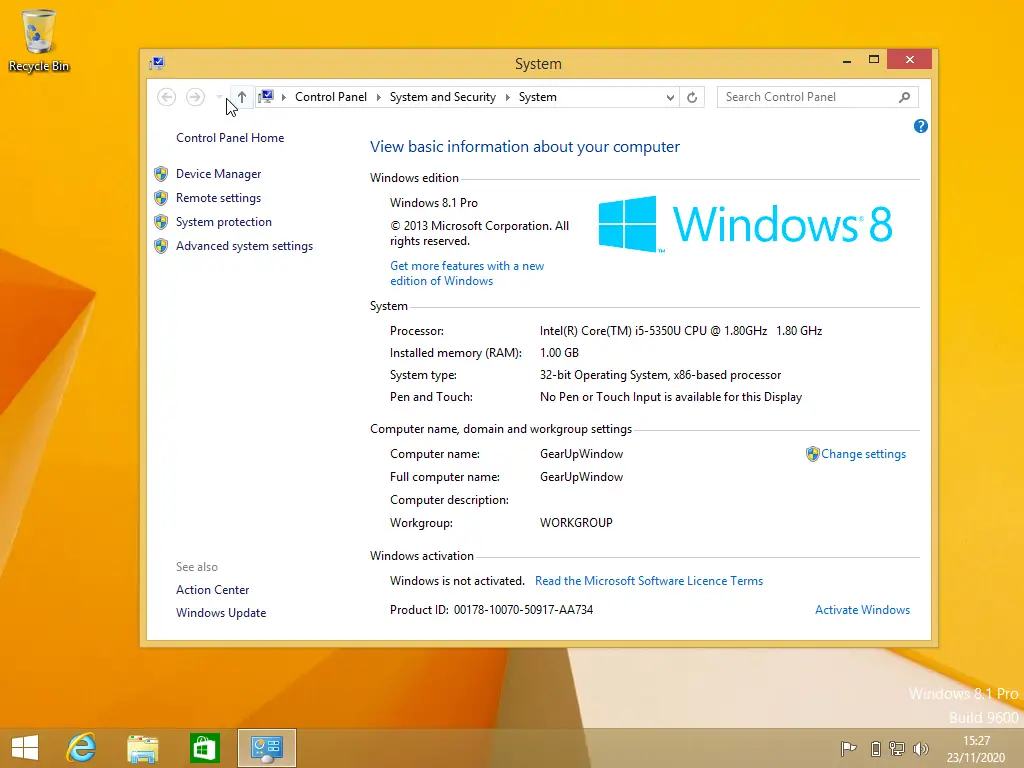
That’s it! You’ve successfully installed Windows 8.1 on Oracle VM VirtualBox. With this setup, you can explore apps, software, and updates without affecting your primary operating system.
FAQs
Do I need a product key to install Windows 8.1 on VirtualBox?
Yes, Windows 8.1 requires a valid product key to complete the installation. You can enter the key during setup or use a trial ISO if available.
How much RAM should I assign to Windows 8.1 in VirtualBox?
A minimum of 1GB for 32-bit and 2GB for 64-bit is recommended. Allocating more RAM will improve performance.
Can I install Guest Additions on Windows 8.1?
Yes. VirtualBox Guest Additions work on Windows 8.1 and add features like improved display resolution, drag-and-drop, shared folders, and seamless mouse integration.
Why is my Windows 8.1 ISO not booting in VirtualBox?
This may occur if the ISO is corrupted or not properly attached. Re-check the Storage settings and ensure the ISO is selected under the Optical Drive.
Can I use Windows 8.1 in VirtualBox without affecting my host OS?
Absolutely. VirtualBox runs Windows 8.1 in a completely isolated environment, so your host system remains unchanged and safe.
Conclusion
Installing Windows 8.1 on Oracle VM VirtualBox is a straightforward process that lets you test software, explore system features, and perform experiments without affecting your main operating system. By following the step-by-step instructions in this guide—creating a virtual machine, attaching the ISO file, and completing the Windows setup—you can quickly get a fully functional Windows 8.1 virtual environment. VirtualBox provides a safe, flexible, and user-friendly way to run multiple operating systems on the same machine, making it an excellent tool for learning, testing, and productivity. If you run into any issues or need additional help, feel free to reach out in the comments.