

Microsoft Edge is a modern browser that comes pre-installed with the Windows 11/10 operating system. It gets updated automatically, along with regular OS updates. However, sometimes, it may not get updated due to certain reasons, or you may want to update it manually. It is highly recommended to keep the Edge browser updated with the latest version, as it brings new features and essential security updates to protect your system while browsing.
Reasons to manually update the Microsoft Edge browser to its latest version
There are several reasons why it is recommended to update the Microsoft Edge browser to its latest version manually:-
- Security: The latest version of the Edge browser includes security updates and bug fixes, which can help protect your system from online threats.
- Performance: The latest version of the Edge browser often includes performance improvements, which can help make browsing faster and smoother.
- New features: The latest version of the Edge browser may include new features or improvements to existing features, which can enhance your browsing experience.
- Compatibility: Some websites or web applications may require the latest version of the Edge browser to function properly.
- Support: Using the latest version of the Edge browser ensures that you have access to the most up-to-date support resources from Microsoft if you encounter any issues while browsing.
In this post, we will guide you on manually updating the Microsoft Edge browser.
How to manually update the Microsoft Edge browser to its latest version?
Follow these steps to manually update the Microsoft Edge browser to its latest version:-
Step 1. Open the Edge browser.
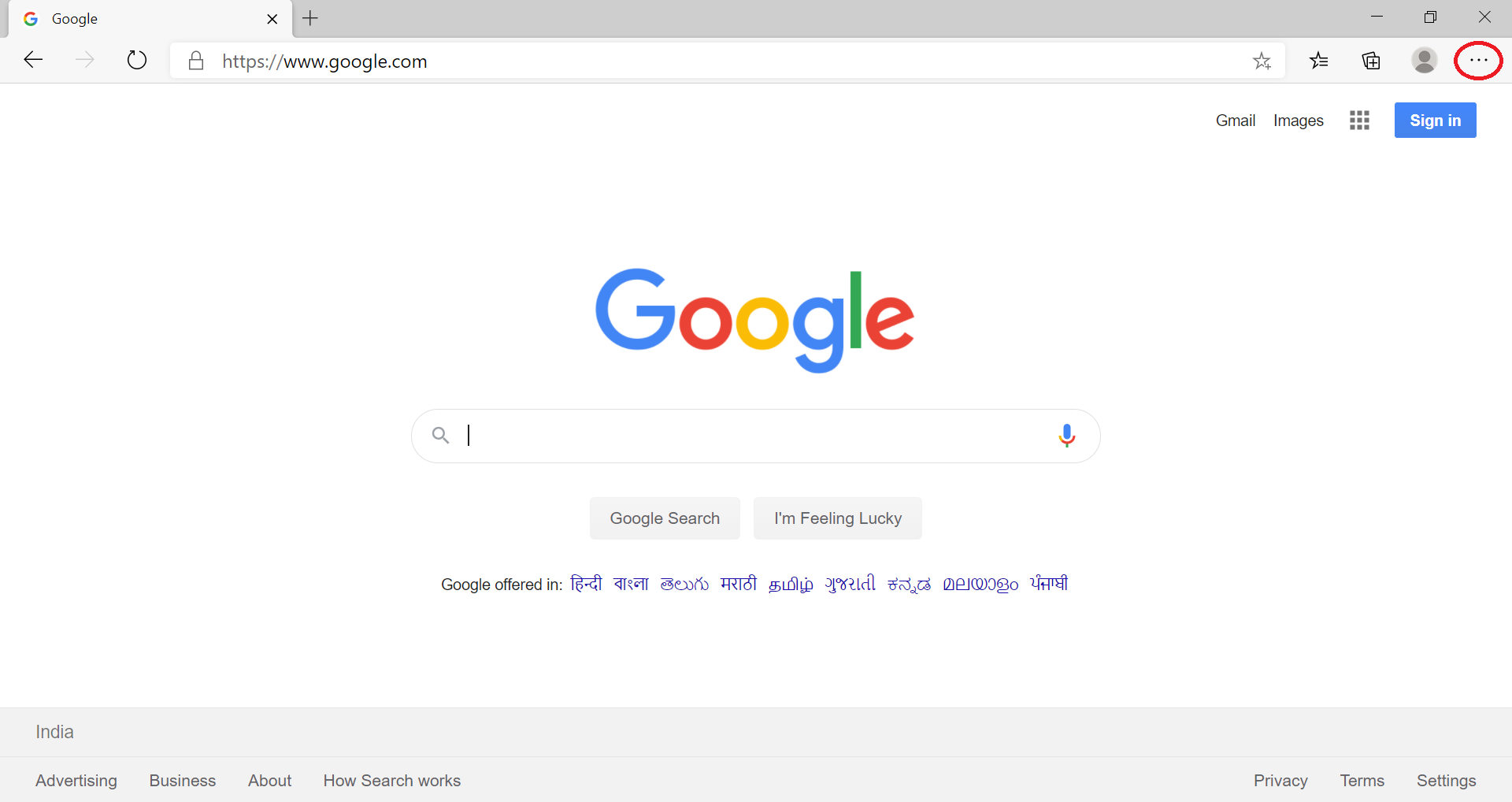
Step 2. Click on the three horizontal dots (…) in the top right corner of the Edge browser, located next to the user icon.
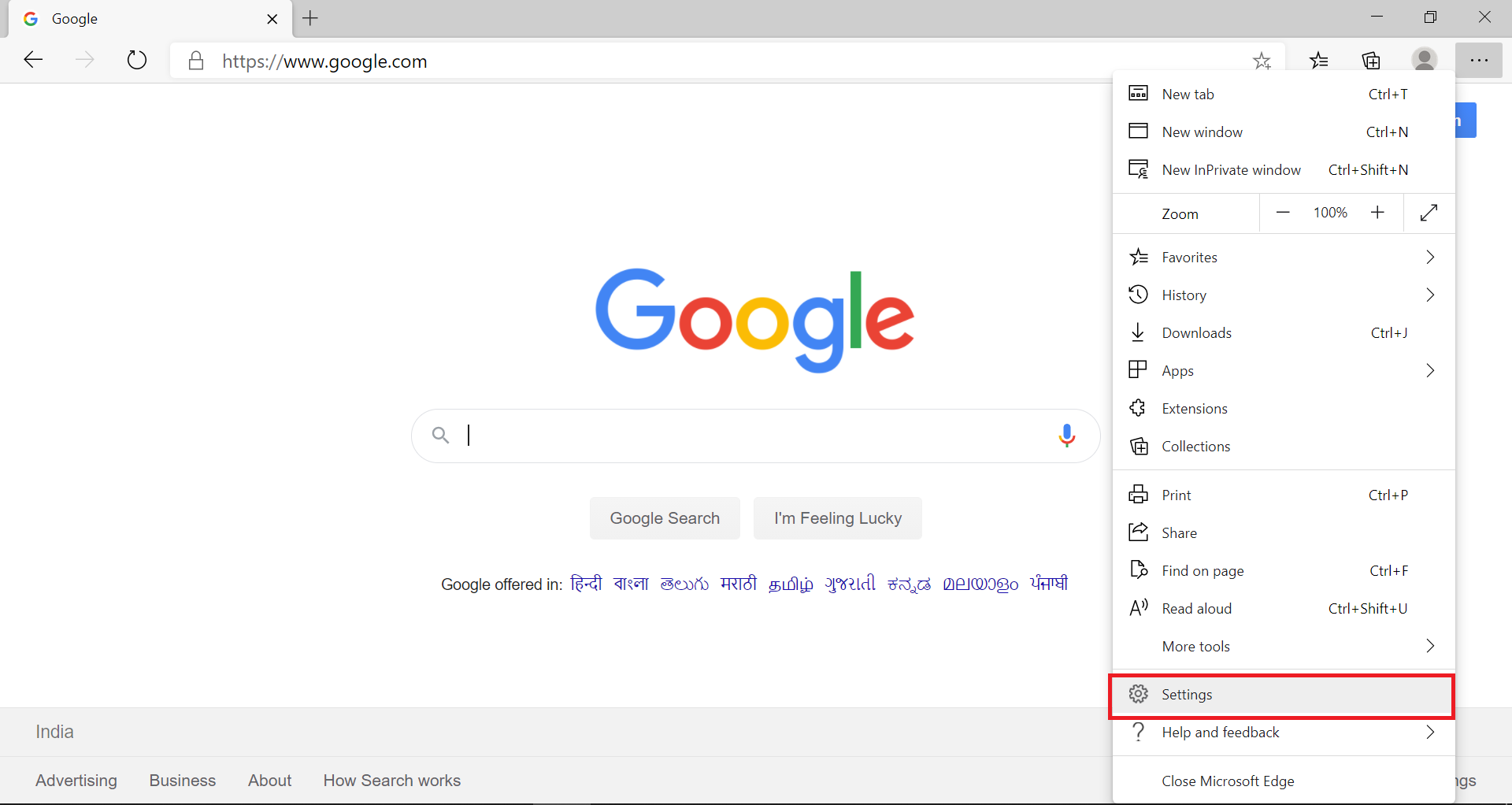
 Step 3. Click on Settings to open the settings page.
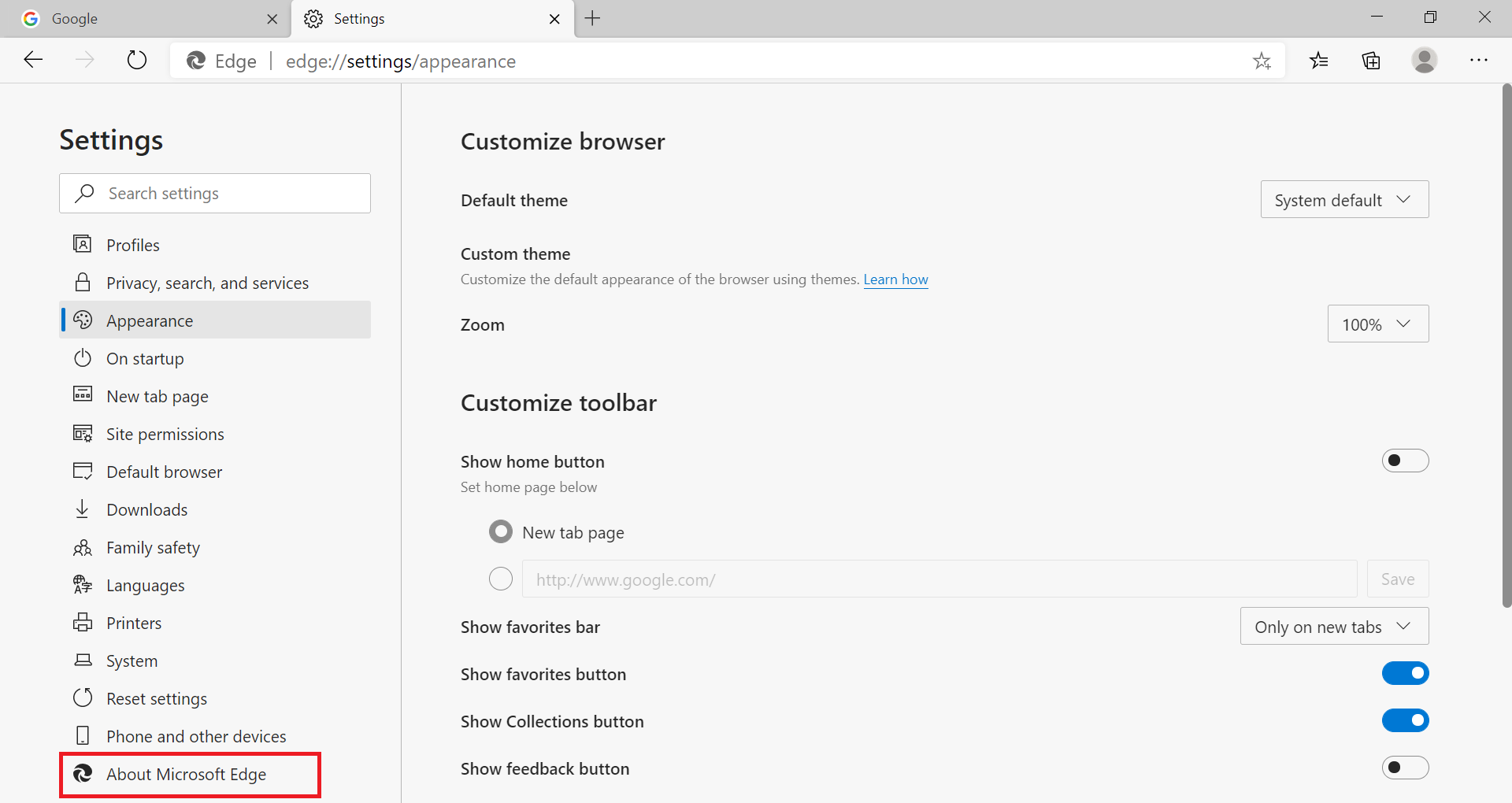
 Step 4. Under Settings, click on About Microsoft Edge.
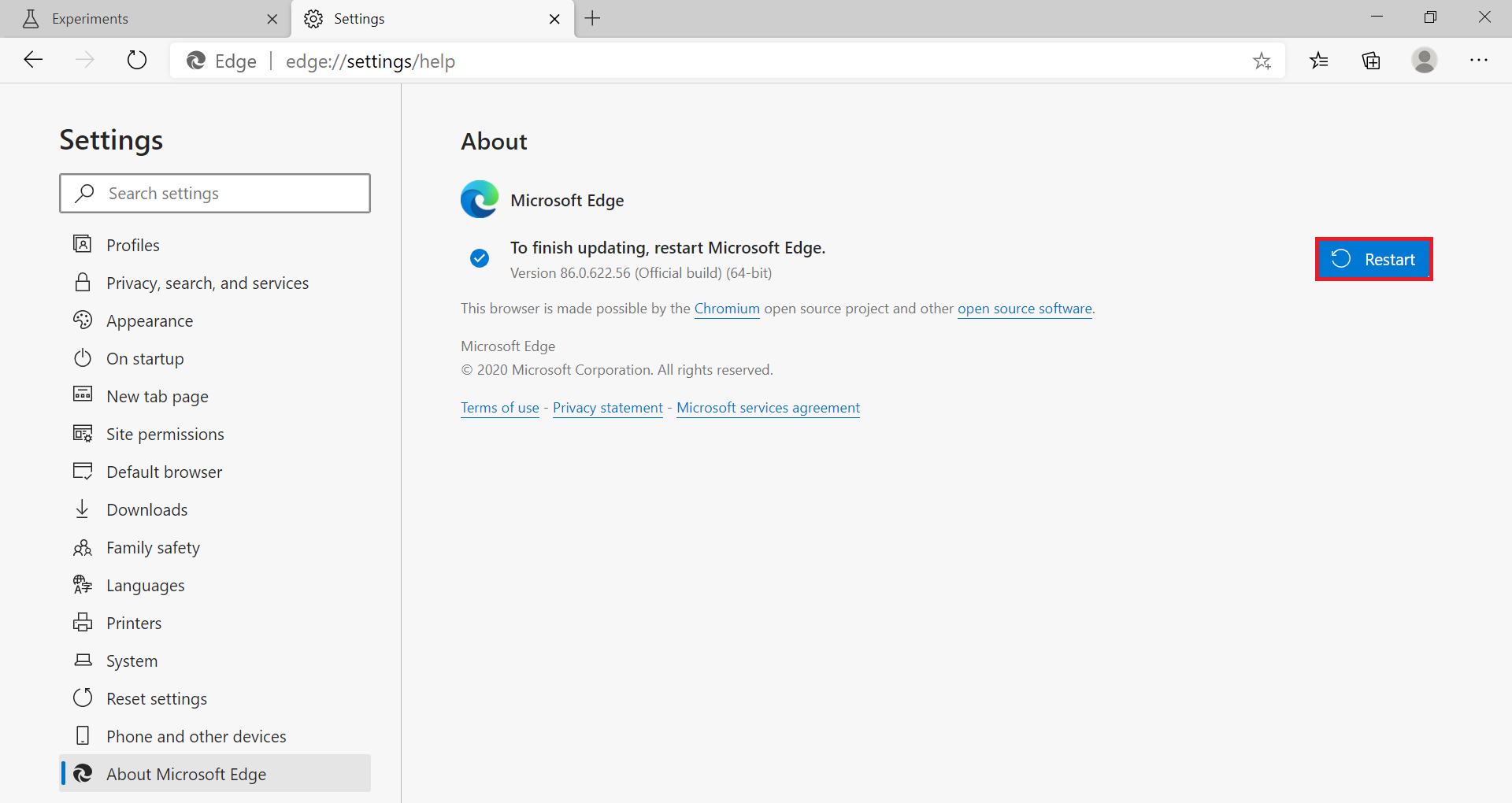
 Step 5. Microsoft Edge will check for the latest version from the store and will start downloading automatically.
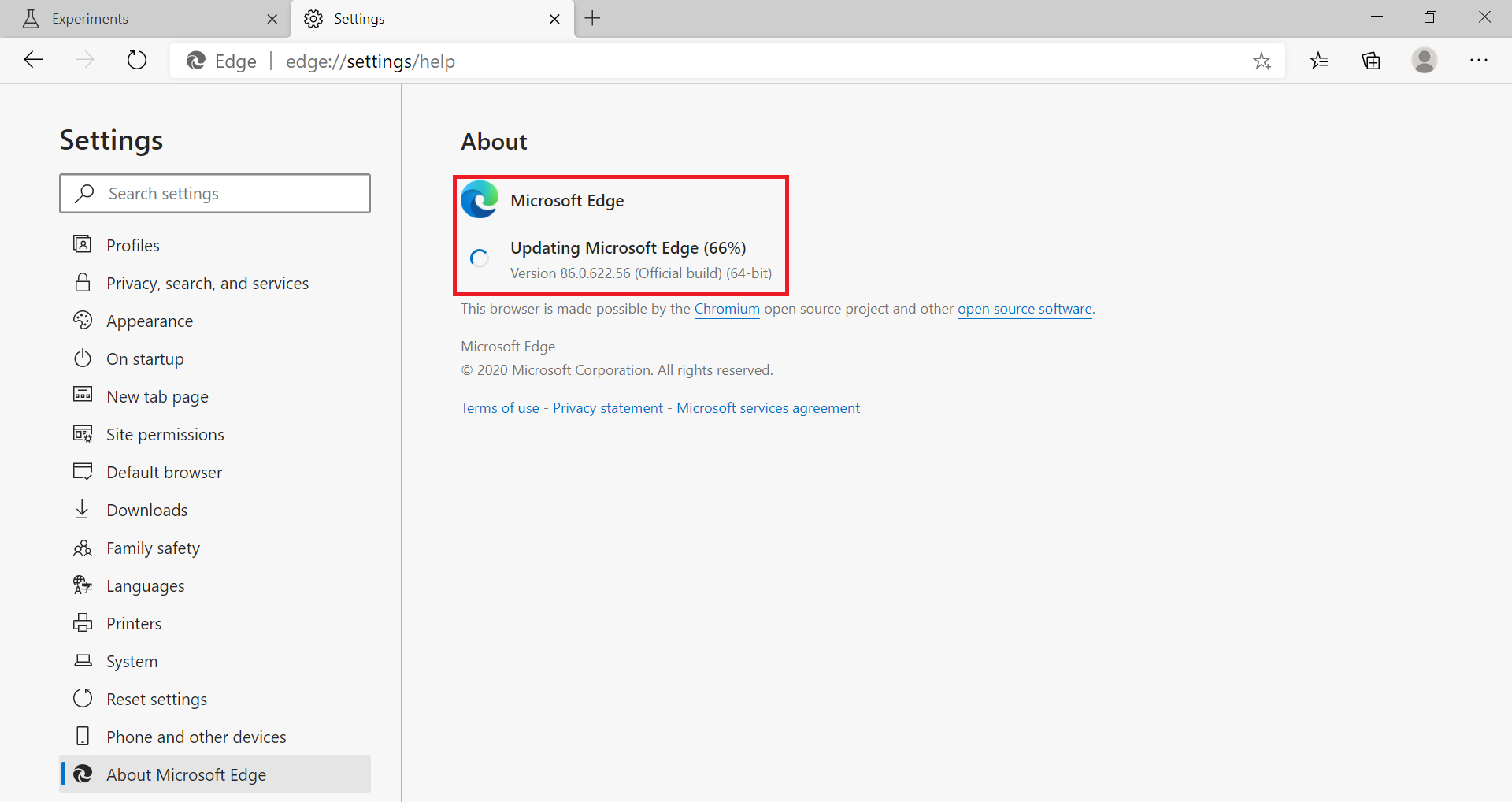 Step 6. Once the latest Edge version is downloaded, it will apply automatically in the background. Now, the browser will offer to restart. Click on the Restart button.
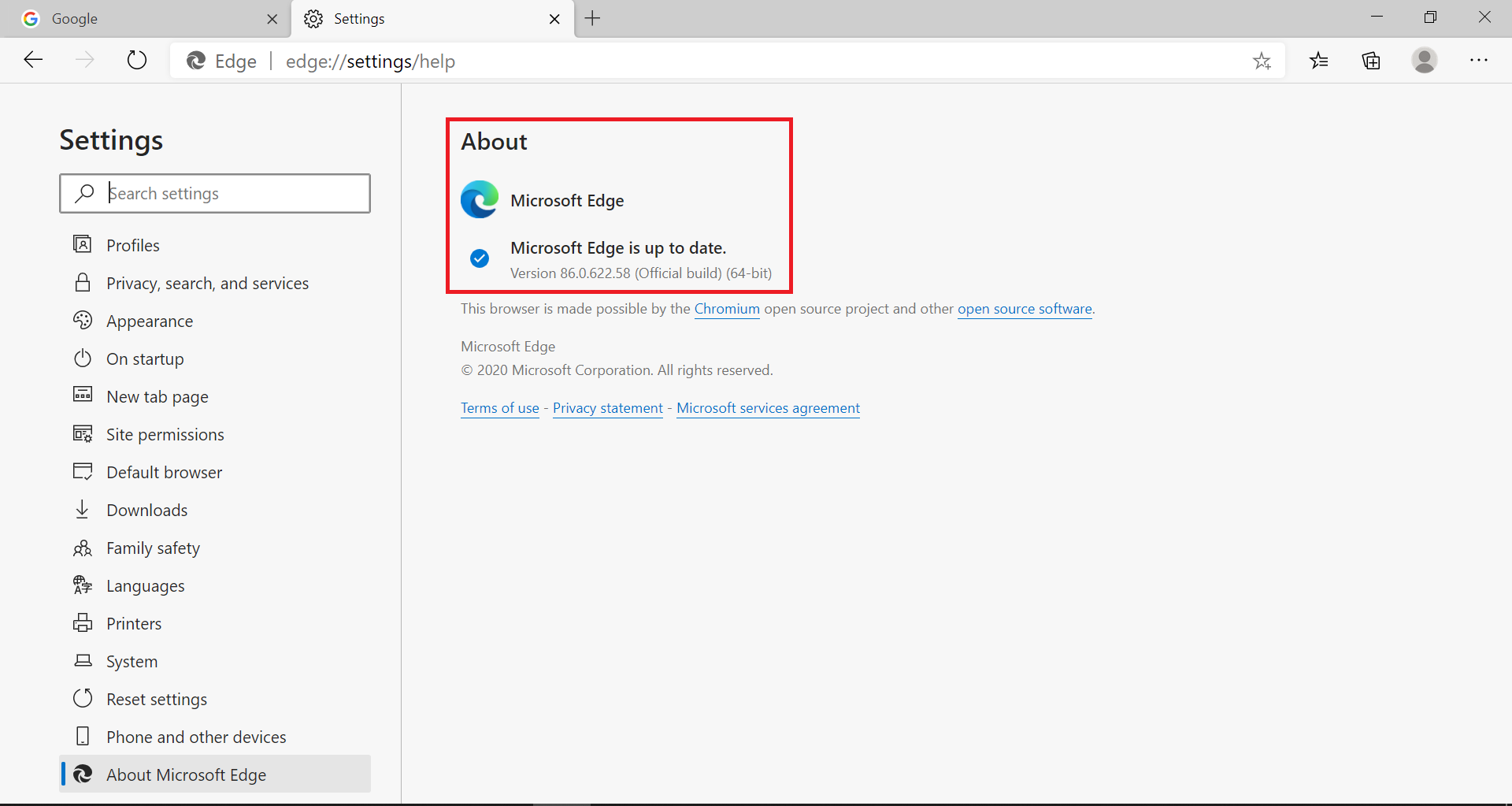
 Step 7. To check the Edge version, you can repeat the above steps.
 That’s all!
FAQs
Why should I manually update Microsoft Edge?
Manual updates ensure you receive the latest security patches, new features, and compatibility improvements, especially if automatic updates fail or are delayed.
Does Microsoft Edge update automatically in Windows 11/10?
Yes, Edge usually updates automatically through Windows Update or the Microsoft Store, but sometimes updates may not install due to connectivity or store issues.
How do I know if my Edge browser is up to date?
Go to Settings > About Microsoft Edge. The browser will check for available updates and display your current version.
Can updating Microsoft Edge improve performance?
Yes. Newer versions often include performance and stability enhancements for smoother and faster browsing.
What happens if I don’t update Microsoft Edge?
You may miss important security fixes, experience website compatibility issues, or lose access to newly introduced features.
Will updating Edge delete my browsing data?
No. Updating the Edge browser does not affect your history, passwords, bookmarks, or extensions.
What should I do if Edge fails to update?
Restart your system, ensure Microsoft Store services are running, check your internet connection, and try updating from the About Microsoft Edge page again.
Is it safe to restart Edge when prompted after an update?
Yes. Restarting finalizes the update and relaunches the browser without affecting your saved data.
Conclusion
In conclusion, updating the Microsoft Edge browser to its latest version is essential to ensure the security and performance of your system while browsing. Manually updating the browser is a simple process that can be done by following a few easy steps. By keeping the Edge browser up to date, you can access new features, improve compatibility with websites and web applications, and have access to the latest support resources from Microsoft. With regular updates, Microsoft Edge continues to evolve as a modern browser, providing an improved browsing experience for its users.
Also Read: Microsoft Edge allows you to go back to the previous page using the Backspace Key.