

Typically, to copy and paste text from a PDF (Portable Document Format), you highlight the text by selecting it, right-click, and then copy and paste it into a Notepad or Word document. You can also use keyboard shortcuts—Ctrl + C to copy and Ctrl + V to paste the content into any document. However, this may not work in two cases: when dealing with a scanned PDF or a secured PDF that is protected from editing. In such cases, you might need to purchase software to unlock the protection or use an expensive OCR solution. If the PDF is not protected, you should be able to copy the text without any issues.
This post will show you how to extract or obtain text from an image using Microsoft Word. In this method, we’ll first convert the image into a PDF, then extract the text using Microsoft Word. It can also help you extract text from protected PDF files. Just take a screenshot of the protected PDF, convert the screenshot into a PDF again, and then use this method to convert that PDF to text. It’s that simple!
How to Obtain or Extract Text from an Image in a Microsoft Word Document?
Follow these steps to obtain or extract Text from an Image in a Microsoft Word Document:-
Step 1. Convert the Image to PDF using the Microsoft Word 2010/2103/2016/2019 program.
Step 2. Now, open a Microsoft Word document.
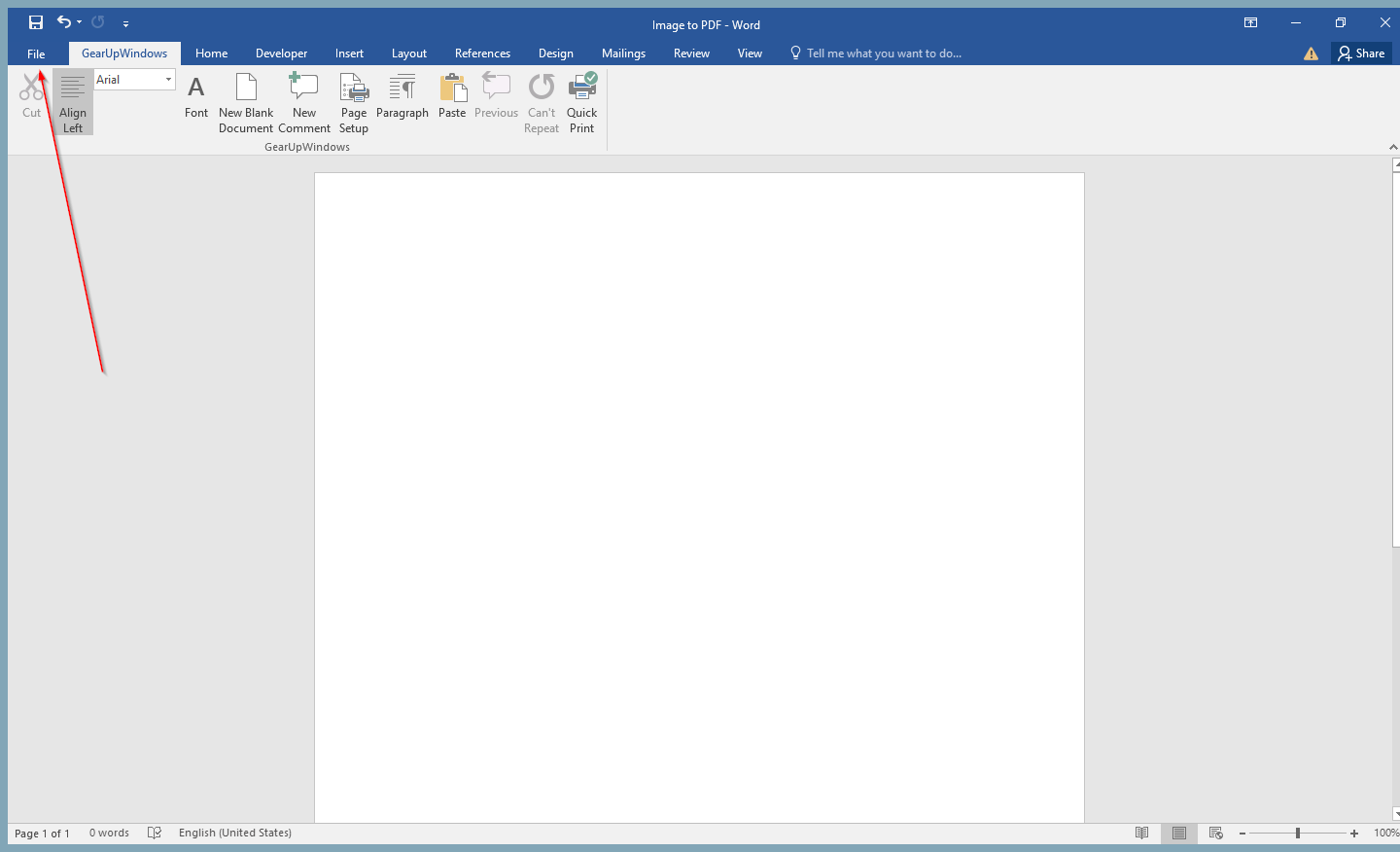
Step 3. Click on the File tab.
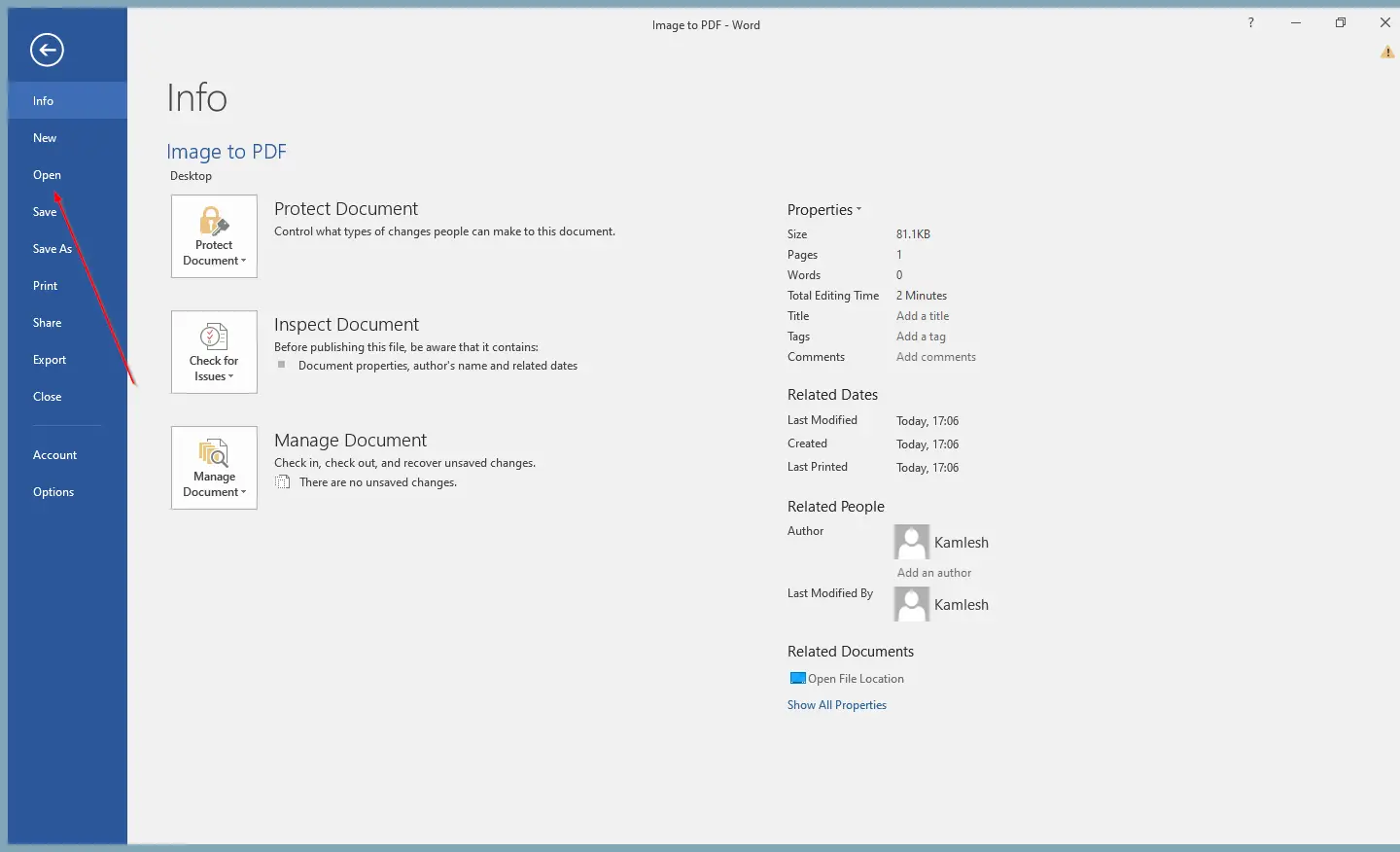
Step 4. On the Backstage View, click Open.
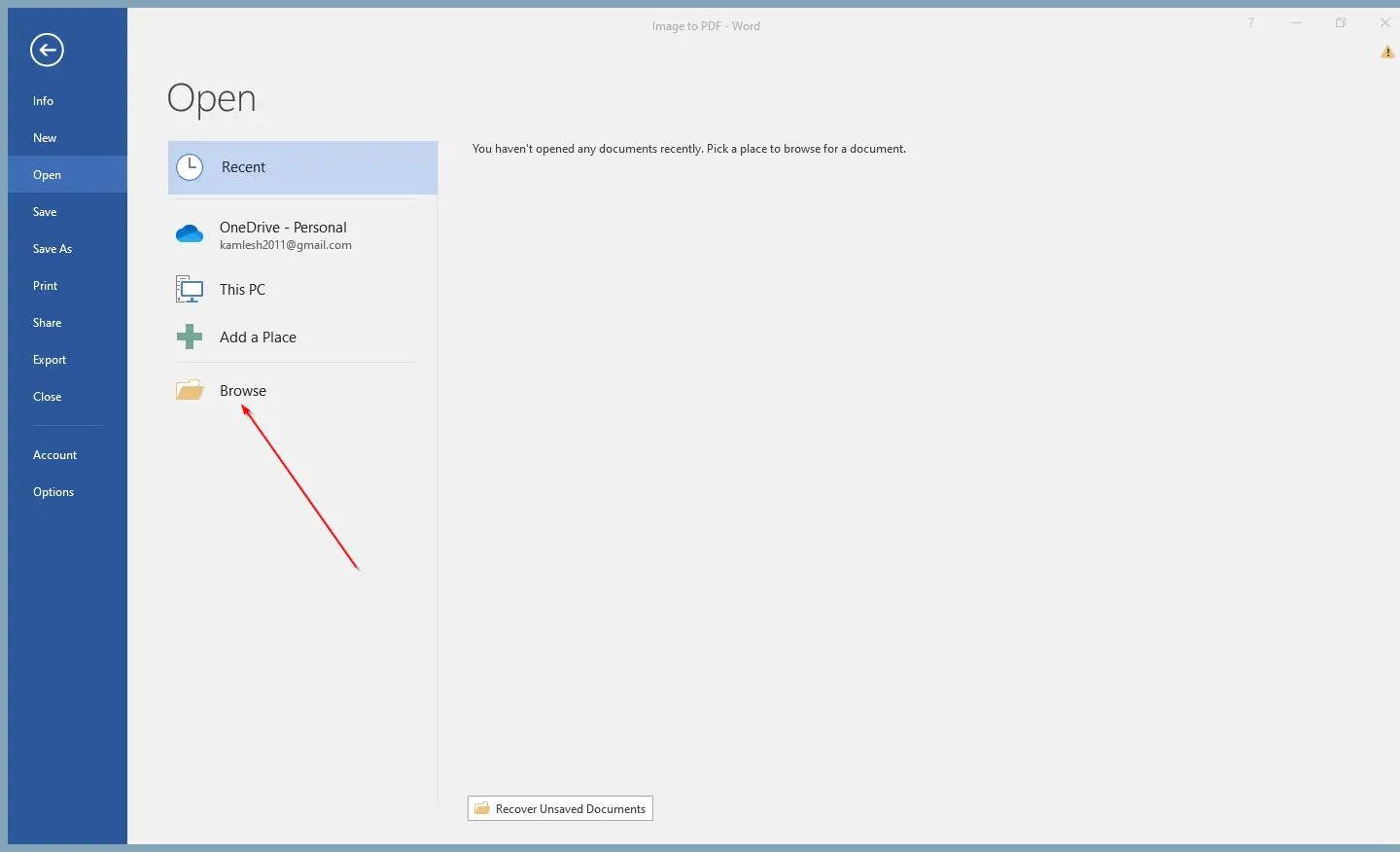
Step 5. Click Browse, select the image file’s PDF, and upload it into a Word document.
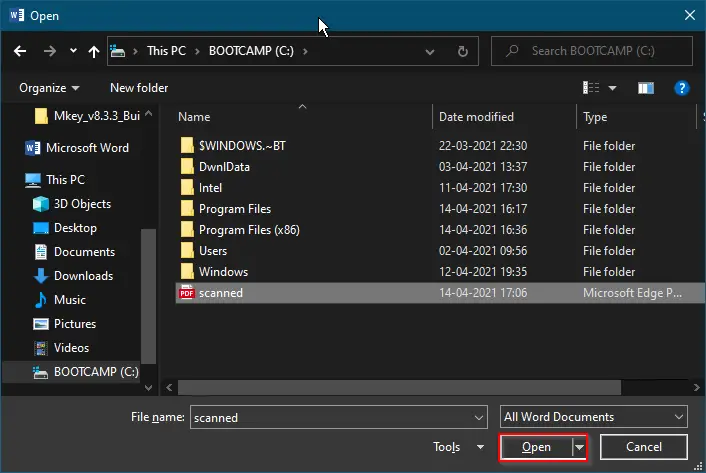
Step 6. Locate the PDF file and click on the Open button.
 Step 7. You will see a dialog box: “Word will now convert your PDF to an editable Word document. This may take a while. The resulting Word document will be optimized to allow you to edit the text, so it might not look exactly like the original PDF, especially if the original file contained lots of graphics.”
 Step 8. Click OK.
Step 9. In a few seconds, the image will be converted into a Word document.
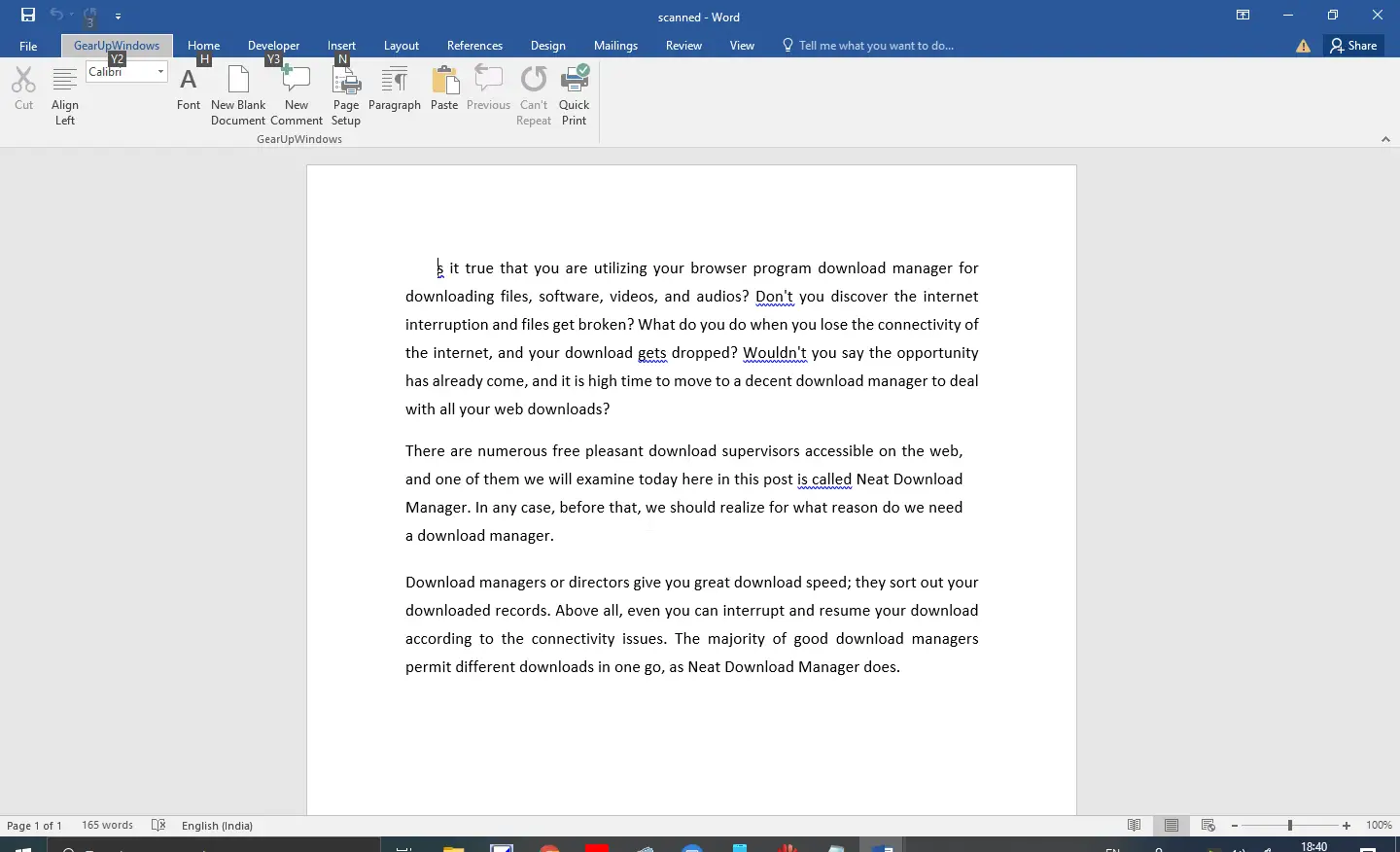 Step 10. You can edit this document further or share it with someone else.
Once you complete the above steps, you should obtain or extract text from an Image using a Microsoft Word Document.
If you don’t want to use the above method to extract texts from an image, you can use some free online tools to convert a PDF to a Word document.
Conclusion
In conclusion, extracting text from a PDF file can sometimes be a challenging task, especially when dealing with scanned PDFs or protected PDFs. However, with the use of Microsoft Office Word, converting an image to a PDF and extracting text has become much more accessible. By following the simple steps outlined above, anyone can obtain text from an image using Microsoft Word. Additionally, for those who prefer not to use this method, there are many other online tools available to convert PDFs to Word documents for text extraction. With these tools and techniques, anyone can quickly and easily extract text from PDF files.