

In this gearupwindows guide, we’ll show you how to open the Command Prompt on a Windows 11 PC using different methods.
Many Windows users prefer using the Command Prompt to control their system. This powerful utility has been part of Windows for decades and remains available in Windows 11.
Compared to the graphical interface, Command Prompt is faster and offers advanced tools not available through the GUI. Windows 11 includes several simple ways to launch it—choose the one you find most convenient.
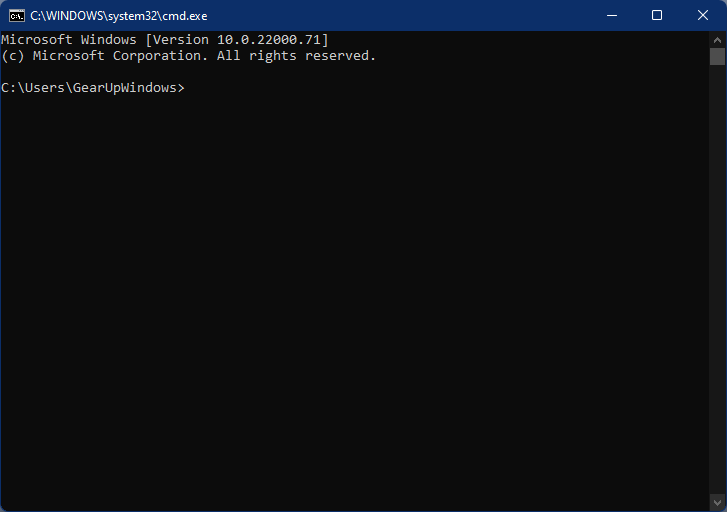
Here are the easiest methods to open Command Prompt on Windows 11:
- Using Windows Search
- From Start Menu
- Via WinX menu
- Through the Run command box
- Via File Explorer
How to Launch Command Prompt on Windows 11 Through Windows Search?
Follow these steps to open Command Prompt using the search option:
Step 1. Click on the Search icon in the taskbar and type:
CMD
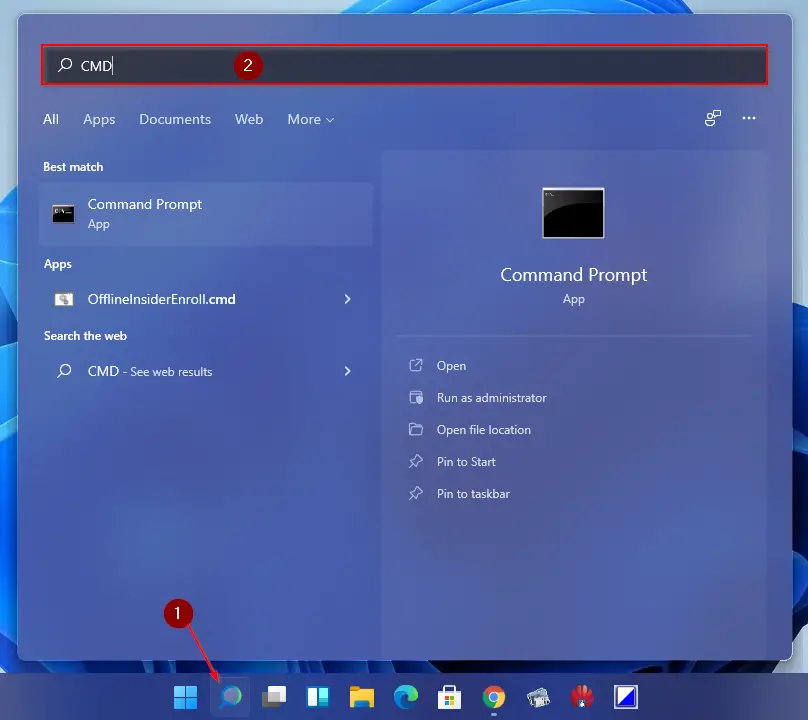
Step 2. In the search results, click on the Command Prompt app to launch it.
How to Open Command Prompt on Windows 11 from the Start Menu?
Use these steps to open Command Prompt via the Start menu:
Step 1. Click the Windows logo on the taskbar or press the Windows key on your keyboard to open the Start menu.
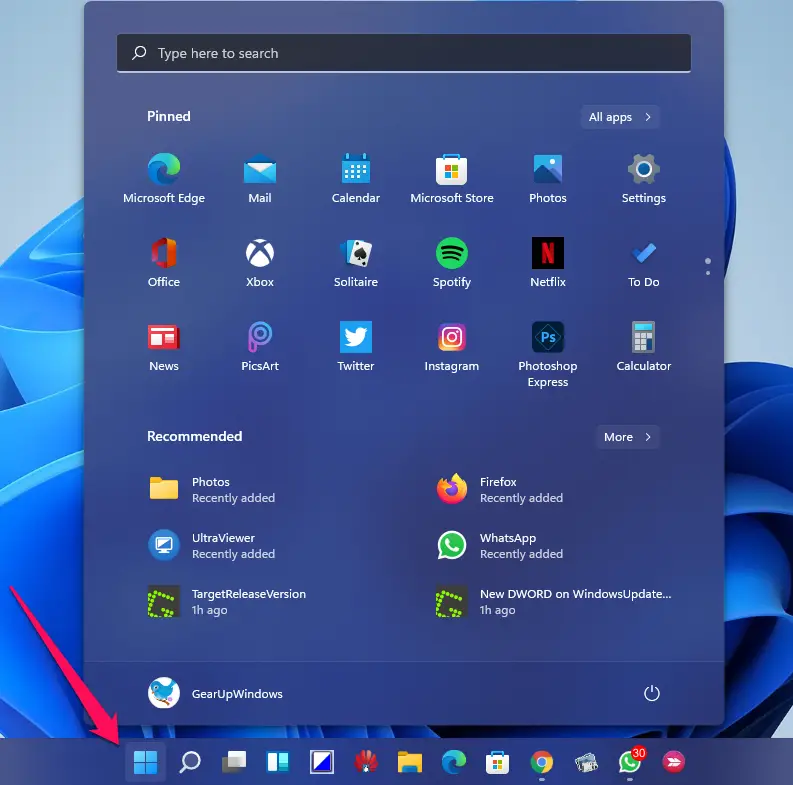
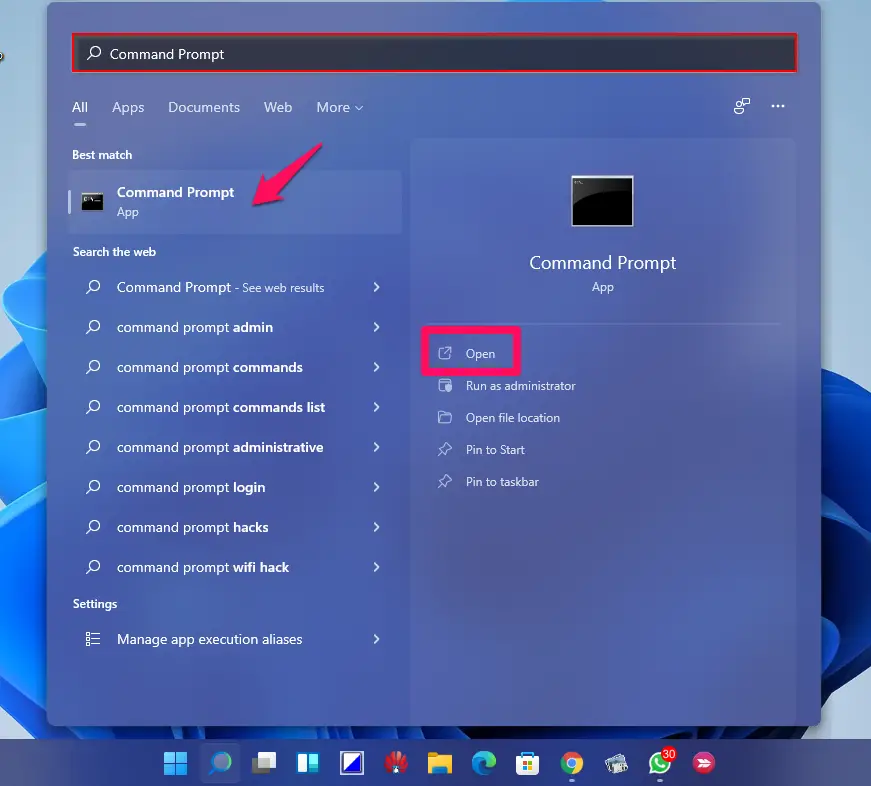
Step 2. Type Command Prompt in the Search box at the top. Then click Command Prompt on the left or select Open on the right.
How to Open Command Prompt on Windows 11 from the WinX Menu?
To access Command Prompt via the WinX menu, do the following:
Step 1. Press Windows + X keys or right-click the Start button to bring up the Win+X menu.
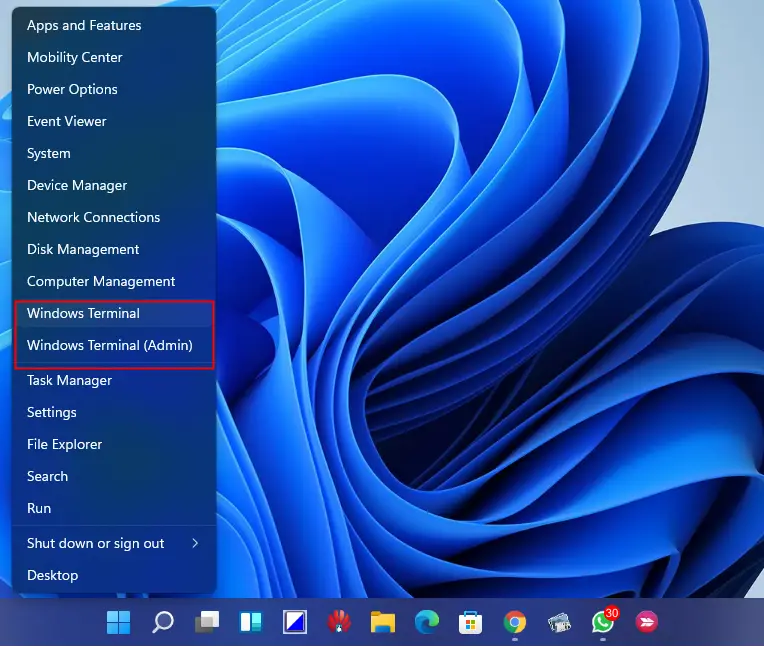
Step 2. Click Windows Terminal or Windows Terminal (Admin). Then, click the down-arrow next to the + tab and select Command Prompt.
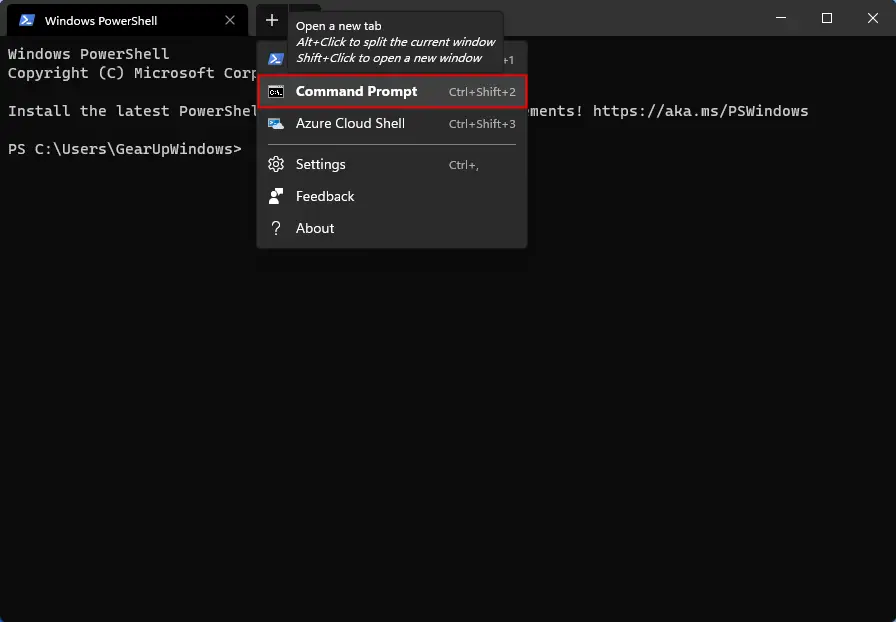
The Command Prompt will open in a new tab within Windows Terminal.
Also Read: How to set Windows Terminal default app for Command Prompt?
How to Access Command Prompt on Windows 11 from the Run Dialog Box?
Use these steps to access Command Prompt using the Run command:
Step 1. Press Windows + R keys to open the Run dialog box.
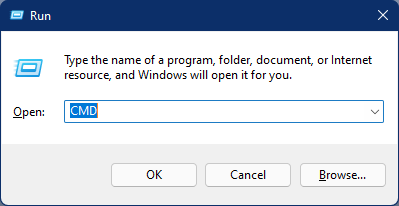
Step 2. Type CMD and press Enter or click OK to open the Command Prompt window.
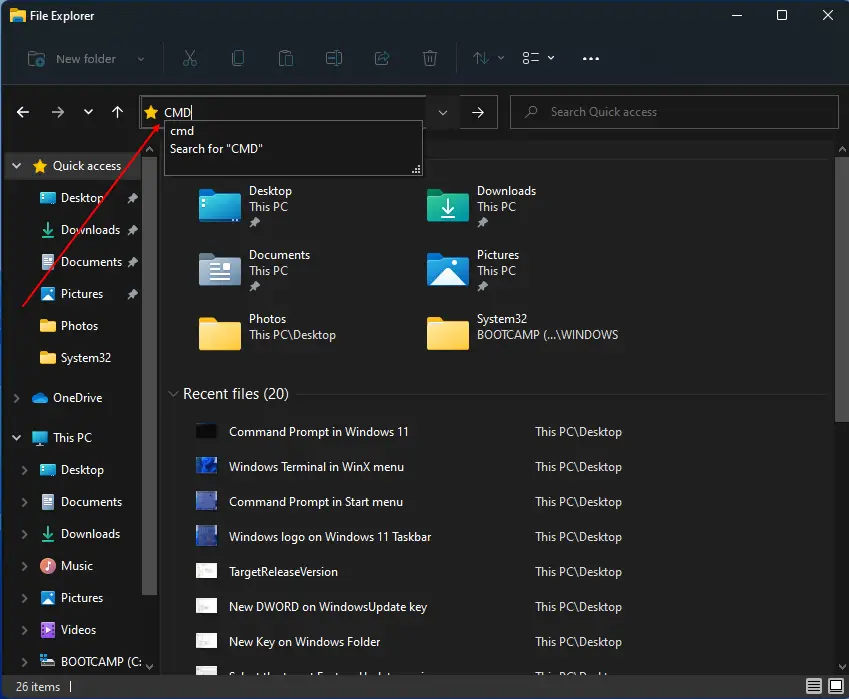
How to Launch Command Prompt on Windows 11 from File Explorer?
Here’s how to open Command Prompt using File Explorer:
Step 1. Open File Explorer by pressing Windows + E or clicking its taskbar icon.
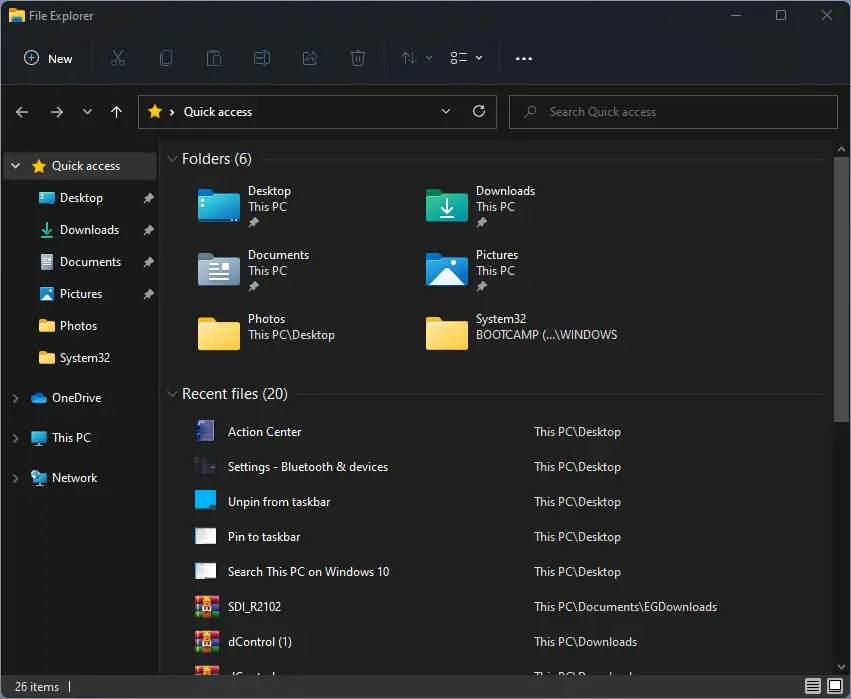
Step 2. Click the address bar near Quick access, type CMD, and press Enter.
Conclusion
Command Prompt remains a powerful utility in Windows 11. Whether you’re troubleshooting, executing advanced tasks, or just prefer a faster method than the GUI, it’s a valuable tool.
Windows 11 allows you to open Command Prompt using methods like Windows Search, the Start menu, the WinX menu, the Run box, or File Explorer. Each option is quick and easy to use, whether you are a beginner or advanced user.
Try the method that best fits your workflow and make the most of Command Prompt’s capabilities.