

Firefox includes a built-in Troubleshoot Mode (formerly Safe Mode) that temporarily disables extensions, themes, and some custom settings so you can quickly check whether add-ons or customizations are causing crashes or broken pages.
What is Troubleshoot Mode in Firefox?
Troubleshoot Mode runs Firefox with extensions and custom themes disabled, turns off hardware acceleration, and ignores some custom settings. It’s a temporary, non-destructive environment for isolating problems — when you close Firefox and reopen normally, everything returns to how it was.
When should you use Troubleshoot Mode?
Use it when Firefox crashes, pages won’t load correctly, video playback fails, or you see strange behaviour after installing an extension or theme. Troubleshoot Mode helps determine whether the issue is with Firefox itself or something you’ve added.
How to open Firefox in Troubleshoot Mode — step-by-step
Step 1. Close Firefox completely (check Task Manager to ensure no firefox.exe processes are running).
Step 2. From the Firefox menu (when Firefox is running):
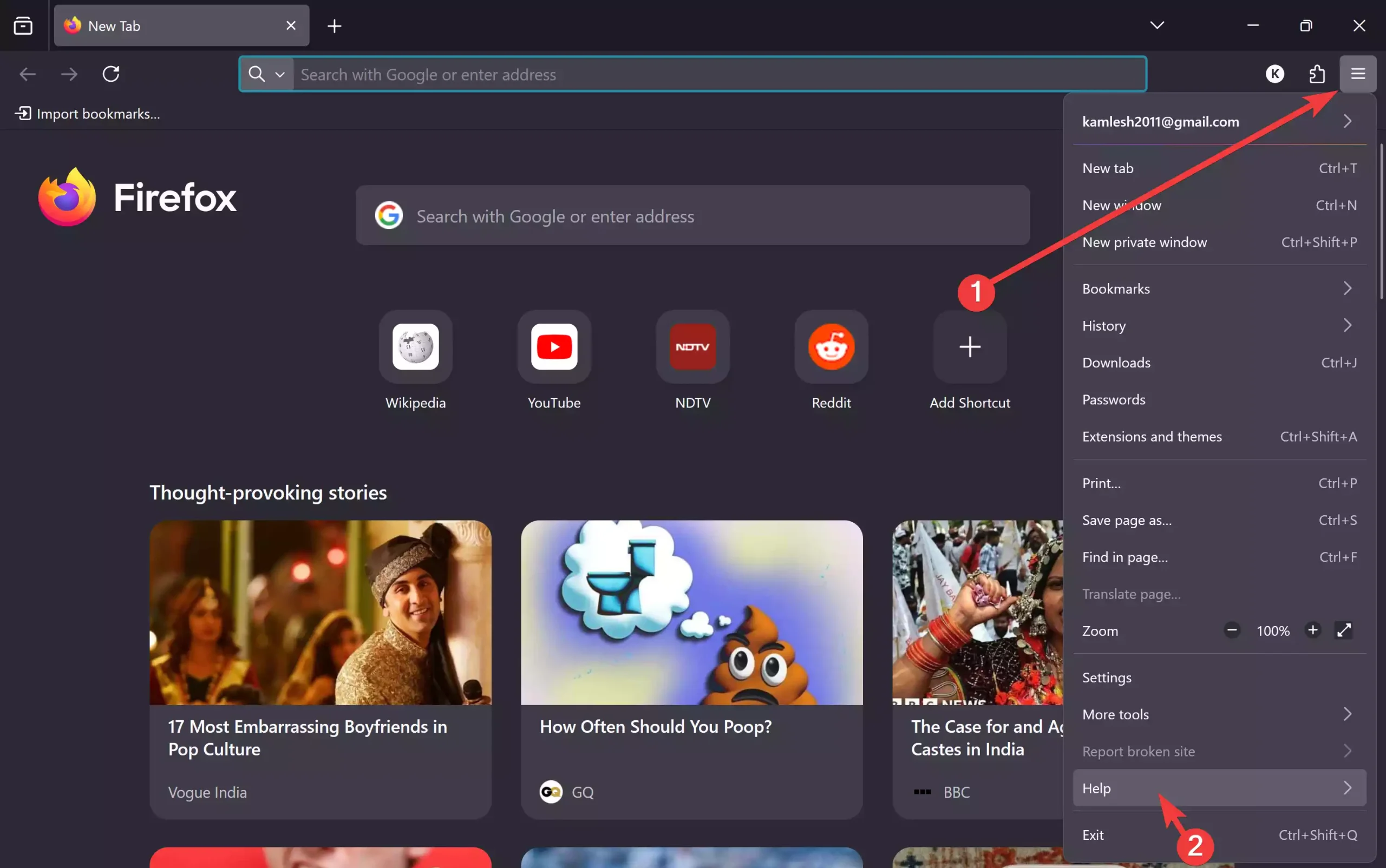
Step 2.1. Open the menu (three horizontal lines) → Help.
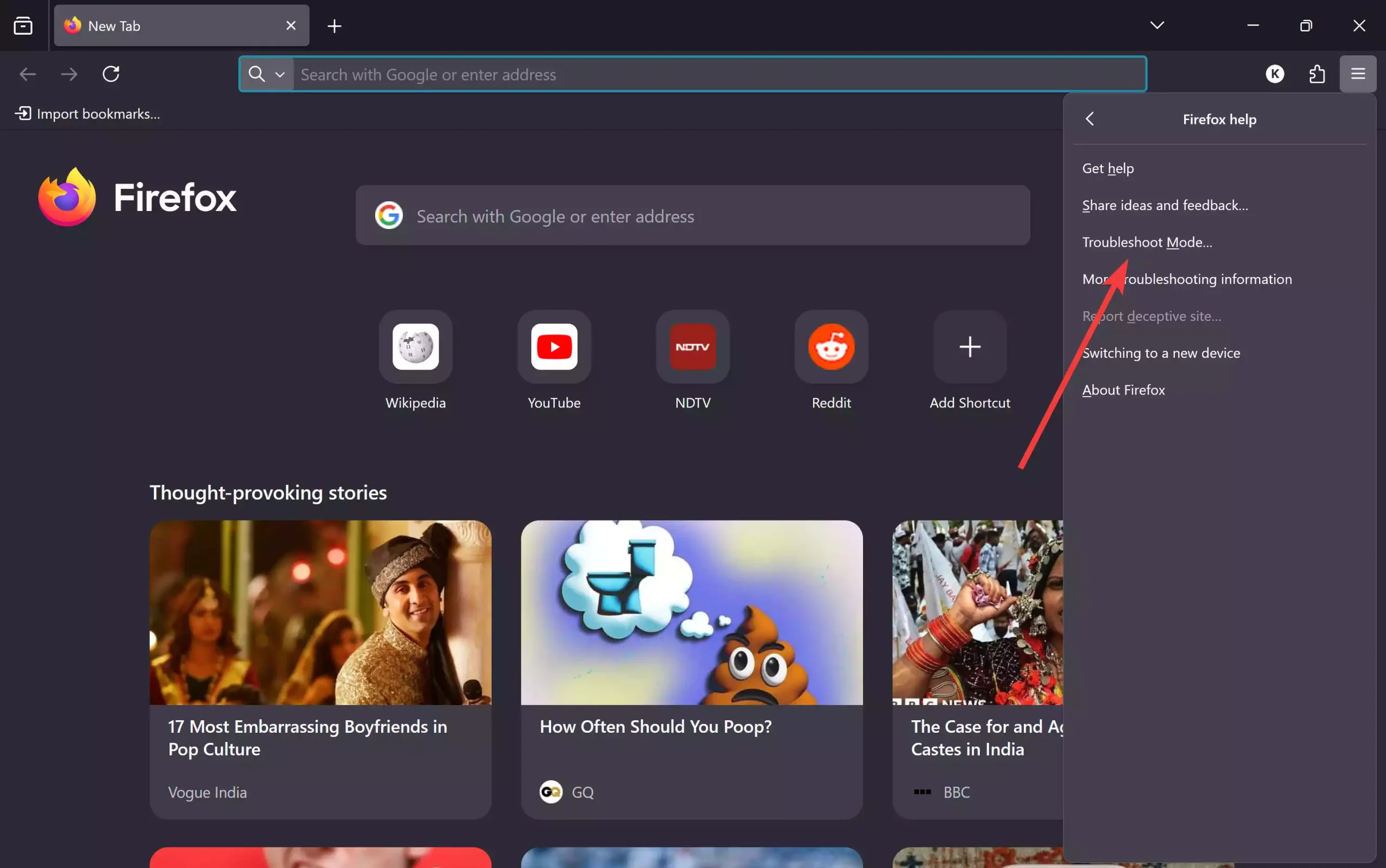
Step 2.2. Click Troubleshoot Mode….
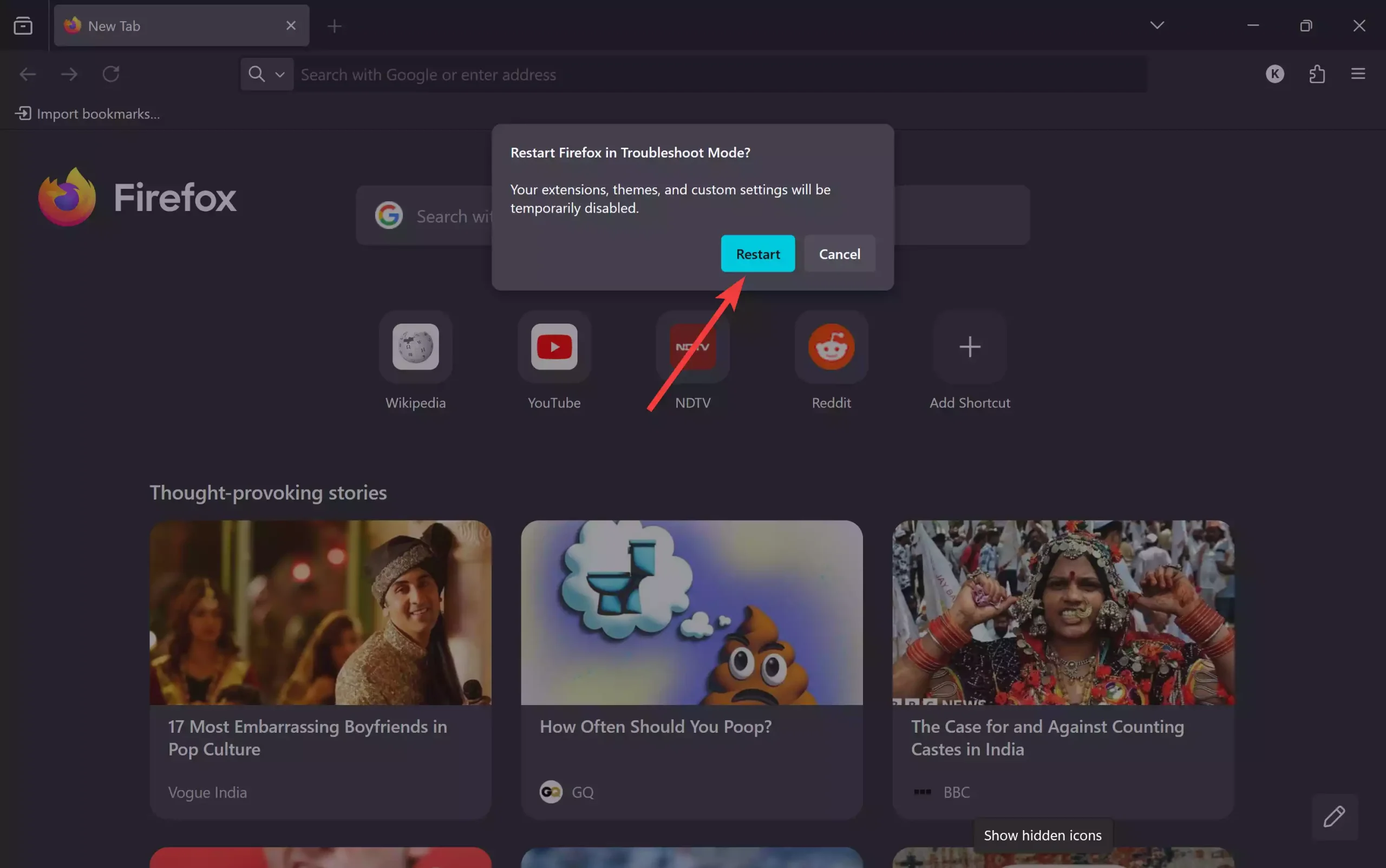
Step 2.3. Click Restart.
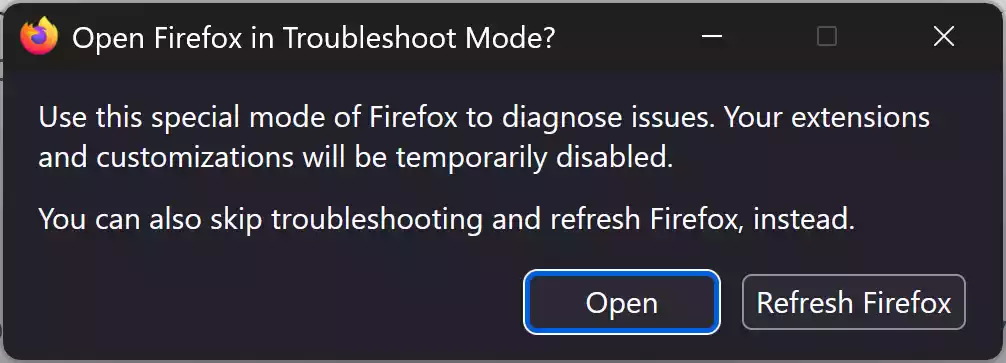
Step 2.4. Click Open. Firefox will restart in Troubleshoot Mode and show a prompt explaining what’s disabled.
Step 3. Start Troubleshoot Mode from Windows (if Firefox won’t open normally):
Step 3.1. Press Windows + R to open Run. Type:
firefox -safe-mode
Step 3.2. Click Open. The Firefox Safe Mode / Troubleshoot Mode dialog appears; choose to continue in Troubleshoot Mode.
Step 4. Create a new temporary profile for deeper testing (if needed):
Step 4.1. Press Windows + R, type:
firefox -P
Step 4.2. In the Profile Manager, click Create Profile and follow the wizard. Start Firefox with the new profile — if problems disappear, your main profile likely has corrupted settings or an offending add-on.
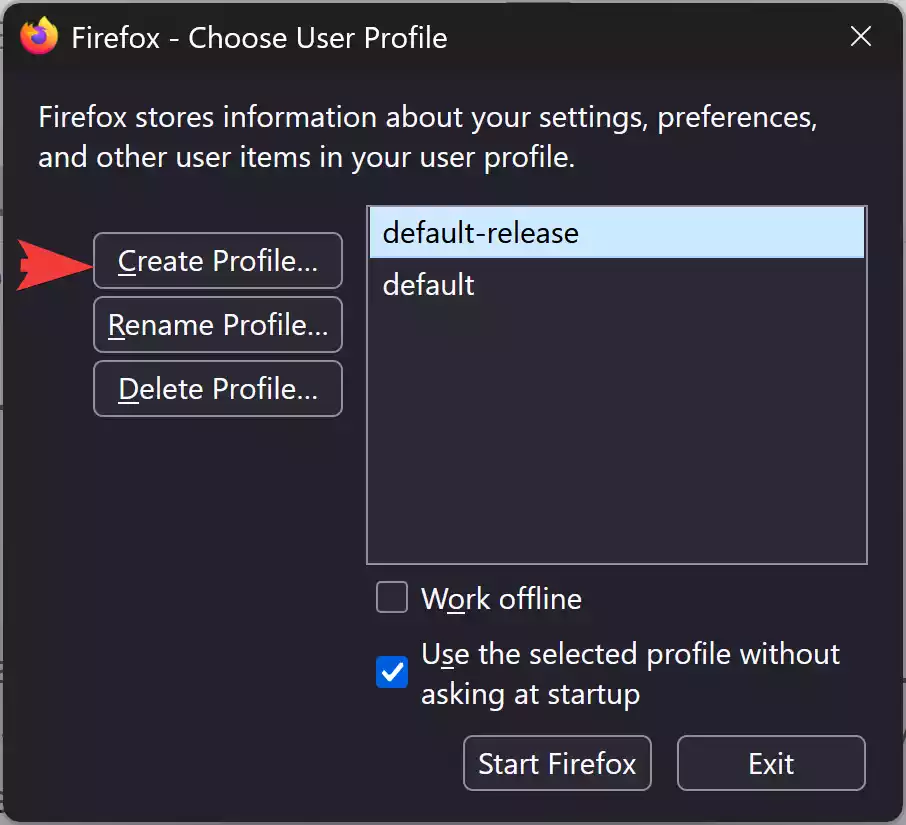
Step 5. Test Firefox with hardware acceleration off (if the issue seems graphics-related)
Troubleshoot Mode already disables hardware acceleration automatically. If Firefox works properly in Troubleshoot Mode but crashes or freezes in normal mode, manually disable hardware acceleration and test again.
To disable hardware acceleration in normal mode:
Step 5.1. Open the Firefox menu and go to Settings.
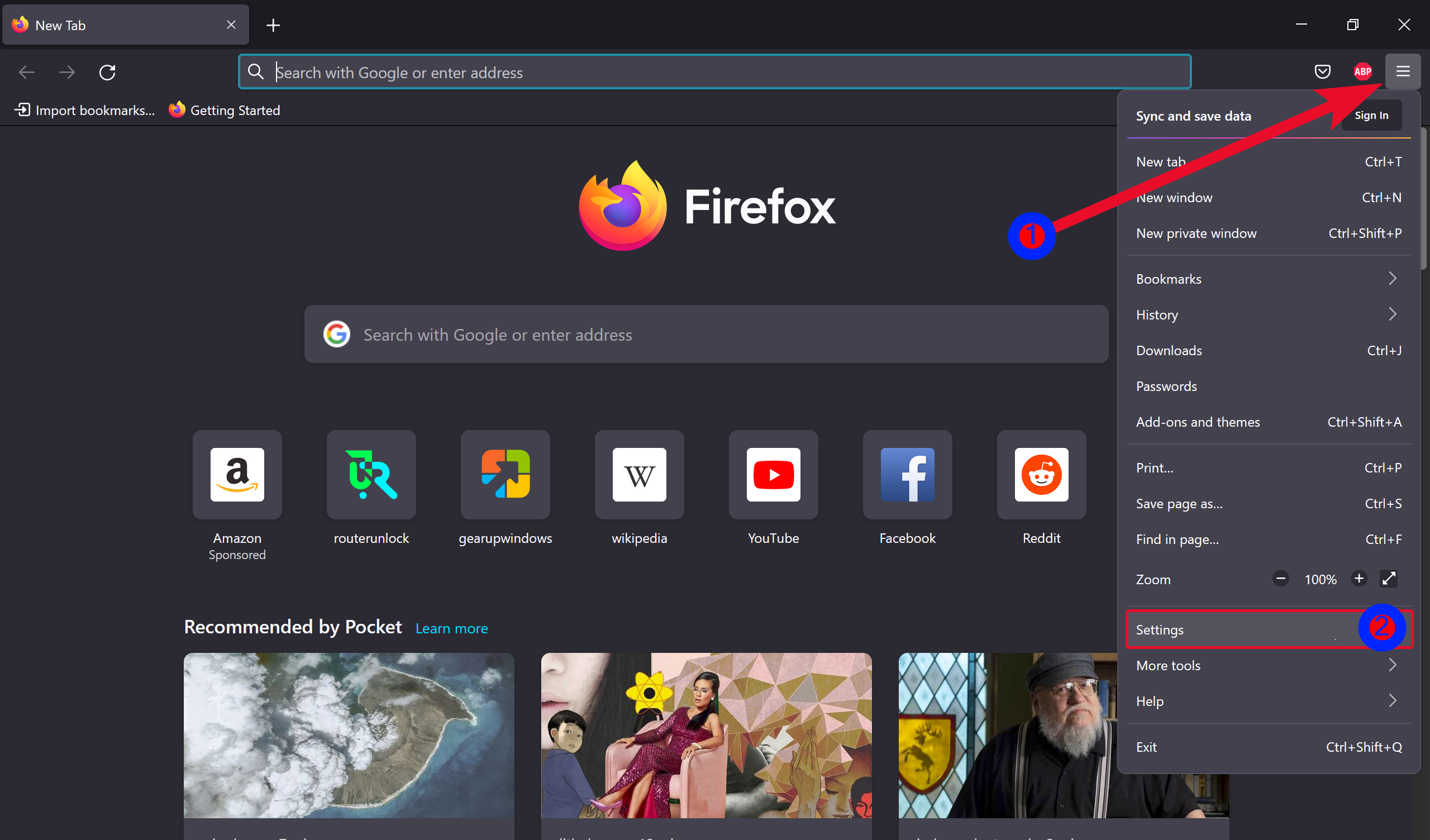
Step 5.2. Scroll to the Performance section.

Step 5.3. Uncheck ‘Use recommended performance settings.’
Step 5.4. Now, uncheck ‘Use hardware acceleration when available.’
Step 5.5. Restart Firefox and see if the issue is resolved.
How to revert back
Simply close Firefox and start it normally again. Everything (extensions, themes, and settings) will be restored automatically.
Related reads
Also see: How to Open Microsoft Edge in Safe Mode.
Also see: How to open Google Chrome in Safe Mode on Windows 11/10.
Why Troubleshoot Mode helps
Because it removes third-party variables (extensions/themes/hardware acceleration), Troubleshoot Mode quickly shows whether Firefox core is healthy. If the problem disappears, you can focus on extensions, themes, or profile data rather than assuming a browser reinstall is needed.
Pros
• Fast diagnosis: Confirm whether add-ons or settings cause issues without losing data.
• Safe: Non-destructive — nothing is permanently removed.
• Beginner-friendly: Built into Firefox and easy to run from the menu or command line.
Considerations
• Extensions disabled temporarily: Functionality from add-ons won’t be available in Troubleshoot Mode.
• Profile changes: Creating a new profile helps isolate issues, but any bookmarks or settings in the new profile won’t automatically merge into your main profile. Back up important data before major changes.
• Not all problems are fixed: If issues persist in Troubleshoot Mode, the problem may be outside Firefox (graphics drivers, system files, or malware).
Quick troubleshooting checklist
1. Start in Troubleshoot Mode (Menu → Help → Troubleshoot Mode).
2. If fixed, restart normally and disable extensions one-by-one to find the culprit.
3. If not fixed, test with a new profile using firefox -P.
4. Update Firefox or try Firefox Beta/Developer/ESR to check if builds behave differently.
5. Consider checking GPU drivers or running a malware scan if problems persist.
FAQs
Q. Is Troubleshoot Mode the same as Safe Mode in other browsers?
A. Troubleshoot Mode in Firefox is equivalent to a browser “Safe Mode” — it disables extensions/themes and some settings temporarily to isolate issues.
Q. Will my bookmarks and passwords be lost in Troubleshoot Mode?
A. No. Troubleshoot Mode is temporary and does not delete bookmarks, passwords, or history. Those remain in your profile and are available when you start Firefox normally.
Q. How do I find which extension caused the problem?
A. Restart Firefox normally, then disable extensions one-by-one and test after each to find the offending extension. Alternatively, disable half your extensions at once to narrow down faster, then split the set until you isolate the problem.
Q. Firefox won’t start at all — can Troubleshoot Mode still help?
A. Try launching with firefox -safe-mode from Run. If Firefox still won’t start, test with a new profile using firefox -P or try reinstalling Firefox after backing up profile data.
Conclusion
Troubleshoot Mode is a quick, built-in way to check whether extensions, themes, or custom settings are responsible for Firefox problems. Start there before attempting more drastic fixes — most common issues are resolved by identifying and removing a problematic extension or by using a fresh profile.