

Opera is a fast and feature-packed browser, but sometimes extensions, custom settings, or corrupted files may cause it to behave unpredictably. In such cases, opening Opera in a limited or safe environment helps you diagnose the issue quickly. This guide explains how to open Opera in a Safe Mode–like state on Windows 11 and 10.
What Is Opera Safe Mode?
Unlike Firefox, Opera does not include a dedicated one-click Safe Mode button. However, you can open Opera in a clean troubleshooting mode by starting it without extensions, custom flags, or your profile settings. This helps identify whether the issue comes from an add-on, startup script, or corrupted preference file.
Why You May Need Opera Safe Mode
You should use Safe Mode when Opera is freezing, crashing, not loading pages, or behaving differently after installing an extension. Starting the browser with a fresh temporary profile lets you isolate the cause. If the problem disappears in Safe Mode, you know the issue lies in your original settings or installed add-ons.
Method 1: Open Opera Without Extensions (Quick Troubleshoot)
This method launches Opera with all extensions disabled, similar to a lightweight Safe Mode.
Step 1. Close Opera completely.
Step 2. Press Windows + R to open the Run dialog.
Step 3. Type the following command and press Enter:
opera --disable-extensions
Opera will now start without any extensions loaded. If the problem you were facing no longer appears, one of your extensions is likely the cause.
Method 2: Open Opera With a Temporary Clean Profile
This is the closest experience to a full Safe Mode. Opera launches like a fresh installation using a temporary folder.
Step 1. Close Opera.
Step 2. Press Windows + R.
Step 3. Enter the following command and press Enter:
opera --user-data-dir="C:\Opera-Safe-Mode"
This creates a temporary profile with default settings. Your bookmarks, passwords, and history remain untouched in your main profile. If Opera runs smoothly here, the issue is likely linked to your regular profile.
Method 3: Reset Opera Settings Without Losing Data
If you prefer restoring Opera to default behavior without deleting personal data, you can use its built-in reset feature.
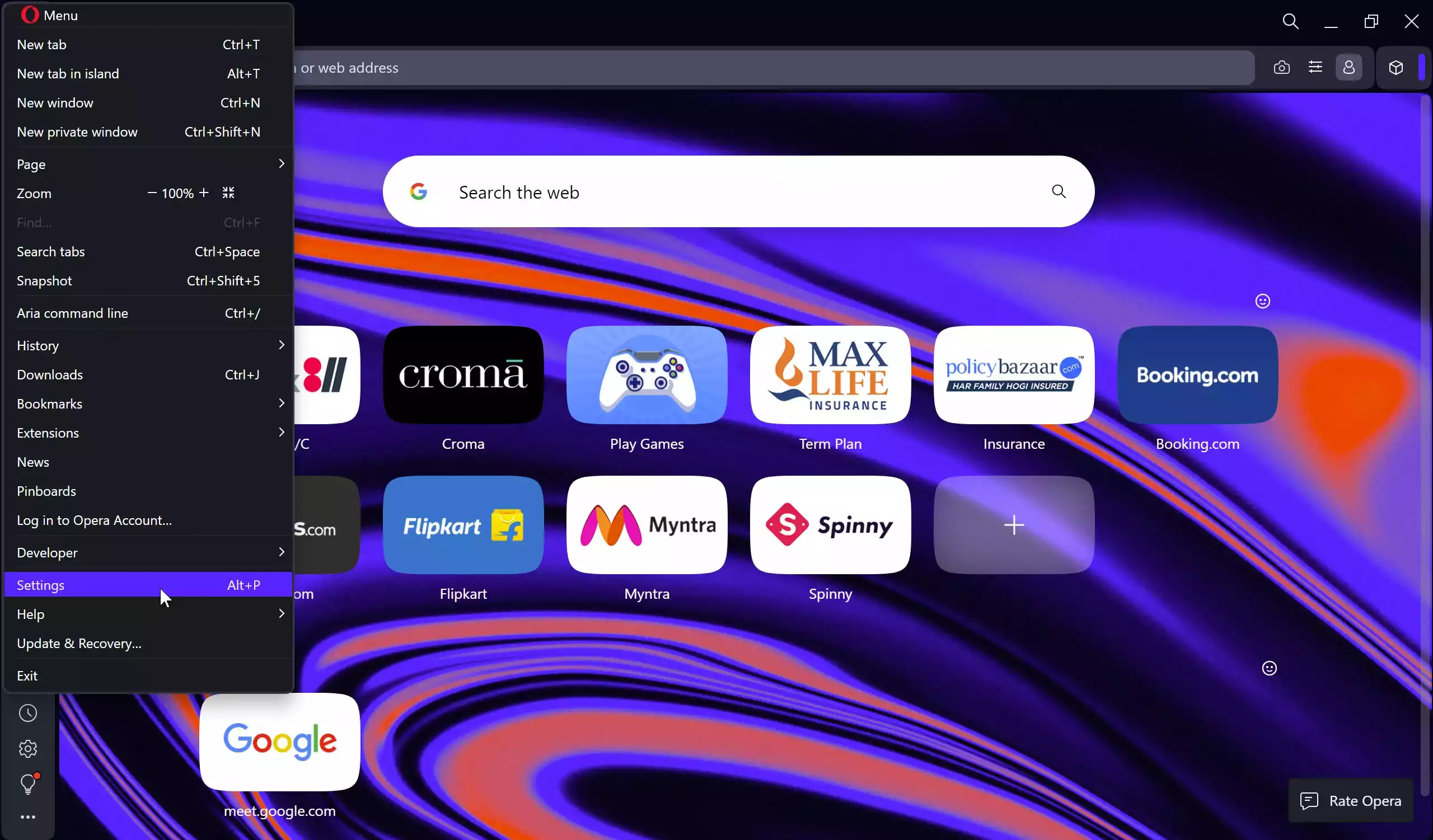
Step 1. Open Opera normally.
Step 2. Go to Menu → Settings.
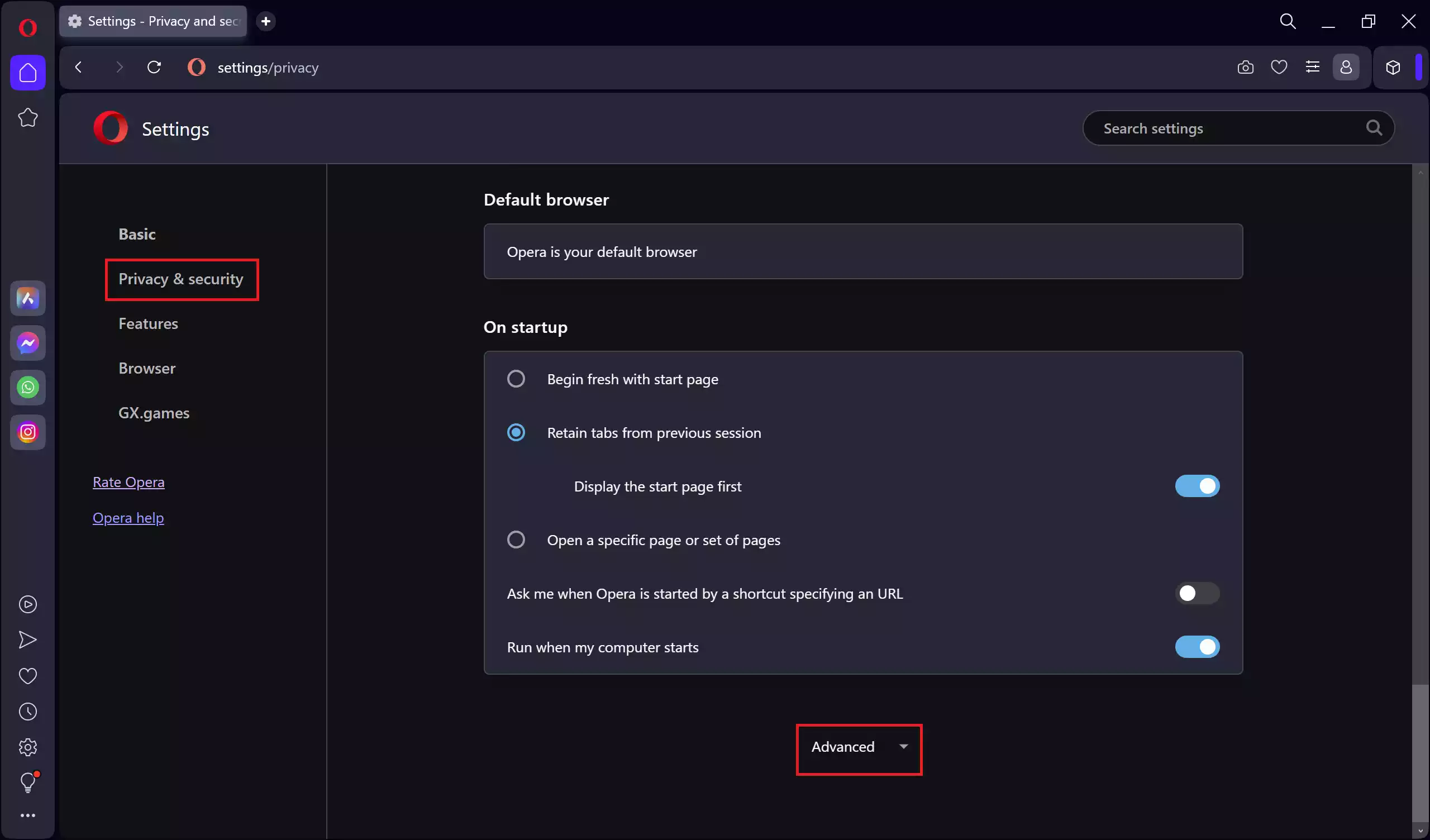
Step 3. Scroll to the bottom and click Advanced.
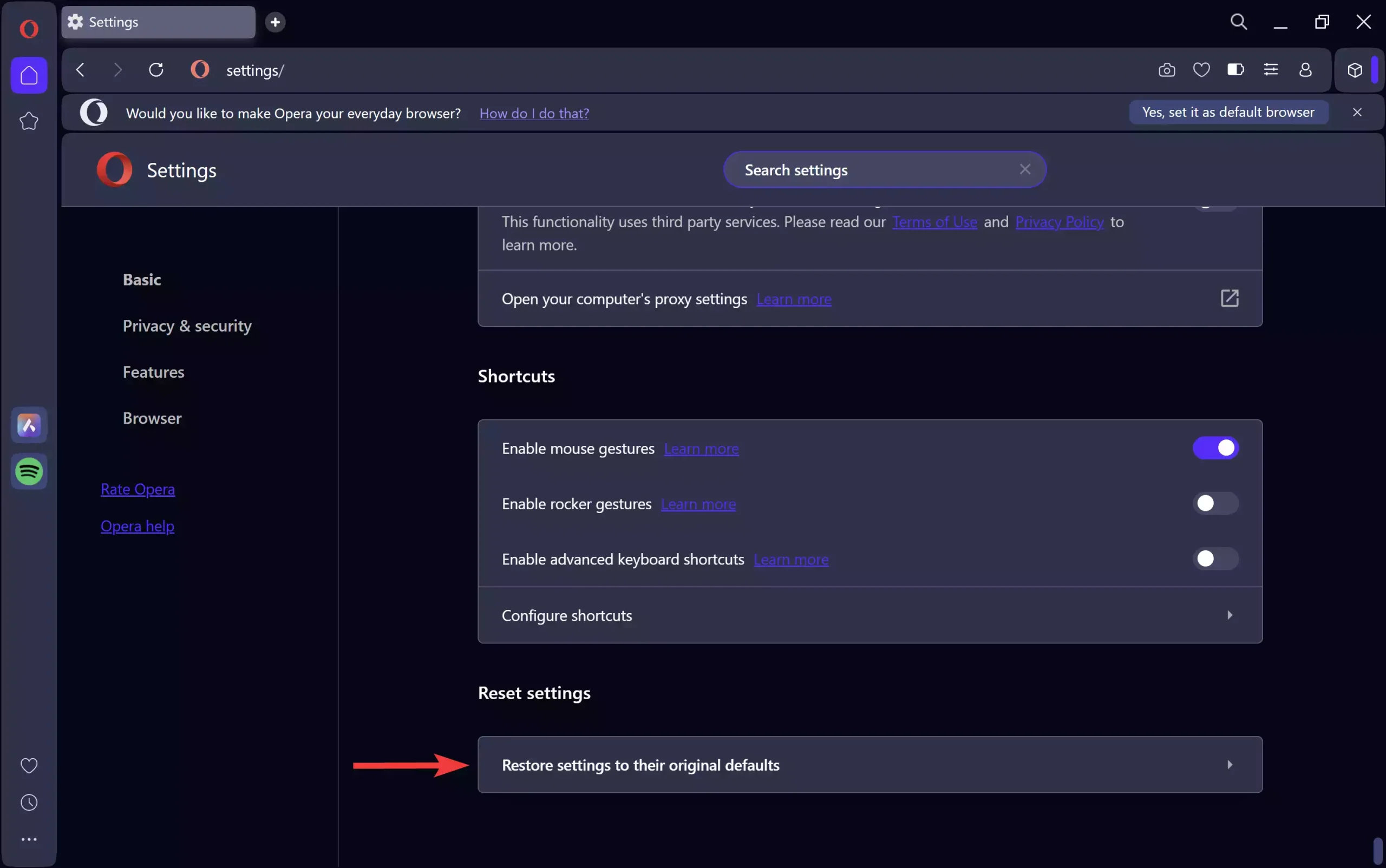
Step 4. Scroll down to the bottom. Under Reset settings, select Restore settings to their original defaults.
Step 5. In the pop-up “Reset browser settings,” click the Reset button.
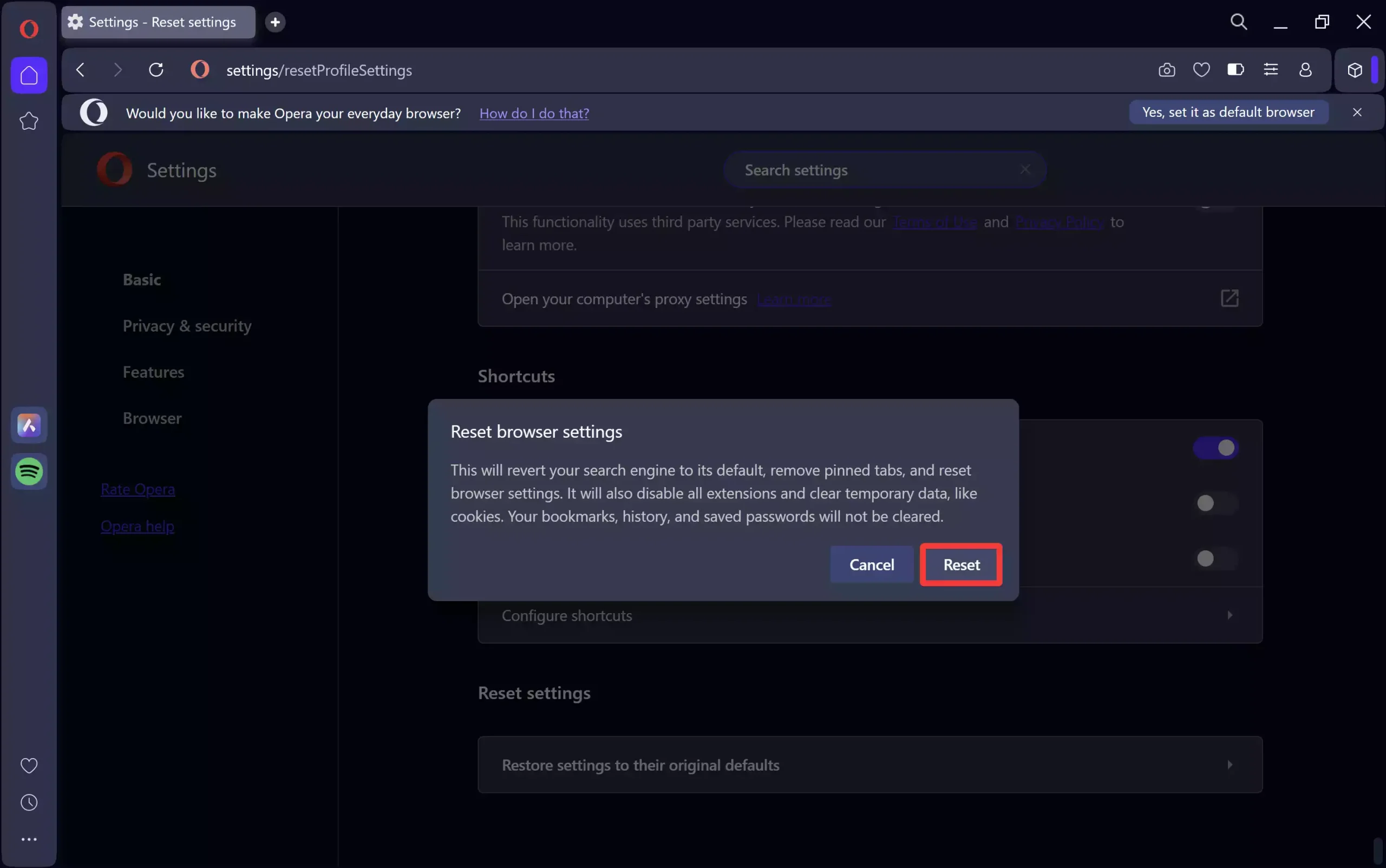
This option disables extensions, resets startup pages, and restores system defaults while keeping your history and saved passwords intact.
Useful Opera Tips During Troubleshooting
While fixing browsing issues, you may also want to adjust related browser settings that often help resolve crashes or unexpected behavior. For instance, if downloads are failing, you can review where Opera stores your files. Visit this guide on changing the default download location in Opera.
If Opera repeatedly asks for site permissions or behaves strangely with pop-ups and notifications, you can review the settings using this permissions troubleshooting guide.
Additionally, if you need to restore previously closed tabs after troubleshooting, you can learn how to use this quick tab recovery tutorial.
Pros
• Helps diagnose issues quickly without reinstalling Opera.
• Lets you isolate problematic extensions or settings.
• Does not affect your main browsing data when using a temporary profile.
Considerations
• There is no official Safe Mode button in Opera, unlike Firefox.
• Advanced users may need multiple commands for deeper diagnostics.
• Some settings reset may require re-configuring later.
FAQs
Q1. Does Opera have a built-in Safe Mode?
No. Opera does not offer a dedicated Safe Mode, but you can achieve the same effect by disabling extensions or using a temporary clean profile.
Q2. Will I lose my bookmarks or passwords?
No. Safe Mode commands only create a temporary profile; your original data remains untouched.
Q3. How do I know which extension is causing the issue?
Disable extensions one by one or use the --disable-extensions command to check if the issue disappears.
Q4. Does resetting Opera delete everything?
No. It resets settings and disables add-ons but keeps your history, saved passwords, and bookmarks.
Conclusion
Even without a dedicated Safe Mode option, Opera provides several ways to start fresh and troubleshoot issues effectively. Whether you disable extensions, create a clean temporary profile, or reset settings, these methods can help you identify and fix most browser-related problems on Windows 11 and 10. Try each method until you find the one that resolves your issue while keeping your browsing data safe.