

Windows Terminal is the latest console app made by Microsoft. It is a feature-rich console that supports multiple profiles and tabs that simultaneously host PowerShell, command Prompt, WSL distros, and much more. It is a fully open-source application and is available on GitHub.
Windows 11 comes with many built-in features, and one of them is the Terminal app. By default, it is pre-installed and appears in the right-click context menu, allowing you to open Windows Terminal in the current folder with a single click.
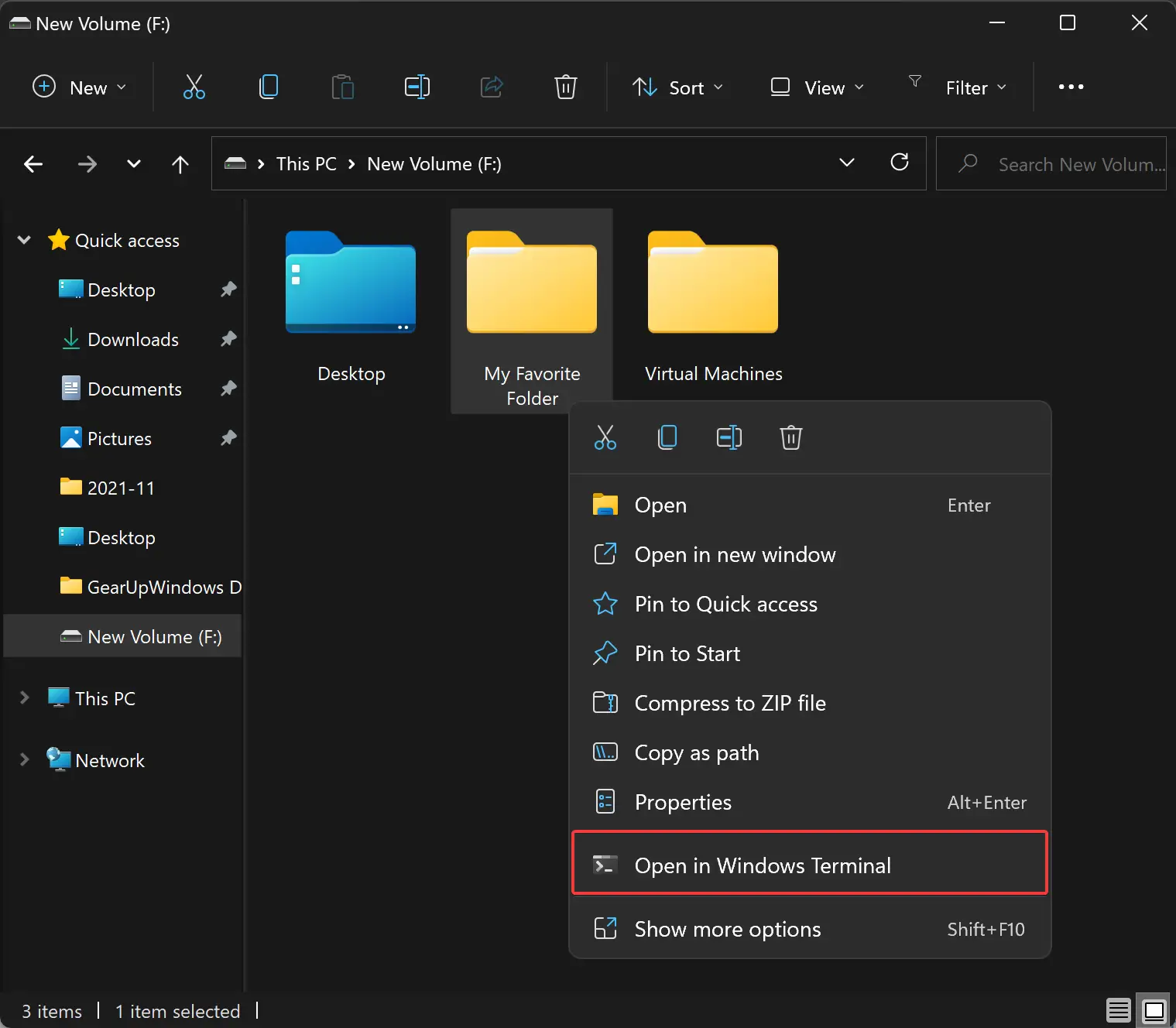
However, if you don’t use the Terminal app often and want to remove the “Open in Windows Terminal” context menu entry from the File Explorer in Windows 11, in that case, this gearupwindows article will guide you.
How to Remove the “Open in Windows Terminal” Context Menu in Windows 11?
If you want to eliminate the “Open in Windows Terminal” from the Windows 11 right-click menu, perform the following steps:-
Step 1. First, open the Registry Editor.
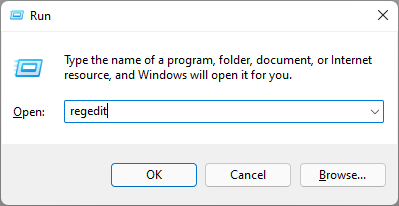
For that, press the Windows + R keys on the keyboard to open the Run dialog box. In the Run box, type regedit and hit Enter on the keyboard.
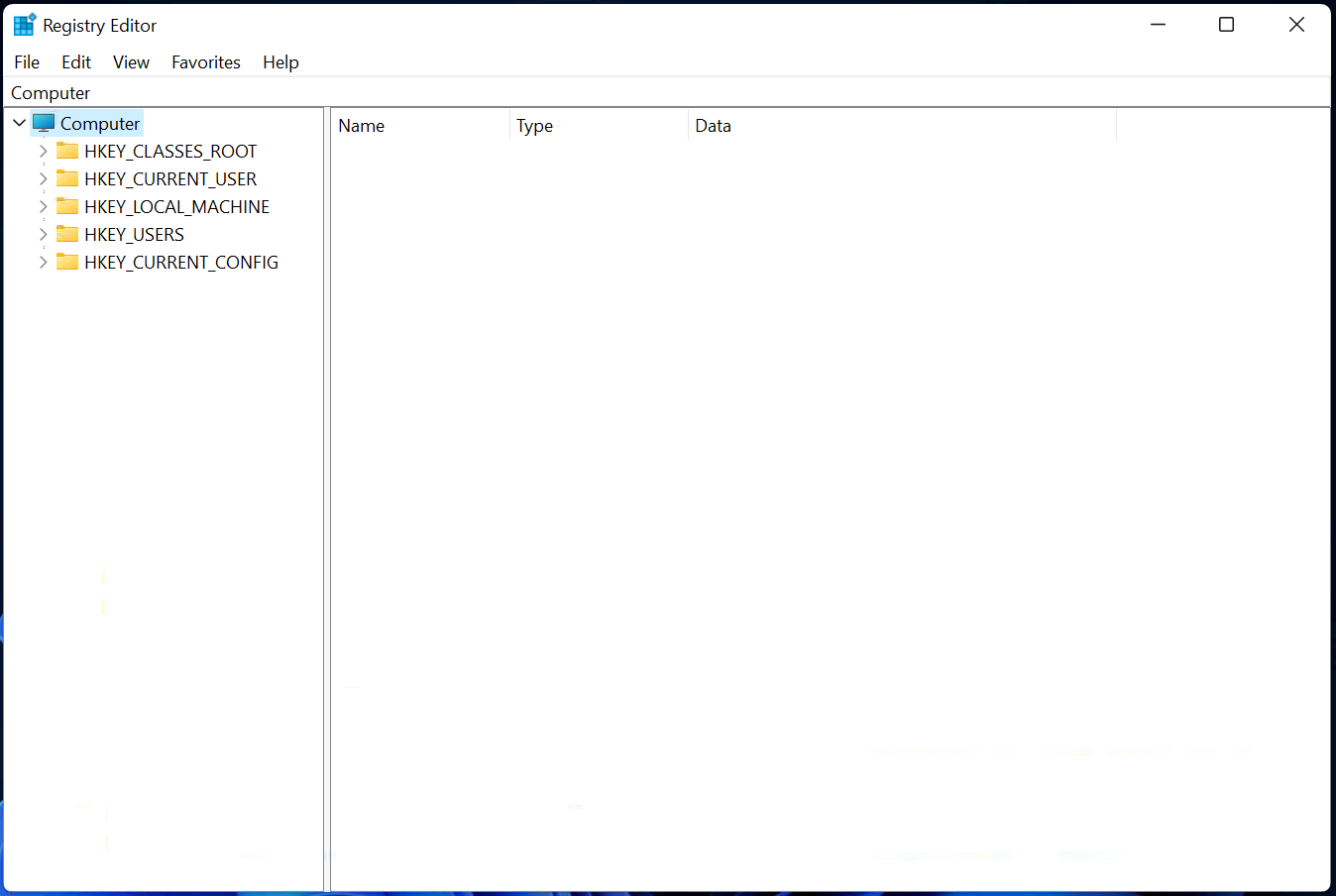
Step 2. When the Registry Editor window opens, navigate to the following key in the left sidebar:-
Computer\HKEY_LOCAL_MACHINE\SOFTWARE\Microsoft\Windows\CurrentVersion\Shell Extensions
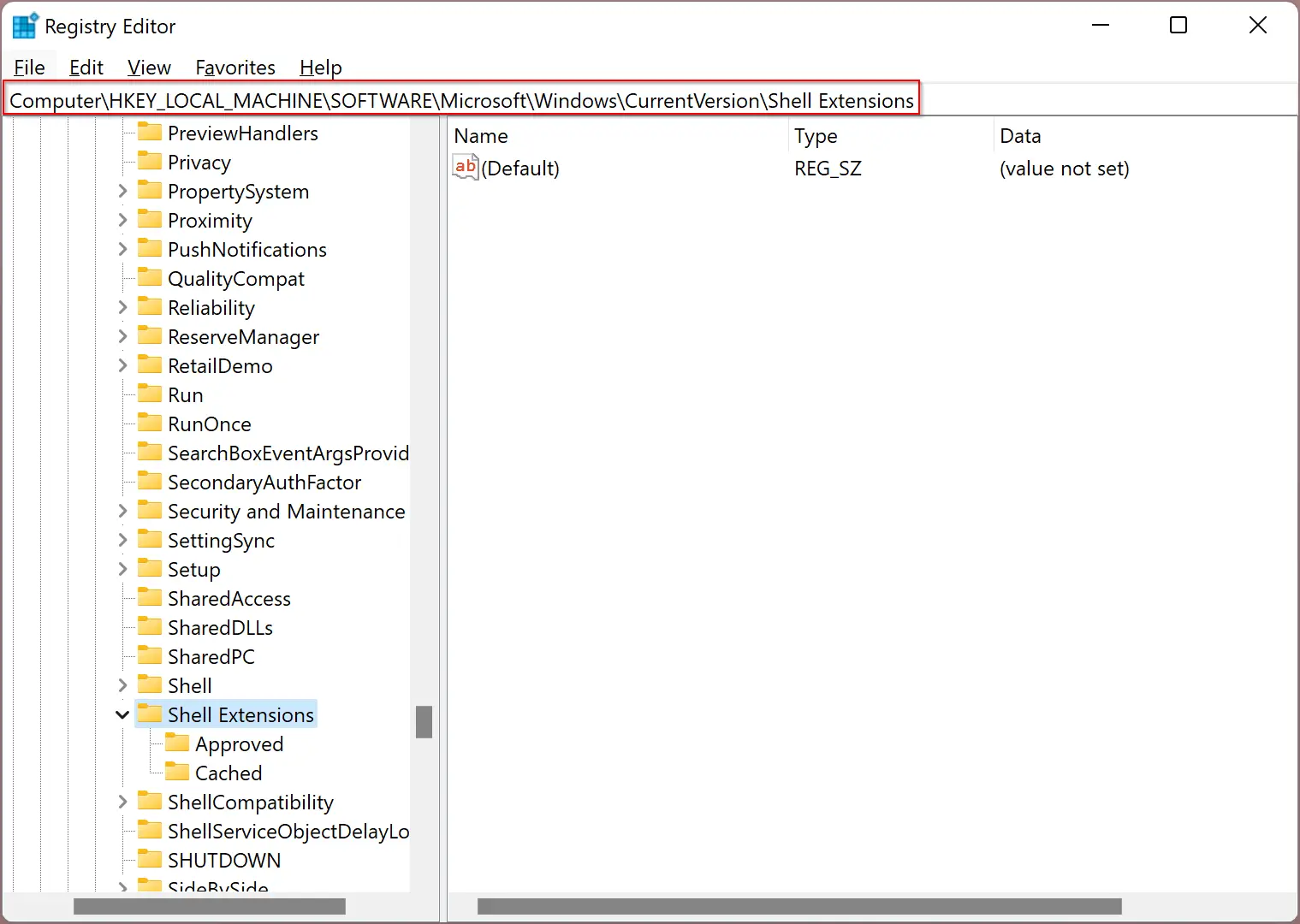
Step 3. Then right-click on the Shell Extensions folder and select New > Key.
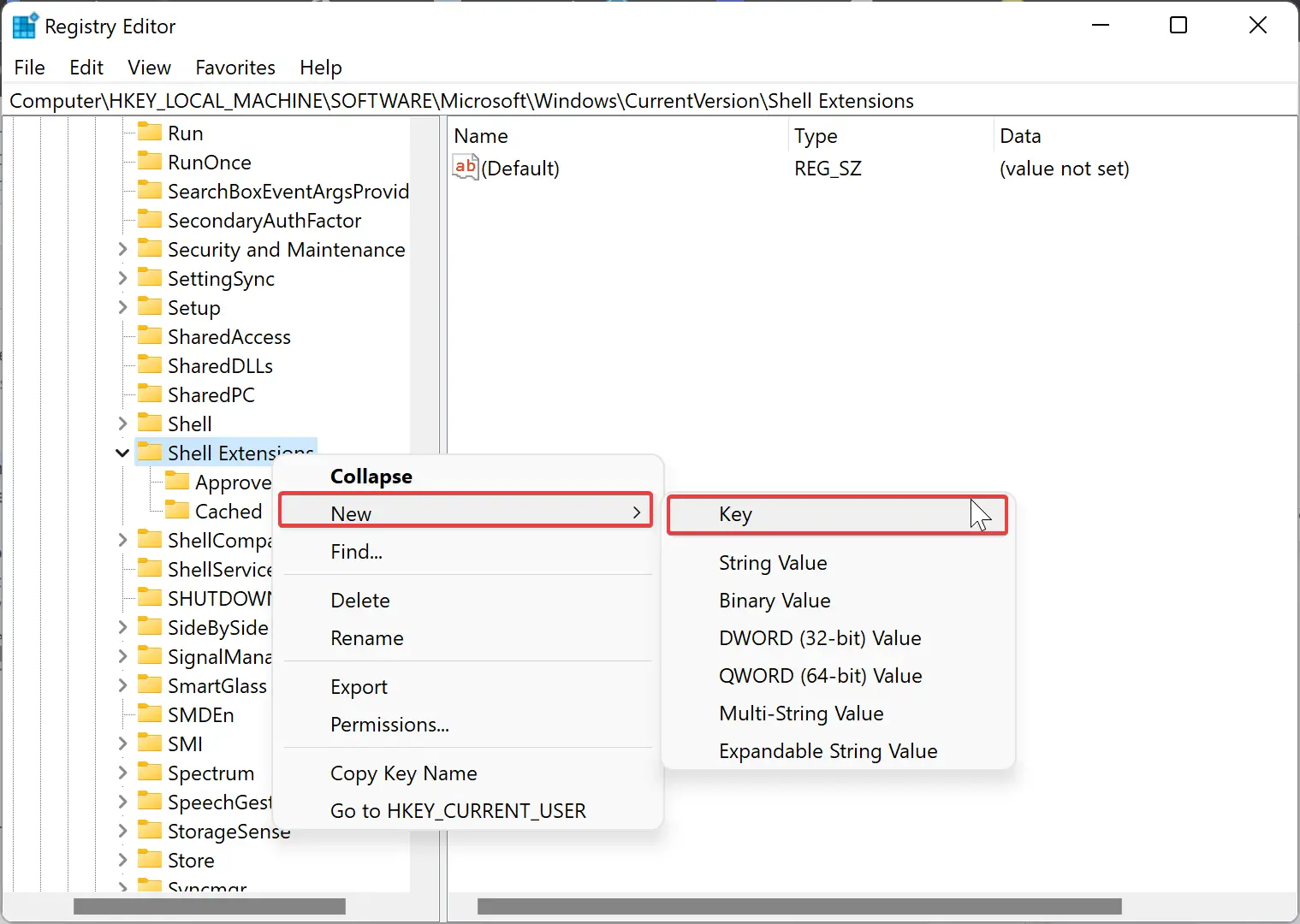
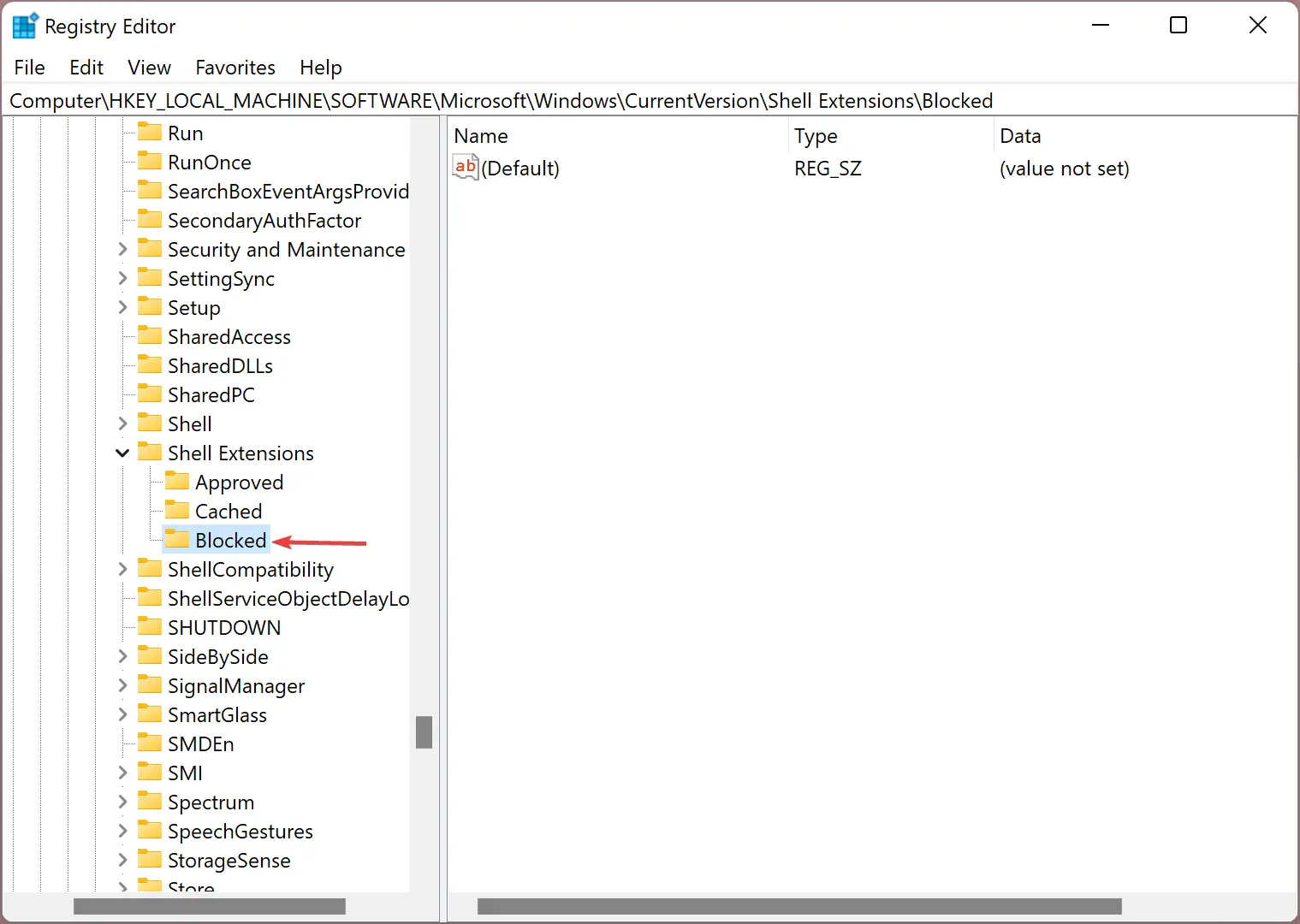
Step 4. Name the newly created key as Blocked
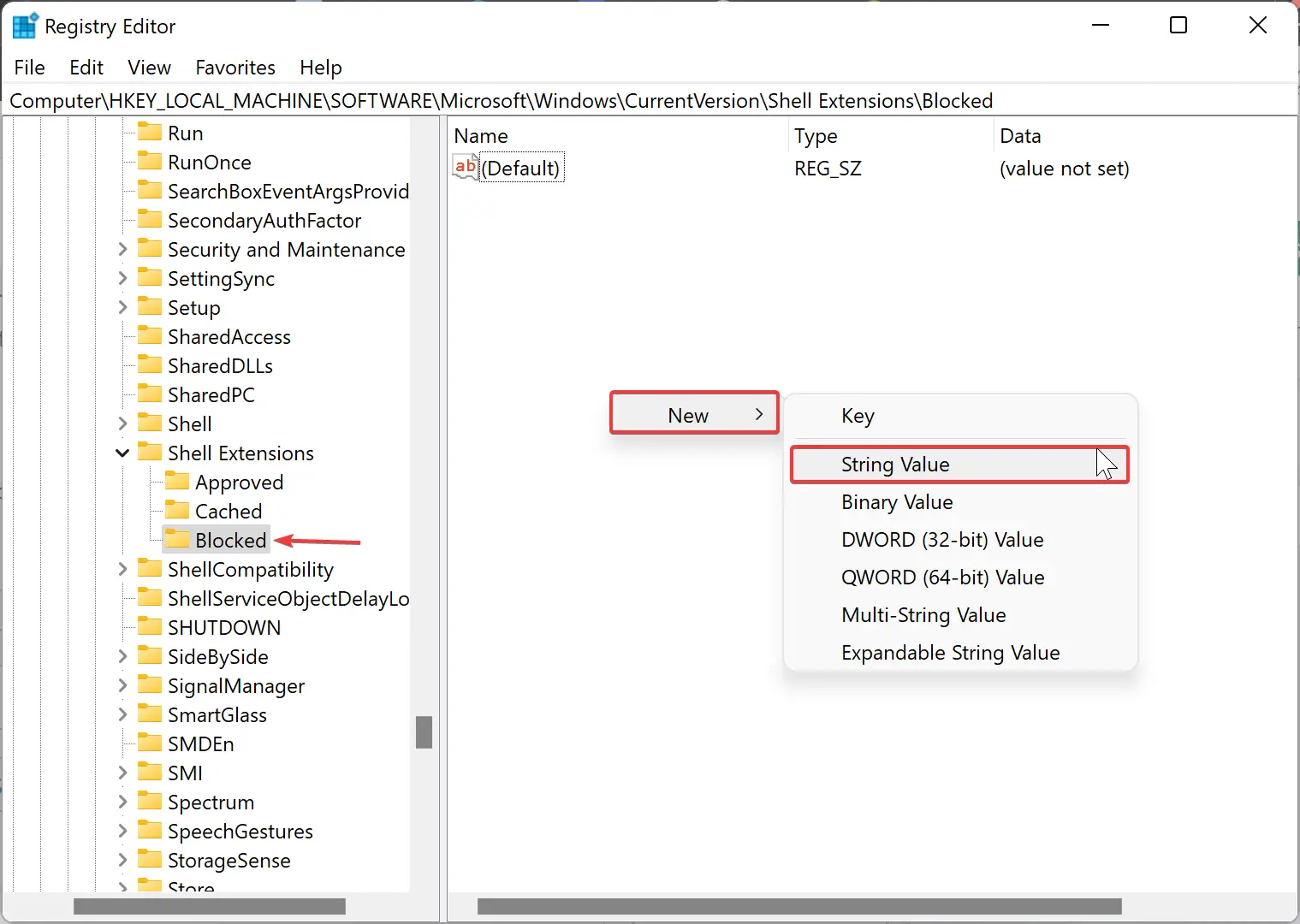
Step 5. After that, move your cursor to the right side of the “Blocked” folder. Right-click on free space and select New > String Value.
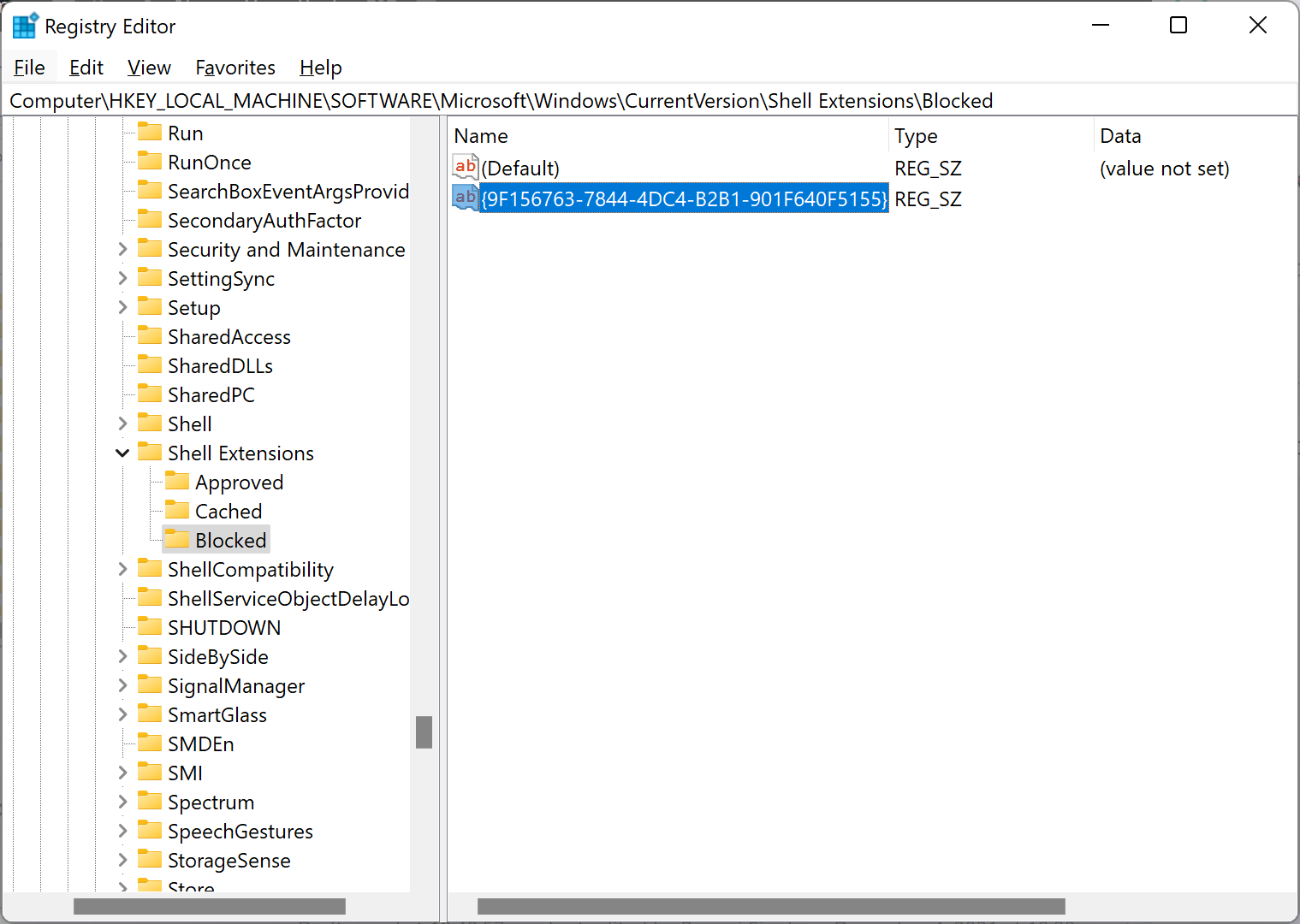
Step 6. Name the newly created string as {9F156763-7844-4DC4-B2B1-901F640F5155}.
Step 7. Now, restart your computer.
Once you complete the above steps, ‘Open in Windows Terminal‘ should not be visible on the File Explorer right-click menu.
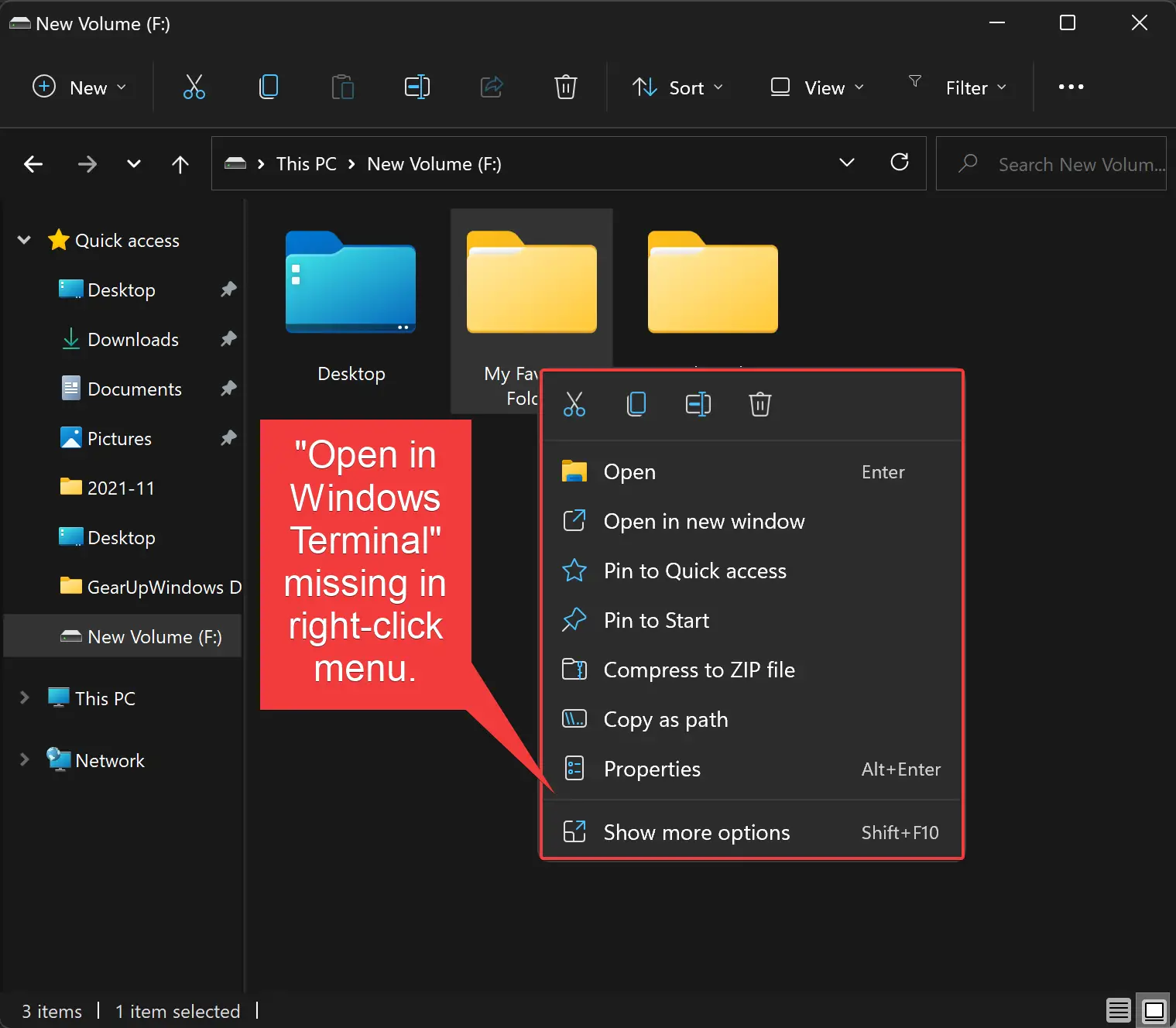
How to Restore “Open in Windows Terminal” Context Menu in Windows 11?
Due to some reason “Open in Windows Terminal” context menu in Windows 11 is missing, and you want to restore it, use the following recommended steps:-
Step 1. First, open the Registry Editor and then navigate to the following path in the left sidebar:-
Computer\HKEY_LOCAL_MACHINE\SOFTWARE\Microsoft\Windows\CurrentVersion\Shell Extensions\Blocked
Step 2. Right-click on the {9F156763-7844-4DC4-B2B1-901F640F5155} string and select Delete.
Step 3. Finally, reboot your computer to see the “Open in Windows Terminal” context menu in Windows 11 File Explorer’s right-click menu.
Conclusion
In conclusion, Windows Terminal is a powerful console app that offers a range of features to its users, such as support for multiple profiles and tabs that simultaneously host various applications. However, some users may want to remove the “Open in Windows Terminal” context menu entry from File Explorer in Windows 11. This gearupwindows article has provided a step-by-step guide to remove and restore the context menu entry using the Registry Editor. With this information, you can customize your Windows 11 experience according to your preferences.