

When you restart your computer, all opened apps and folders are typically closed. However, if you regularly work with multiple folders and want them to reopen automatically after a restart, Windows 11/10 offers a built-in option to restore previously opened folders. This feature eliminates the need to remember or reopen each folder manually, making it easier to resume your work exactly where you left off.
In this gearupwindows article, we will guide you through restoring the previously opened folders at Logon on Windows 11/10.
How to Revive Previously Opened Folders at Logon on Windows 11?
Follow these steps to revive previously opened folders at Logon on Windows 11:-
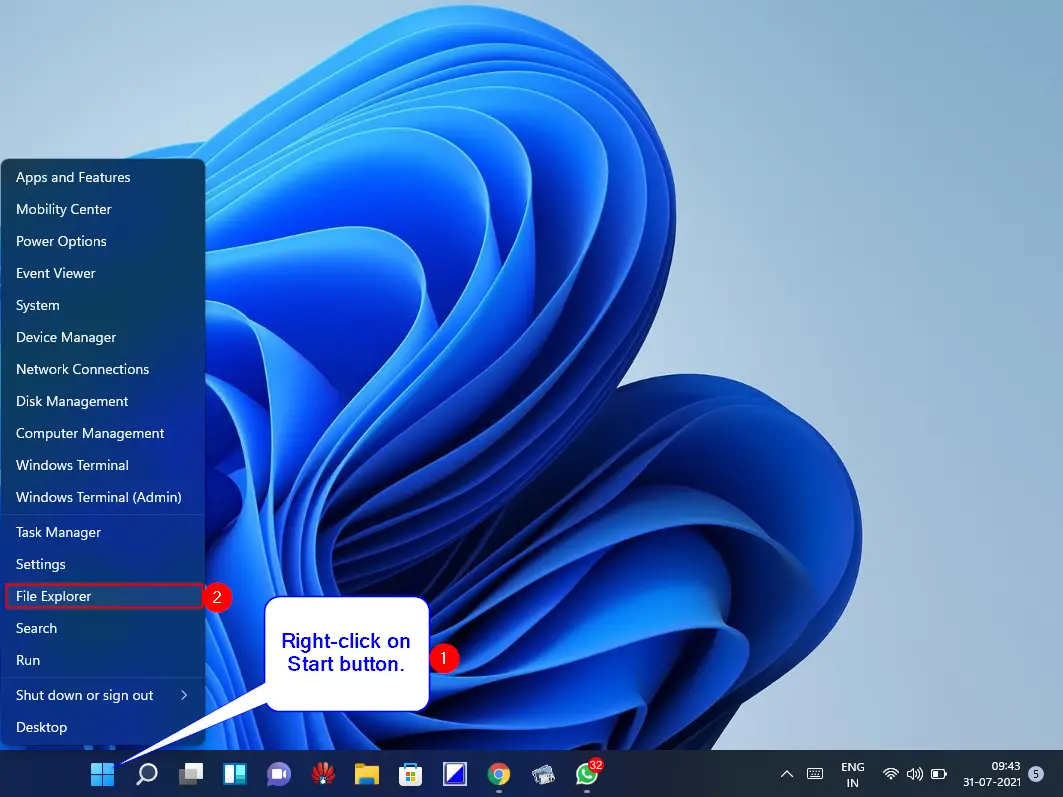
Step 1. Open File Explorer by pressing the Windows + E keys simultaneously from the keyboard.
Alternatively, perform a right-click on the Start button or press the Windows + X hotkey on your keyboard. Click on the File Explorer option to open it from the available options.
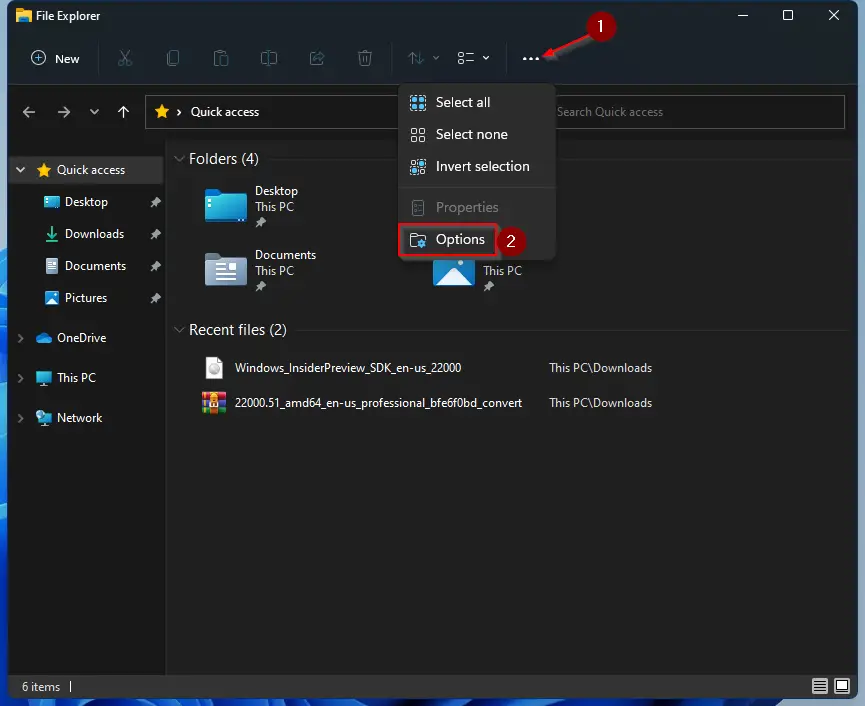
Step 2. Click on the three dots menu (…) and select Options from the drop-down in the File Explorer window.
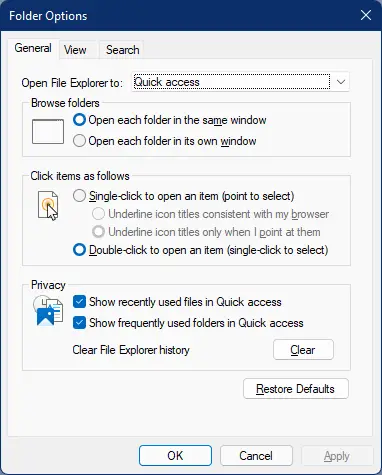
Step 3. After completing the above steps, the Folder Options dialog will open.
Step 4. Click on the View tab.
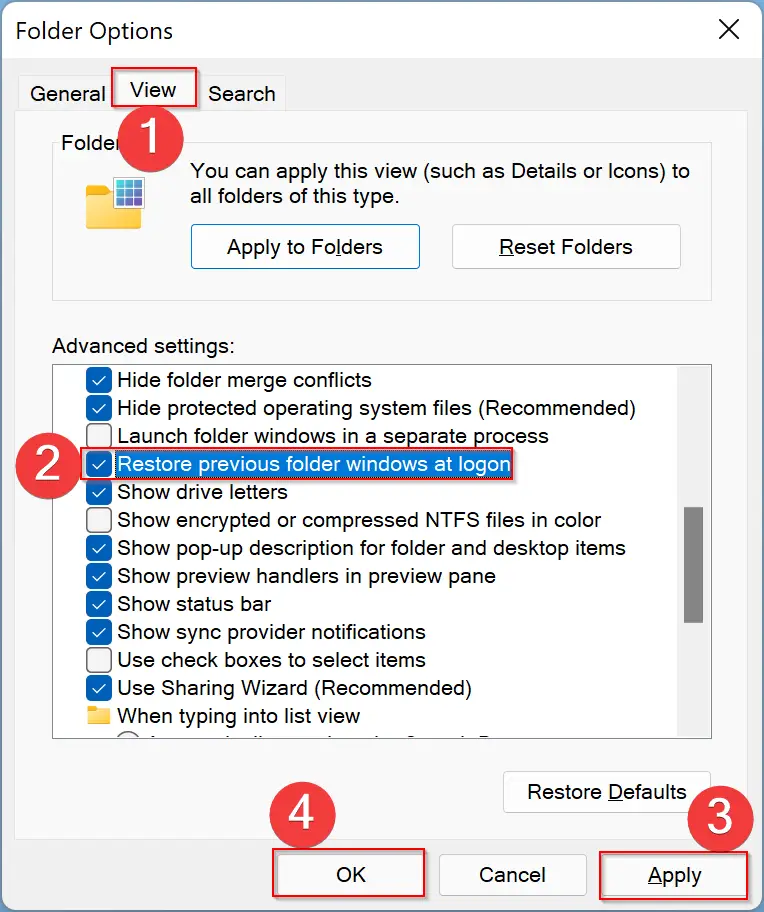
Step 5. Under the Advanced settings section, check the option Restore previous folder windows at logon.
Step 6. Click Apply.
Step 7. Click OK.
That’s it! Open a few folders on your computer and then restart your computer without closing them. After signing in to your machine, you will notice that all the folders opened before restarting your computer have been restored.
How to Restore Previously Opened Folders at Logon on Windows 10?
Step 1. Press the Windows + E keys together to open the File Explorer dialog. Alternatively, double-click on the This PC icon on the desktop to open it.
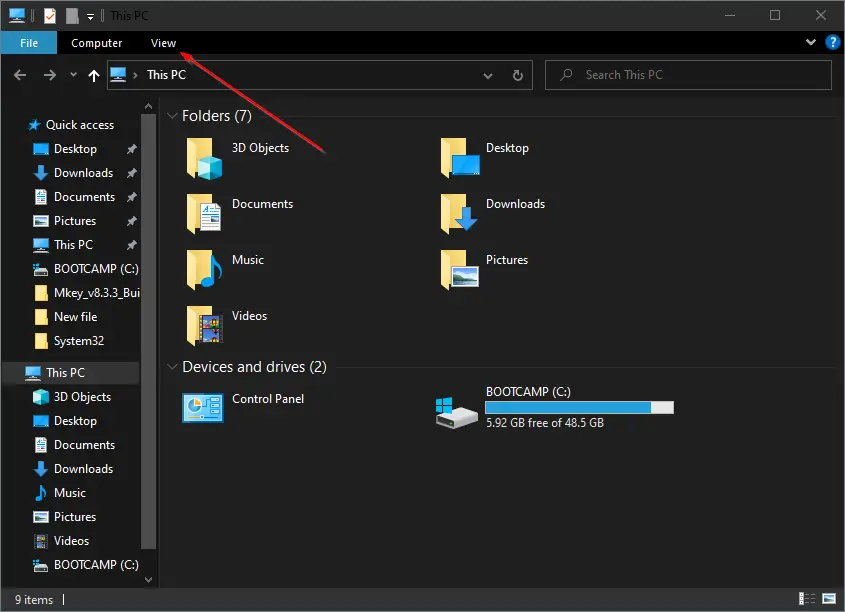
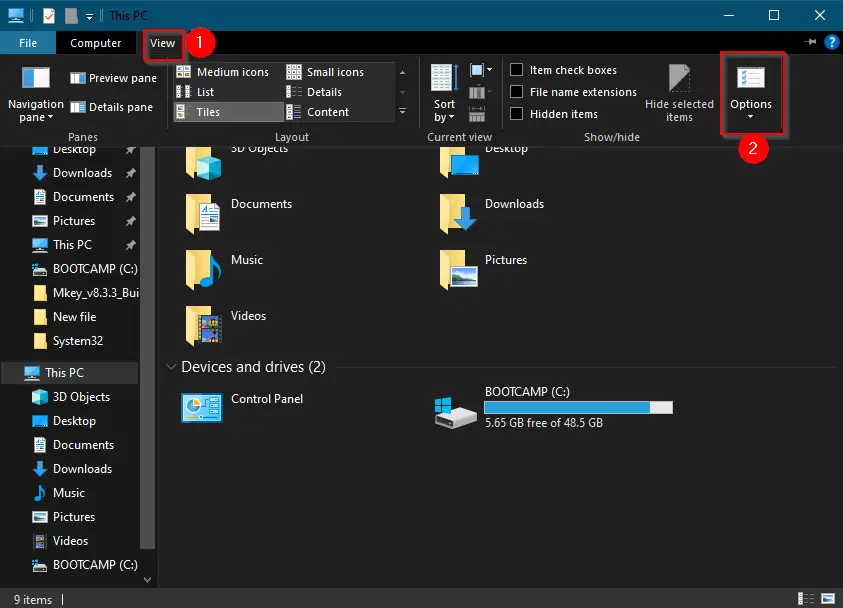
Step 2. Click on the View menu and then select Options in the ribbon to open the Folder Options dialog.
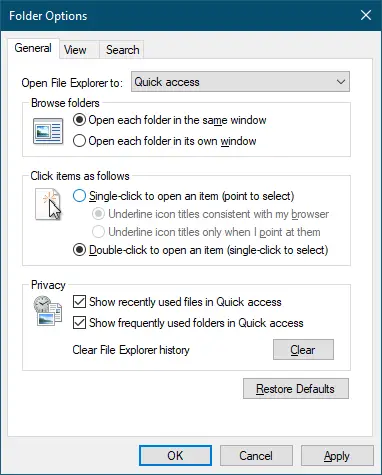
Step 3. Now, the Folder Options window opens.
Step 4. Click on the View tab.
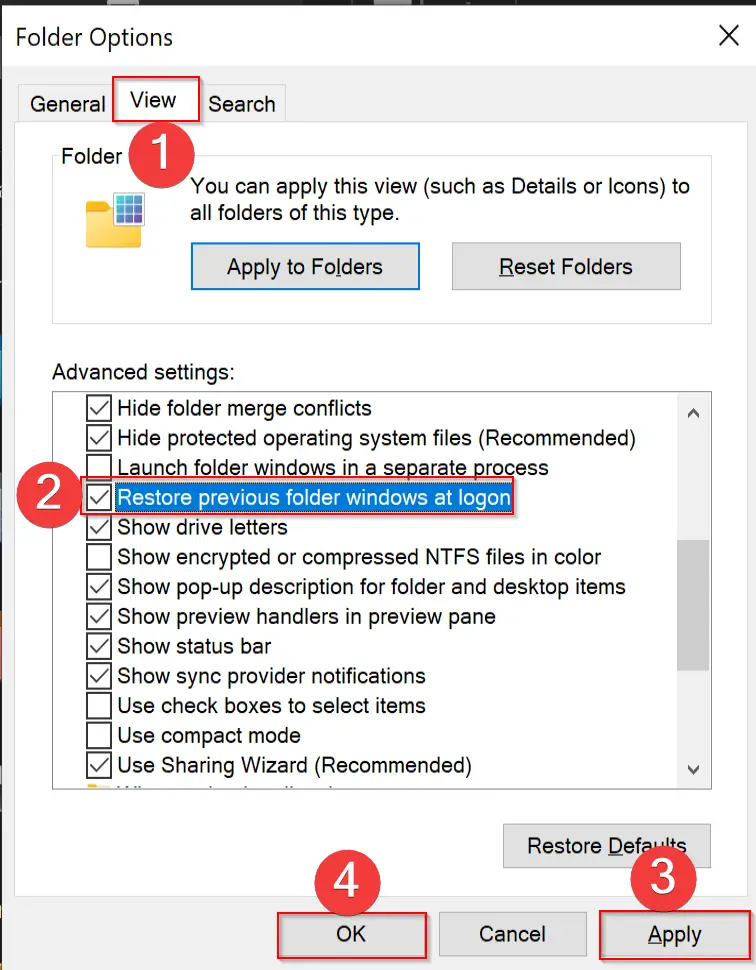
Step 5. Click the checkbox labeled Restore previous folder windows at logon.
Step 6. Click on the Apply button.
Step 7. Finally, click on the OK button.
That’s it. All the folders that were opened before doing the shutdown will be restored automatically when you sign in to your computer after the shutdown or restart your PC.
Good luck.
Conclusion
In conclusion, restoring previously opened folders at logon can save a lot of time and effort. By following the simple steps mentioned in this article, Windows 11/10 users can easily enable the option to restore their previous folder windows at logon. This feature is a convenient way to pick up where you left off without having to manually reopen all your folders after restarting your computer. We hope this guide will help users to streamline their work and increase productivity.
How to accomplish the same thing for tabs? Windows 11 now has tabs, but only the active tab is restored at logon.
Does not work for me; never has since upgrading to Win 11, though it did work before under Win 10.
Updated the PC’s OS yesterday and it still does not work.
The check box is ticked, but Explorer folders are not preserved across a shutdown/restart cycle.
Also doesn’t not work for me. I checked this box months ago.
+1. My computer got updated to Windows 11 last week without my approval (don’t get me started on that) and now the option to restore explorer windows no longer works.