

There is a lot of customization possible in Microsoft Excel documents. In this post, we will see how to rotate text in an Excel spreadsheet. This article will help if you want to rotate text in an Excel spreadsheet according to your requirements.
At various times, you need to customize an Excel spreadsheet to fit its contents to a specified size, and you may need to rotate the text. You might have to customize the spreadsheet for school or office projects. Excel comes with an Orientation feature to rotate the text in the desired direction, whether you want to rotate text in one cell or multiple cells, once possible with this functionality.
How to rotate text in an MS Excel spreadsheet?
Open a spreadsheet in Excel and select a single cell / multiple cells with text. From the Home tab, click the Orientation option in the Alignment section.
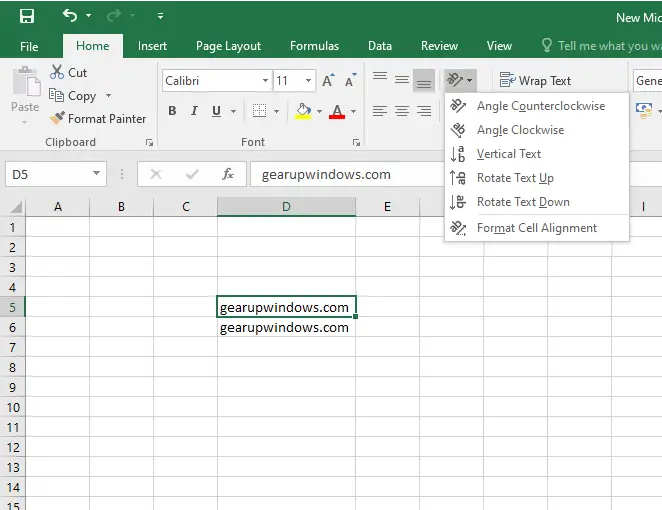
Here, you have the following options:-
- Angle Counterclockwise
- Angle Clockwise
- Vertical Text
- Rotate Text Up
- Rotate Text Down
- Format Cell Alignment
You can choose an orientation setting as per your requirement. Options Angle Counterclockwise, Angle Clockwise, Vertical Text, Rotate Text Up, and Rotate Text Down are predefined, which will change the text direction in a predefined manner.
Angle Counterclockwise and Angle Clockwise change the text direction by 45 degrees. Vertical Text and Rotate Text Up will set the text in two different predefined ways. Rotate Text Down will rotate the text vertically down.
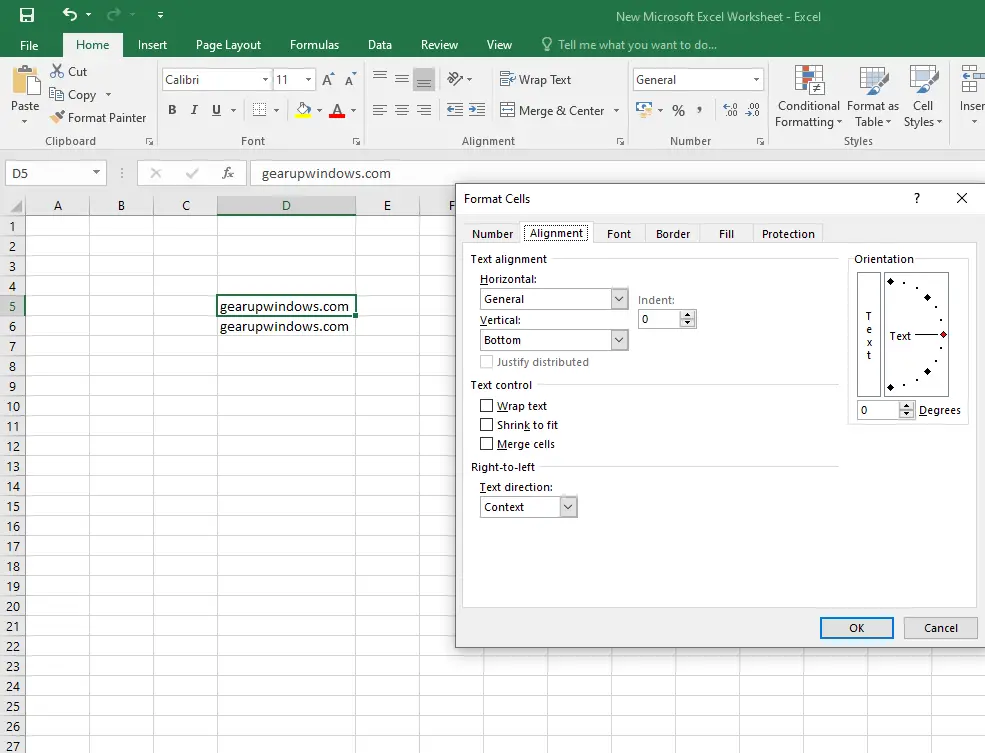
If you are still not happy with any pre-defined text alignment, you can select the last option, Format Cell Alignment. With this option, you can change the text direction and angle of text according to your needs.
 Also Read: How to Change or Rotate Text Direction in PowerPoint?
FAQs
How do I rotate text in Excel?
Select the cell, go to the Home tab, click Orientation under the Alignment group, and choose the angle or direction you prefer.
Can I rotate text in multiple cells at once?
Yes. Select all the target cells together, then use the Orientation option to apply the same rotation in a single click.
What if the predefined angles do not suit my needs?
Use the Format Cell Alignment option. It lets you manually set the text angle and direction based on your specific requirement.
Is vertical text available in Excel?
Yes. Excel includes predefined settings like Vertical Text, Rotate Text Up, and Rotate Text Down to display text vertically.
Does rotating text affect the content of the cell?
No. It only changes the visual orientation; the actual content remains unchanged and fully editable.
Conclusion
Excel makes it simple to rotate text using the Orientation feature. Whether you need angled text, vertical labels, or fully customized alignment, Excel provides both one-click presets and advanced manual controls. Adjusting text orientation can help you create cleaner layouts, fit more information into a limited space, and prepare professional spreadsheets for school, office, or presentations.