

If you click on the Power button on a Windows 11/10 PC, you will see the Sleep, Shut down, and Restart options. However, there is no option to turn off the monitor display only using the power button. If you leave your computer or laptop idle for some time, it will enter sleep mode depending on your system settings. Moving the mouse or pressing any key will wake it from sleep mode.
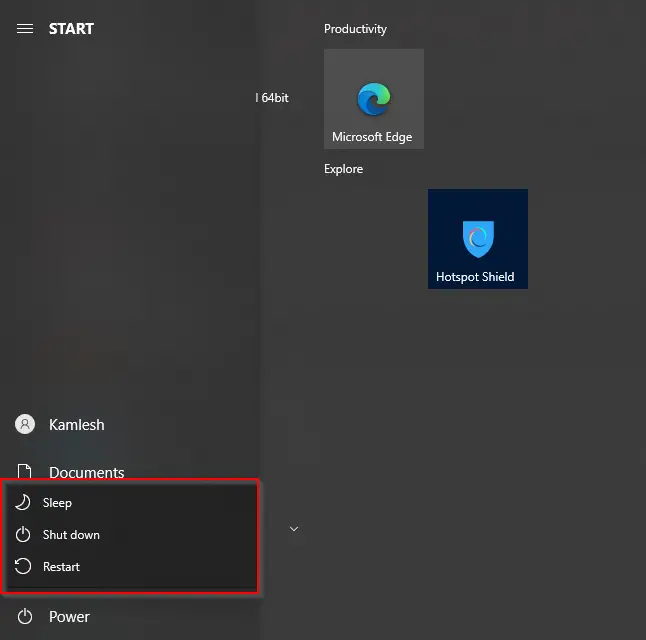
On Windows 11/10/8/7, it’s possible to turn off the monitor display by creating a desktop shortcut. In this post, we’ll guide you on creating a desktop shortcut to turn off the monitor in Windows 11/10/8/7 without using third-party software.
How to Create a Shortcut to Turn Off the Monitor?
To create a shortcut to turn off the monitor display on Windows 11/10/8/7, implement the following actions:-
Step 1. First, right-click on an empty area of the desktop, select New, and then the Shortcut option.
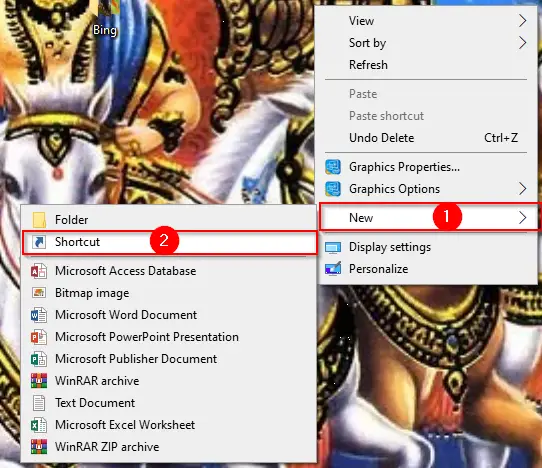
Step 2. When the Create Shortcut wizard opens, copy and paste the following command into the location field, then click the Next button:-
powershell.exe -Command "(Add-Type '[DllImport(\"user32.dll\")]public static extern int SendMessage(int hWnd,int hMsg,int wParam,int lParam);' -Name a -Pas)::SendMessage(-1,0x0112,0xF170,2)"
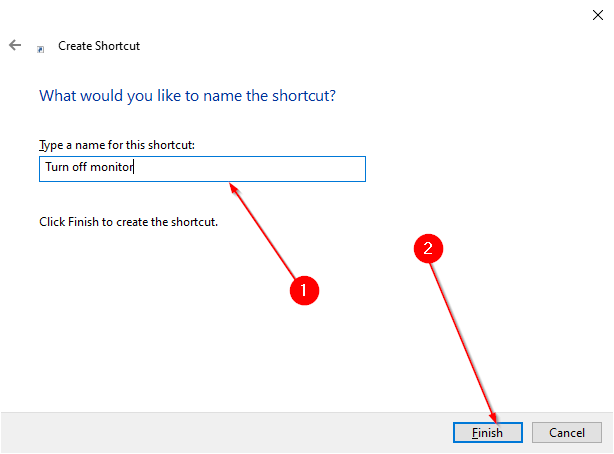
Step 3. Type a meaningful name (like Turn off monitor) in the “Type a name for this shortcut” box and click the Finish button.
Step 4. A new shortcut with the name you provided will now appear on your desktop.
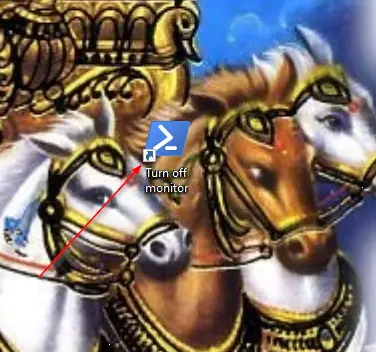
Step 5. Double-click the new shortcut on your desktop to turn off the monitor instantly without putting your computer to sleep.
To turn the monitor back on, move the mouse, tap the keyboard, or press the Power button briefly. The monitor will immediately turn on.
Step 6. If you want to assign a keyboard shortcut to turn off the monitor, right-click the newly created desktop shortcut and select Properties.
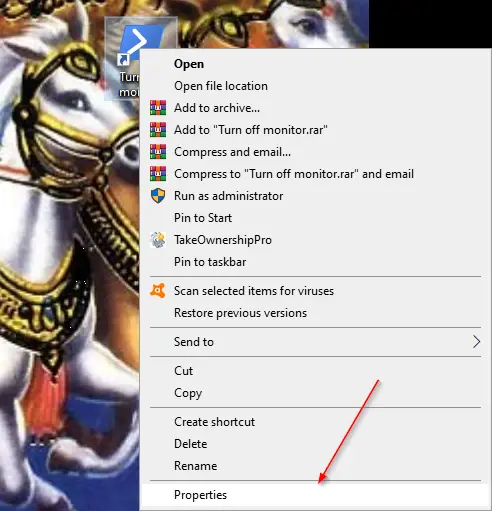
Step 7. Switch to the Shortcut tab.
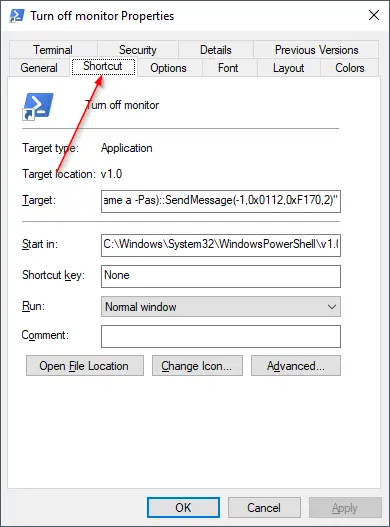
Step 8. Place the cursor inside the Shortcut key box.
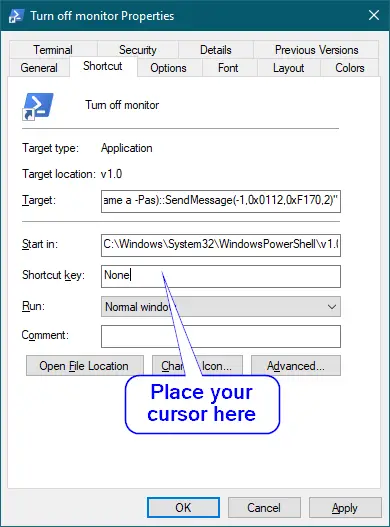
Step 9. While the cursor is active in the Shortcut key field, press any letter key from “A” to “Z” to assign a shortcut.
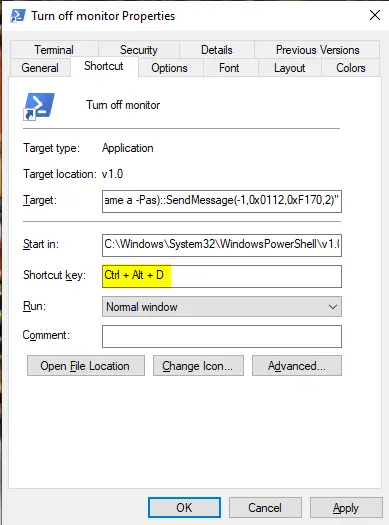
In this example, we pressed the D key, so the system assigned the shortcut Ctrl + Alt + D. Click Apply, then click OK.
Now, pressing the Ctrl + Alt + D hotkey will turn off the monitor.
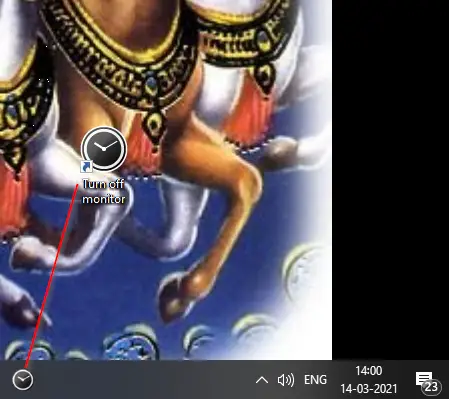
Step 10. To quickly access the Turn off monitor shortcut from the Taskbar, drag the shortcut icon to a blank area on the Taskbar.
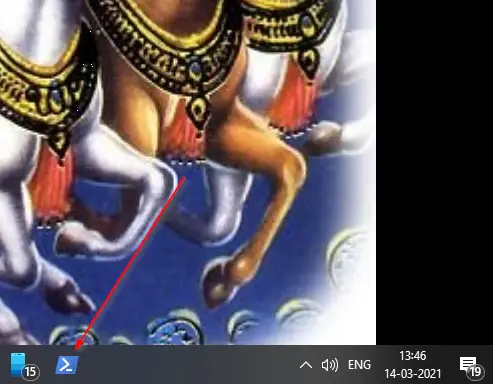
Clicking the Turn off monitor icon on the Taskbar will immediately turn off the monitor.
Step 11. To change the icon of the newly created shortcut, right-click the shortcut and select Properties. Go to the Shortcut tab and click the Change Icon button.
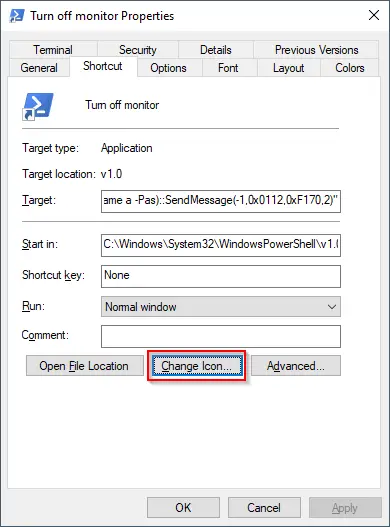
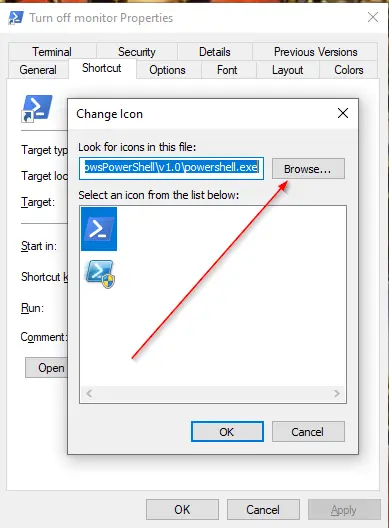
Step 12. Click the Browse button and navigate to the following path:-
%SystemRoot%\System32\SHELL32.dll
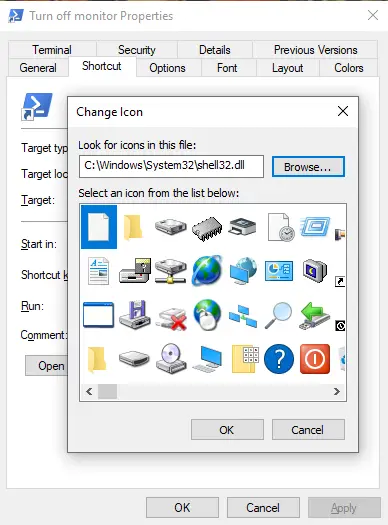
Step 13. Choose any icon from the list, click OK, then click Apply and OK again.
The icon for the newly created Turn off monitor shortcut is now updated.
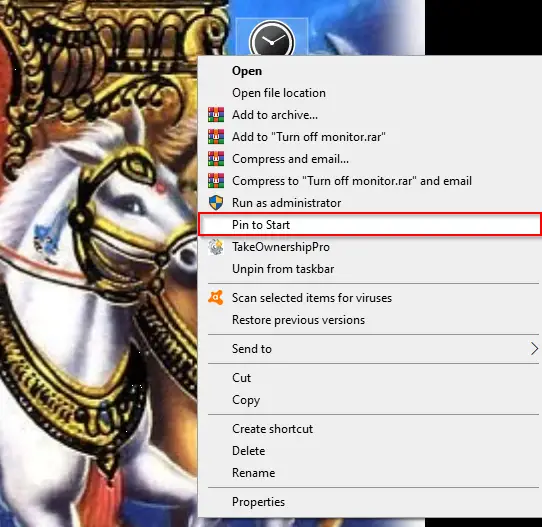
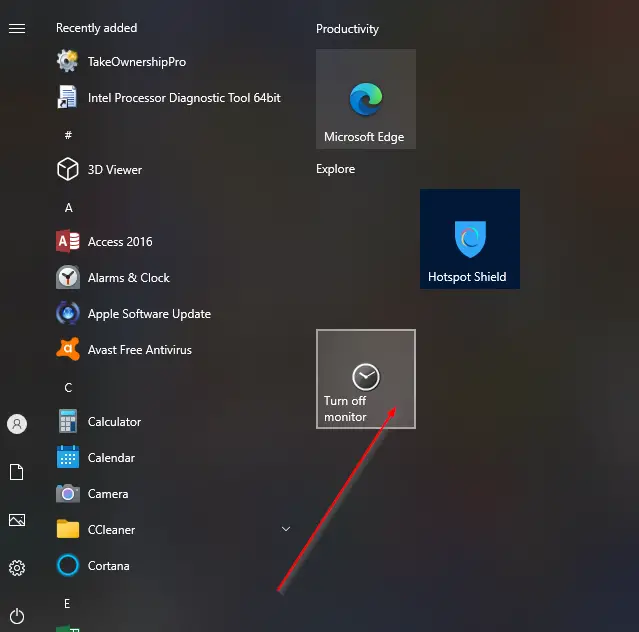
Step 14. To pin the Turn off monitor shortcut to the Start menu, right-click the shortcut and select “Pin to Start.”
How to Turn Off the Monitor Using a Batch File?
It’s also possible to turn off the monitor using a batch file in Windows 11/10. Perform the following steps:-
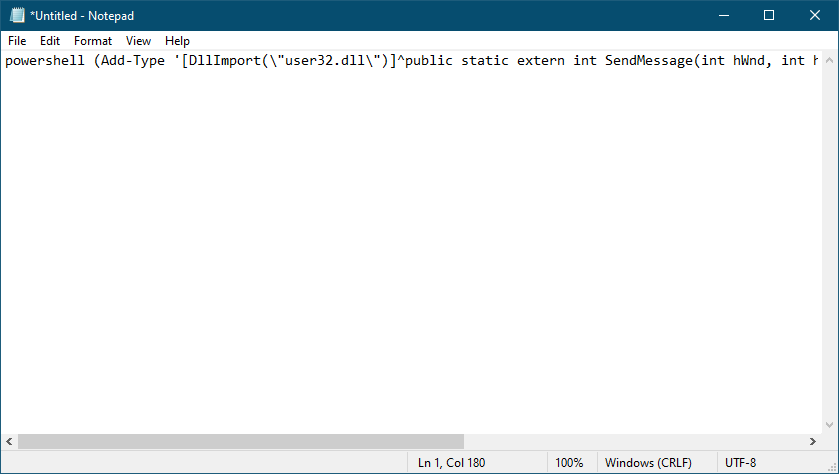
Step 1. Open Notepad and paste the following lines:-
powershell (Add-Type '[DllImport(\"user32.dll\")]^public static extern int SendMessage(int hWnd, int hMsg, int wParam, int lParam);' -Name a -Pas)::SendMessage(-1,0x0112,0xF170,2)
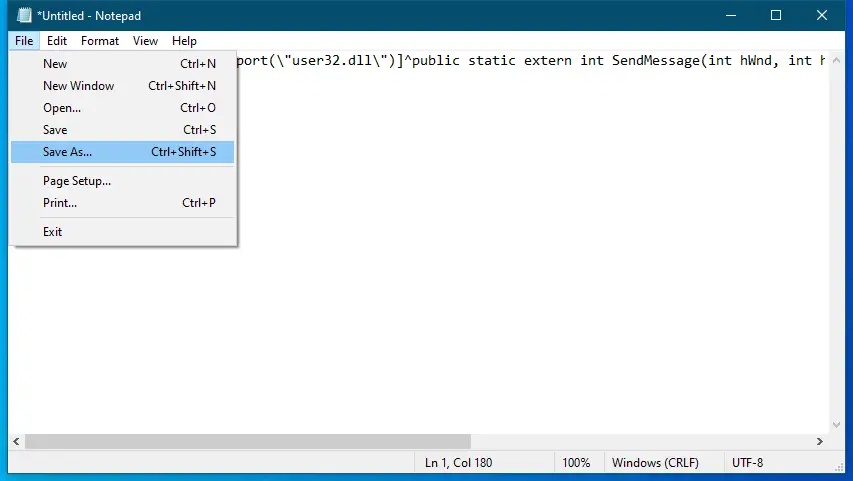
Step 2. Click the File menu and select the Save As option.
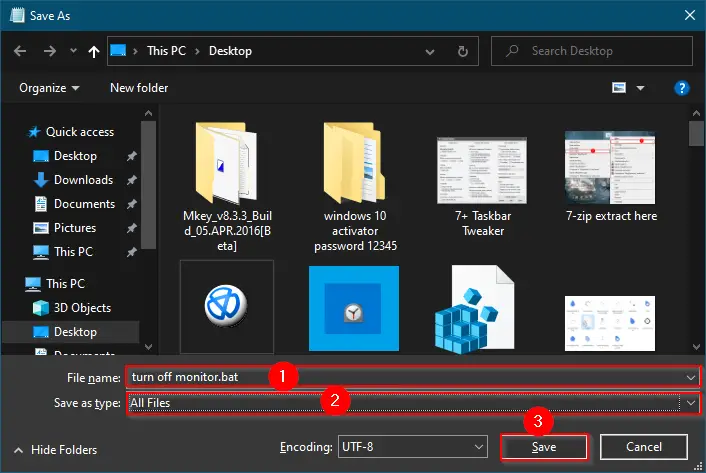
Step 3. In the Save As dialog box, enter turn off monitor.bat in the File name textbox. Choose All Files in the “Save as type” dropdown. Then click the Save button.
You can now turn off the monitor by double-clicking the batch file. To turn the monitor back on, press any key on the keyboard.
ScreenOff is a freeware tool that turns off your laptop or desktop monitor. If you prefer using a third-party tool, this tiny utility is a good choice.
Conclusion
In conclusion, while Windows 11/10 does not provide an option to turn off the monitor display directly from the power button, you can still create a desktop shortcut to achieve this without using third-party software. By following the steps outlined above, you can set up a shortcut and even assign a keyboard shortcut for quick access. Additionally, users can use a batch file or a lightweight tool like ScreenOff to accomplish the same task. These options help conserve power and extend the monitor’s lifespan when not in use.
You might also be interested in how to change Folder Icons in Windows 10/8/7/Vista.
Thank you for doing this, it has proven very useful for me. However, I’m wondering if you could possibly tweak it so that it would require a mouse click to turn the monitor back on.
Currently it only takes a very slight movement of the mouse, which can be done so easily accidentally.
With a mouse click instead, it would be the perfect solution.
Thanks again!
This turns off ALL MONITORS.. How to do you turn off only a specific monitor?
Thank you very much s2
hello,
when I clicked on shortcut, the display went off, and the system too, any idea ?
need turn off display only. thank you
I have personally checked, and it turns off the display only. Please re-create the shortcut from scratch.