

Opera’s sync feature keeps your bookmarks, passwords, history, and settings synced across devices when you sign in with an Opera account. If you share devices, worry about privacy, or simply prefer keeping data local, turning off sync is fast and reversible.
What is Opera Sync?
Opera Sync is Opera’s account-based service that copies selected browser data (bookmarks, history, passwords, open tabs, extensions, and settings) to Opera’s cloud so those items appear on other devices where you sign in with the same Opera account.
Why you might want to turn off sync
Turning off sync stops new changes from being copied to the cloud and other devices. People commonly disable sync when they’re:
– Using a shared or public PC.
– Troubleshooting account or sync errors.
– Preparing to delete or clear synced data for privacy reasons.
How to turn off Opera sync (step-by-step)
Follow these steps on a Windows 11 or Windows 10 PC using the Opera desktop browser.
Step 1. Open Opera and click the profile/avatar icon in the top-right corner of the browser window.

Step 2. In the account menu, click Sync to open the sync panel.
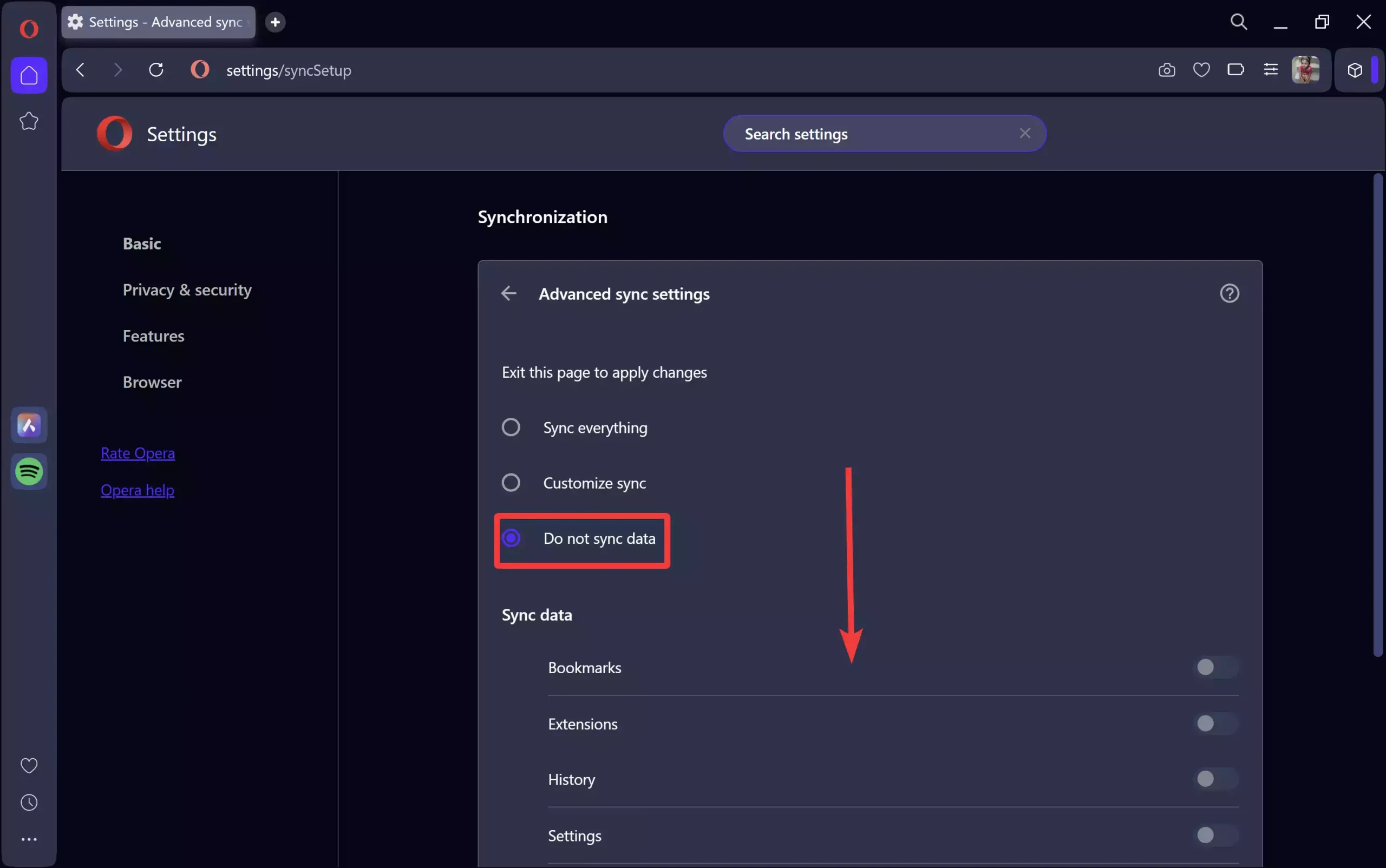
Step 3. Toggle off the categories you don’t want to sync (for example, Bookmarks, History, Passwords). You can also choose “Do not sync data” to stop all syncing.
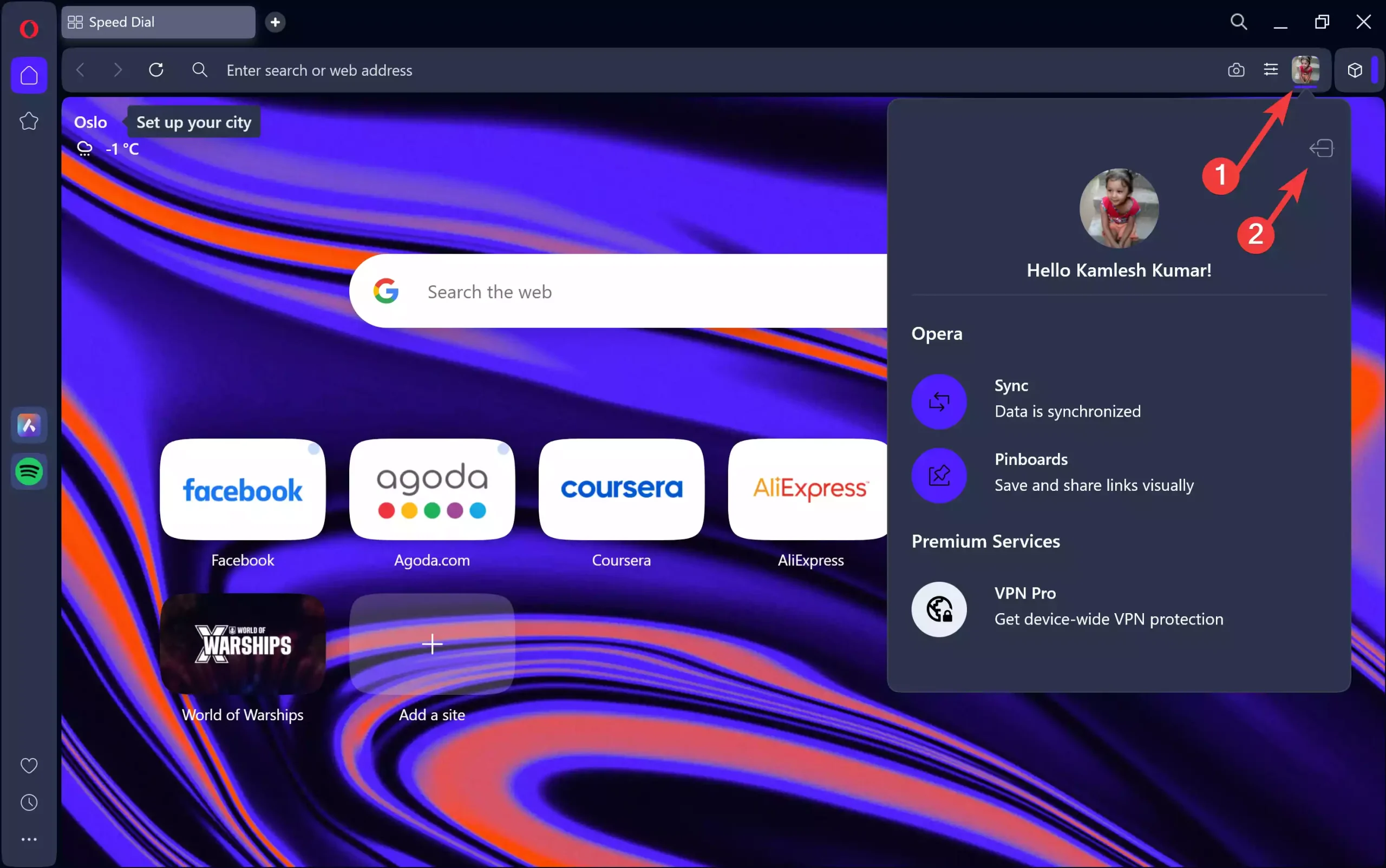
Step 4. To fully stop Opera from syncing with your Opera account, click the profile/avatar icon in the top-right corner of the browser window. Then, click on the left arrow button.
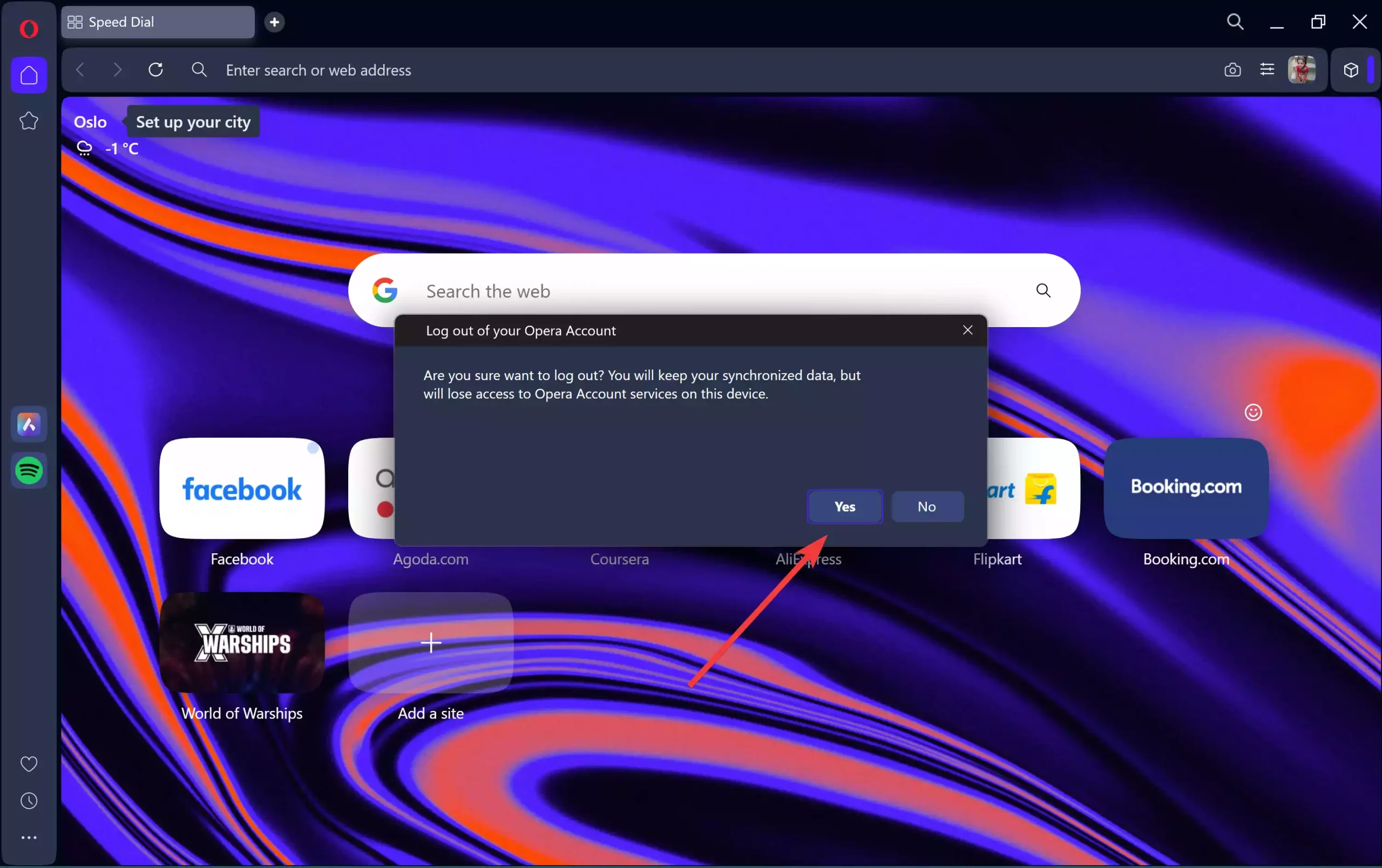
Step 5. In the pop-up “Log out of your Opera Account,” click Yes to sign out or disconnect the account. This signs Opera out of the account on that device and prevents further syncing.
Note: If you use Opera on multiple devices, turning off sync on one device does not automatically turn it off on others — repeat the steps where needed.
How to remove previously synced data
After you sign out locally, you may also want to remove synced data stored in the cloud. Opera’s account settings on the web or within the browser usually offer an option to clear synced data. If you prefer to reset the browser state afterward, you can use a reset guide for Opera to restore defaults. See “How to reset Opera web browser on Windows 11 or 10” for a full reset walkthrough.
If you only want to clear local browsing traces after turning off sync, follow the normal Clear browsing data steps in Opera (cache, cookies, history). A short guide to clearing cache and cookies on Opera is a useful companion for this article.
Tips after you disable sync
– Consider enabling Opera’s built-in ad blocker or privacy protections after disabling sync so you retain a good browsing experience on the local device. A helpful guide on enabling the ad blocker in Opera is available.
Pros / Considerations
Pros
- More privacy on shared devices — your passwords and history won’t be copied elsewhere.
- Fewer accidental data leaks if someone else signs into your account on another device.
- Useful troubleshooting step if sync causes errors or duplicated items.
Considerations
- Turning off sync means you’ll lose cross-device convenience (bookmarks, open tabs, and saved passwords won’t appear on other devices).
- If you sign out without clearing cloud data, copies may still exist in Opera’s cloud — remove them from your Opera account if you want them deleted.
- Make sure you have local backups for any bookmarks or passwords you want to keep before signing out.
FAQs
Q: Will turning off sync delete my bookmarks on this PC?
A: No — turning off sync typically stops new changes from syncing. Local bookmarks remain unless you explicitly delete them or choose “remove data from this device” when signing out.
Q: If I sign out of Opera, will my passwords still be available?
A: If passwords were synced to your Opera account, then removed from the cloud, they may remain locally until you clear or delete them. Always back up important passwords first.
Q: How do I completely erase synced data from Opera’s servers?
A: Visit your Opera account settings (or the sync panel) and look for an option to clear or delete synced data. If unclear, follow the account or reset instructions in the Opera reset guide.
Q: Can I re-enable sync later?
A: Yes — sign back into your Opera account and turn the desired sync categories back on. Opera will begin merging and copying data according to your selected categories.
Conclusion
Turning off Opera sync is a quick way to protect privacy on a device or fix sync-related issues. Follow the step-by-step instructions above, clear any unwanted synced data if needed, and remember you can re-enable sync anytime if you want cross-device convenience again.