

If you want to eliminate Windows Media Player from Windows 11, you can easily do so, as it is now listed under optional features. With many alternative media players available—like VLC or others—most users no longer rely on Windows Media Player. Although Microsoft still includes it in Windows 11, removing it is simple if you’re not using it.
Windows Media Player has been a part of the Windows operating system for a long time, but many users prefer third-party tools for better functionality and broader format support.
If you’re one of those users who no longer want Windows Media Player taking up space on your system, you can remove it using the Settings app. Windows 11’s Settings app serves as a centralized hub to uninstall both traditional programs and UWP (Universal Windows Platform) apps, including built-in features like Windows Media Player.
How to Uninstall Windows Media Player from Windows 11?
Follow these steps to uninstall and remove Windows Media Player from Windows 11:-
Step 1. Open the Settings app by pressing the Windows + I keys altogether from the keyboard. Now, click on the Apps category from the left side pane.
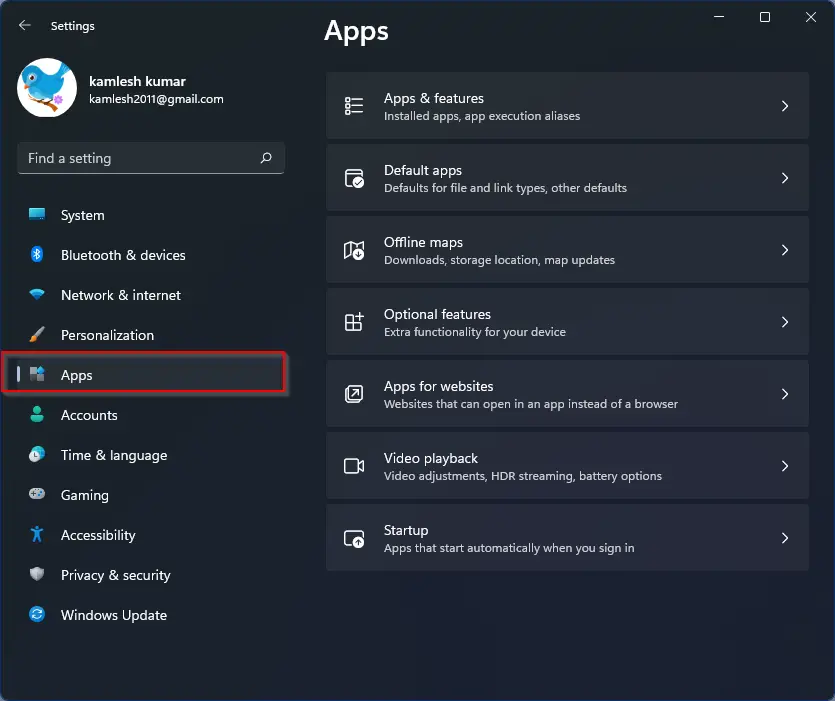
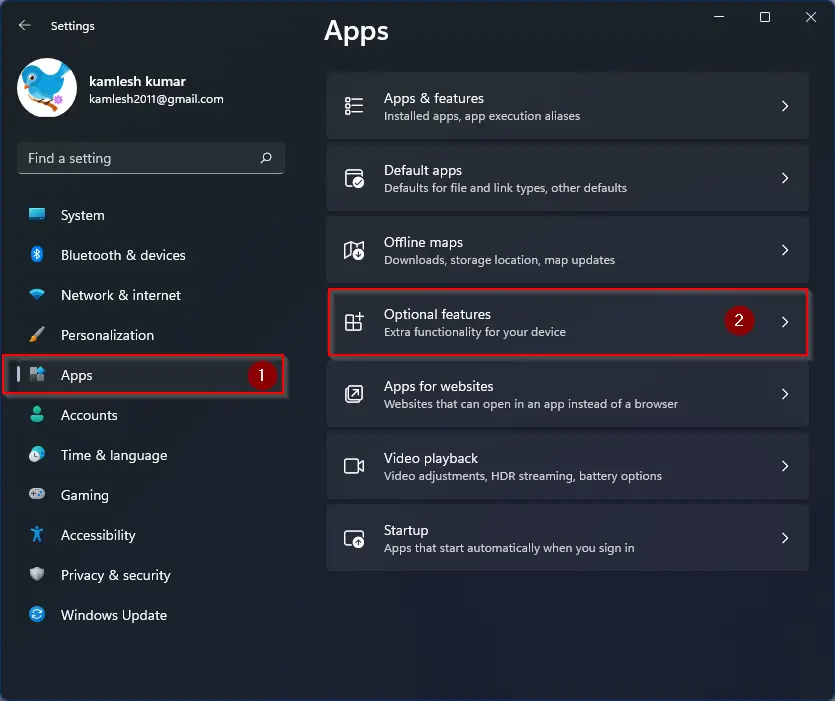
Step 2. On the right side of Apps, click on the Optional features tab.
Step 3. Please scroll down on the right-hand pane to find the entry for Windows Media Player and then click on it.
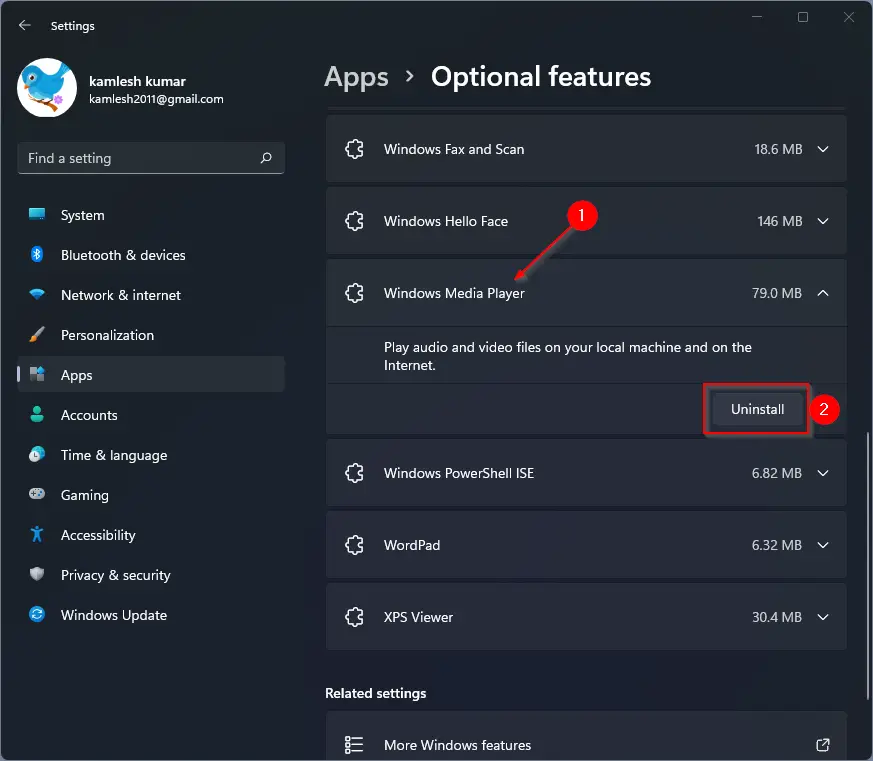
Step 4. Click on the Uninstall button.
After executing the above steps, the Windows Media Player application will not exist anymore on your Windows 11 PC.
Happy uninstalling!
Conclusion
In conclusion, Windows Media Player has been a part of the Windows operating system for a long time. However, with the availability of numerous media players on the internet, most Windows users prefer to use third-party software to play media files. Fortunately, with Windows 11, Microsoft has made Windows Media Player an optional feature that can be easily uninstalled if it’s not being used. The process to remove it is simple, and anyone can follow the steps mentioned above to get rid of Windows Media Player from their PC. By doing so, you can save some storage space and ensure that only the apps you need are installed on your computer.