

When you copy text from a web page, PDF, or Microsoft Word document, it often brings along unwanted styles, fonts, colors, smart quotes, or extra spaces. This can cause problems if you paste it into your blog editor, email client, or code. The new Clipboard Text Cleaner tool helps you clean messy text instantly inside your browser without installing extra software.
What is Clipboard Text Cleaner?
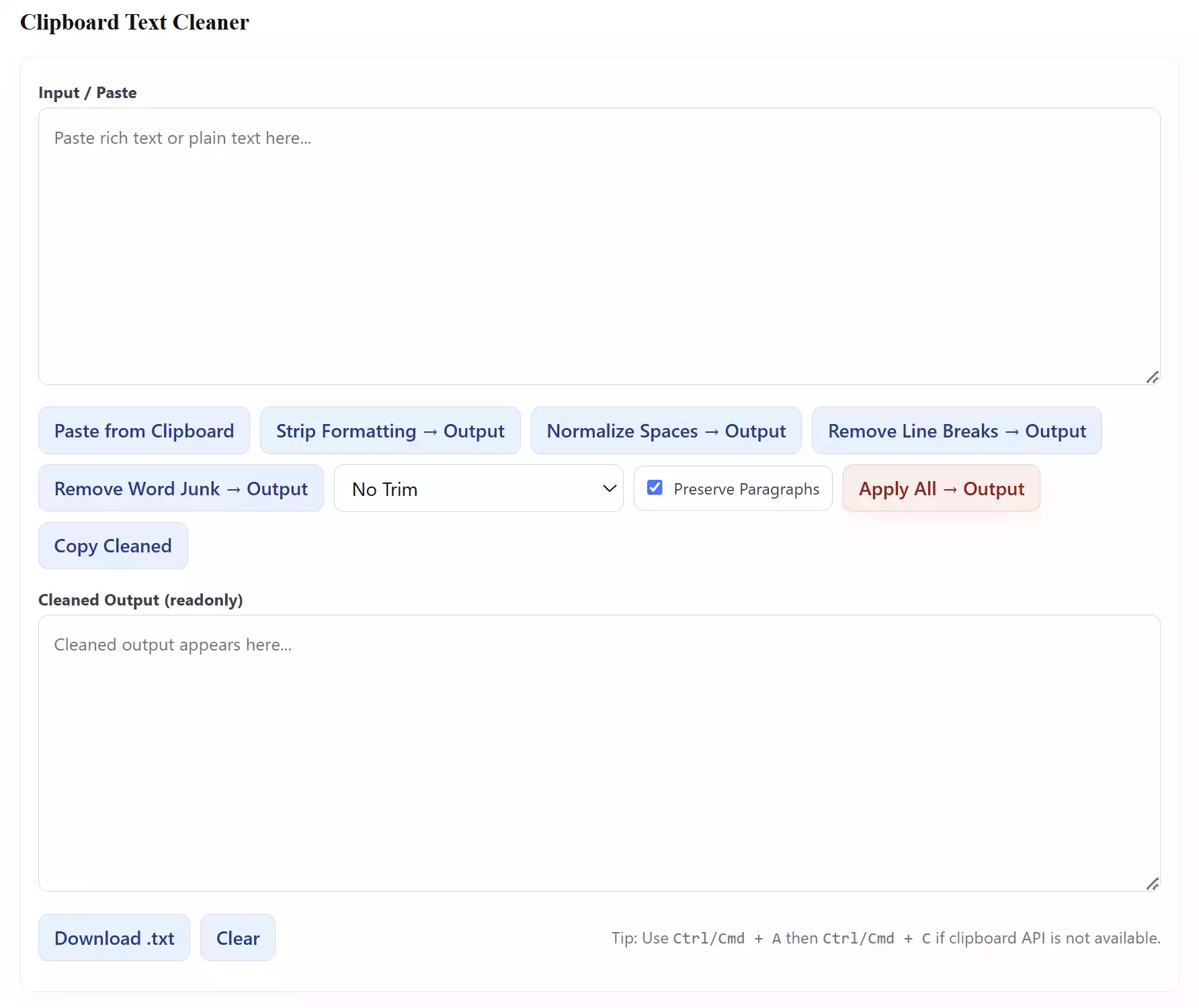
Clipboard Text Cleaner is a free online utility that strips hidden formatting from copied text. It removes HTML tags, Microsoft Word artifacts, non-breaking spaces, and other invisible characters. The tool also offers a one-click Apply All function that combines multiple cleanups at once.
Why Would a Beginner Use Clipboard Text Cleaner?
Beginners often paste content from Word, Excel, or websites directly into an editor and later wonder why it looks strange. This tool makes sure your text stays clean, lightweight, and compatible with any application. It’s especially helpful when preparing content for blogging tools or email clients.
Main Features of Clipboard Text Cleaner
- Strip Formatting: Removes bold, italics, underline, colors, and other HTML tags.
- Normalize Spaces: Fixes double spaces, tabs, and non-breaking spaces.
- Remove Word Junk: Cleans curly quotes, long dashes, ellipses, and leftover MS Word markup.
- Preserve Paragraphs: Keeps line breaks for easier reading.
- Apply All: One-click cleanup applying all fixes together.
- Copy or Download: Get the cleaned text instantly to the clipboard or as a .txt file.
How to Use Clipboard Text Cleaner
Follow these simple steps:
Step 1. Open the Clipboard Text Cleaner page in your browser.
Step 2. Paste your text into the “Input / Paste” box using Ctrl + V or the “Paste from Clipboard” button.
Step 3. Use individual buttons, such as Strip Formatting or click Apply All → Output for a complete cleanup.
Step 4. Copy the result or download it as a plain .txt file.
Safe Use Tips for Beginners
- Always review the output to make sure important symbols or intentional formatting were not removed.
- Use the Preserve Paragraphs option if you want to keep line breaks for readability.
- Try PDF to Text Extractor if you are dealing with large PDFs that contain hidden styles.
When Clipboard Text Cleaner Can Help You
This tool is ideal when you:
- Paste text from Word, Excel, or PowerPoint and want it plain.
- Copy content from websites full of inline CSS or JavaScript junk.
- Need clean text for email newsletters, blogging platforms, or coding projects.
Frequently Asked Questions About Clipboard Text Cleaner
Q: Does this tool work offline?
No, Clipboard Text Cleaner is browser-based. However, it processes text locally and does not upload your content to a server.
Q: Can it remove colors and font sizes?
Yes, the Strip Formatting option removes all inline styles, font tags, and HTML attributes.
Q: What’s the difference between Normalize Spaces and Remove Word Junk?
Normalize Spaces fixes extra spaces, tabs, and non-breaking spaces. Remove Word Junk converts smart quotes, em dashes, and ellipses into plain equivalents and strips leftover Word markup.
Q: Is it safe to paste sensitive text?
Yes, all processing happens in your browser. Nothing is sent online.
Conclusion
Clipboard Text Cleaner is a fast, free way to make messy copied text usable again. Instead of manually fixing spaces, quotes, and formatting, you can rely on this online tool to do it all in one click. Try it the next time you copy content from Word or a website, and save yourself the hassle of manual cleanup.