

If your PC is so infected that Windows won’t boot—or malware keeps coming back after cleanup—a bootable antivirus is the smart next step. Kaspersky Rescue Disk runs completely outside Windows, so stubborn threats (including rootkits) can’t hide. Think of it as a deeper “second opinion” when ordinary tools aren’t enough. For quick in-Windows checks, see our best free one-time malware scanners roundup.

What Is Kaspersky Rescue Disk?
Kaspersky Rescue Disk is a free, bootable ISO that loads a Linux-based desktop with Kaspersky’s scanner. Because it scans before Windows starts, it can find and remove deeply embedded malware that resists normal cleanup.
Why Use a Bootable Scanner?
- Bypasses Windows entirely, so active malware can’t interfere with the scan.
- Great for unbootable PCs or repeat infections that keep returning.
- No installation on the infected drive—just boot from USB and scan.
Main Features
- Graphical interface with easy scan controls and logs.
- Updates definitions after boot (internet required for latest signatures).
- Targeted or full scans of disks, partitions, and folders.
- Quarantine/Disinfect/Delete actions with reports.
What You’ll Need
- A spare 4GB+ USB drive (it will be formatted).
- Another working PC to create the bootable USB.
- Internet access (to download the ISO and update definitions after boot).
Download Kaspersky Rescue Disk
Get the latest ISO from the official Kaspersky page.
Create a Bootable USB
- On a clean PC, download the ISO.
- Use a USB tool to write the ISO to your flash drive. If you prefer a guided tool, follow our step-by-step with Universal USB Installer.
- Safely eject the USB when done.
Boot and Scan
- Insert the USB into the infected PC, power it on, and press the boot menu key (often F12, Esc, F8, or F11) to boot from USB.
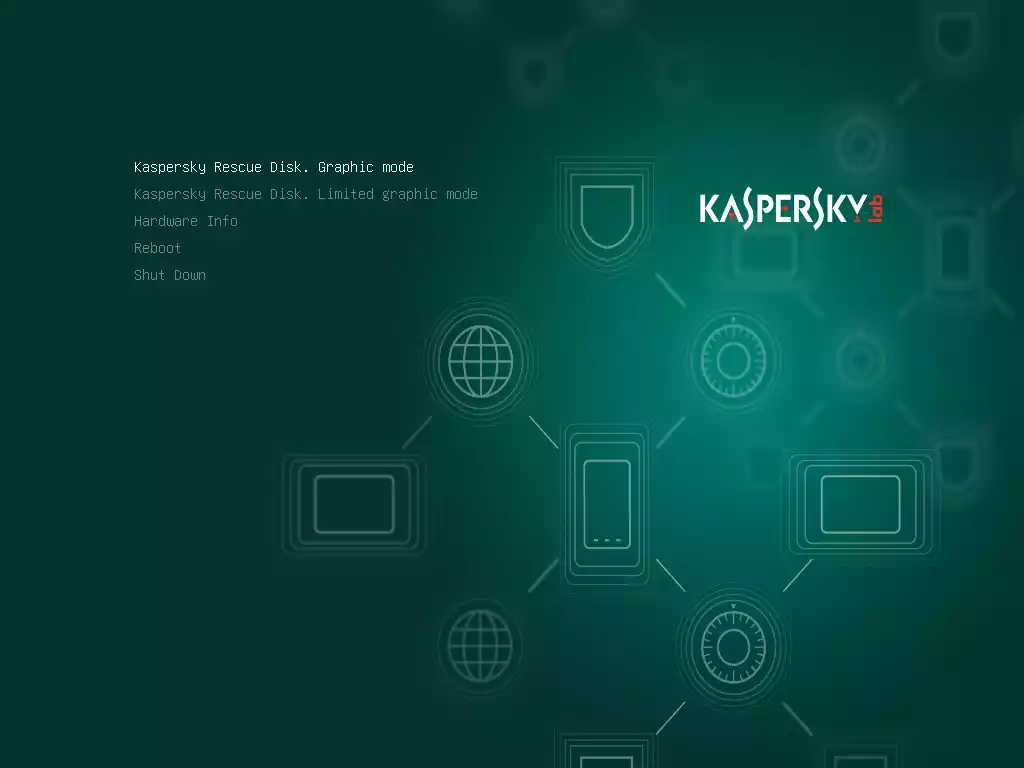
- Choose the default graphical mode when Kaspersky Rescue Disk loads.
- Connect to the internet (Ethernet is easiest) and update virus definitions when prompted.
- Select your system drive and start a scan. Review detections, then choose Disinfect or Delete for confirmed threats.
- Reboot and remove the USB. If Windows loads normally, run an in-Windows second opinion scan later to be sure.
If the USB Won’t Boot
- Re-create the USB and ensure the ISO was written in ISO/DD mode correctly.
- Switch BIOS between UEFI and Legacy boot (if available) and try again.
- As an alternative offline cleanup, run Microsoft Defender Offline.
Best Practices After Cleaning
- Update Windows and all apps immediately.
- Remove unknown programs and reset your browsers to the default.
- Change passwords for important accounts if malware was found.
- For ongoing protection, pick a trusted suite from our best antivirus for Windows guide.
Good “Second-Opinion” Tools (Inside Windows)
- Deep cleaner: Kaspersky Virus Removal Tool (KVRT)
- Portable toolkit: Emsisoft Emergency Kit
- Adware remover: Malwarebytes AdwCleaner
Pros
- Scans outside Windows—excellent against rootkits and stubborn threats.
- Free to use; no installation on the infected drive.
- Clear GUI with quarantine and reports.
Considerations
- Needs a second PC to build the USB and internet to update definitions.
- Boot issues can occur on some hardware; re-writing the USB (ISO or DD mode) usually helps.
- Availability may vary by region; check Kaspersky’s site for current access.
FAQs
Is it an antivirus replacement?
No. It’s for one-time cleanup. Keep one real-time AV running in Windows.
Do I need to disable my existing antivirus?
No. You’re scanning outside Windows; your installed AV won’t load.
Can it work without the internet?
Yes, but updating definitions after boot improves detection.
It found suspicious items—what should I do?
Prefer Disinfect or Quarantine first. Delete only if you’re sure.
Conclusion
Kaspersky Rescue Disk is a powerful, bootable lifeline when regular scans can’t finish the job. Use it to clean a heavily infected or unbootable PC, then follow up inside Windows with a quick second-opinion scan using tools like Dr.Web CureIt!, and keep a reliable antivirus running going forward.