

If your Windows PC still shows signs of infection after a standard antivirus scan, Kaspersky Virus Removal Tool (KVRT) is a free, portable utility built to hunt down entrenched malware and potentially unwanted programs (PUPs). It runs on-demand, without installation, so you can launch it from any folder or a USB drive alongside your existing antivirus.

What Is Kaspersky Virus Removal Tool?
KVRT is a no-install malware cleaner from Kaspersky that performs deep, on-demand scans of system memory, startup items, boot sectors, and selected drives/folders. It’s designed for cleanup, not real-time protection, making it ideal as a second-opinion tool.
When Should You Use It?
- Persistent symptoms remain after your main antivirus says “no threats found.”
- You need a portable cleaner you can run from a USB stick.
- Suspicious pop-ups, redirects, or unknown processes keep returning.
Key Features
- Portable and simple: run the EXE—no installation or background services.
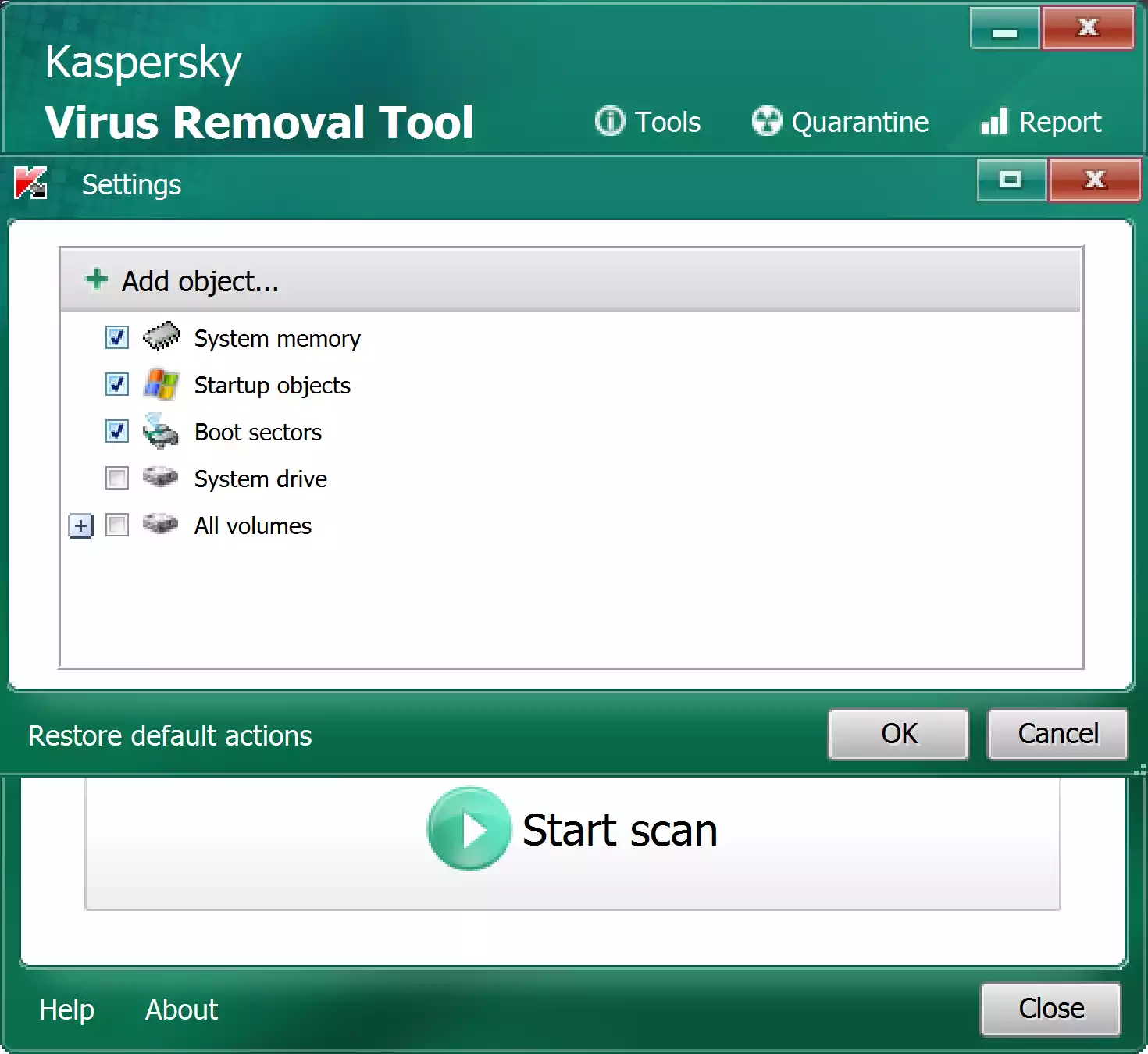
- Deep scan targets: memory, startup items, boot sectors, and chosen drives/folders.
- Cloud-assisted detection: checks suspicious items against Kaspersky’s reputation data.
- Quarantine & restore: isolate detections and restore if needed.
Download Kaspersky Virus Removal Tool
Get the latest build from the official Kaspersky page: Download Kaspersky Virus Removal Tool.
How to Use KVRT (Step-by-Step)
- Download KVRT: Save the executable (usually
KVRT.exe) to your Desktop or Downloads. - Run as administrator: Right-click the file and choose Run as administrator. Approve the UAC prompt.
- Accept the license: Optionally opt in/out of cloud reputation (Kaspersky Security Network) when prompted.
- Choose scan scope: Click Change parameters to select targets (memory/startup/boot sectors are default; add drives/folders as needed).
- Start scan: Click Start scan and let KVRT analyze selected areas. You can continue using other apps, but performance may dip during deep scans.
- Review results: KVRT lists suspicious and malicious items. Expand entries for details, then choose Delete, Disinfect, or Skip.
- Apply actions & reboot: Some removals require a restart. If prompted, save your work and reboot to complete the cleanup.
- Restore if needed: Use Quarantine to restore items you believe were flagged in error.
If Malware Blocks the Tool
- Boot to Safe Mode with Networking, then run KVRT again.
- Temporarily disable unknown startup entries and scheduled tasks; rescan.
- Need more second opinions? See our roundup: Best Free One-Time Malware Scanners.
Pros
- Free, portable EXE—no installation required.
- Deep scanning of memory, startup, boot sectors, and chosen locations.
- Quarantine/restore workflow for safer cleanup.
Considerations
- Not real-time protection—use alongside a primary antivirus.
- Scans can be lengthy on large drives; best run while the PC is idle.
- An internet connection improves reputation checks and detection quality.
Frequently Asked Questions
Does KVRT replace my antivirus?
No. KVRT is an on-demand cleaner. Keep one real-time antivirus (like Microsoft Defender or another reputable AV) active at all times.
Do I need to install it?
No. It’s fully portable—download the EXE, run it, clean, and delete it when you’re done.
Does KVRT work on Windows 11?
Yes. KVRT supports modern Windows versions, including Windows 11 and Windows 10.
Do I need an internet connection?
KVRT can run offline, but an internet connection helps update components and improve detection via reputation services.
Can I run it in Safe Mode?
Yes. If malware interferes with tools, boot into Safe Mode with Networking and run KVRT from there.
How do I update KVRT?
Always download a fresh copy before scanning—Kaspersky refreshes the tool and signatures frequently.
Conclusion
Kaspersky Virus Removal Tool is a powerful, portable cleaner ideal for stubborn infections that slip past routine scans. Run it as a focused cleanup step, review detections carefully, and keep one real-time antivirus active for ongoing protection.