

Did you just delete something important from your Windows PC? Whether it was a work file, a photo, or a document, don’t worry—there’s still hope. In this gearupwindows guide, you’ll learn how to use Puran File Recovery, a trusted and free tool that can recover deleted data from your hard drive, USB flash drive, or memory card.
Even if you used Shift + Delete or formatted a drive, this utility might help bring your files back. Let’s walk through the recovery process.
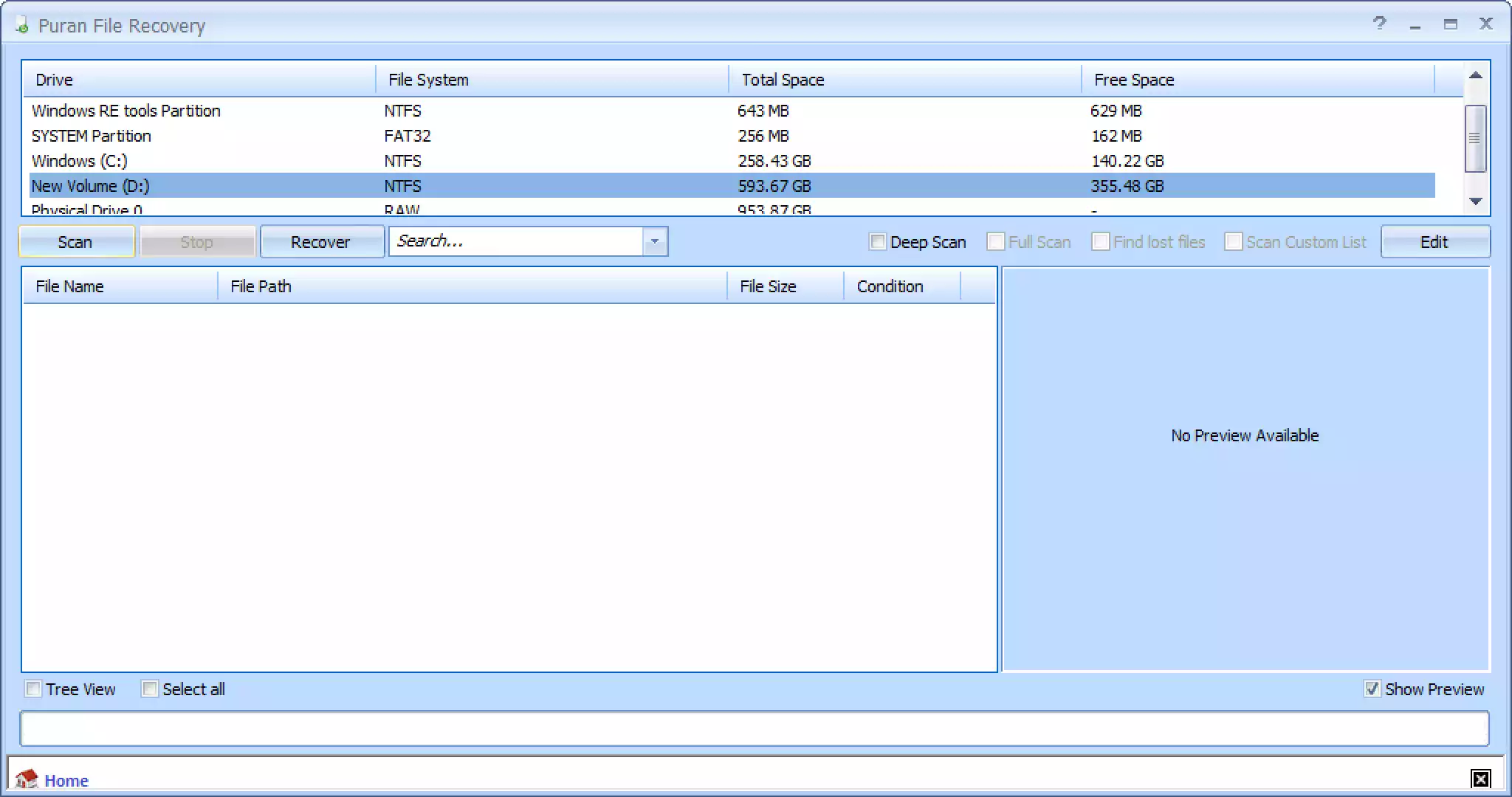
What Makes Puran File Recovery Useful?
Puran File Recovery is lightweight, portable, and beginner-friendly. It works with FAT and NTFS file systems, detects lost partitions, and supports deep scanning for better results. Plus, it’s completely free to use, making it one of the top picks in our list of best free data recovery tools for Windows.
How to Use Puran File Recovery?
Step 1. Download and open Puran File Recovery. If you choose the portable version, there’s no need to install—just launch the executable file.
Step 2. Select the drive from which you want to recover deleted files. This could be your system drive, an external hard drive, or a USB stick.
Step 3. Choose a scan type. For faster results, start with a quick scan. If nothing shows up, use the deep or full scan options for a more thorough search.
Step 4. Click on the “Scan” button. Wait for the software to complete its analysis. This may take a few minutes, depending on the drive size.
Step 5. Once the scan is done, browse through the list of recoverable files. You can sort by file type or search by name to find what you need.
Step 6. Select the files you want to restore. Then click the “Recover” button. Be sure to save the recovered files to a different drive to avoid overwriting them.
Tips to Improve File Recovery Success
- Stop using the affected drive immediately after deletion.
- Use the deep or full scan mode for formatted or older deletions.
- Always recover files to a separate storage device.
Other Free Recovery Tools You Can Try
If Puran File Recovery doesn’t locate your lost files, don’t worry. You can also try EaseUS Data Recovery Wizard, MiniTool Power Data Recovery, or Disk Drill. These are all trusted tools listed on gearupwindows and work well on Windows 11 and 10.
Conclusion
Puran File Recovery is one of the most reliable free options available for restoring deleted files on Windows. It’s easy to use, portable, and effective in many data loss scenarios. Whether it’s a lost document or an entire folder, this tool gives you a good chance at getting it back.