

In this gearupwindows guide, we’ll show you how to use Sniptool — a free, easy-to-use screenshot utility for Windows. This tool helps you capture, edit, and annotate screenshots with minimal effort, making it perfect for bloggers, developers, students, and professionals alike.
What Is Sniptool?
Sniptool is a compact screenshot utility designed to let you capture, edit, and share images instantly. It comes with essential features like area selection, image annotation, blurring sensitive data, and exporting in common image formats. Despite its powerful options, Sniptool remains easy for beginners to use. Best of all, it is available from the Microsoft Store for free and does not require complex setup — just download and use.
Key Features of Sniptool
- Free from Microsoft Store: Officially available and safe to use.
- Multiple capture options: Window, full screen, rectangle, and custom area.
- Built-in annotation tools: Arrows, text, shapes, highlights, blur, and more.
- Export options: Save as PNG, JPG, or directly copy to clipboard.
- Dark and Light modes: Switch themes based on your system preferences.
- Screenshot delay timer: Set a custom delay before the screenshot is captured.
How to Use Sniptool?
Step 1. Open the Microsoft Store on your PC and search for Sniptool. Click the Get button to download and install. Alternatively, visit the Microsoft Store page and download it directly.
Step 2. Launch Sniptool, and from the toolbar, choose your desired capture method. You can select a rectangle, full screen, freehand, or active window. Click to capture the area.
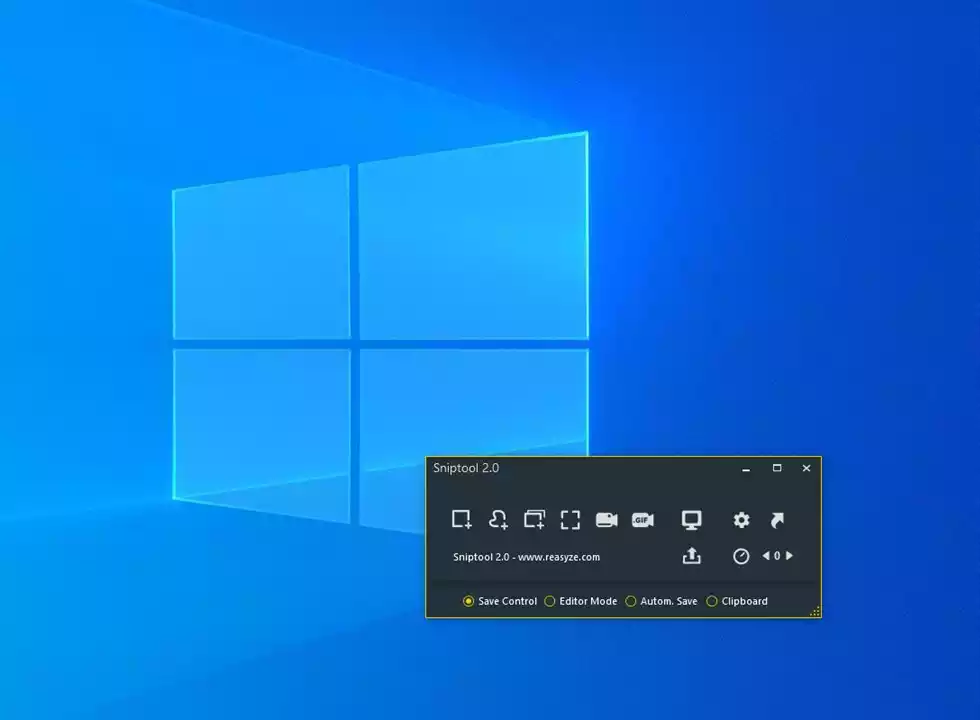
Step 3. Once captured, you can use the Save Screenshot icon to save the image on your PC, or click the Open in the Editor icon to open it in the editor. Use tools like arrows, rectangles, circles, text, and blur to mark or hide information. The intuitive interface makes editing quick and smooth.

Step 4. After editing, click Save to export the image. You can also copy it to the clipboard or print it directly. Supported formats include PNG, JPG, GIF, BMP, and TIFF.
If you want more control before capturing a screenshot, you can choose from the available options: Save Control, Editor Mode, Automatic Save, and Clipboard.
- Save Control: Choose if you want Sniptool to open the tools panel each time you capture a screenshot.
- Editor Mode: Opens the screenshot directly in the built-in editor for annotations.
- Automatic Save: Saves screenshots automatically to a folder without prompting.
- Clipboard: Copies the screenshot to your clipboard for pasting into other apps.
Sniptool Settings Overview

Sniptool includes a dedicated settings panel that lets you customize the app to suit your workflow. From this panel, you can:
- Adjust output size for screenshots in the editor.
- Toggle editor behaviors, such as auto-centering, autosave to history, and tooltips.
- Enable screenshot options like magnifier, borders, coordinates, and watermark.
- Choose from multiple theme colors to match your preferences.
- Select your preferred startup mode, such as taskbar or windowed startup.
- Set up hotkeys, enable autostart, and manage exit confirmations.
These options offer greater control over Sniptool’s behavior, helping you fine-tune it to your specific needs.
Is Sniptool Portable?
Sniptool is not a portable application. Since it is available through the Microsoft Store, it requires installation on your Windows system. You cannot run it directly from an external drive or as a standalone EXE without setup. If you need a portable screen capture tool, consider other third-party alternatives.
Why Choose Sniptool Over Other Tools?
Many screenshot utilities exist, but few offer a clean balance of speed, annotation tools, and zero bloatware. Unlike full-blown screen recording suites, Sniptool focuses on simplicity and essential features — without sacrificing performance.
Conclusion
Sniptool is a perfect solution for users looking for a simple, easy-to-use screenshot and annotation app. It is lightweight, fast, and feature-packed, making it ideal for daily use. Whether you’re capturing bug reports, creating tutorials, or saving online content, Sniptool will streamline your workflow.
You can grab it free from the Microsoft Store and start using it right away. If you’re interested in exploring more tools, check out our guide on ShareX, Greenshot, Gadwin PrintScreen, and Ashampoo Snap Free.