

VLC Media Player has long been celebrated as one of the most versatile and reliable multimedia players available. With its robust features and ability to handle virtually any file format, it’s a favorite among casual viewers and professionals alike. One of its most convenient features is the resume playback option, which lets you pick up exactly where you stopped watching — a small but powerful addition that makes viewing smoother and more enjoyable.
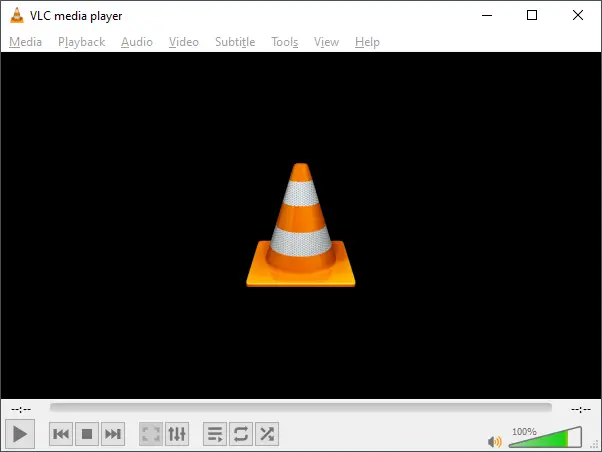
Why the Resume Playback Feature Matters
In today’s fast-paced world, uninterrupted viewing sessions are often a luxury. Whether you’re watching a long movie, catching up on a favorite TV series, or reviewing an instructional video, life can easily interrupt. A phone call, a knock at the door, or the need to take a break can force you to pause your media.
Without a resume feature, you’d have to remember your stopping point or manually scrub through the timeline — which is both frustrating and time-consuming. VLC Media Player solves this problem with a seamless playback resumption feature, so you can jump right back in without effort.
▶ Watch the Resume Playback Feature in Action
How VLC’s Resume Playback Works
When you close a video in VLC and open it again later, you’ll see a simple prompt:
“Do you want to resume playback where you left off?”
If you click Yes, VLC will start the video exactly from your last position. If you choose No, it will play from the beginning. This works across most video file formats supported by VLC, making it ideal for:
- Long videos: Perfect for movies, documentaries, or lengthy tutorials.
- Interrupted viewing: Resume after a power outage, system restart, or app crash.
- Organized watching: Pick up exactly where you left off without bookmarks or manual tracking.
How to Enable Resume Playback in VLC Media Player?
By default, this feature may not be active, but you can turn it on in just a few steps:
Step 1. Open VLC Media Player.
Step 2. Go to Tools > Preferences.
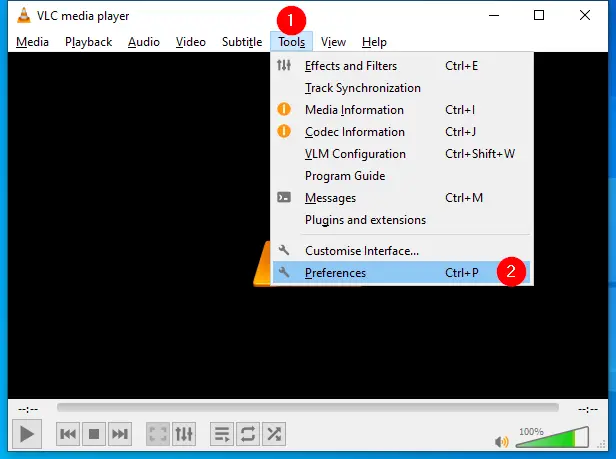
Step 3. Under the Interface tab, find the option labeled “Continue playback?”

Step 4. Choose your preferred setting:
- Always: Automatically resume from the last position.
- Ask: VLC will prompt you each time.
- Never: Always start videos from the beginning.
Step 5. Click Save and restart VLC to apply the changes.
Once enabled, VLC will remember your playback position for any supported file, making it easy to continue your media exactly where you left off.
Benefits Beyond Convenience
- Accessibility: Even beginners can use this feature without learning complex controls.
- Focus: Jump straight back into the content without scanning through the video.
- Flexibility: Works across many file types and platforms, including Windows, Mac, Linux, Android, and iOS.
Advanced Tips for Power Users
- Multiple Devices: Use VLC’s sync tools to resume videos across your laptop, phone, and tablet.
- Custom Behavior: Adjust how often prompts appear or limit resume to specific file types.
- Third-party Plugins: Install add-ons to expand bookmarking and resume capabilities.
Why VLC Stands Out
While other media players offer similar options, VLC’s resume playback is exceptionally reliable and easy to configure. Its open-source nature also means you can enhance it with scripts or plugins — something most closed-source players don’t allow. Whether you’re a casual viewer or a heavy media consumer, VLC continues to be one of the most trusted tools worldwide.
Conclusion
VLC Media Player’s resume playback feature is a simple but essential tool for anyone who values convenience and continuity in their viewing experience. Once activated, it eliminates guesswork, saves time, and keeps you engaged with your media — whether you pause for minutes or days.
The next time you hit pause, you can rest assured that VLC will remember exactly where you stopped. That’s just one more reason why millions of users keep VLC as their go-to media player.
Frequently Asked Questions About VLC Resume Playback
Does VLC remember playback position for all file types?
Most video and audio formats are supported, though some uncommon formats may not store position data perfectly.
Can I make VLC resume playback without asking?
Yes. Set “Continue playback?” to Always in Preferences, and VLC will skip the prompt.
Does this work with audio files?
Yes — it’s useful for podcasts, audiobooks, and long audio recordings.
Will VLC remember my position after a PC restart?
Yes, as long as the resume feature is enabled, VLC will store playback data even after shutting down or restarting.