

In this gearupwindows guide, we’ll introduce you to Win11Debloat—a simple, open-source PowerShell script designed to remove bloatware, disable telemetry, and declutter your Windows system. Compatible with both Windows 10 and Windows 11, it offers quick and effective cleanup without overwhelming complexity. If you’re looking for a modern graphical alternative, you may also want to try RyTuneX, another free tool that optimizes Windows with a GUI approach.
What is Win11Debloat?
Win11Debloat is a free, lightweight PowerShell script created by Raphire that helps you easily remove unwanted pre-installed apps, disable unnecessary telemetry, and clean interface clutter like Bing Search and Copilot. It’s ideal for users who want to optimize their Windows PC with minimal effort.
Key Features
- App Removal: Uninstalls unwanted UWP and built-in Windows apps.
- Privacy Tweaks: Disables telemetry, Bing in search results, Copilot prompts, and background tracking.
- Custom Profiles: Offers default mode for one-click cleanup plus optional flags for automated or tailored runs.
- Enterprise‑Ready: Includes Audit mode, multi-user deployment, and silent execution—perfect for IT professionals.
- Safe Reversibility: Removed apps can be reinstalled via the Microsoft Store, and most changes can be reverted.
Why Use Win11Debloat?
This script is trusted by over 22,000 GitHub users and delivers powerful cleanup without risking essential system components. It’s perfect for users who want to:
- Remove bloatware and unnecessary Microsoft apps
- Disable telemetry, tracking, and Copilot integrations
- Declutter the Start menu and Windows Search
- Use an easy one-command script with options to undo changes
How to Install & Run Win11Debloat
Quick Method (Recommended)
Open PowerShell as an administrator and run:
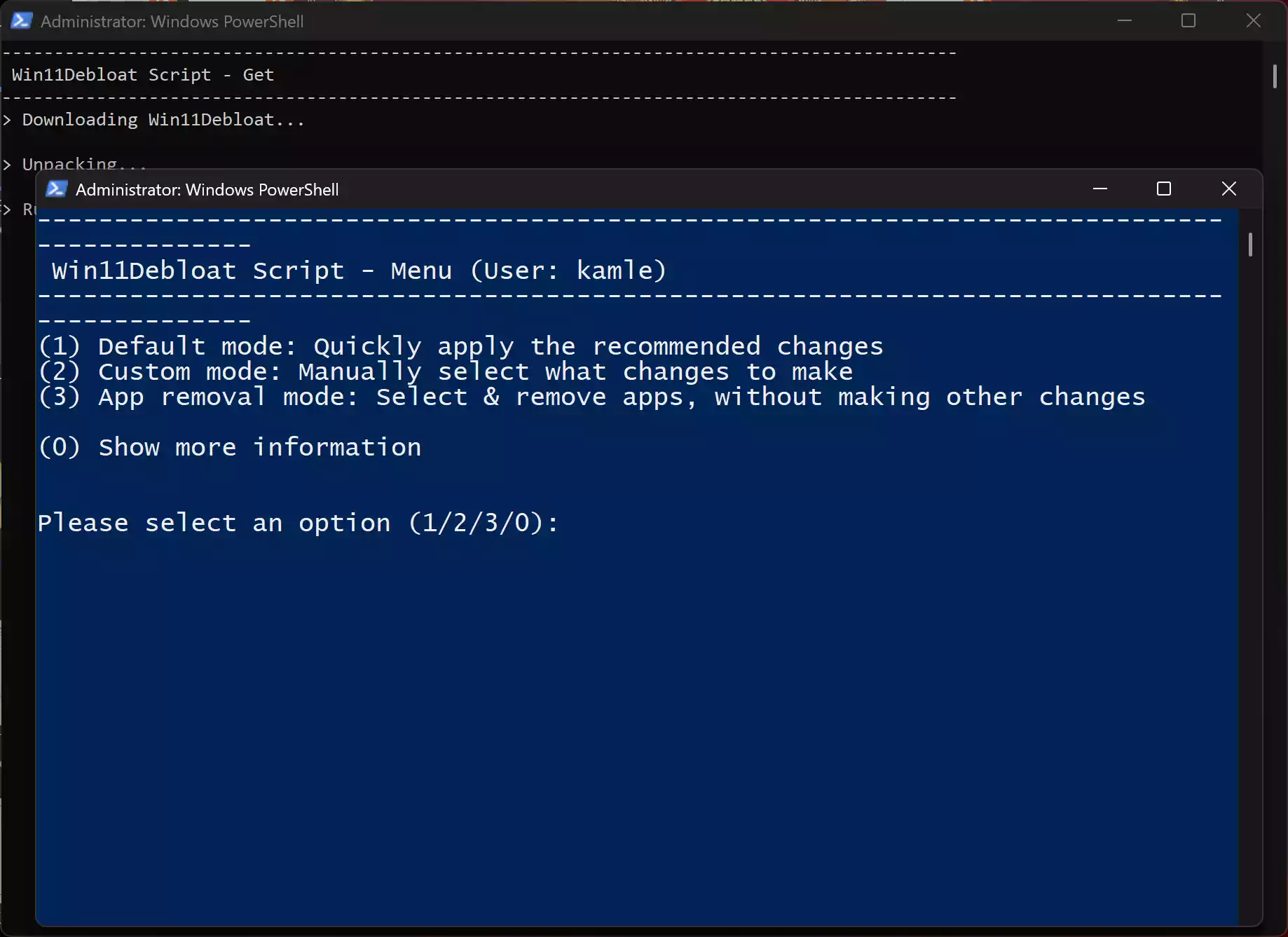
& ([scriptblock]::Create((irm "https://debloat.raphi.re/")))The script downloads and runs automatically. Just follow the on-screen prompts.
Manual Method
- Download the ZIP file from the Win11Debloat GitHub repo.
- Extract the folder and run Run.bat or open Win11Debloat.ps1 in PowerShell.
- If blocked by policy, enable scripts temporarily with:
Set-ExecutionPolicy Unrestricted -Scope Process -Force
Usage Options
- Select the cleanup mode: default or custom.
- Choose to remove apps for current user or all users.
- Use flags like
-RunDefaultsfor silent or scheduled operation. - The default profile skips developer and gaming tools to avoid breaking workflows.
Tips & Best Practices
- Create a System Restore Point before running the script (learn how).
- Carefully review the cleanup list before confirming.
- Start with default mode; advanced users can explore custom flags.
- Need a removed app back? Reinstall it via the Microsoft Store.
- Looking for more privacy tools? Check out our guide on O&O ShutUp10++.
Conclusion
Win11Debloat provides a safe, efficient, and user-friendly way to clean up Windows 10 and 11 systems. It balances strong automation with safety measures, making it a reliable option for both beginners and power users.
Get started with the default cleanup, explore advanced options at your own pace, and find the full script and documentation on the official GitHub page.