

If you want a quick, reliable way to personalize the sign-in experience across older Microsoft operating systems, Windows Logon Screen Changer is the easiest tool to change the login screen background on Windows 7, Windows 8/8.1, and Windows 10. Below you’ll find what it does, why it’s safe to use, and simple instructions using your own images with the app’s built-in backup.
With the introduction of Windows 7, users could change the login screen background without third-party tools. This flexibility continued in Windows 8.1 and Windows 10. For earlier versions like XP and Vista, a third-party utility was required—exactly the gap that tools like Windows Logon Screen Changer filled.
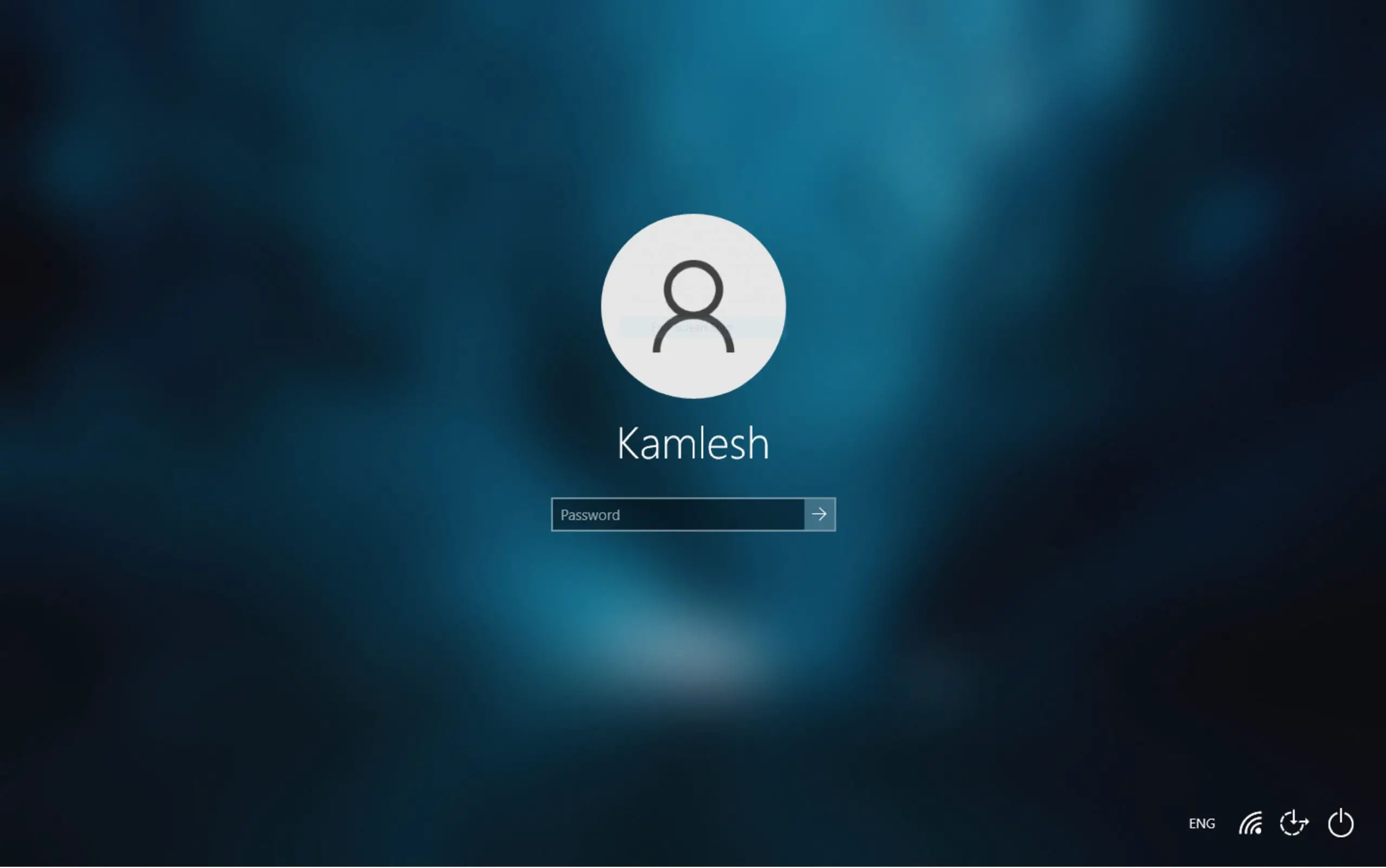
What Is Windows Logon Screen Changer?
Windows Logon Screen Changer is a tiny (<1 MB), free utility that switches your system’s default login/lock screen image to any picture you choose. It also creates an automatic backup so you can revert with a single click.
Why Use This Tool?
- Fast & lightweight — small download, no complex setup.
- Automatic resizing — large images are resized to avoid slowing the sign-in process.
- One-click backup & restore — easily undo changes if you don’t like the result.
- Works offline — no internet required after download.
Compatibility & Features
- Windows 10 — change both the lock screen and logon background, with automatic image resizing and quick revert.
- Windows 8 / 8.1 — change the lock screen and logon background, adjust accent colors, and back them up for restoration.
- Windows 7 — simple “Change Logon Screen” option with one-click backup and restore.
How to Use Windows Logon Screen Changer
Windows 10 Login Screen Background Changer
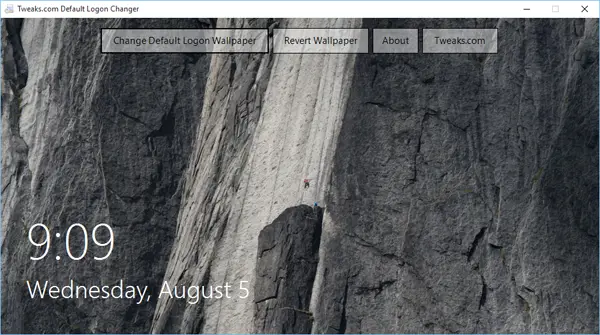
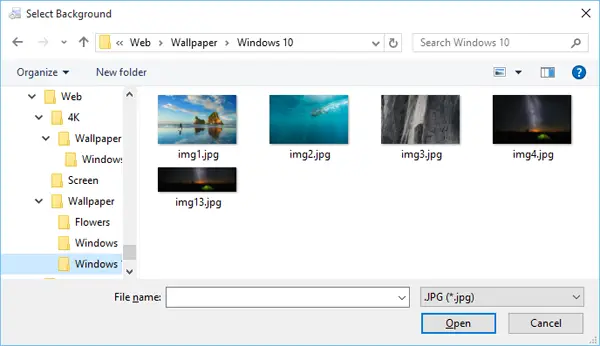
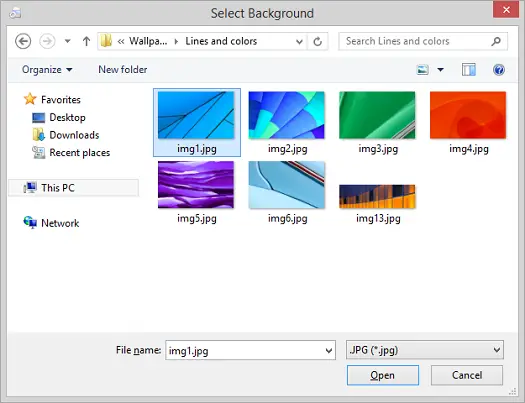
Step 1. Open the app and click Change Default Logon Wallpaper, then choose an image from your PC.
Step 2. Log out once to preview the result. If you want to switch back, click Revert Wallpaper.
Step 3. Prefer a built-in method instead of a tool? Follow this guide: Change the Login Screen Background image on Windows 10.
Windows 8 / 8.1 Login Screen Background Changer
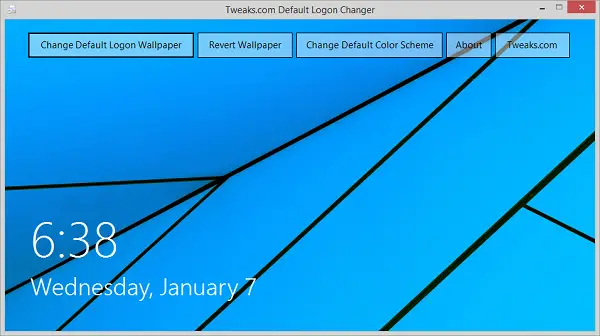
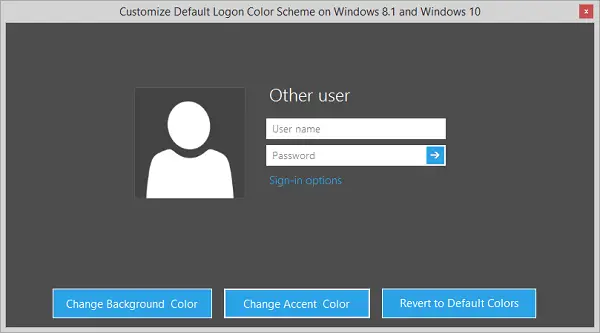
Step 1. Run the app and select Change Default Logon Wallpaper to pick your picture.
Step 2. To tweak colors, choose Change Default Color. Use Change Default Color Scheme to save and restore your current scheme.
Windows 7 Login Screen Background Changer
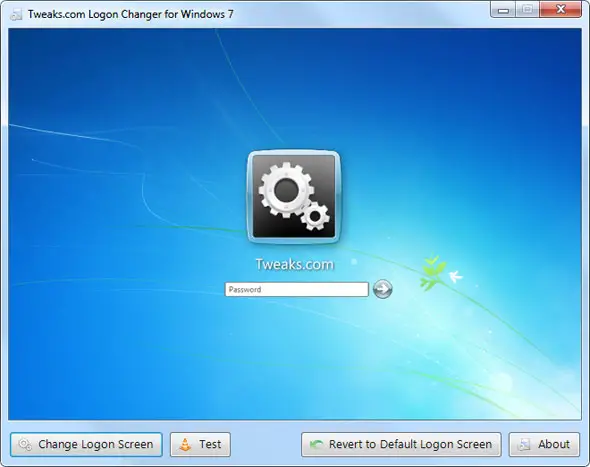
Step 1. Launch the utility and click Change Logon Screen.
Step 2. Choose your preferred image. A backup is created automatically so you can revert anytime.
Pros and Considerations
- Pros: Very small download, quick changes, automatic resizing, easy restore.
- Considerations: Not designed for Windows 11; image quality depends on the source picture; enterprise policies may block changes on managed PCs.
Download Windows Logon Screen Changer
Get it from the official page: Download Windows Logon Screen Changer.
Tips for Best Results
- Use a high-resolution image (equal to or larger than your display resolution).
- Prefer landscape photos to avoid cropping.
- Keep file size moderate; the app resizes, but smaller files apply faster.
- Remember, you can always revert to your default background.
FAQs
Is Windows Logon Screen Changer free?
Yes, it’s completely freeware and under 1 MB in size.
Will changing the login background slow down my PC?
No. The tool resizes large images automatically to keep sign-in quick.
Can I undo the changes?
Yes. Use the built-in Revert Wallpaper (and color scheme restore on Windows 8/8.1) to return to the original look.
Does it work on Windows 11?
This utility targets Windows 7, 8/8.1, and 10. For Windows 11 customization, explore our Windows 11 articles.
How do I take a screenshot of the Windows 10 login screen?
Use our step-by-step tutorial here: How to take a screenshot of the Windows 10 Login Screen.
Conclusion
Windows Logon Screen Changer is a safe, fast way to personalize the sign-in screen on Windows 7, 8/8.1, and 10. With automatic resizing, one-click backup, and simple controls, it’s the easiest route to a custom login background. Windows 10 users can also follow the official method shared above for a tool-free approach.