

RidNacs is a free disk space analyzer for Windows that helps you instantly see which folders and files are using the most space. Its clean, familiar interface makes it easy to drill down into large directories, sort results, and decide what to keep or remove.
What is RidNacs?
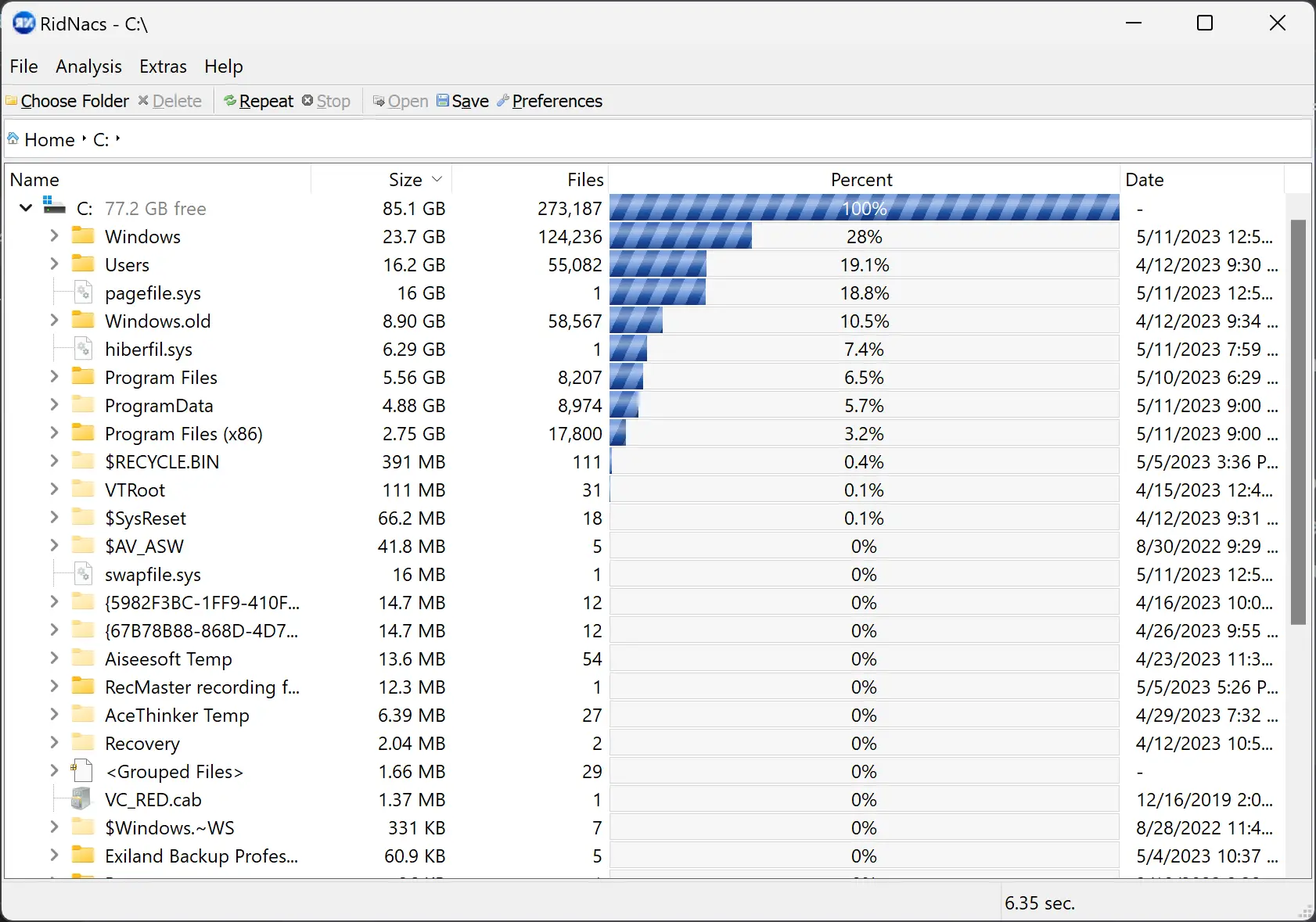
RidNacs scans any folder or entire drive and produces a detailed, sortable report of your storage usage. You can expand folders to reveal subfolders, view sizes in your preferred units, and export results for later review. It’s lightweight, fast, and ideal for both quick spot-checks and deeper cleanups.
Why Would a Beginner Use RidNacs?
If your PC keeps warning about low storage, RidNacs gives you a clear picture of where space is going—without complex charts or settings. You open a location, click Scan, and within moments you’ll know which folders are the biggest culprits. That clarity makes cleanup decisions much easier.
Main Features of RidNacs
- Whole-drive or folder scans to analyze exactly where space is used.
- Sortable, tabular view so you can quickly identify large folders and files.
- Multi-drive support to compare different disks or partitions.
- Exclude filters to ignore specific folders or file types.
- Custom size units (KB/MB/GB) and export options (e.g., CSV/HTML) for auditing and sharing.
- Saved reports to track storage changes over time.
- Multi-language UI for global accessibility.
How to Use RidNacs
Step 1. Install RidNacs and launch it. You’ll see a simple window with a location chooser.
Step 2. Click Browse and select a folder, drive (like C:\), or even an external disk you want to analyze.
Step 3. Double-click on the drive to scan. RidNacs will calculate sizes and present a table you can sort by name or size.
Step 4. Expand folders to drill down. When you find a large folder, open it in File Explorer to remove or move unneeded items.
Step 5. To analyze only personal data, start the scan from C:\Users\ (Downloads, Documents, Pictures) instead of system folders like Windows or Program Files. You can also right-click any target folder in File Explorer and choose Analyze Disk Space Usage with RidNacs to focus the scan precisely.
Step 6. Export or save the report if you want to compare storage usage over time or share it with your team.
Safe Use Tips for Beginners
- Delete only files and folders you recognize. When unsure, move items to an external drive first instead of deleting.
- Avoid touching system folders unless you’re certain; many large Windows files are required.
- Combine RidNacs with built-in cleanup like Storage Sense to automate routine junk removal over time. Learn how to use Storage Sense.
When RidNacs Can Help You
RidNacs shines when your drive is nearly full, your backups take too long, or you’re migrating to a smaller SSD and need to trim data. If you prefer alternative interfaces, you can also explore treemap-style or classic analyzers such as HDGraph, SpaceSniffer, WinDirStat, TreeSize Free, WizTree, JDiskReport, FolderSizes, and Folder Size Explorer—each with its own strengths and layout.
Pros and Considerations
- Pros: Fast scans, simple interface, flexible exports, great for comparing drives and keeping reports.
- Considerations: Tabular view is clear but less visual than treemap tools; take care when deleting from system directories.
Download RidNacs
You can download the latest version from the official RidNacs website.
Frequently Asked Questions About RidNacs
Is RidNacs really free?
Yes. It’s free to download and use for analyzing disk space on Windows.
Does RidNacs delete files for me?
RidNacs reports sizes; you manage deletion in File Explorer. This keeps the tool simple and safe for beginners.
Can I scan external or network drives?
Yes, you can scan any mounted drive or folder you have access to.
What if I need a more visual view?
Try a treemap-style analyzer like HDGraph or SpaceSniffer for a visual map of your storage while keeping RidNacs for quick, sortable lists.
Conclusion
RidNacs is a straightforward, powerful disk space analyzer for Windows. With quick scans, clear tables, filters, and exportable reports, it makes storage cleanup decisions easy—whether you’re freeing space for an update or preparing to clone a smaller SSD.