

In this gearupwindows guide, we’ll show you how to use BatteryInfoView, a free and portable tool from NirSoft that gives you detailed insights about your laptop battery. Whether you’re troubleshooting battery issues or simply want to monitor its health, this tool provides all the vital information you need in one place.
What Is BatteryInfoView?
BatteryInfoView is a lightweight utility designed to display extensive information about your laptop’s battery. Developed by Nir Sofer, this tool works on Windows laptops and helps users monitor battery status, wear level, capacity, and charging cycles in real-time.
Since it is portable, you don’t need to install anything. Just run the executable, and you’re ready to analyze your battery’s condition.
Key Features of BatteryInfoView
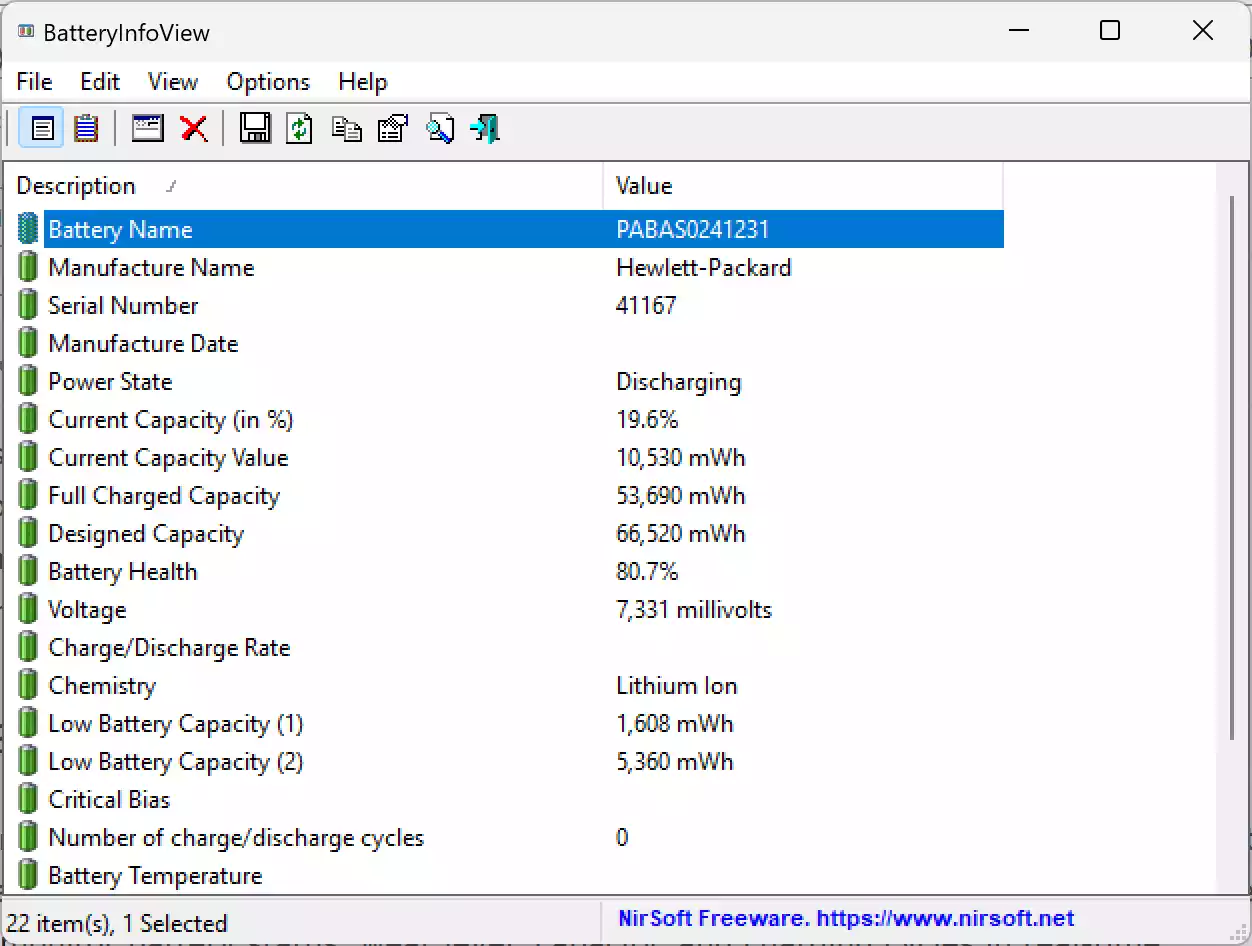
- Displays battery name, manufacturer, serial number, chemistry, and design capacity
- Monitors full charge capacity and compares it with original design values
- Shows charging/discharging rate, voltage, and battery temperature
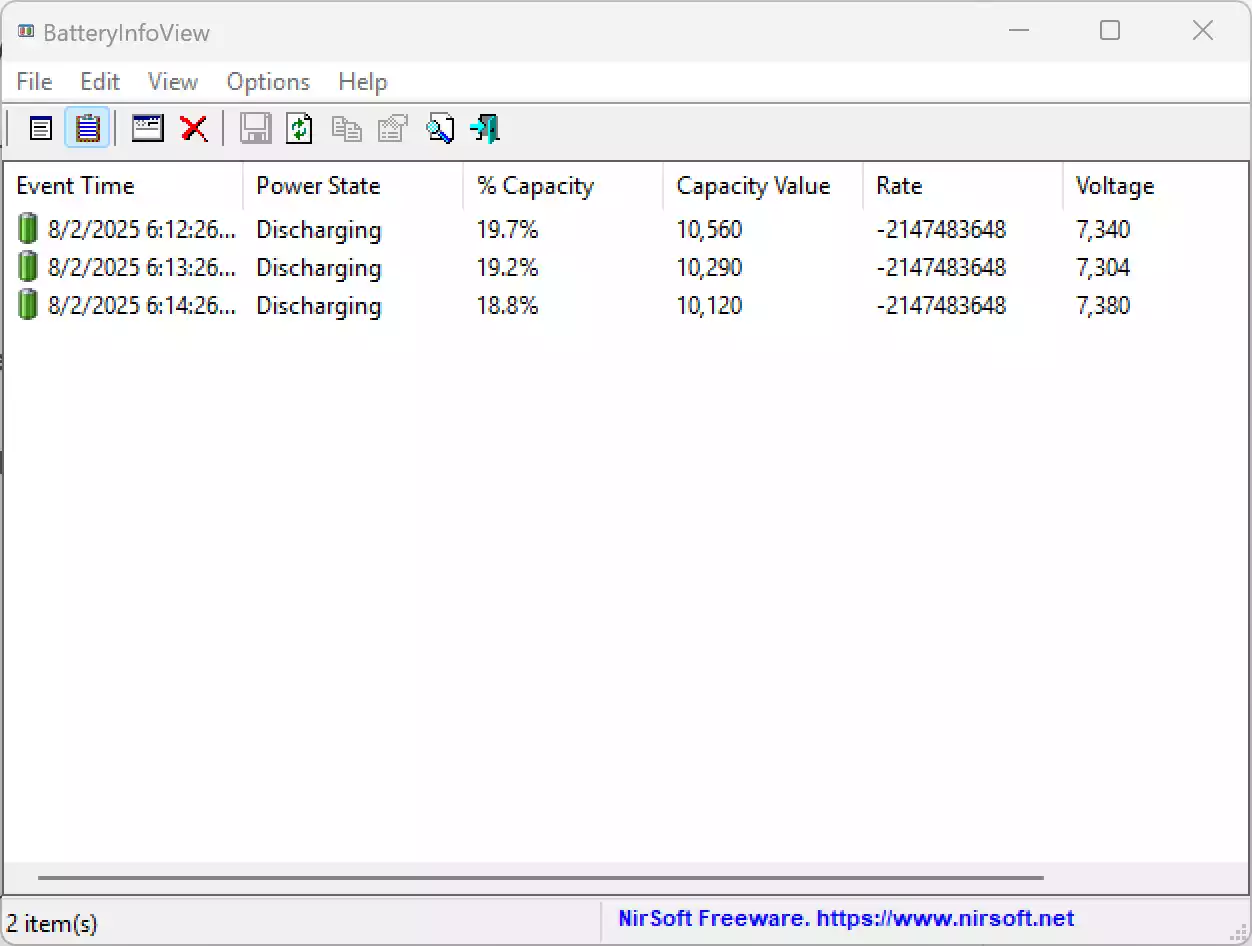
- Includes a log mode to track battery status over time
- Supports real-time updates
- Works without installation – fully portable
How to Use BatteryInfoView?
Step 1. Visit the official NirSoft page and download BatteryInfoView.
Step 2. Extract the ZIP file using the built-in Windows extraction or any archive tool.
Step 3. Double-click the BatteryInfoView.exe file to launch the program.
Step 4. It will instantly show detailed battery data in a single window.
Step 5. Press F8 to switch to log mode and view battery history over time.
Understanding the Battery Parameters
Here are a few important metrics to focus on:
- Designed Capacity: The original battery capacity when new.
- Full Charged Capacity: Current maximum charge capacity.
- Battery Wear Level: Percentage of capacity lost over time.
- Charge/Discharge Rate: Measured in mW; shows how fast your battery is charging or depleting.
Why Use BatteryInfoView?
If your laptop battery drains too quickly or doesn’t hold a full charge, this tool helps you assess whether it’s time for a replacement. It’s also useful for technicians and power users who want to monitor battery behavior during use.
Related Tools for System Monitoring
While BatteryInfoView focuses on battery diagnostics, you might also be interested in tools that monitor your PC’s thermal performance. You can monitor fan speeds and temperatures with SpeedFan or even reduce CPU heat and noise using Camomile.
Conclusion
BatteryInfoView is a must-have utility for anyone who uses a laptop and wants to keep their battery in check. It’s free, portable, and packed with features that help you monitor and maintain your system’s battery health with ease.