

Your hard drive or SSD is one of the most important parts of your PC. If it begins to fail, you could lose Windows, your apps, and years of valuable files. The good news is that you don’t need to spend money to monitor your storage device. There are several free tools that help you check HDD/SSD health on Windows 11 and 10, so you can act before problems become serious.
What Is Drive Health and Why It Matters
Modern drives use S.M.A.R.T. (Self-Monitoring, Analysis and Reporting Technology) to track performance and reliability. This includes metrics like temperature, reallocated sectors, and read/write errors. By checking your drive health regularly, you can catch early warning signs and back up your data before failure occurs.
Signs of a Failing Drive
- Clicking or grinding noises from hard drives.
- Frequent freezes, blue screens, or crashes during disk activity.
- Very slow performance when copying or opening files.
- File corruption, frequent read/write errors, or disappearing data.
- Windows notifications about drive errors.
Built-In and Vendor Tools
CHKDSK (Windows)

Windows includes CHKDSK, a utility that scans for file system errors and marks bad sectors. It is useful when you notice corrupted files or after an improper shutdown. You can learn more here: How to Use CHKDSK in Windows 11/10.
- Pros: Built into Windows, no extra download, fixes common issues.
- Considerations: Limited to file system and sector marking, not detailed SMART data.
- Best for: Quick repairs and basic drive checks.
Windows SSD Health Check
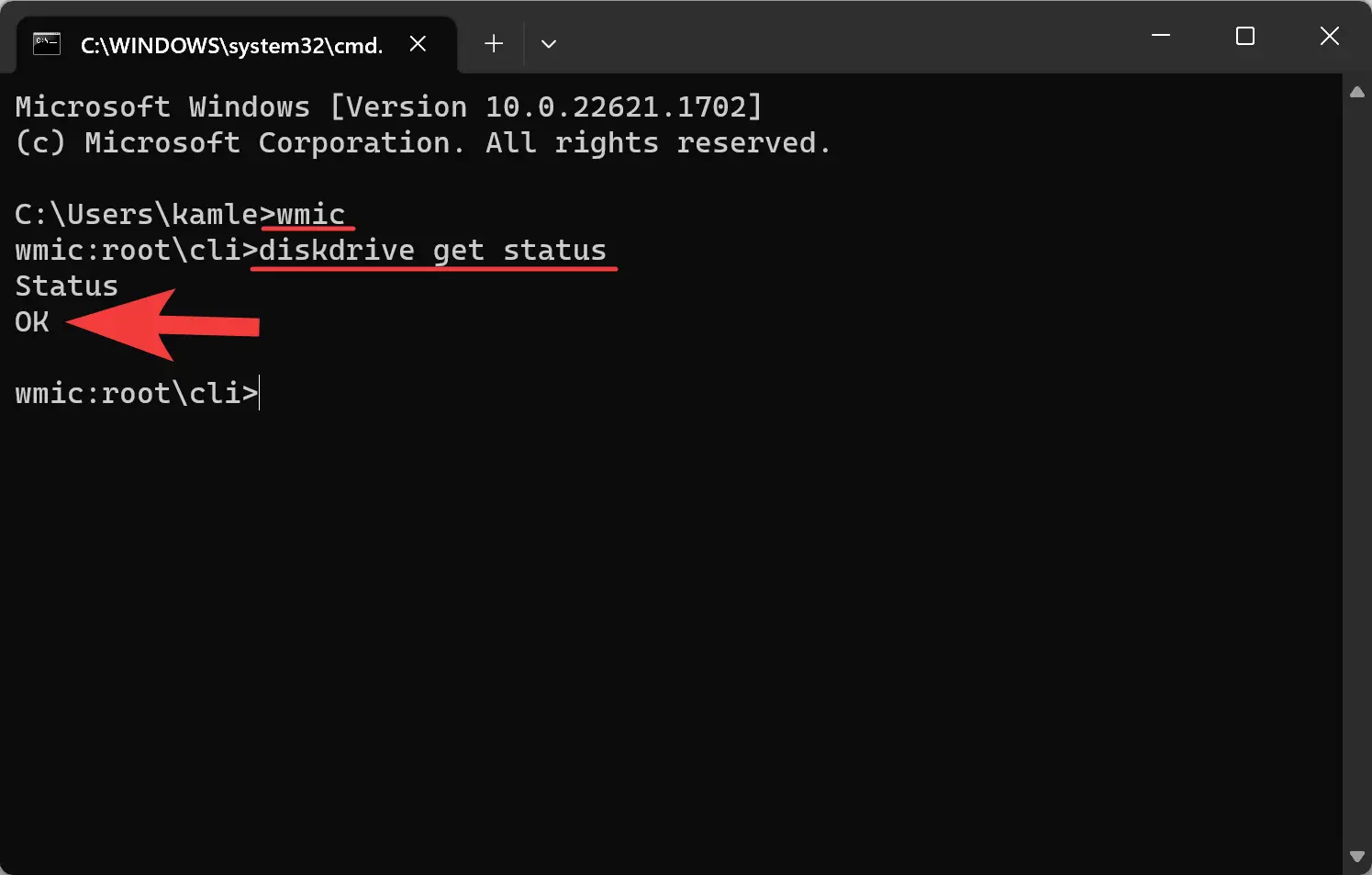
Windows also provides a simple way to check SSD health and temperature through Settings or PowerShell. Guides are available here: Check SSD Health and Check SSD Temperature.
- Pros: Built-in, no third-party tool needed, good for quick checks.
- Considerations: Information varies by drive and driver support.
- Best for: Fast health/temperature monitoring of SSDs.
Seagate SeaTools
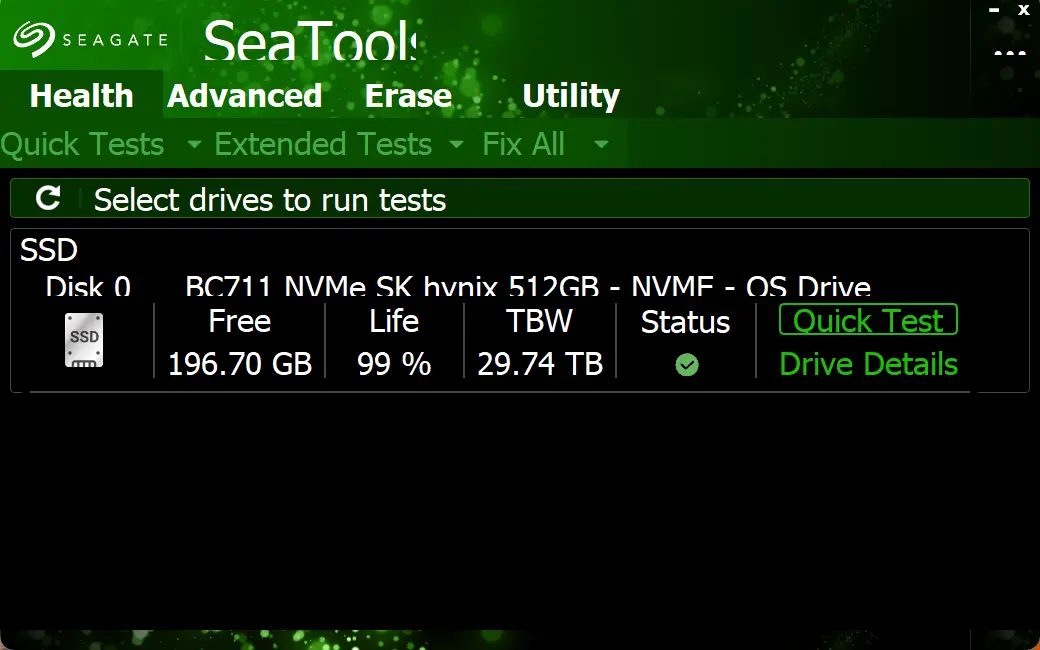
Seagate SeaTools works with many brands, not just Seagate. It runs short and long tests to verify drive condition and can attempt basic repairs.
- Pros: Simple, free, compatible with many HDDs and SSDs.
- Considerations: Limited detail compared to advanced diagnostics.
- Best for: Quick hardware checks and confirmation of suspected issues.
Free Third-Party Tools
Victoria HDD/SSD Utility
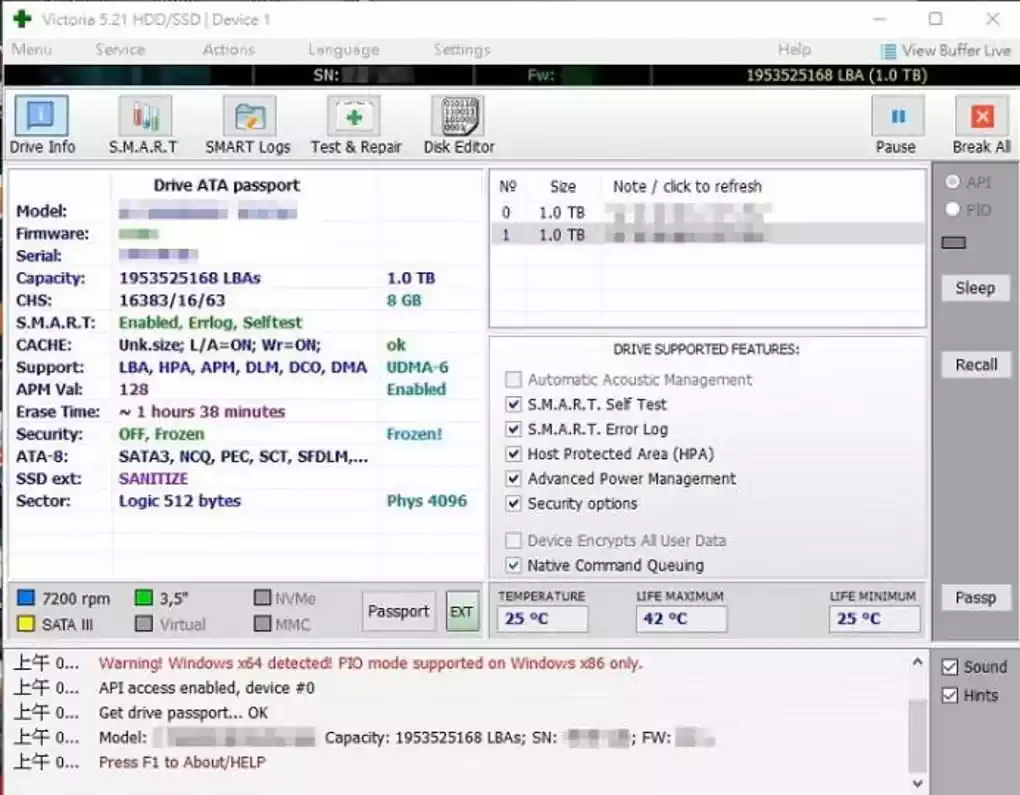
Victoria is a powerful freeware tool for HDD and SSD diagnostics. It provides advanced SMART analysis and surface scans to locate weak or bad sectors.
- Pros: In-depth testing, sector scanning, and detailed reports.
- Considerations: Technical interface, learning curve for beginners.
- Best for: Advanced users who want full control over diagnostics.
HDDScan
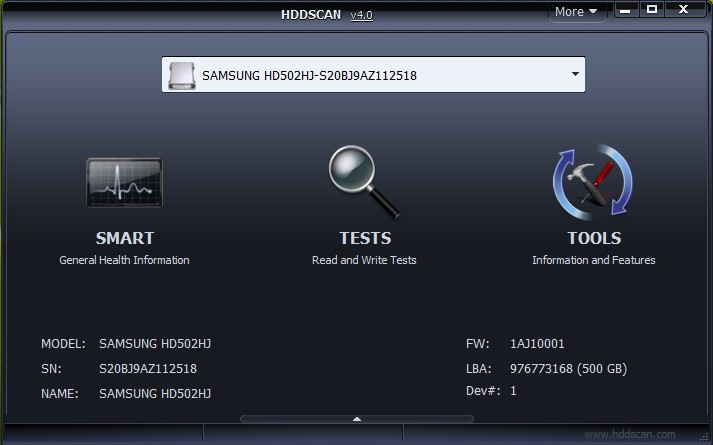
HDDScan is a portable utility that displays SMART attributes, checks temperature, and runs surface tests with a visual map.
- Pros: Free, portable, simple surface testing.
- Considerations: Outdated interface, fewer advanced functions.
- Best for: Quick scans and portable troubleshooting.
GSmartControl
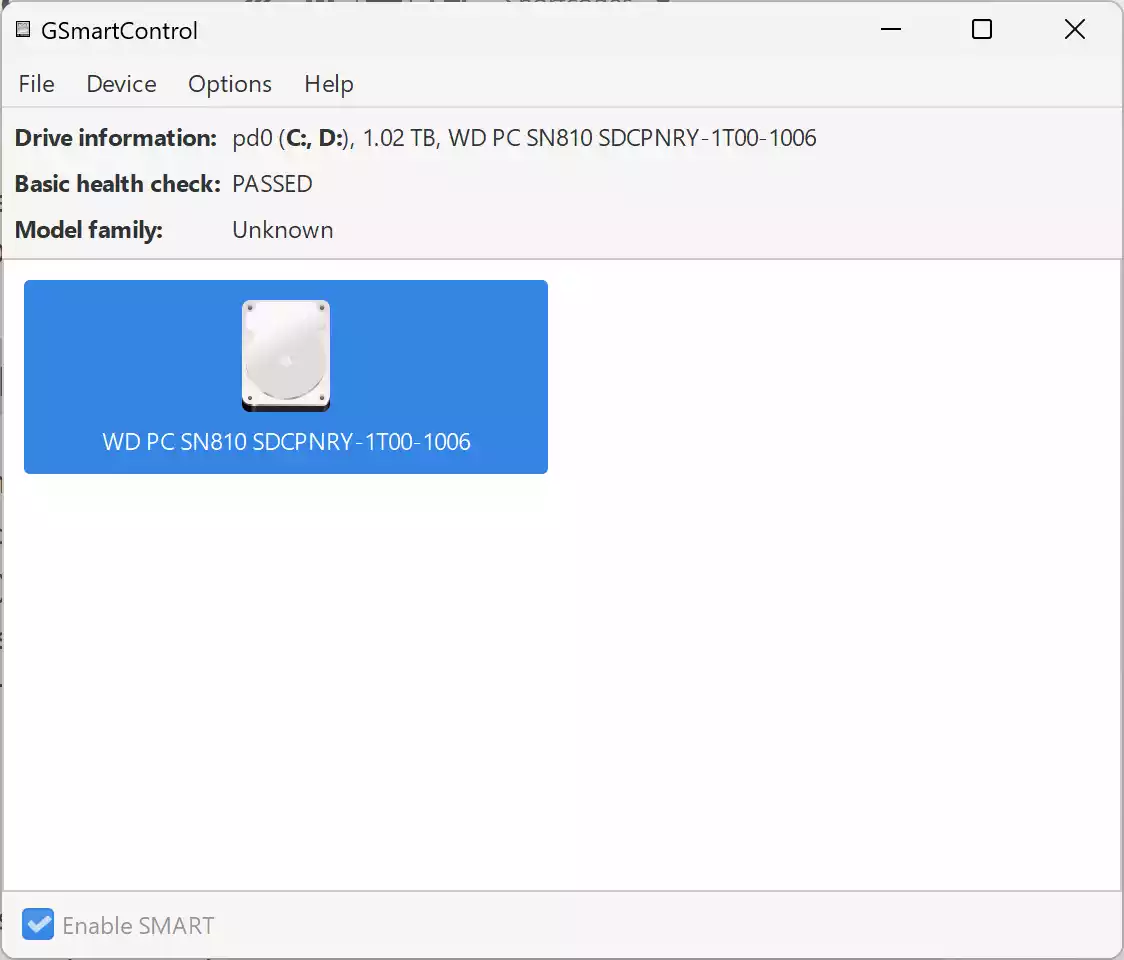
GSmartControl is an open-source tool that reads SMART attributes and allows built-in drive self-tests.
- Pros: Free and open source, reliable SMART reporting, supports self-tests.
- Considerations: Technical look, no surface map visualization.
- Best for: Accurate SMART analysis across different drive brands.
PassMark DiskCheckup
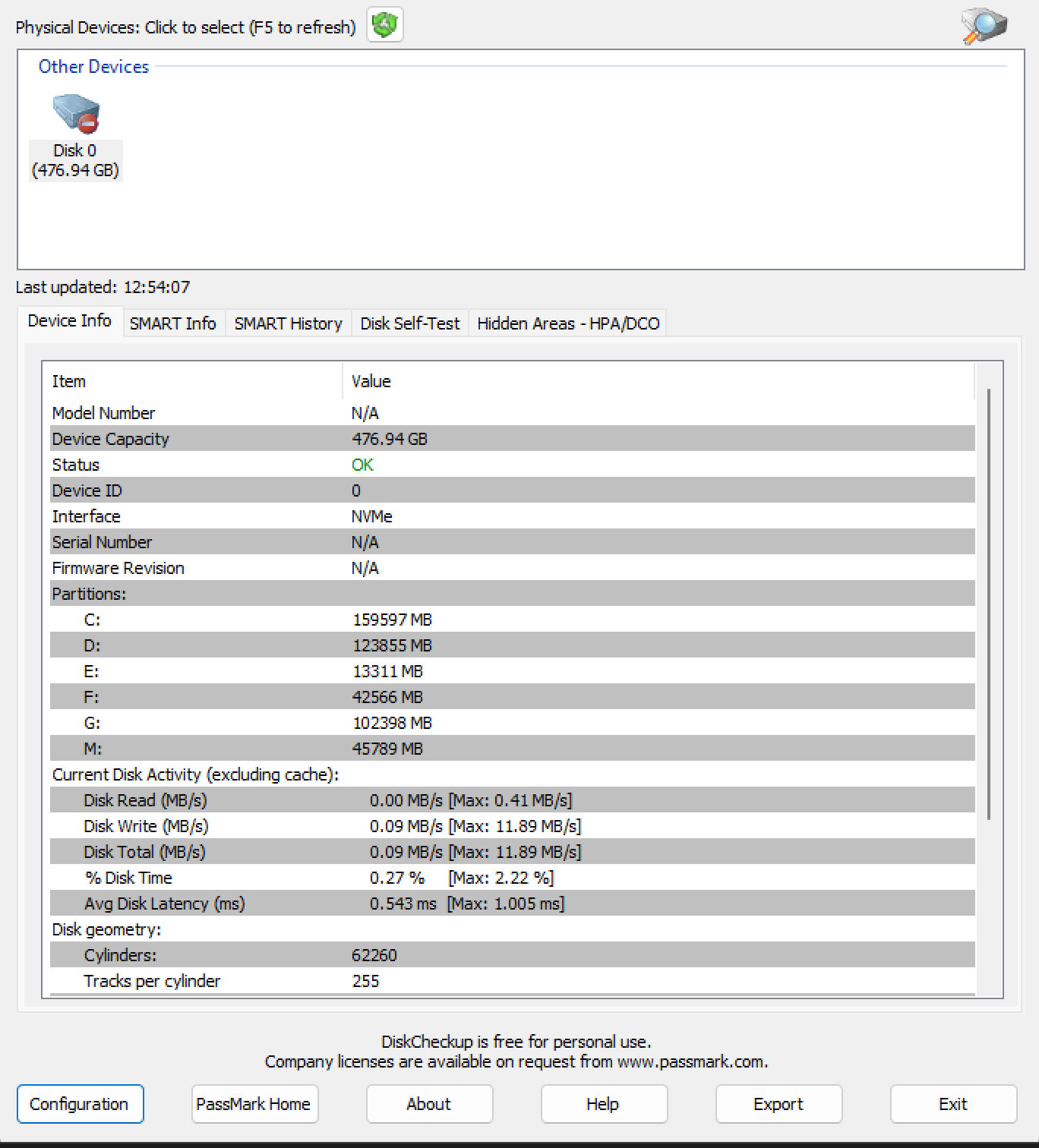
DiskCheckup lets you track SMART attributes and set alerts if values exceed safe levels.
- Pros: Lightweight, beginner-friendly, customizable alerts.
- Considerations: Works only on drives with SMART support.
- Best for: Continuous monitoring on desktops and laptops.
Macrorit Disk Scanner
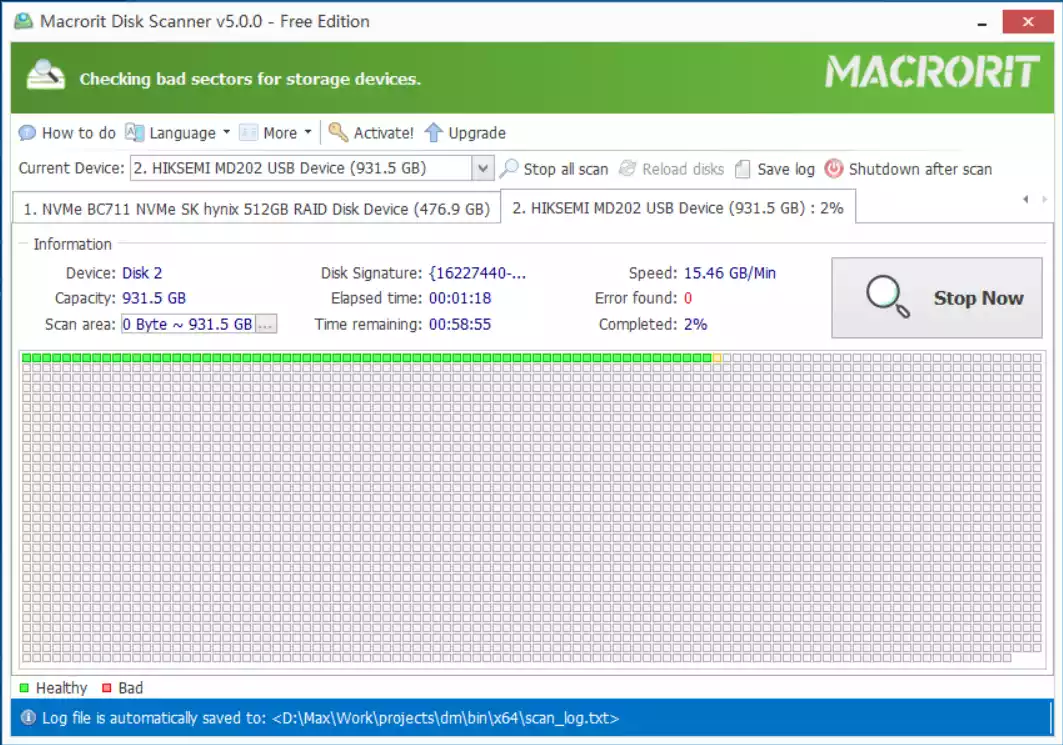
Macrorit Disk Scanner checks for bad sectors and shows results in a clear visual map. It’s lightweight and comes in a portable version.
- Pros: Easy to use, fast surface scan, visual feedback.
- Considerations: Focused on sector scanning, no full SMART reporting.
- Best for: Quick detection of bad sectors.
Ariolic Disk Scanner

Ariolic Disk Scanner is a lightweight utility designed to quickly check your drives for read errors. It does not attempt repairs but highlights problem sectors, making it easy to identify if a drive is starting to fail.
- Pros: Very small, portable, quick surface check.
- Considerations: Detection only, no repair or advanced SMART features.
- Best for: Fast error detection on USB drives, HDDs, or SSDs.
How Beginners Can Use These Tools Safely
Step 1. Start with a quick SMART check using Windows or GSmartControl.
Step 2. If warnings appear, run a surface test with Victoria, HDDScan, or Macrorit.
Step 3. Use CHKDSK if Windows reports file system errors.
Step 4. Back up your data immediately if any tool shows issues.
Step 5. Replace the drive if errors keep increasing over time.
When to Replace Your Drive
A healthy drive’s SMART values remain stable. If you see increasing reallocated sectors, pending blocks, or consistent read errors, the drive is failing. At this point, it’s best to back up and migrate to a new HDD or SSD.
Frequently Asked Questions
Do these tools repair bad sectors?
No. They only detect or mark them. Physical damage cannot be repaired; replacement is the only safe option.
How often should I check drive health?
Every few months, or sooner if you notice slowdowns, noises, or Windows warnings.
Which tool is best for beginners?
Windows SSD Health for quick checks, GSmartControl for SMART data, and HDDScan or Macrorit for surface scans.
Do SeaTools work only with Seagate drives?
No, they work with many brands, though best optimized for Seagate models.
Comparison of Free Drive Health Tools
If you only want a quick overview without installing anything, Windows’ built-in CHKDSK and SSD health checks are the easiest starting points. For those who need a deeper look at S.M.A.R.T. attributes, GSmartControl and PassMark DiskCheckup are excellent choices, with the latter being simpler for beginners thanks to its alerts. If your main concern is finding physical bad sectors, Macrorit Disk Scanner or HDDScan will give you a clear visual map of problem areas. Advanced users who want full diagnostics and surface testing usually prefer Victoria, though its interface may be intimidating for newcomers. Finally, vendor tools like Seagate SeaTools are useful when you want a straightforward pass/fail test on almost any drive, especially for warranty checks. In short, beginners should start with Windows tools, GSmartControl, or HDDScan, while power users may prefer Victoria or SeaTools for advanced analysis.
Conclusion
Checking your drive health regularly is one of the easiest ways to prevent data loss. Use a mix of SMART checks and surface scans to spot issues early. With these free tools—built-in and third-party—you can monitor HDDs and SSDs on Windows 11/10 without spending a rupee, and replace a failing drive before it takes your data with it.