

If you’re looking to create a bootable USB/DVD for Windows 10 from an ISO file, there are a few free tools available that you can use. The Windows USB/DVD Download Tool and ISO2Disc are both reliable options that allow you to create a bootable USB drive or even a Windows To Go drive.
Backing up your Windows 10 PC’s drivers is also important to ensure that you can easily restore them if needed. DriverBackup is a portable utility that lets you back up your drivers quickly and easily.
When it comes to backing up important data, AOMEI Backupper is a top choice for many users. This free software is one of the best backup and restoration tools available for Windows PCs. Not only does it allow you to back up your data, but it also lets you clone disks/partitions for desktop computers and laptops running Windows 11, 10, 8.1, 8, 7, Vista, and XP (both 32-bit and 64-bit editions). With its simple interface, AOMEI Backupper is easy to use and free to download.
How to use AOMEI Backupper Free?
Here’s how you can use AOMEI Backupper:
Step 1. Download, install, and open the latest version of AOMEI Backupper Standard Edition.
Step 2. During installation, skip the offer for the Pro version and continue with the rest of the options.
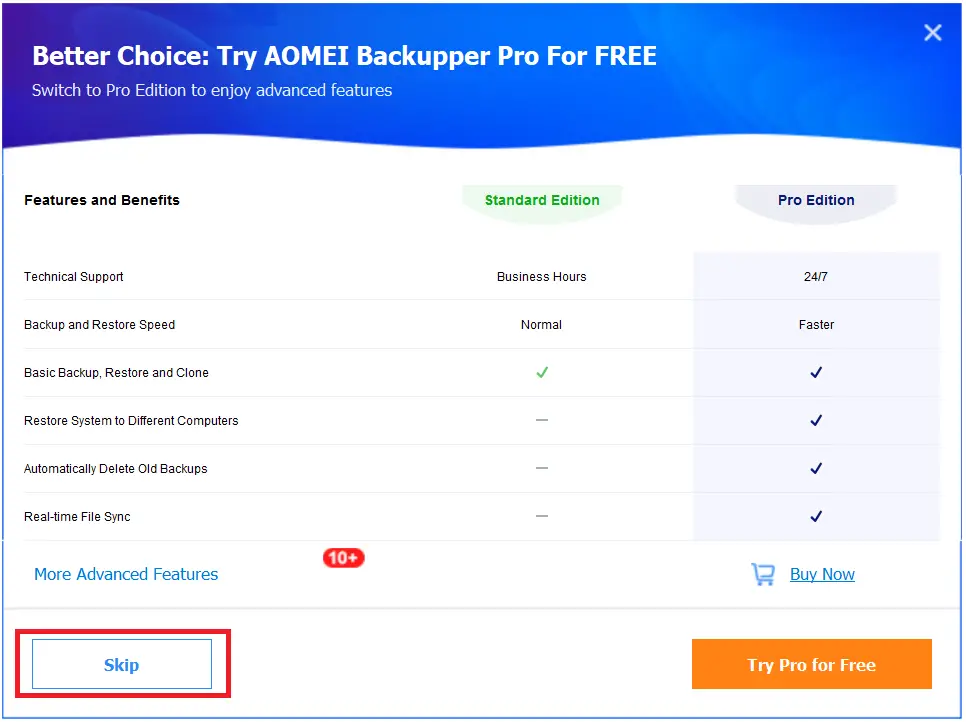
Step 3. Once the installation is completed, launch AOMEI Backupper from the desktop shortcut.
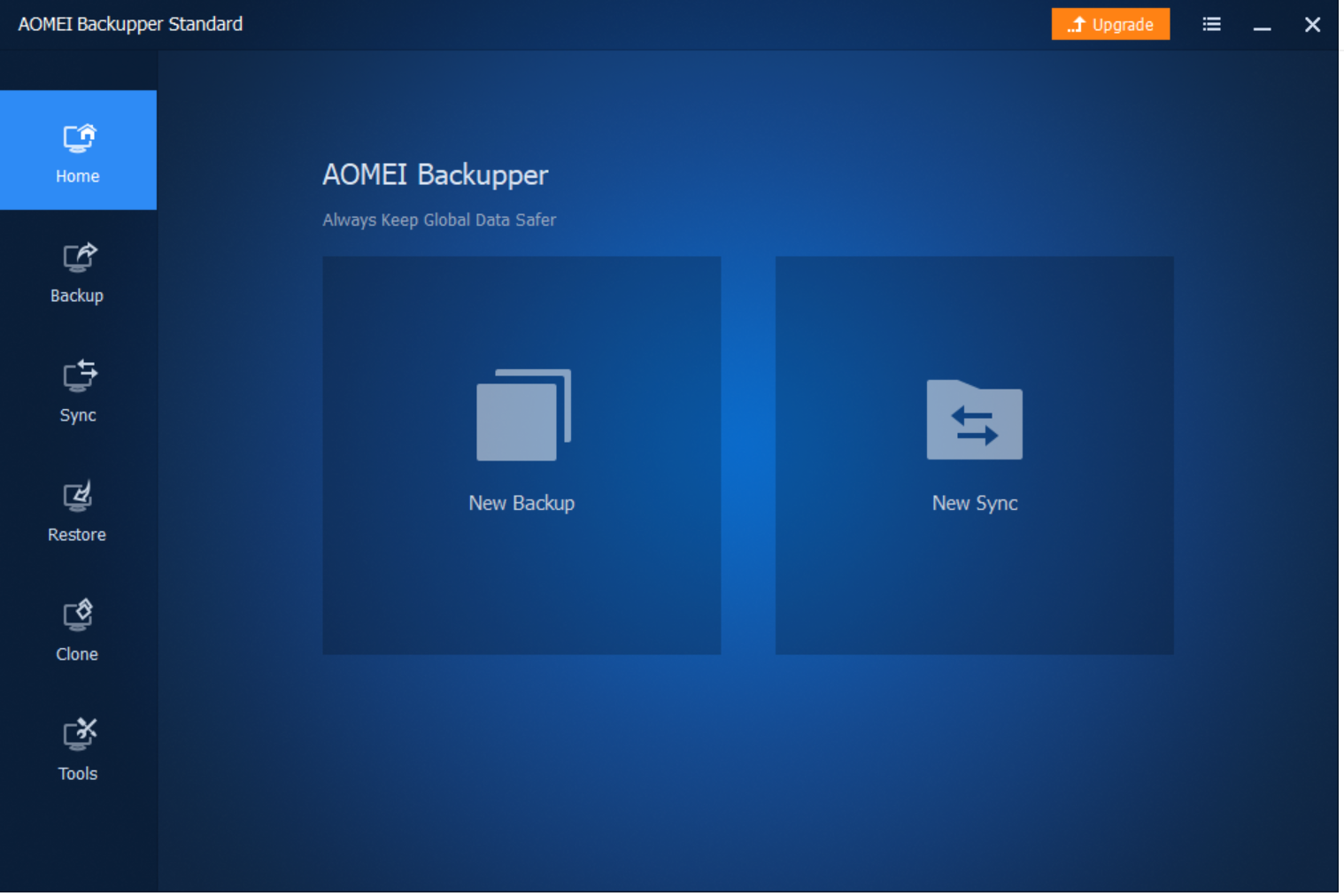
Step 4. AOMEI Backupper offers two starting options, New Backup and New Sync. If you have not taken any backup yet, select New Backup. It offers several choices, such as System Backup, AOMEI OneKey Recovery, Disk Backup, Partition Backup, and File Backup.
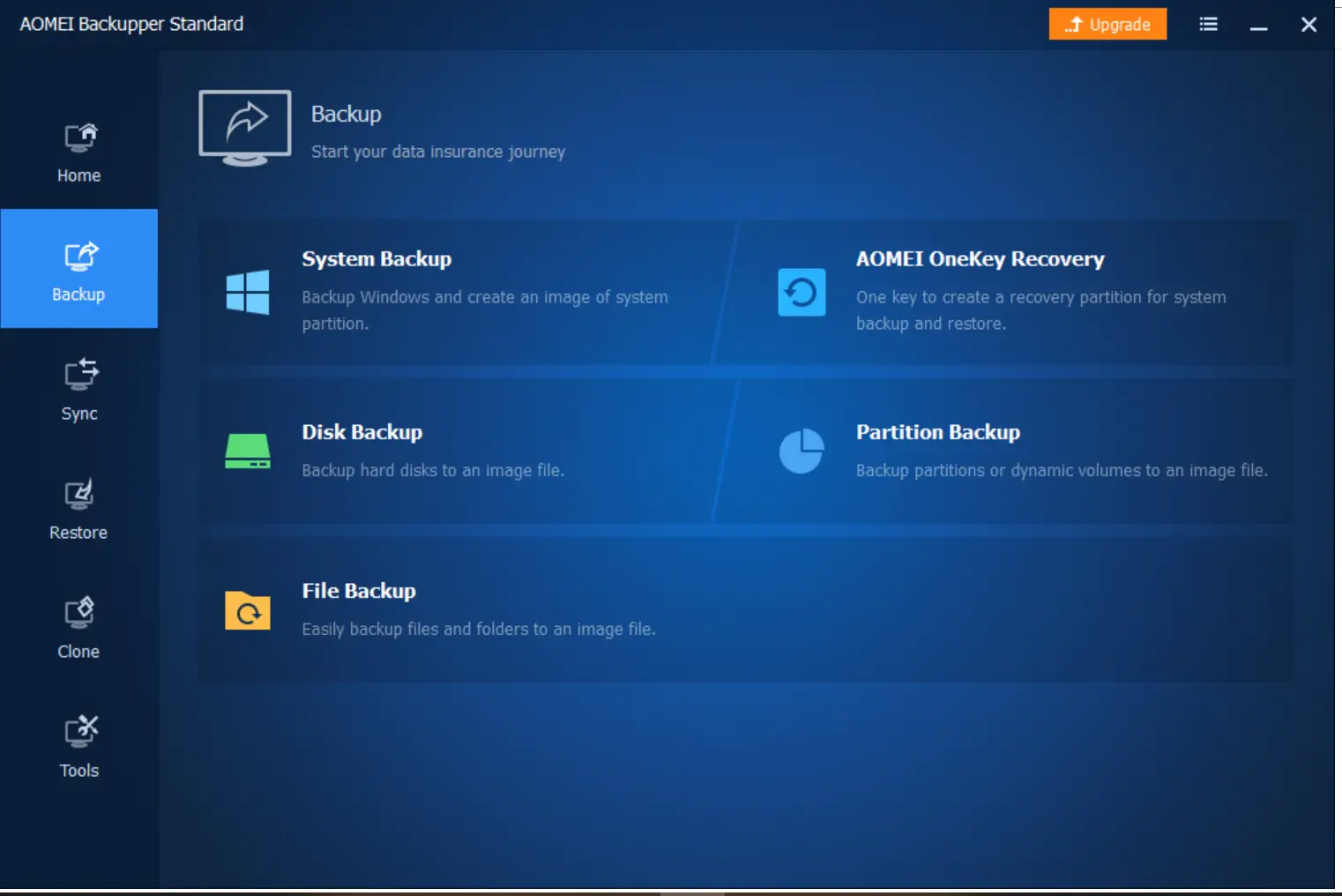
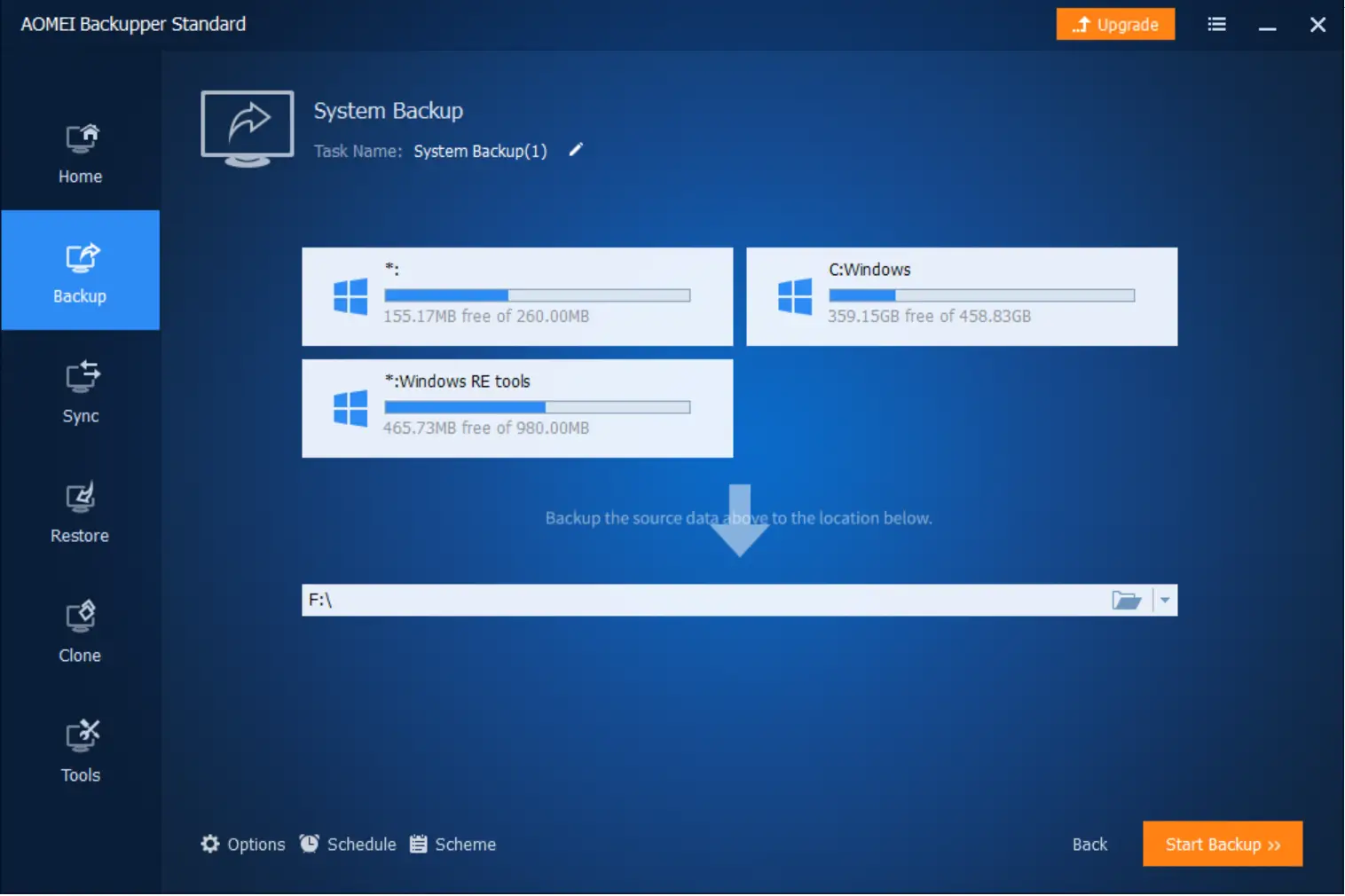
System Backup: This option lets you back up the system partition(s). It automatically selects the system volumes. You can save the image on an internal drive, external drive, or network share.
AOMEI OneKey Recovery: Creates a factory recovery partition to restore the system with a single keypress. (Not available in the free edition.)
Disk Backup: Creates an image of the entire disk to an internal/external/network location.
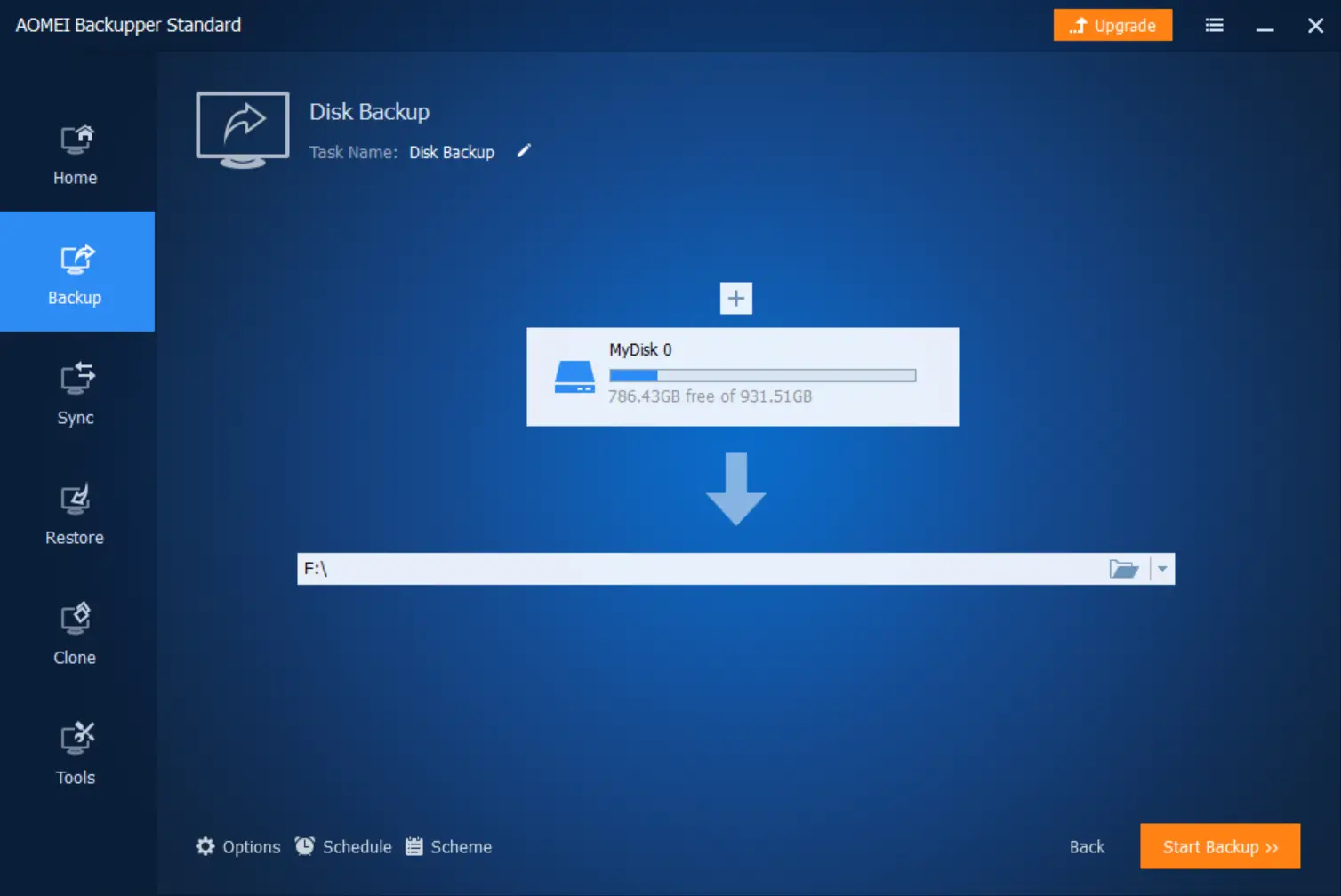
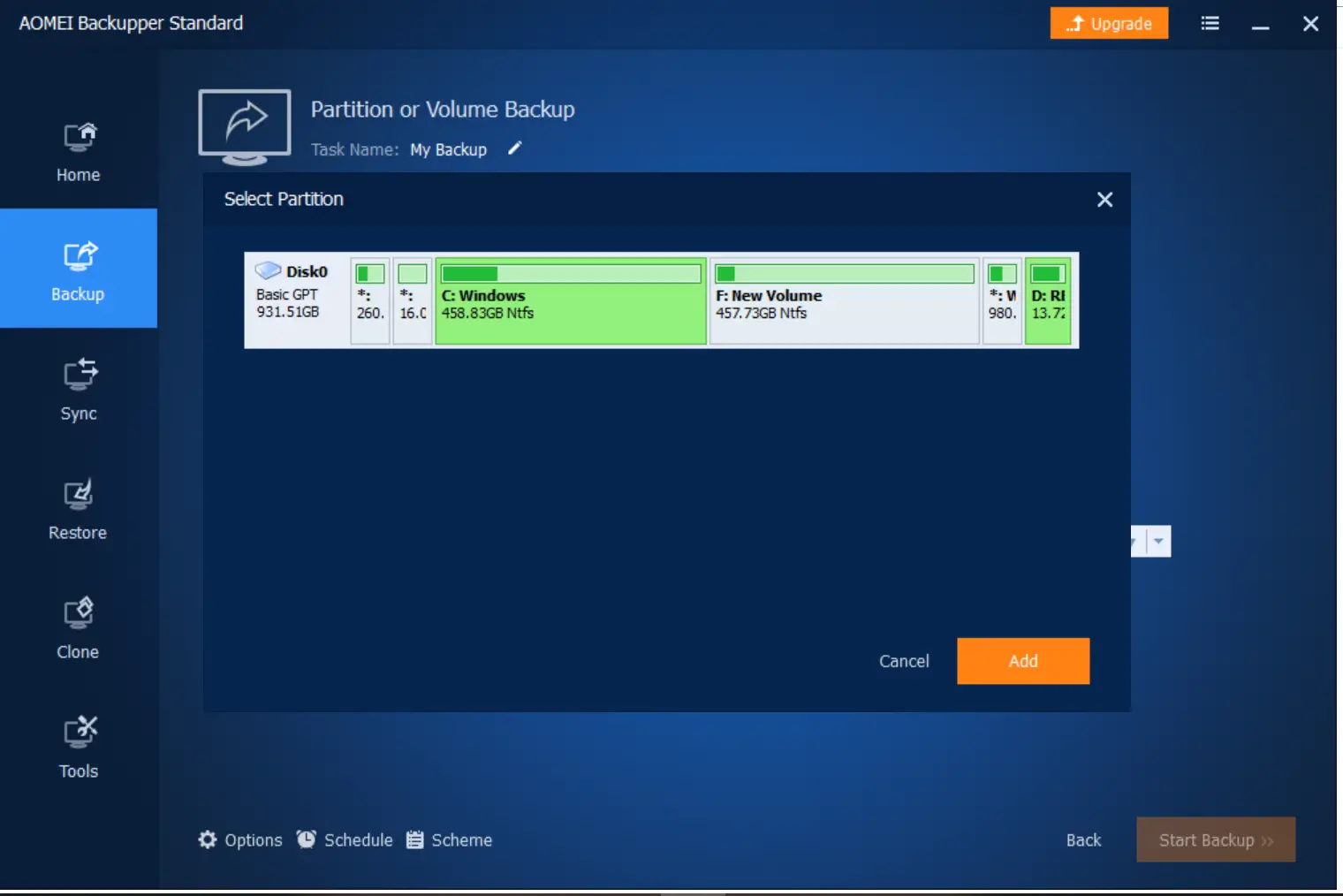
Partition Backup: Lets you choose a specific partition/volume to back up.
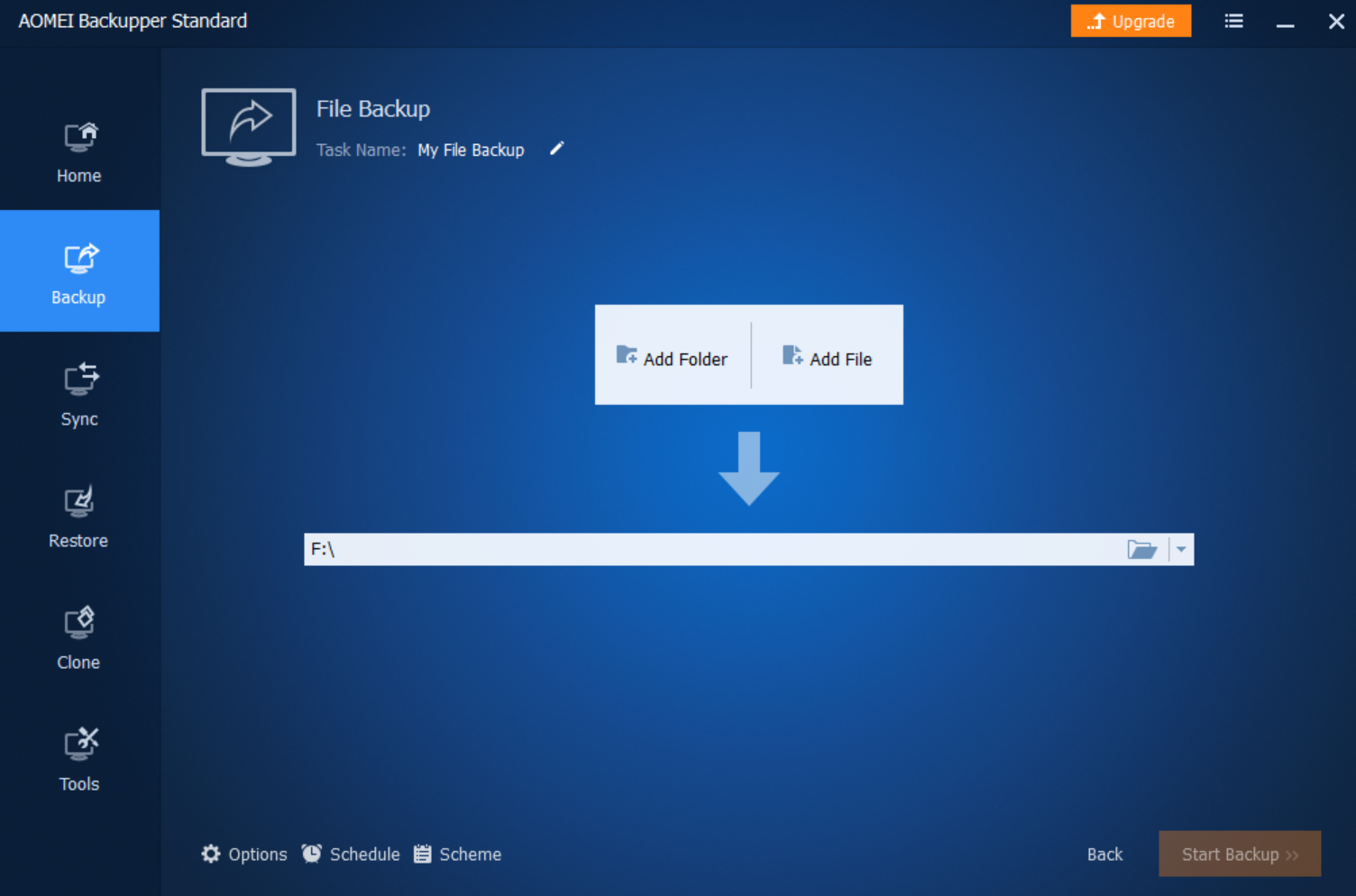
File Backup: Ideal when you only need selected files/folders backed up.
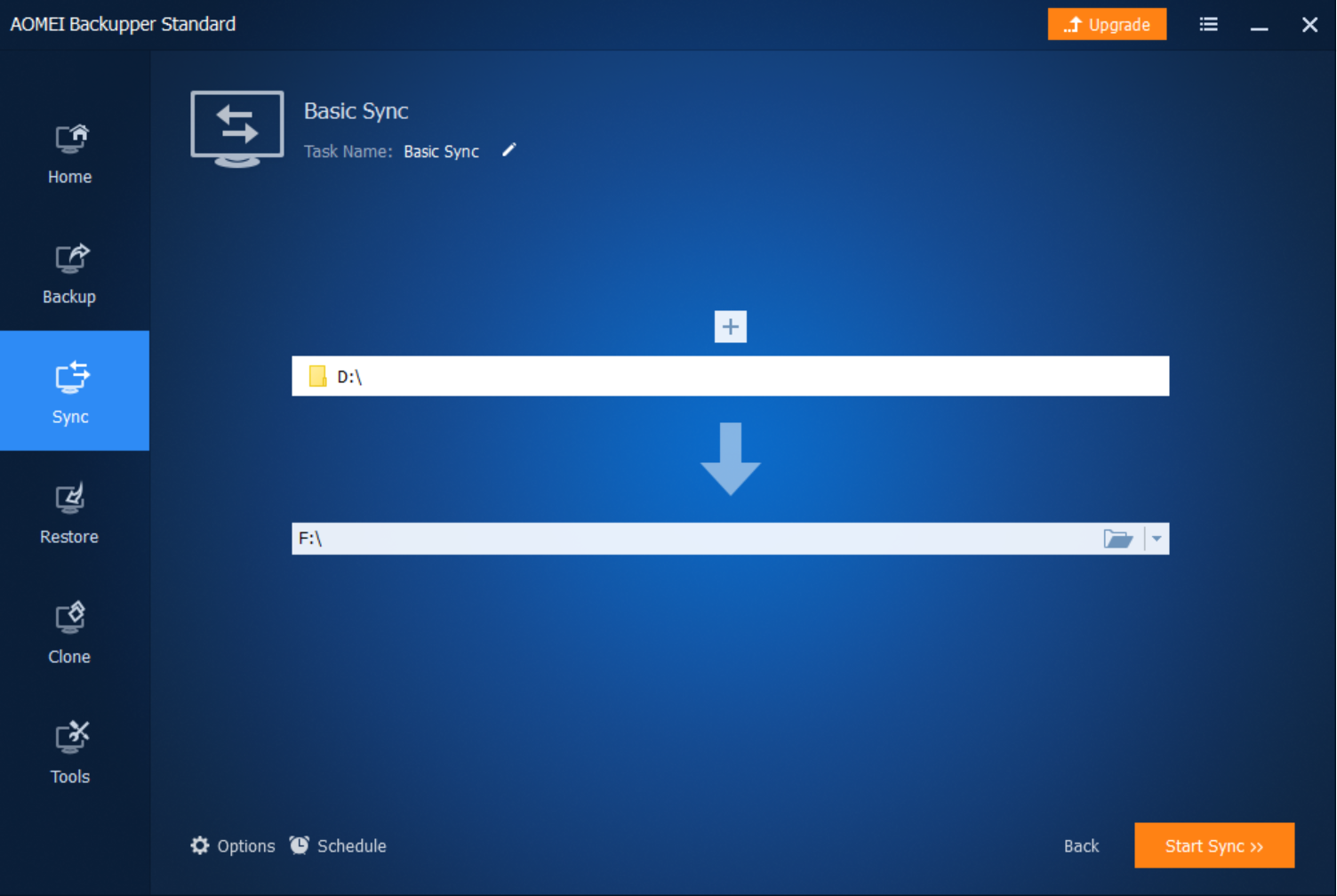
Step 5. After you’ve created a backup, use the Sync option to keep files up to date. It detects modified files and mirrors changes to the destination. You can also schedule sync tasks and enable email notifications.
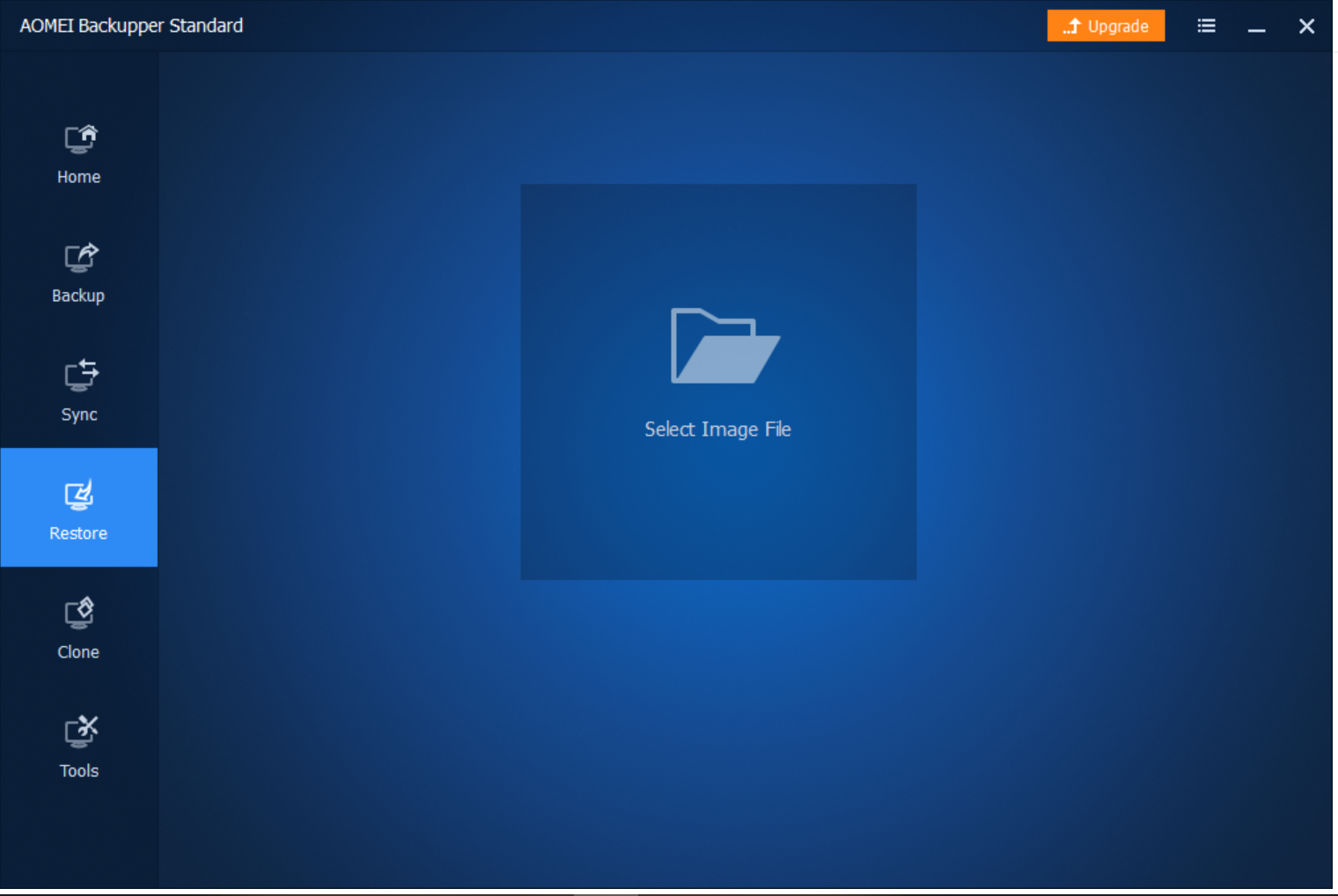
Step 6. To restore a backup later, open AOMEI Backupper, select Restore, locate the image file, and recover your files/folders to the original or a new location.
Step 7. The Clone feature supports Disk Clone and Partition Clone. Disk Clone copies the entire disk (including hidden/system partitions) to a new drive, while Partition Clone clones only the selected partition. (Other clone types may require the paid version.)
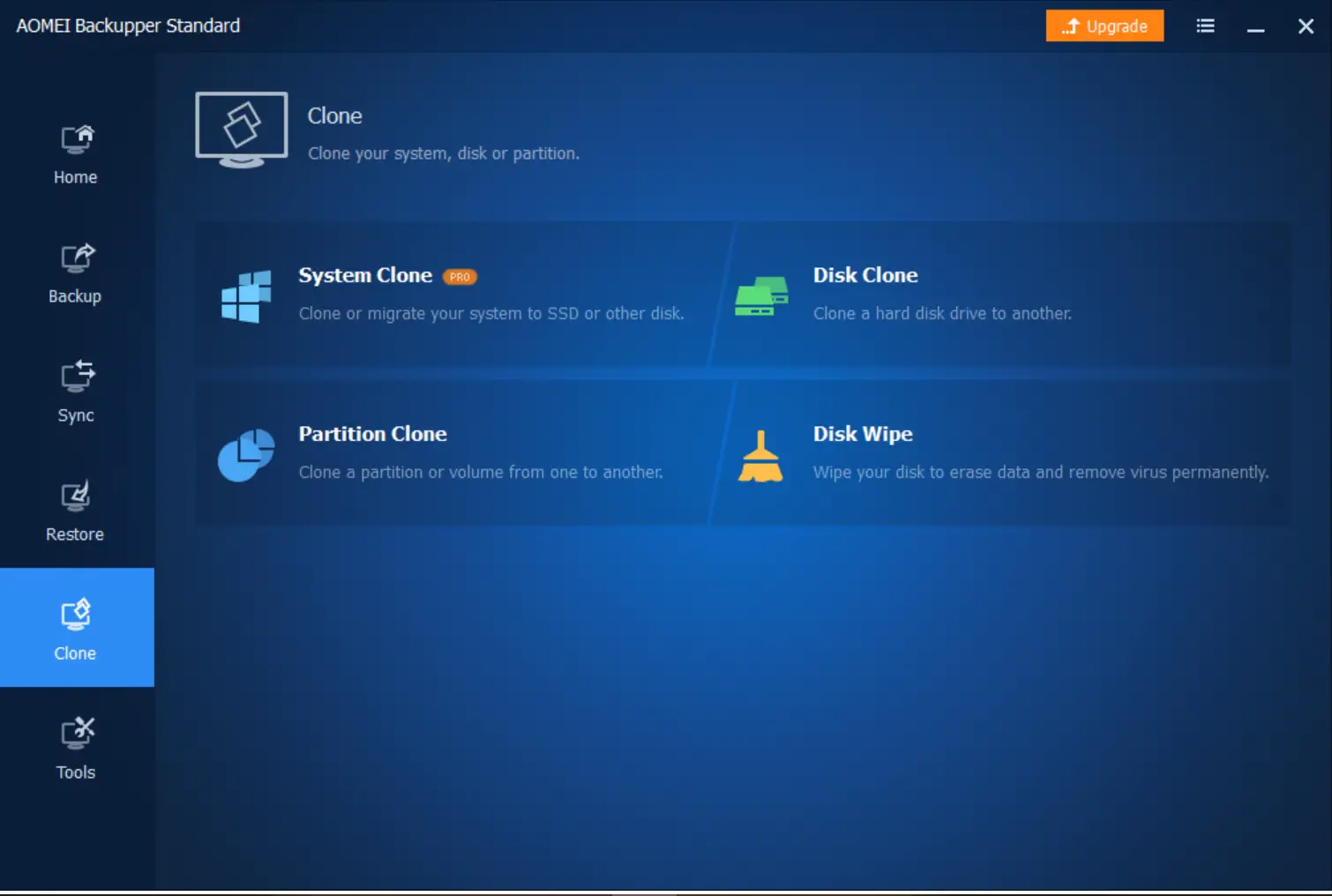
As shown above, there are several free options available in AOMEI Backupper for creating backups and restoring Windows files. Advanced features are available in the professional version, but the free edition is sufficient for most basic backup needs.
Download AOMEI Backupper
You can download AOMEI Backupper from the official website.
Frequently Asked Questions About AOMEI Backupper
Is AOMEI Backupper Free safe to use?
Yes. AOMEI Backupper Free is a trusted backup tool that has been used by millions of Windows users worldwide. It is free of malware, safe to install, and offers reliable backup and restore functions without risk to your data.
Can AOMEI Backupper clone my Windows system to a new SSD?
Yes. AOMEI Backupper Free supports Disk Clone and Partition Clone. You can migrate your Windows operating system to a new SSD or hard drive. For advanced cloning options like system clone, you may need the Pro edition.
What is the difference between AOMEI Backupper Free and Pro?
The Free edition covers essentials such as system, disk, partition, and file backup, scheduled sync, and restore features. The Pro edition adds advanced options like System Clone, Universal Restore, event-triggered backups, and more automation tools for professional use.
Conclusion
Creating a bootable USB/DVD for Windows 10 is straightforward with free tools like the Windows USB/DVD Download Tool and ISO2Disc. Don’t forget to safeguard your device drivers with DriverBackup.
For data safety, AOMEI Backupper remains a reliable and beginner-friendly option for Windows users. It supports full, partition, and file backup, scheduled sync, and simple restores—making it a smart free choice for everyday protection.