

DiskCryptor is an open-source tool for encrypting entire disks and partitions on Windows. If you want strong, on-disk protection for an older Windows PC or a secondary drive, DiskCryptor can be a lightweight option — but it comes with caveats and compatibility notes beginners should understand.
What is DiskCryptor?
DiskCryptor provides full-disk and partition-level encryption on Windows. Unlike file-only tools, it encrypts everything on the selected volume (system or data partitions), so files, OS data and free space are protected from casual access if the drive is removed or stolen.
Step 1. Download DiskCryptor from the official project page. Save the installer to your PC.
Step 2. Take a full backup of your important files. If you plan to encrypt your system drive, create a complete disk image using a tool like Ashampoo Backup Free.
Step 3. Install DiskCryptor and restart your PC if the installer asks for it.
Step 4. Open DiskCryptor from the Start menu. It will show all your available drives and partitions.
Step 5. Select the drive you want to encrypt. If you are a beginner, choose a non-system drive first (for example, E: or an external disk).
Step 6. Click the Encrypt button. A new window will appear with encryption options.
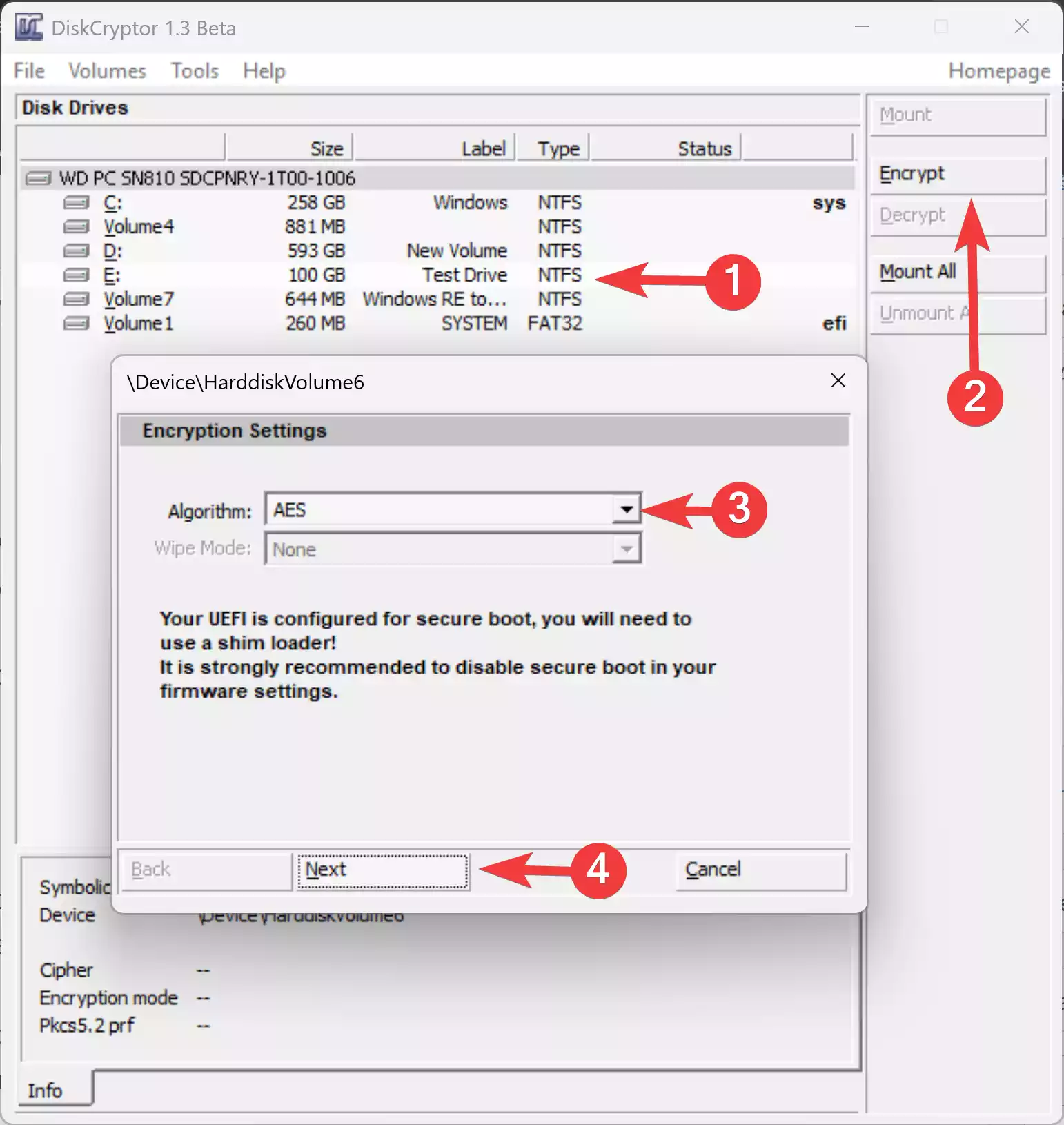
Step 7. Choose the encryption algorithm. If unsure, stick with the default settings. They are safe for most users.
Step 8. Click Next.
Step 9. Enter a strong password. Do not lose this password. You will need it every time the encrypted drive is accessed.
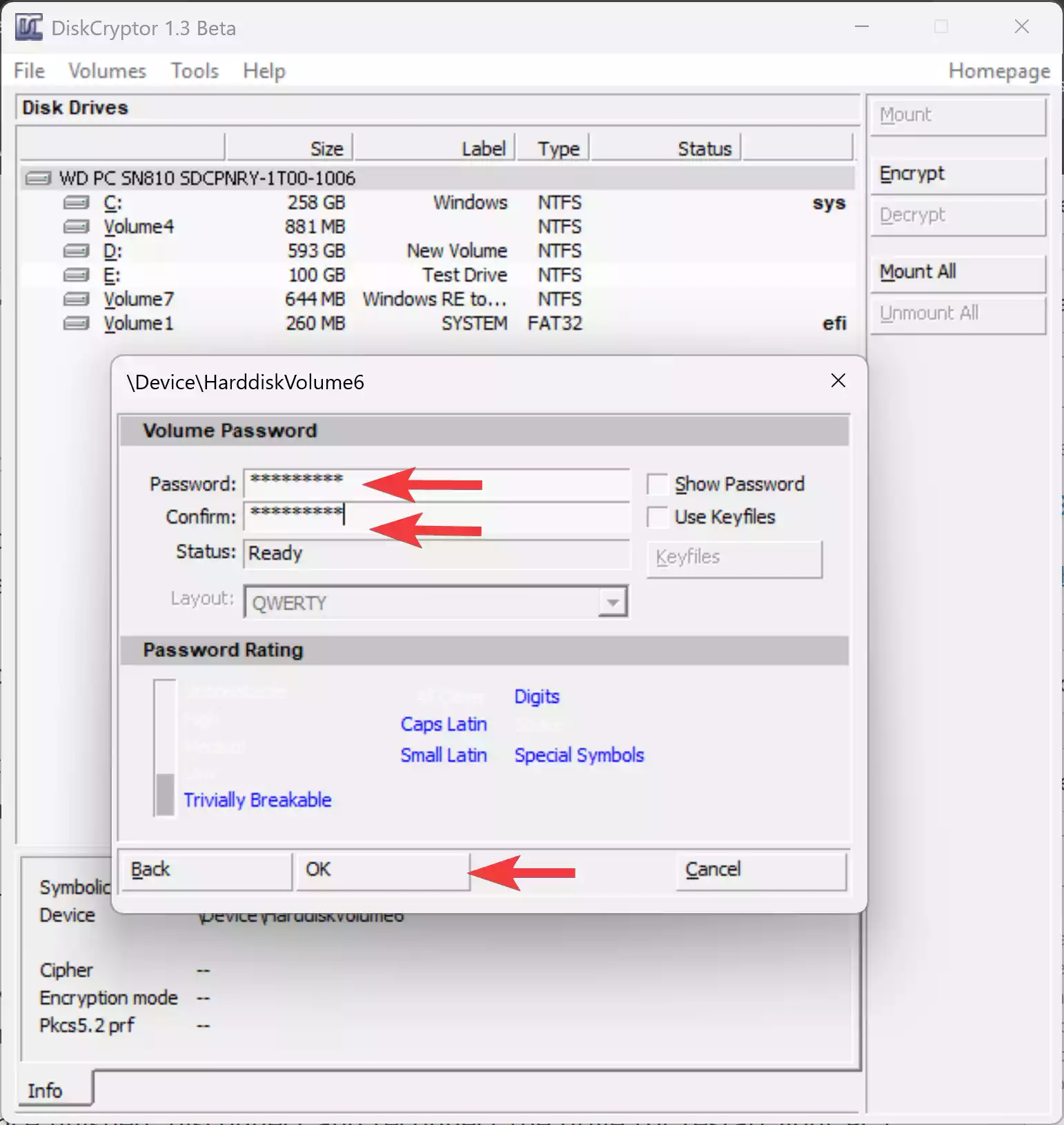
Step 10. Confirm your password and click OK to begin the encryption process.
Step 11. Wait for DiskCryptor to finish encrypting the drive. The time it takes depends on drive size and speed.
Step 12. Once finished, disconnect and reconnect the drive (or restart your PC).
Step 13. Open DiskCryptor, select your drive or partition you want to access and click the Mount button.
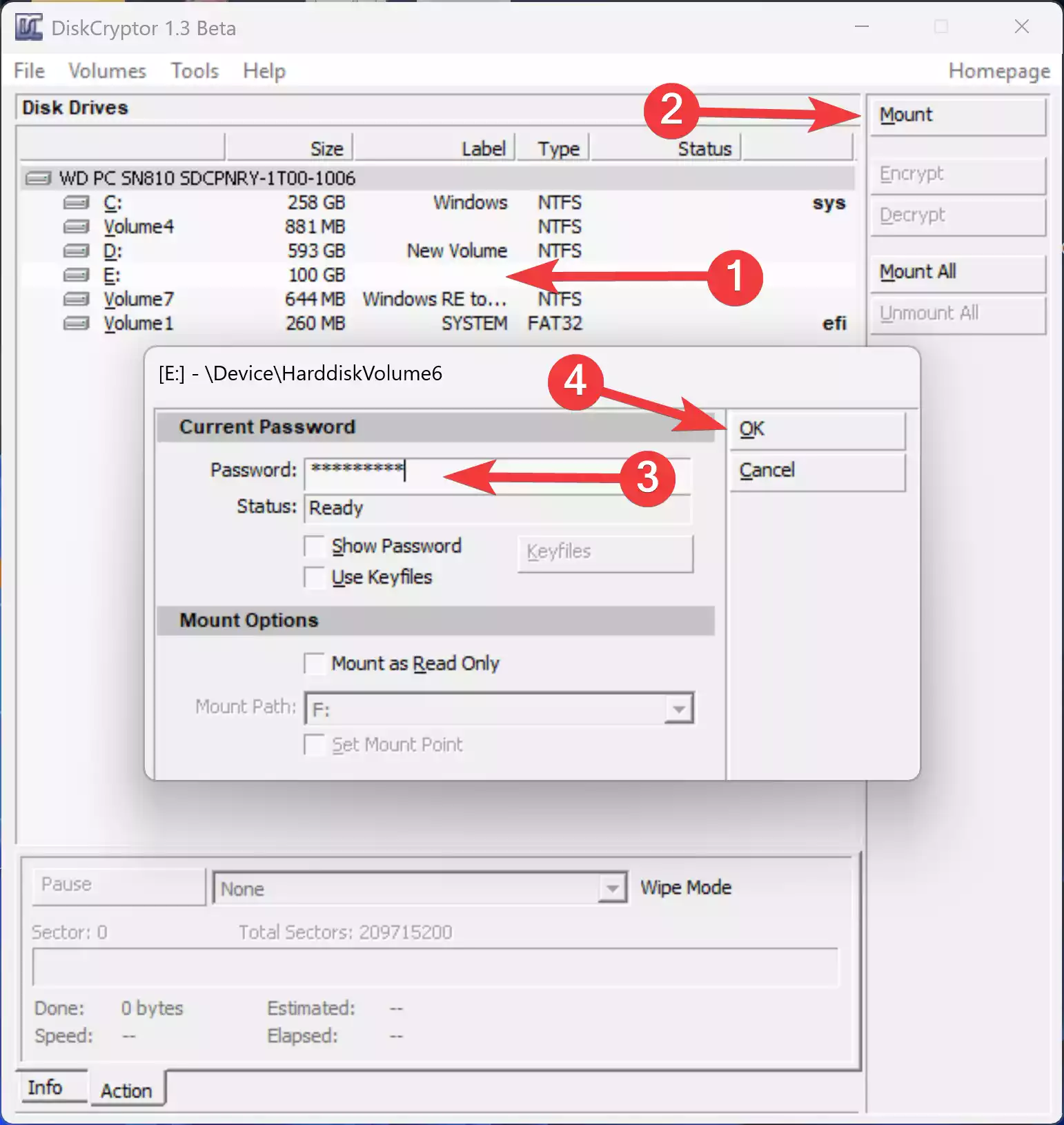
Step 14. DiskCryptor should now prompt for your password before allowing access. Enter your password and click OK button to mount your partition under File Explorer.
Step 15. Note: If you are encrypting the system drive, DiskCryptor will ask you to install a bootloader. Follow the prompts, create a rescue disk when asked, and restart to test the bootloader.
Step 16. Verify everything works. Make sure your PC boots normally and the encrypted drive is accessible with the correct password.
Step 17. Store your password and rescue disk in a safe place. Losing both may result in permanent data loss.
Key Features
– Full-disk and partition encryption.
– Ability to encrypt system partitions (requires careful setup).
– Lightweight and open-source design for older Windows systems.
When DiskCryptor Can Help You
DiskCryptor makes sense when you need full-disk protection on Windows for: laptops that may be stolen, external drives that hold sensitive data, or secondary partitions that must remain inaccessible without a password. It’s best used by those comfortable with low-level disk operations and who can follow recovery/backup steps.
DiskCryptor vs Other Encryption Tools
If you want alternatives or want to compare features, see our in-depth reviews and comparison posts: VeraCrypt, AxCrypt, and Cryptomator. For a broader roundup, check our list of the best free encryption tools.
Why Would a Beginner Use DiskCryptor?
Beginners might choose DiskCryptor if they want a free, open-source option for whole-drive encryption and are willing to follow careful setup steps (backups, rescue media, and testing). If you prefer a simpler file-level approach, tools like AxCrypt or Cryptomator may be easier to start with.
Supported Formats
DiskCryptor works at the partition/disk level and is filesystem-agnostic in practice — it encrypts the raw partition rather than specific file formats. That said, confirm compatibility with your filesystem (NTFS, FAT variants) and with your Windows version before starting.
How to Get DiskCryptor
Download DiskCryptor from its official project page (verify checksums where offered). Always prefer official project sources or mirrors listed by the project; do not download from unknown third-party aggregators.
System Requirements
– Windows 7, 8, 10 (and older Windows versions historically supported)
– Sufficient free disk space for backups and encryption operations
– For system-encryption: ability to create a rescue/boot disk and to boot from it if needed
Download DiskCryptor
Before installing, read the project’s documentation about system encryption and rescue media. If you’re unsure, encrypt a secondary (non-system) drive first to practice.
You can download DiskCryptor from its official website.
Backup Before Encryption
Always create a reliable backup before encrypting any partition. We recommend using a dependable backup tool to make a system image or file backup. A beginner-friendly option is Ashampoo Backup Free, which is useful for creating a pre-encryption restore point.
Pros
– Free and open-source.
– Full-disk encryption capability.
– Lightweight and suitable for older machines.
Considerations
– Project activity and compatibility: DiskCryptor’s development and support status can vary — for system encryption, modern alternatives like VeraCrypt may offer more active support.
– Rescue media: encrypting system partitions without a tested rescue plan risks data loss.
– Boot issues: encrypting the boot drive can complicate multi-boot systems — follow guides and test thoroughly.
– Beginner risk: if you’re uncomfortable with disk-level operations, consider file-level encryption alternatives first.
More Useful Tools (Drive health & support)
Check drive health and prepare before encrypting: Victoria HDD/SSD Utility and GSmartControl are helpful to ensure the disk is healthy before starting.
FAQs
Is DiskCryptor safe to use?
DiskCryptor is capable of providing strong encryption, but safety depends on using the tool correctly: back up your data, choose a strong password, and test recovery media. If you need active project support and recent updates, consider VeraCrypt as a modern alternative.
Can DiskCryptor encrypt the Windows system drive?
Yes, but encrypting the system drive requires extra steps (rescue/boot media) and care — it’s riskier than encrypting a secondary drive. Practice on a non-system drive first.
What if I forget my password?
If you lose the password and don’t have a recovery key or backup image, full-disk encryption is effectively irreversible. That’s why backups and rescue plans are essential before encrypting.
Should I use DiskCryptor or VeraCrypt?
VeraCrypt is more actively maintained and generally recommended for most users today. DiskCryptor can be suitable for legacy setups; compare features in our VeraCrypt review for details.
Conclusion
DiskCryptor offers robust full-disk encryption for users who need drive-level protection and are comfortable following safety steps (backups and rescue media). If you value active maintenance and strong community support, also consider VeraCrypt. For file-only protection or cloud file encryption, AxCrypt and Cryptomator are good alternatives. Choose the tool that matches your technical comfort and recovery plan.