

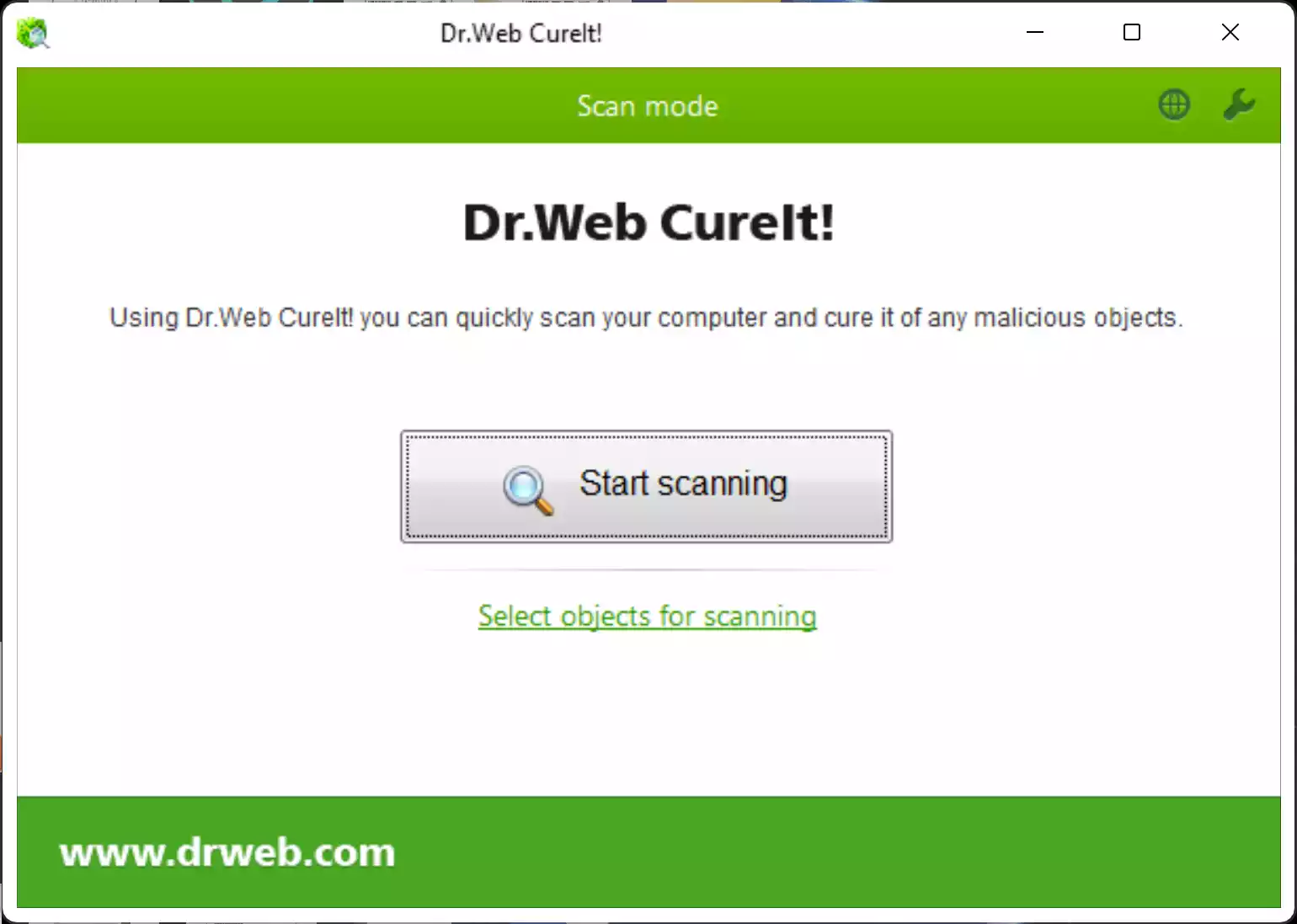
If your Windows PC still acts suspiciously after a regular antivirus scan, Dr.Web CureIt! is a free, portable on-demand scanner that you can run from any folder or a USB drive. It targets active malware and potentially unwanted programs (PUPs) without installing background services—perfect as a fast, second opinion.
For ongoing protection after cleanup, keep one real-time antivirus running. See our picks: Best Antivirus for Windows 11 (paid & free).
What Is Dr.Web CureIt!?
Dr.Web CureIt! is a no-install malware cleaner from Doctor Web. You download a fresh build (with current definitions), run the executable, review detections, and cure or quarantine what it finds. It’s designed for cleanup, not real-time protection.
When Should You Use It?
- Pop-ups, redirects, or unknown processes persist after your main AV says “no threats found”.
- You want a deeper, on-demand scan without installing a full suite.
- You need a portable tool you can launch from a USB stick to help friends or family.
Key Features
- Portable, no install: run the EXE directly—no services or drivers left behind.
- Deep targets: memory, startup items, boot sectors, and chosen drives/folders.
- Fresh definitions by download: the tool doesn’t auto-update; just download the latest copy each time.
- Archive scanning (optional): you can enable scanning inside archives from settings when needed.
- Free for personal use: business/server use requires a licensed build.
Download Dr.Web CureIt!
Get the most recent build from the official page: Download Dr.Web CureIt!.
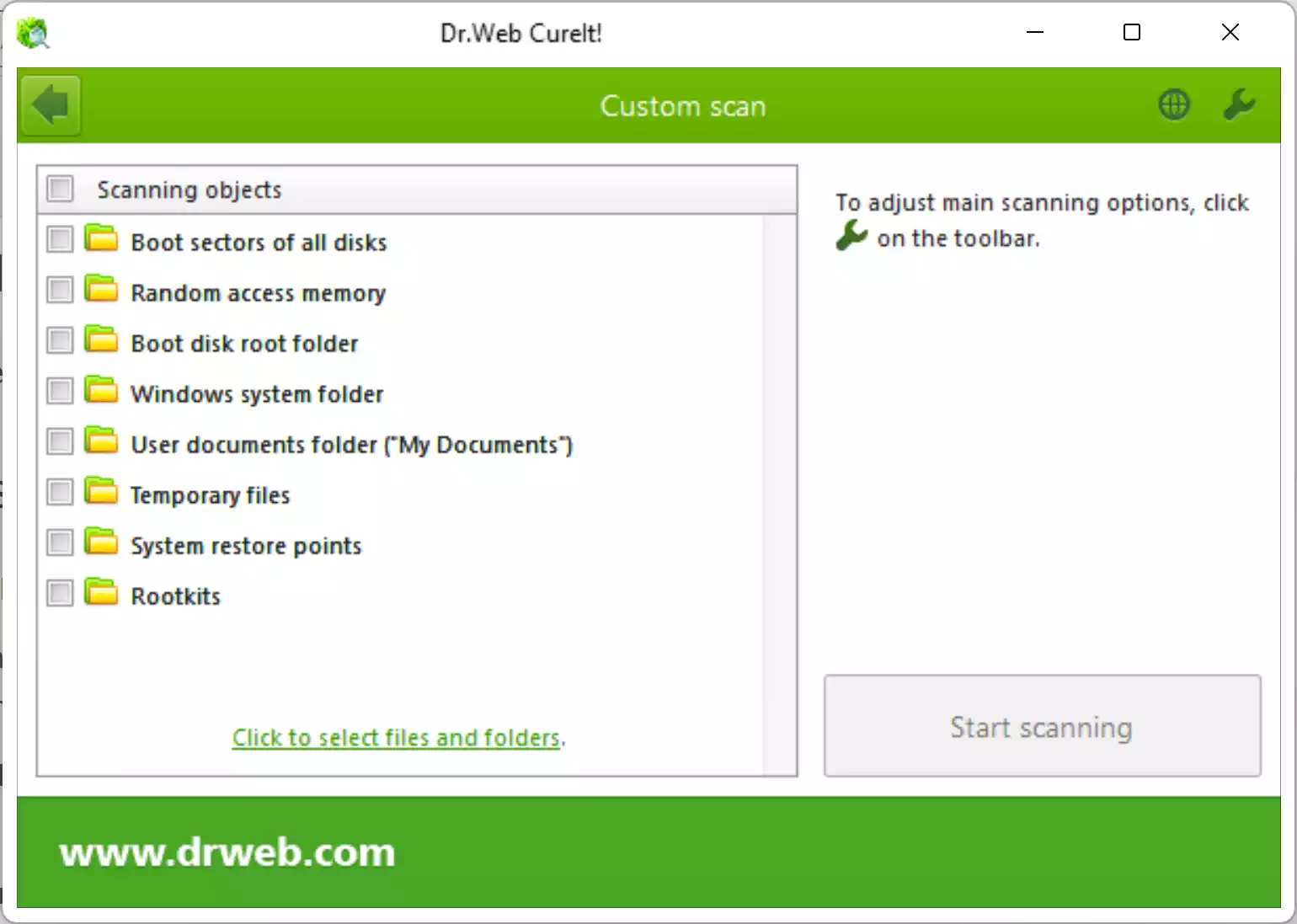
How to Use Dr.Web CureIt! (Step-by-Step)
- Download the tool: Save the executable to your Desktop or Downloads.
- Run as administrator: Right-click the file and choose Run as administrator. Approve the UAC prompt.
- Accept the license: Optional data-sharing prompts may appear—choose what you prefer.
- (Optional) Enable archive scan: Turn this on in settings if you need to inspect ZIP/RAR and similar containers.
- Start the scan: Click Start scanning and let CureIt! analyze selected areas.
- Review results: Expand each detection, then choose Cure, Quarantine, or Delete as appropriate.
- Reboot if prompted: Some fixes complete after a restart.
- Restore if needed: Use Quarantine to bring back items you’re sure were flagged in error.
If Malware Blocks the Tool
- Boot to Safe Mode with Networking, then run CureIt! again.
- Disable unknown startup entries and scheduled tasks, then rescan.
- Still unsure? Try another one-time scanner from our roundup: Best Free One-Time Malware Scanners.
Pros
- Portable EXE—no installation or leftover services.
- Deep scan coverage including memory, startup, and boot sectors.
- Fresh “download-to-scan” model ensures current signatures.
Considerations
- Not a replacement for real-time antivirus—use it as a second opinion.
- Full scans on large drives can take time; best run while the PC is idle.
- For business/servers, you’ll need a licensed edition.
Frequently Asked Questions
Does Dr.Web CureIt! replace my antivirus?
No. It’s an on-demand cleaner. Keep one real-time antivirus (like Microsoft Defender or another reputable AV) active at all times.
Do I need to install it?
No. It’s fully portable—download the EXE, run it, clean, and delete it when you’re done.
How do I update definitions?
Download a fresh copy before each scan. The executable contains current definitions at the time of download.
Can it scan inside archives?
Yes. Archive scanning is available in settings. Enable it when you need to scan ZIP/RAR and similar containers.
Does it work on Windows 11?
Yes. CureIt! supports modern Windows versions, including Windows 11 and Windows 10.
Is it free?
Free for personal use. For commercial or server environments, use a licensed build from Doctor Web.
Conclusion
Dr.Web CureIt! is a reliable, portable “second-opinion” malware scanner for Windows. Download the latest copy, run a focused scan, cure or quarantine what it finds, and keep one real-time antivirus active for ongoing protection. For a deep second opinion inside Windows, try Kaspersky Virus Removal Tool (KVRT) next.