

When it comes to transferring files on Windows, speed, control, and reliability matter. FastCopy is a lightweight, high-performance file copy utility designed to move or sync files faster while keeping CPU and memory usage low. Belo, we explain what FastCopy does, its key features, pros and considerations, and how to use it effectively.
If you want to compare FastCopy with other copy tools and alternatives, check our roundup of fast file-copy utilities for Windows. Top free fast file copy software for Windows.
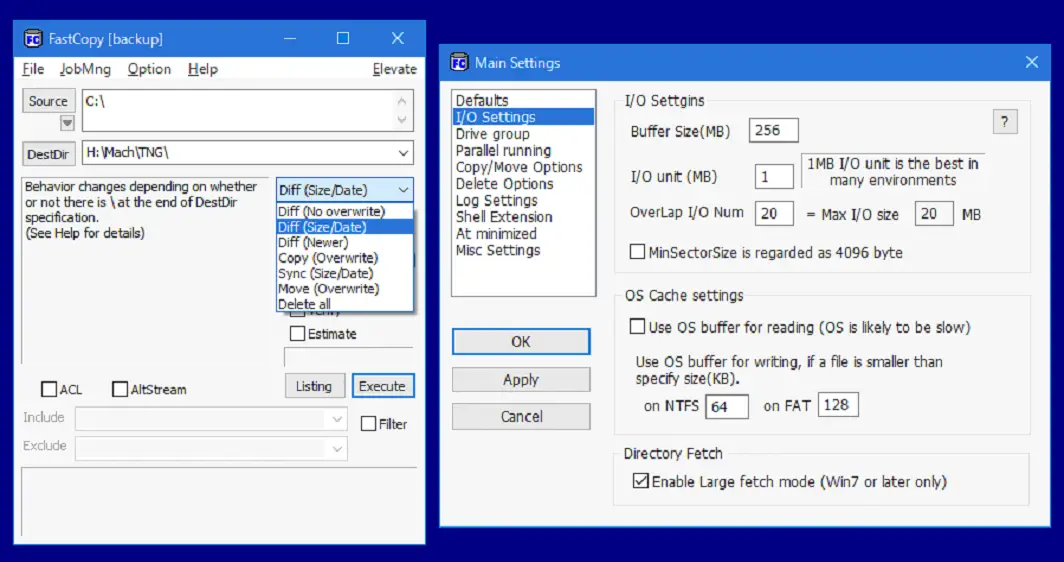
What is FastCopy?
FastCopy is a specialized Windows utility built to accelerate copying, moving and synchronizing files. It uses optimized IO methods and offers multiple copy modes so you can choose the behavior that best fits the job — for example, overwrite, update, or mirror (sync). The app is compact, does not require heavy background services, and is ideal for moving large folders, backups, or collections of media files.
Key Features
- Optimized transfer engine — reads and writes efficiently to maximize throughput for both HDDs and SSDs.
- Multiple copy modes — Copy, Move, Overwrite, Update, and Sync (mirror) to match your workflow.
- Low resource footprint — Designed to minimize CPU and RAM while keeping transfers fast.
- Pause/resume — Pause long transfers and resume without redoing already-complete items.
- Filter & exclusion options — Include/exclude files and folders using masks and size/date rules.
- Verification — Optional size/timestamp checks to confirm integrity after transfer.
- Error handling — Auto-retry and clear error reporting so you can address problematic files.
How FastCopy compares to other tools
FastCopy shines when raw throughput and low overhead are the priority. If you want GUI polish and built-in shell integration, other tools exist on GearUpWindows — for example, TeraCopy for error recovery and shell-friendly integration.
Another solid alternative to try is ExtremeCopy, which provides a familiar UI and similar speed-focused features.
Supported formats & environments
FastCopy works with any files and folders accessible to Windows — NTFS, FAT32, exFAT volumes, external USB drives, network shares (SMB) and mapped drives. For network transfers, results depend heavily on network performance and the remote storage medium.
How to get FastCopy
You can download FastCopy from its official website.
Best use cases
- Large backups — Copy multi-GB folders between drives quickly.
- Media libraries — Move or sync photo/video collections with minimal overhead.
- Cloning folders — Use Sync (mirror) mode for one-way folder replication.
- Power users & admins — Batch scripts and command-line options allow automation.
Pros
- Extremely fast transfers on local drives.
- Very lightweight — minimal system impact.
- Granular copy modes and filters for precise control.
- Good error reporting and verification options.
Considerations
- No fancy cloud integration — focused on local and network shares.
- User interface is utilitarian; may seem technical to absolute beginners.
- Network transfers depend on network and remote storage speed — not a FastCopy limitation but important to note.
- If you prefer tight Windows shell integration (Explorer context menus), consider TeraCopy as an alternative.
FAQs
Q. Is FastCopy free?
A. FastCopy is distributed freely; check the GearUpWindows FastCopy page for the latest download and license details.
Q. Can FastCopy resume interrupted file transfers?
A. Yes — FastCopy supports pause and resume and can be configured to skip already-copied files using its update/mirror modes, preventing re-copying of completed files.
Q. Will FastCopy damage files or skip NTFS permissions?
A. FastCopy can copy files without changing content. NTFS permissions may be preserved or adjusted depending on how you run the tool (run-as-admin and chosen options). For sensitive data, use verification (size/timestamp) after transfer.
Q. Can I use FastCopy in scripts?
A. Yes. FastCopy offers command-line parameters suitable for batch scripts and scheduled tasks — useful for automated backups or mirror jobs.
Conclusion
For speed-focused file operations on Windows, FastCopy is an efficient, low-overhead option that gives advanced control over how files are copied and synchronized. It’s especially useful when moving large datasets or when you need predictable, fast transfers without heavy resource use. If you need tighter Explorer integration or a different UI, check alternatives like TeraCopy or ExtremeCopy.