

In this gearupwindows guide, we’ll show you how to enable or disable the Virtual Touchpad in Windows 11 through the Settings app. If the Virtual Touchpad option is missing, we’ll also walk you through a quick registry tweak to restore it. Once restored, you can easily hide the Virtual Touchpad icon from your taskbar.
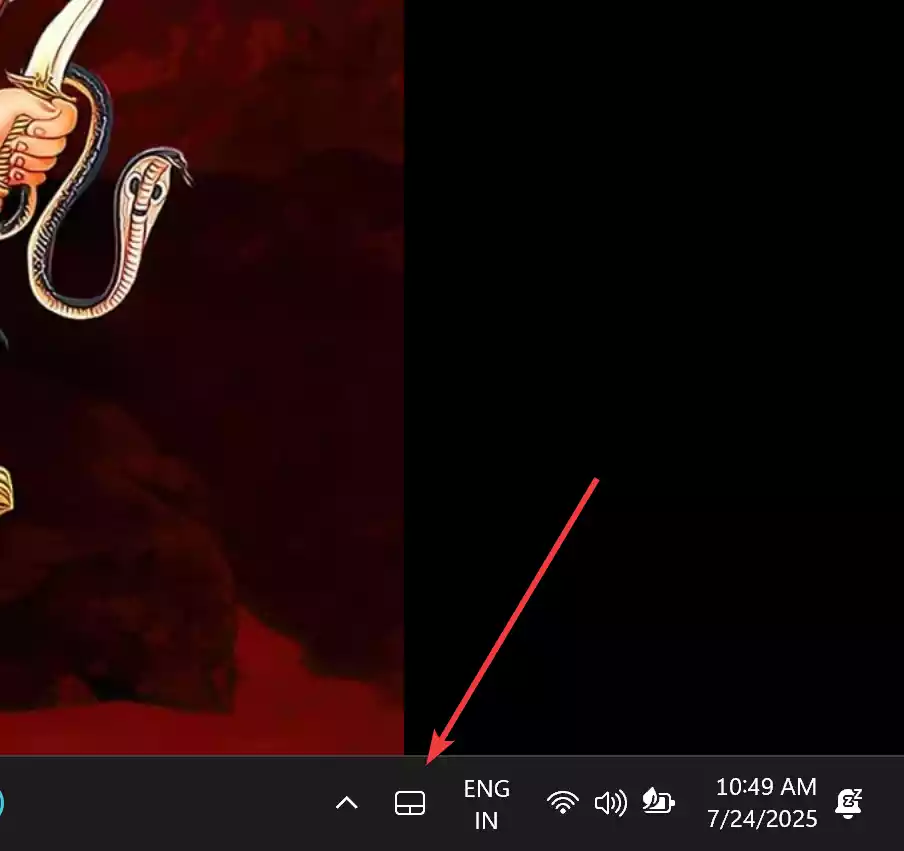
How to Turn Virtual Touchpad On or Off in Windows 11?
Windows 11 includes a built-in option to enable or disable the Virtual Touchpad directly from the Settings menu. Here’s how you can access it:
Step 1. First, open the Settings app.
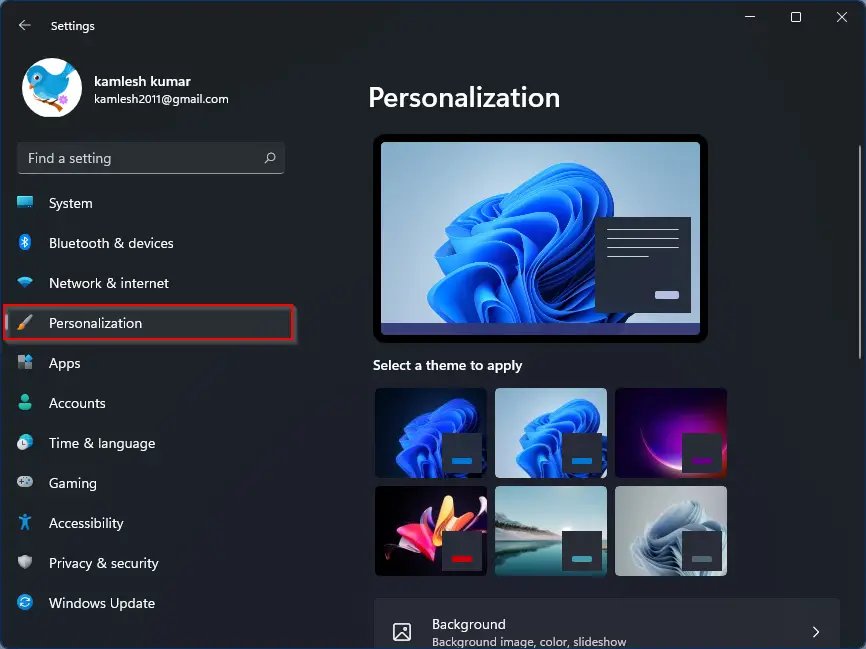
Step 2. In the left pane, click on Personalization.
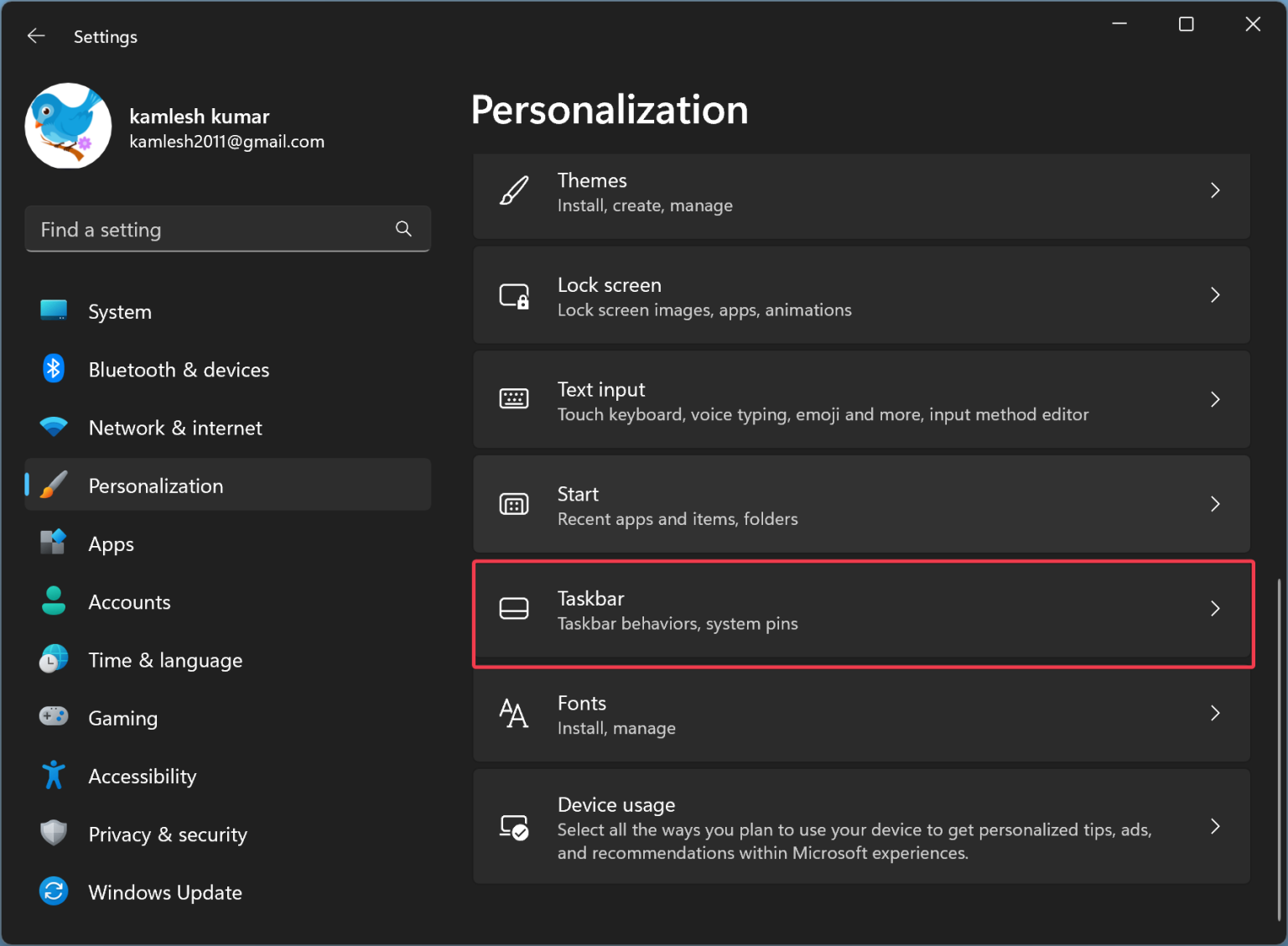
Step 3. On the right-hand side, select Taskbar.
Step 4. Under the System tray icons section, turn the Virtual touchpad toggle On or Off depending on your preference.
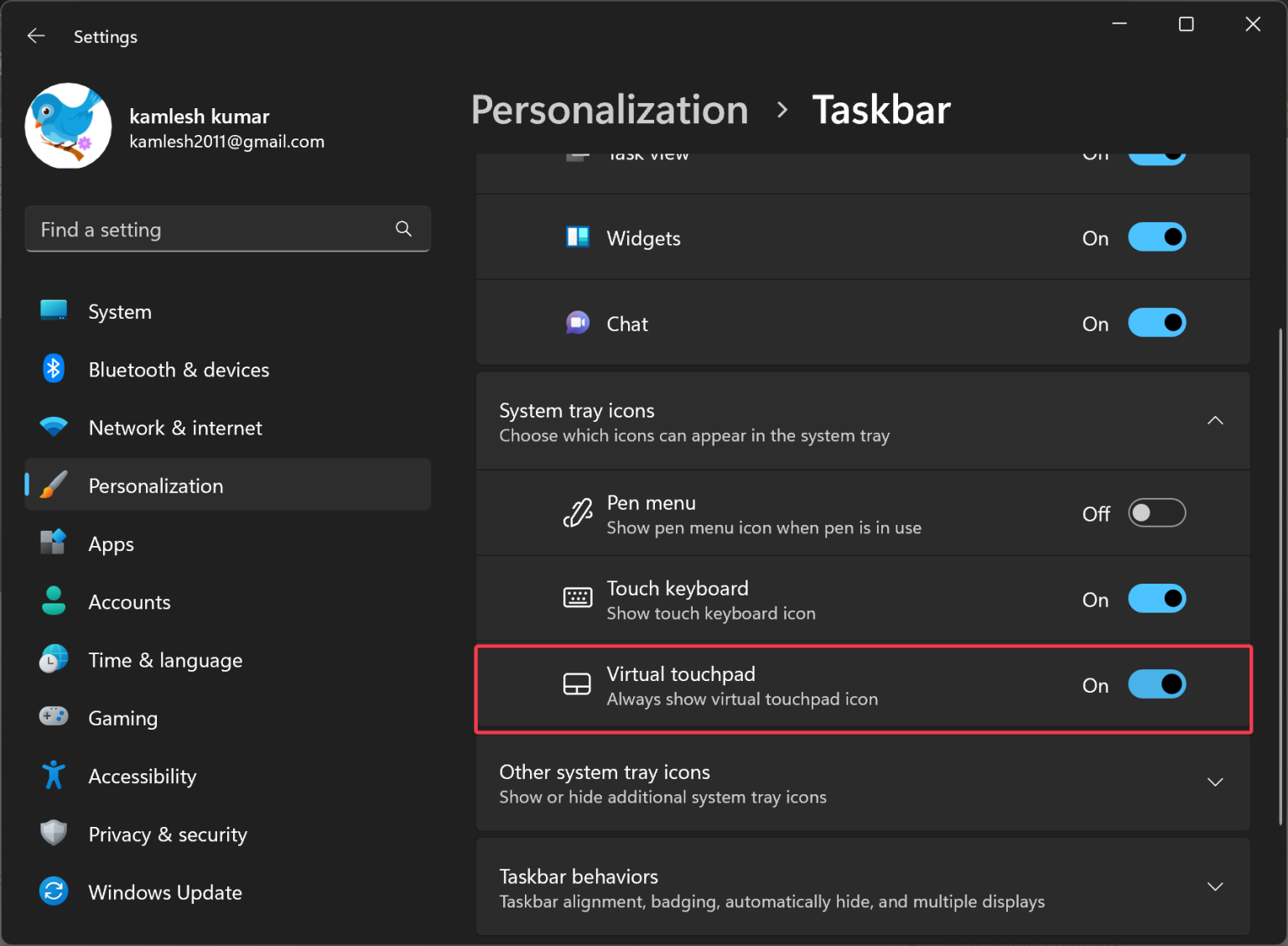
If you don’t see the Virtual Touchpad option listed here, follow the next section to restore it using Registry Editor.
How to Restore Missing Virtual Touchpad Option in Windows 11?
Sometimes, the Virtual Touchpad setting may be missing from the taskbar settings. To restore it, use this registry tweak:
Step 1. Press Windows + R, type regedit, and hit Enter to open the Registry Editor.
Step 2. In Registry Editor, navigate to the following key:
HKEY_CURRENT_USER\Software\Microsoft\Windows\CurrentVersion\Explorer

Step 3. Right-click on the Explorer folder, then select New > Key. Name the new key VirtualTouchpad.
Step 4. Now right-click the VirtualTouchpad key you just created, choose New > DWORD (32-bit) Value.

Step 5. Name this new REG_DWORD as Enabled and leave its value set to 0.

Step 6. Close the Registry Editor and restart your computer.
After rebooting, open the Settings app again. Go to Personalization > Taskbar, and you should now see the Virtual Touchpad option under the System tray icons section. You can now toggle it off to remove the icon from your taskbar.
Conclusion
Enabling or removing the Virtual Touchpad in Windows 11 is a simple task through the Settings app. But if the option goes missing, a quick registry change can restore it without much hassle. This gives you full control over your system tray appearance.